Connect your Revolut Business account to take deposits through Tableo. Revolut does not support Card verification in Tableo.
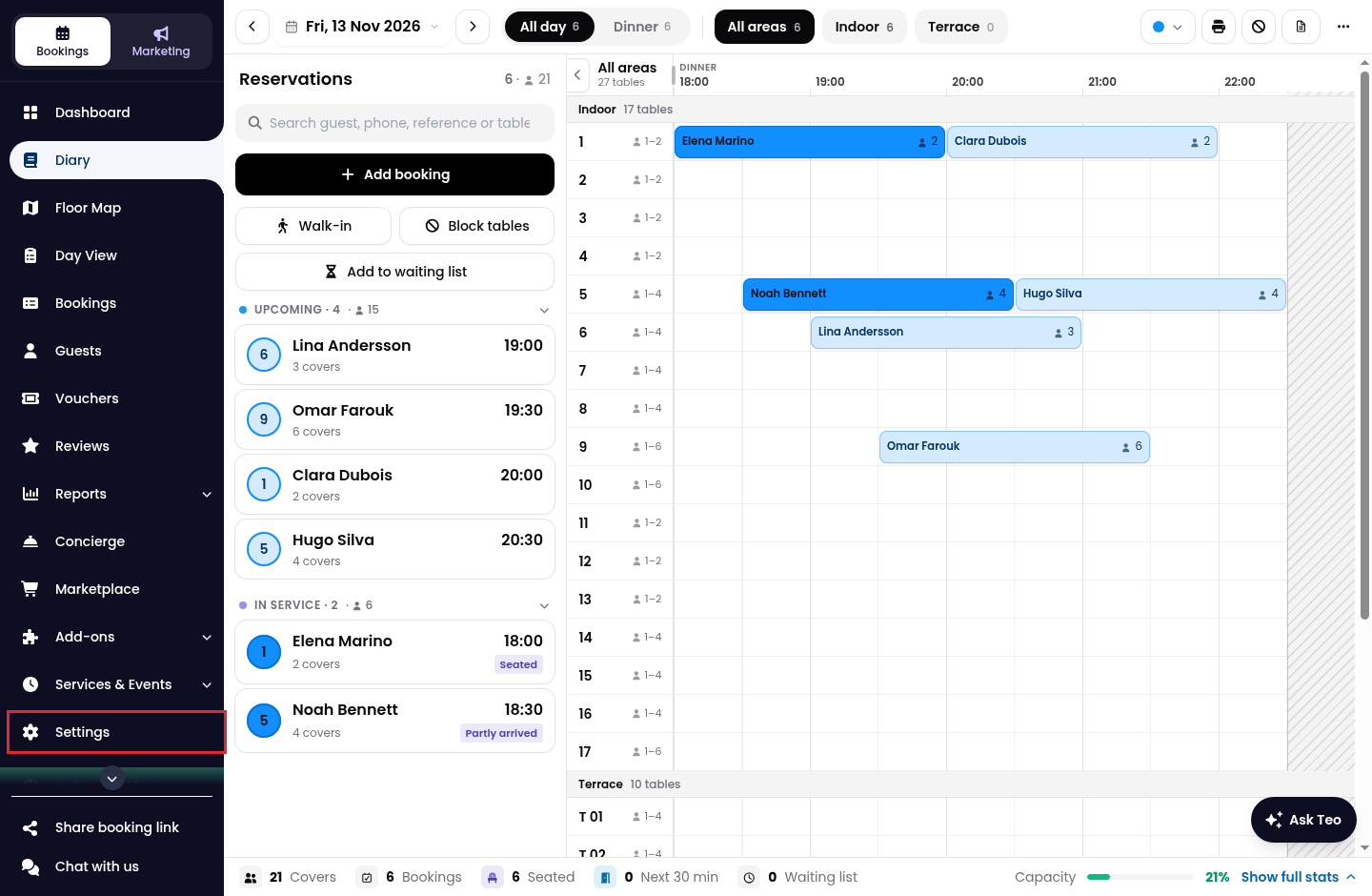
1. Click on Settings in the side menu.
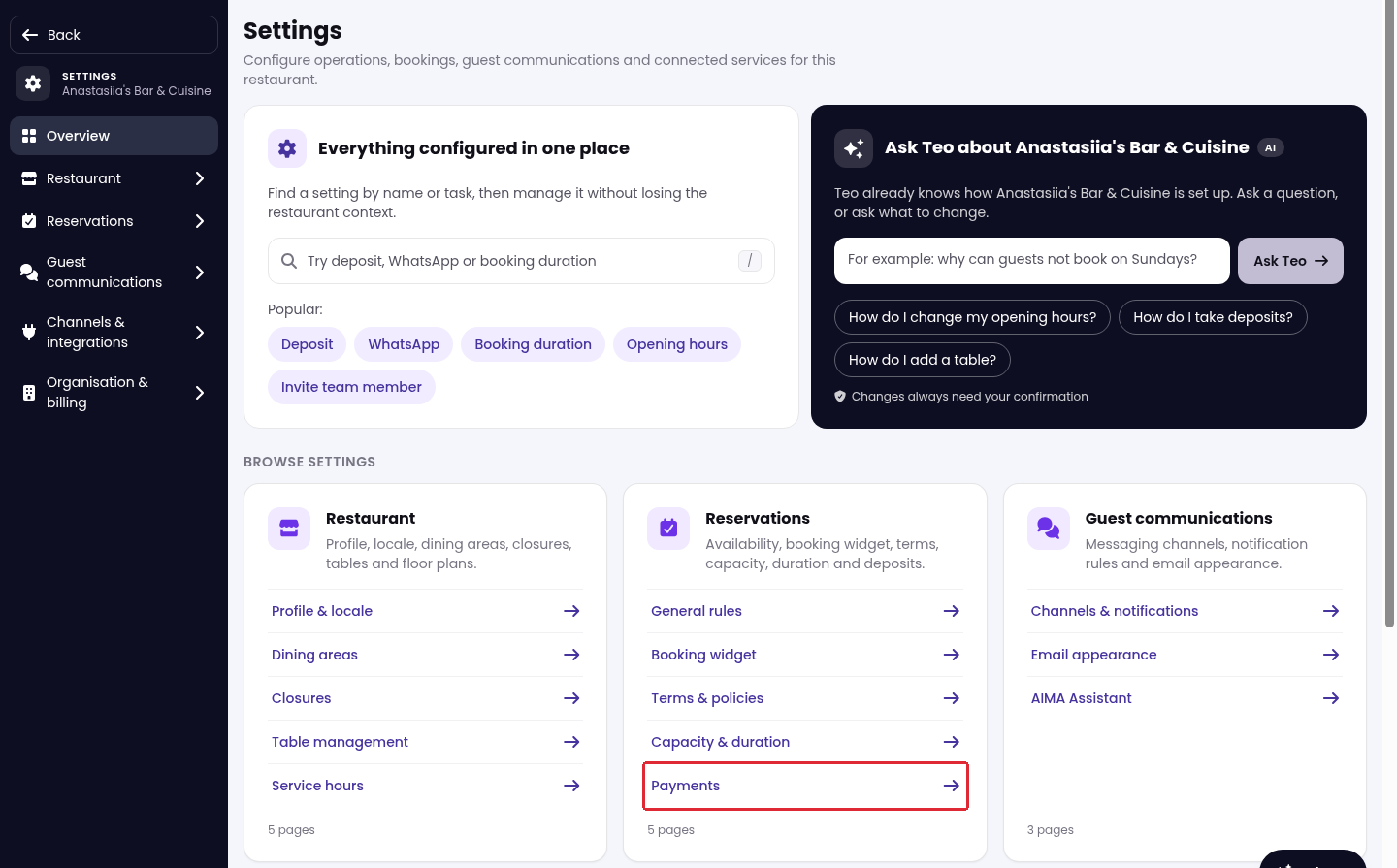
2. Under Reservations, click on Payments.
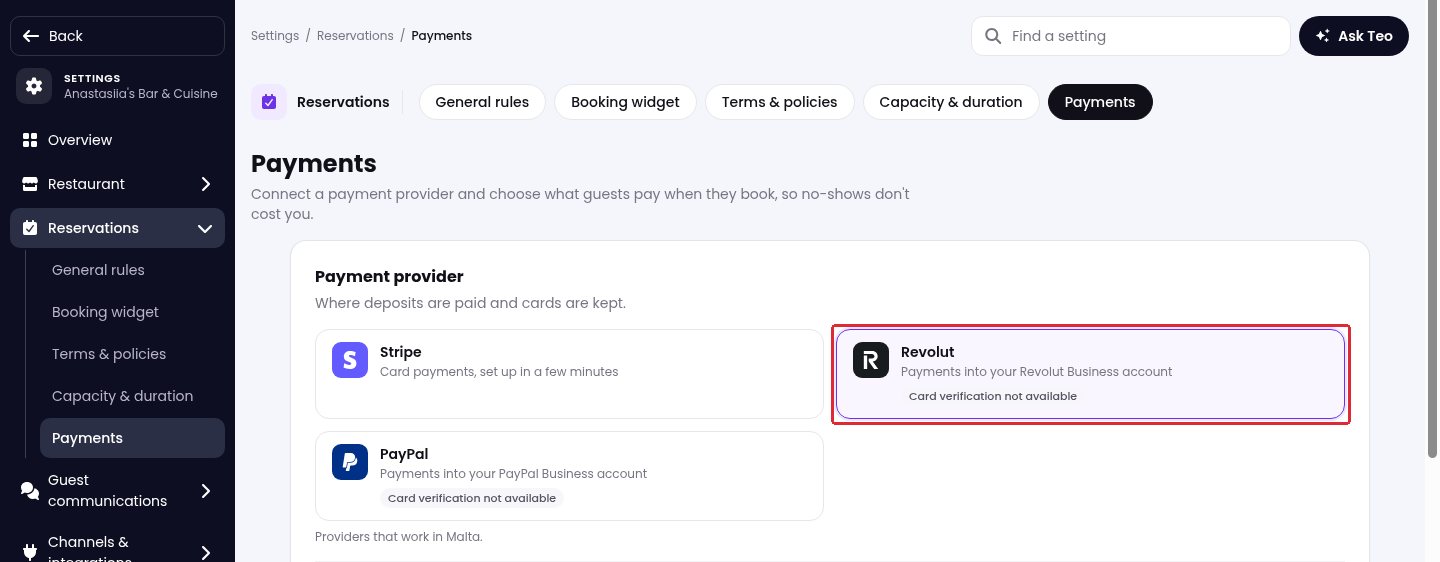
3. Under Payment provider, select Revolut.
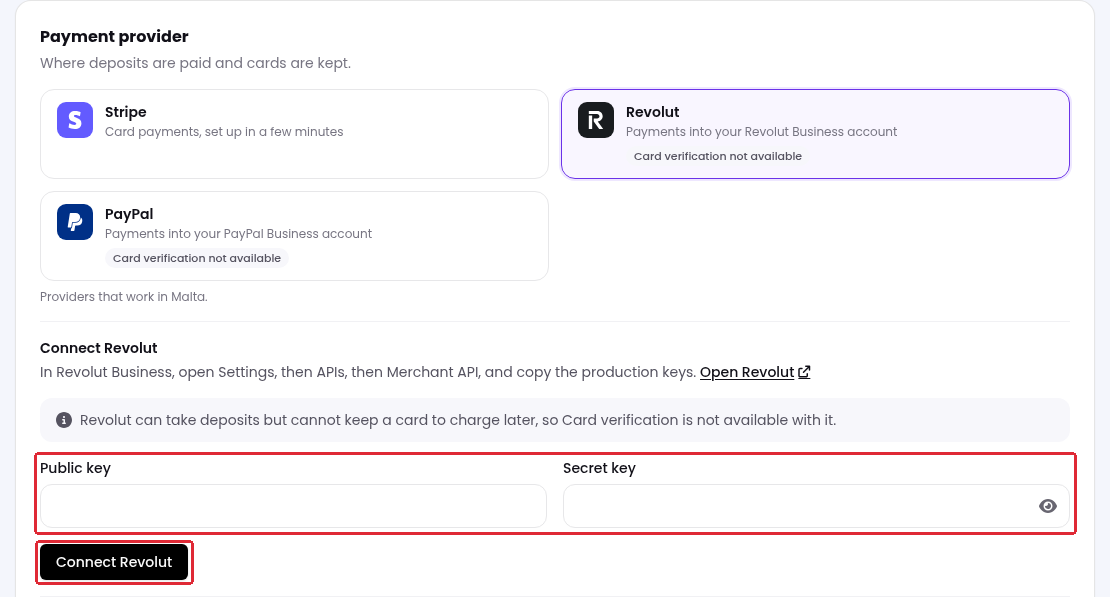
4. Use the production Merchant API keys from your Revolut Business account. Enter the Public key and Secret key in Tableo, then click on Connect Revolut.
The providers shown depend on your restaurant’s country. If Revolut is not listed, contact Customer Service to check availability.
After connecting, see how to set up booking payments, deposits and card verification to configure what guests pay.
While we strive to ensure the accuracy and currency of the information in our knowledge base, some articles may contain minor discrepancies due to the constant evolution of our services and products.
Was this article helpful?
That’s Great!
Thank you for your feedback
Sorry! We couldn't be helpful
Thank you for your feedback
Feedback sent
We appreciate your effort and will try to fix the article