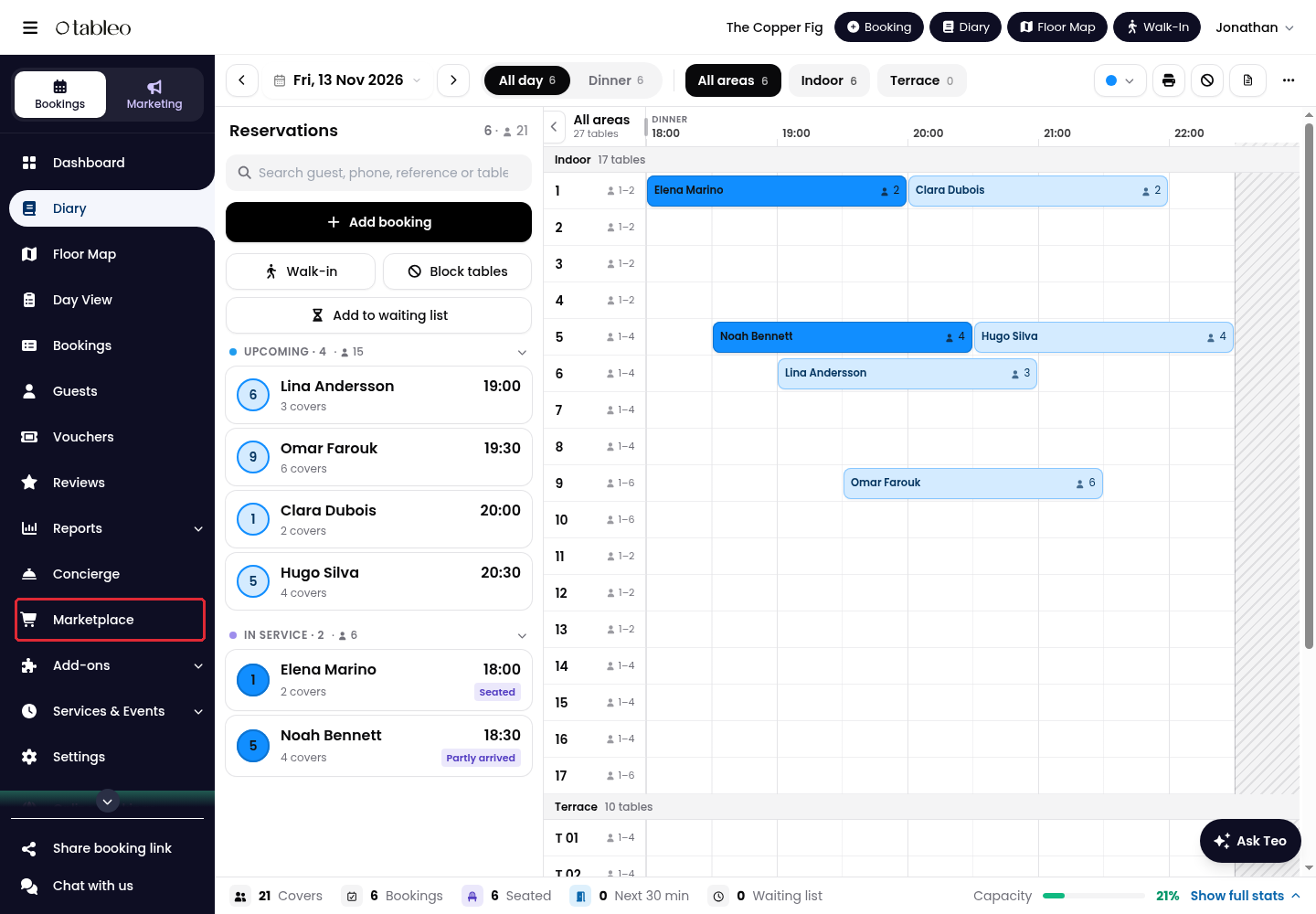
1. Click on Marketplace in the side menu.
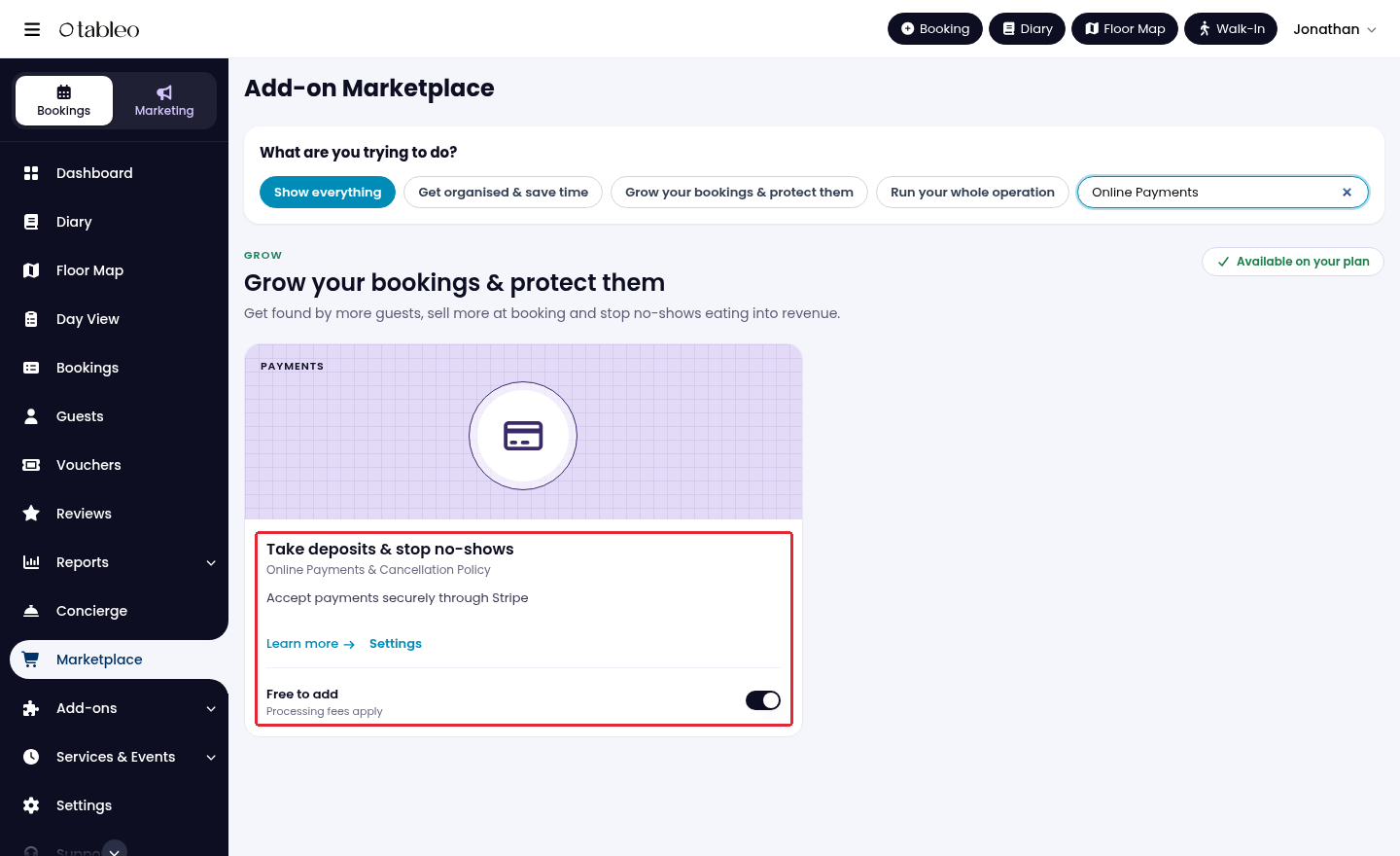
2. Find Online Payments & Cancellation Policy, shown as Take deposits & stop no-shows, and activate its switch if it is off.
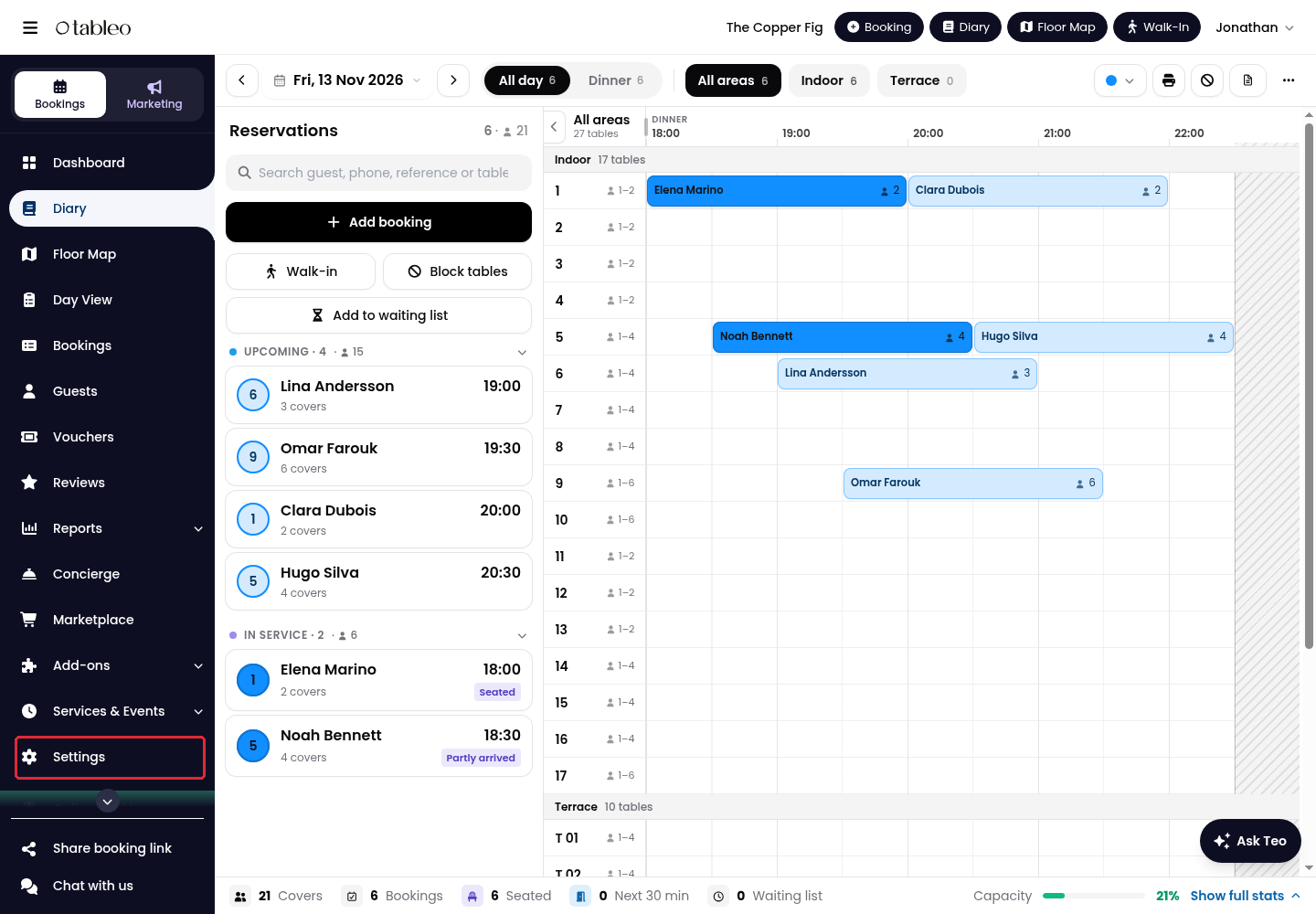
3. Click on Settings in the side menu.
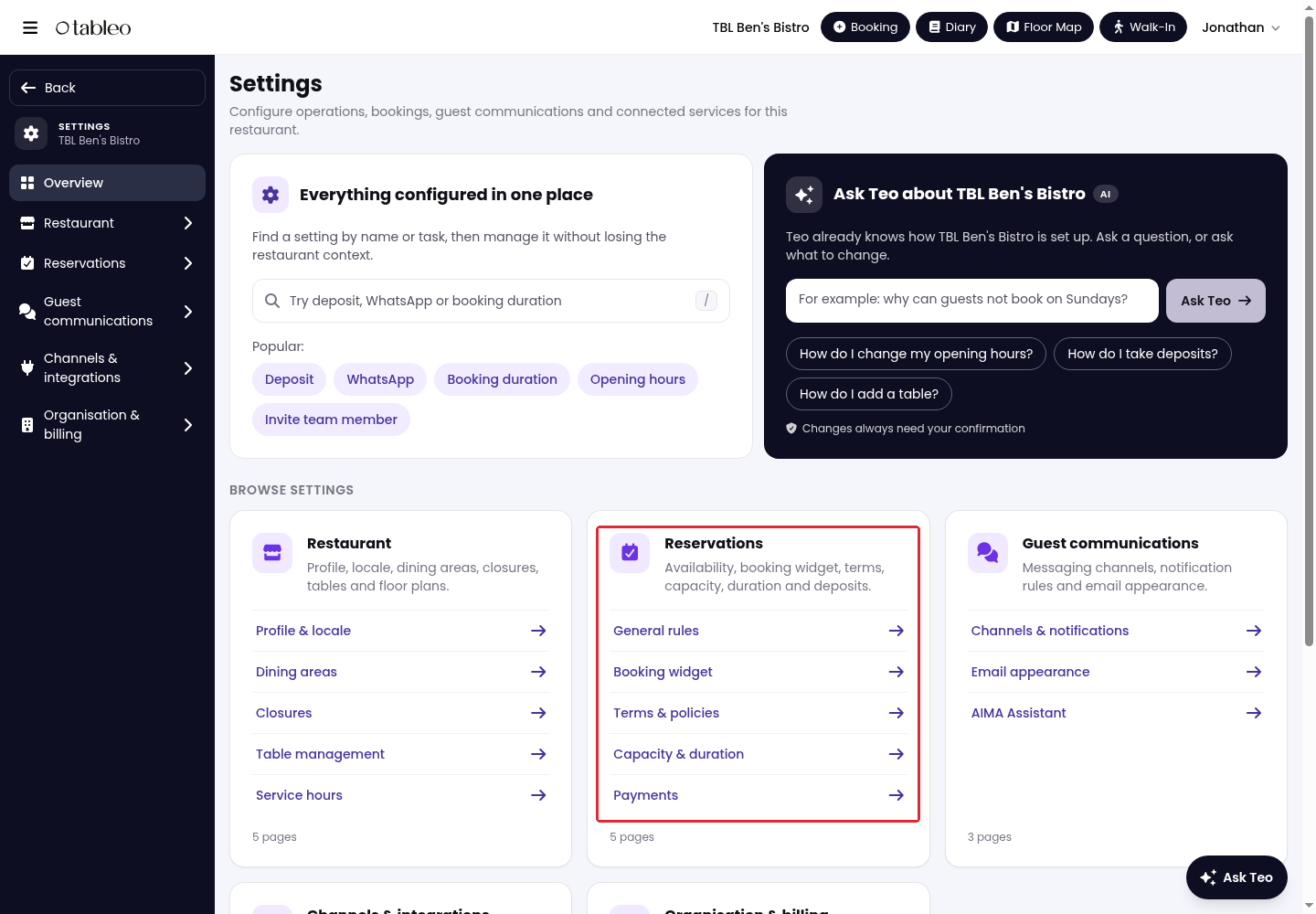
4. Under Reservations, click on Payments.
5. Connect a payment provider if one is not connected. See how to connect Stripe or ZruPay. Turn on Take online payments.
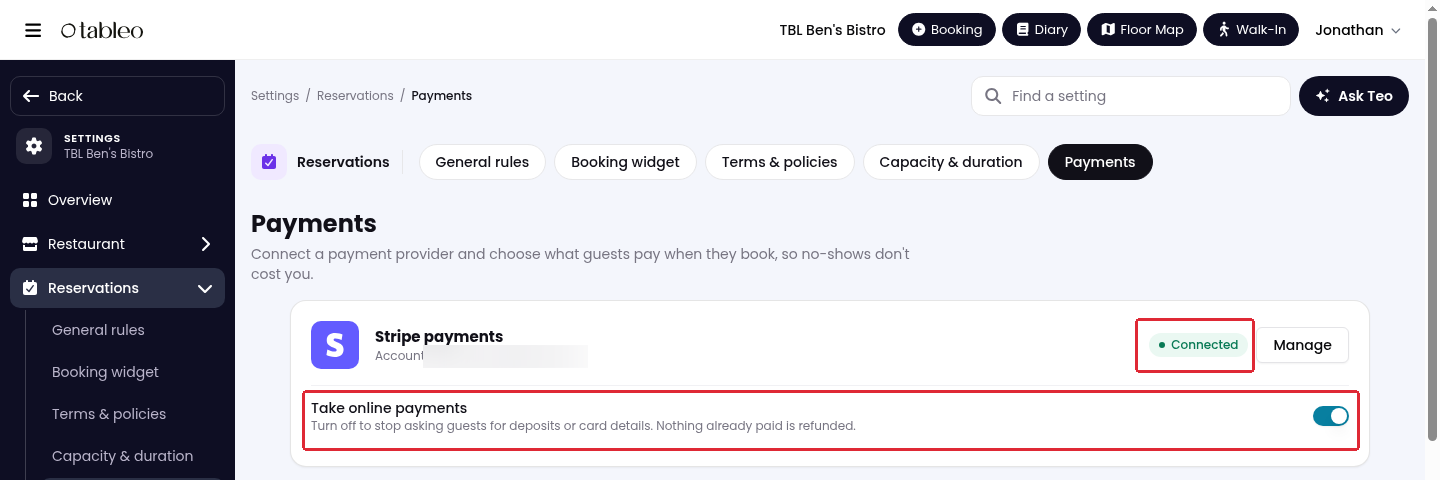
6. In No-show payments, choose What guests pay: Deposit takes payment per guest when booking; Card verification checks and stores the card without charging it. Choose Nothing to let guests book without paying or leaving card details.
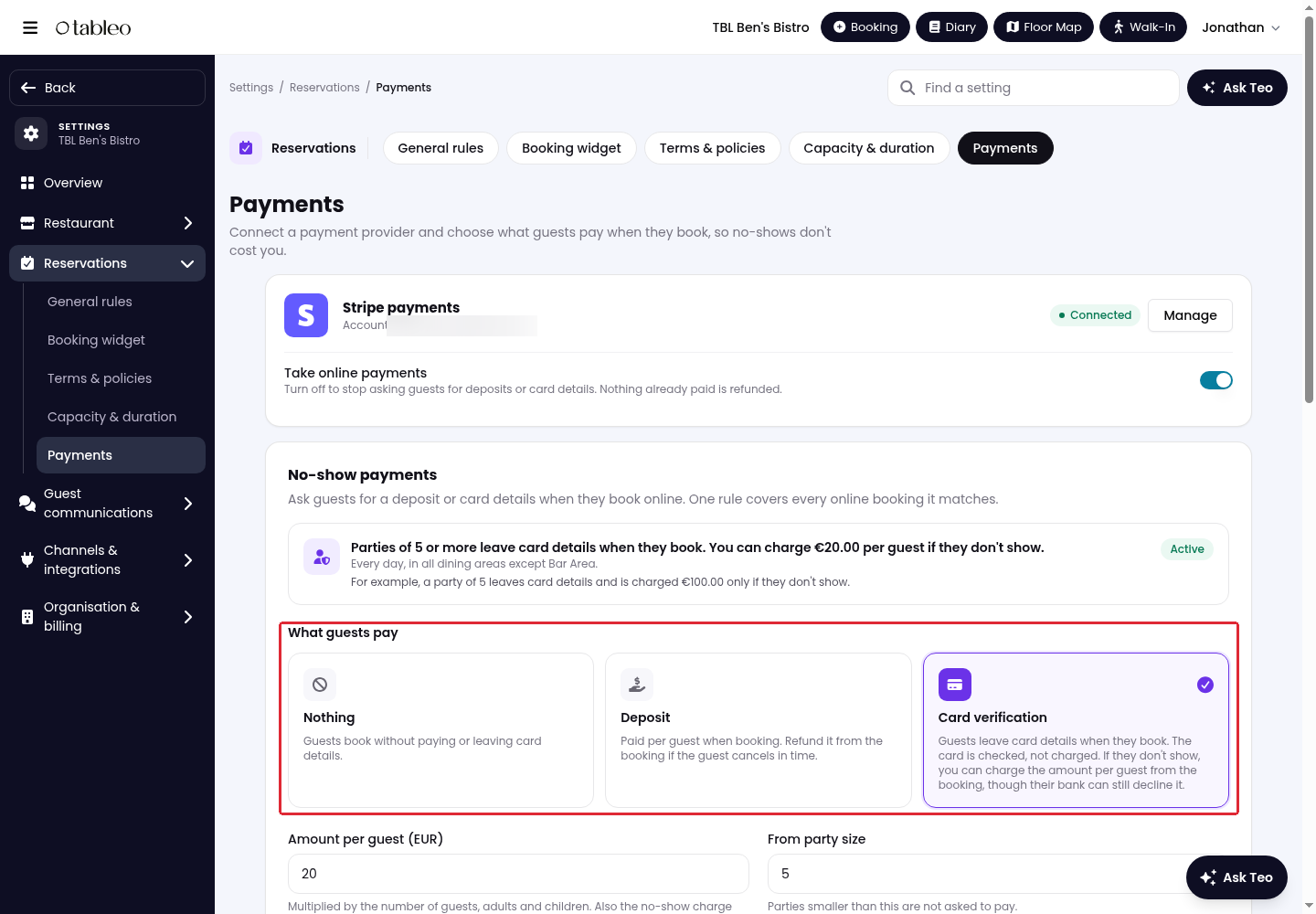
7. Set Amount per guest (EUR) and From party size. The amount is multiplied by all guests, including children; smaller parties are not asked to pay.
Under When it applies, select On these days. Use All dining areas or select the required areas under In these dining areas.
Under Unpaid bookings, choose Cancel unpaid bookings after. This controls how long online bookings can wait for payment before being cancelled.
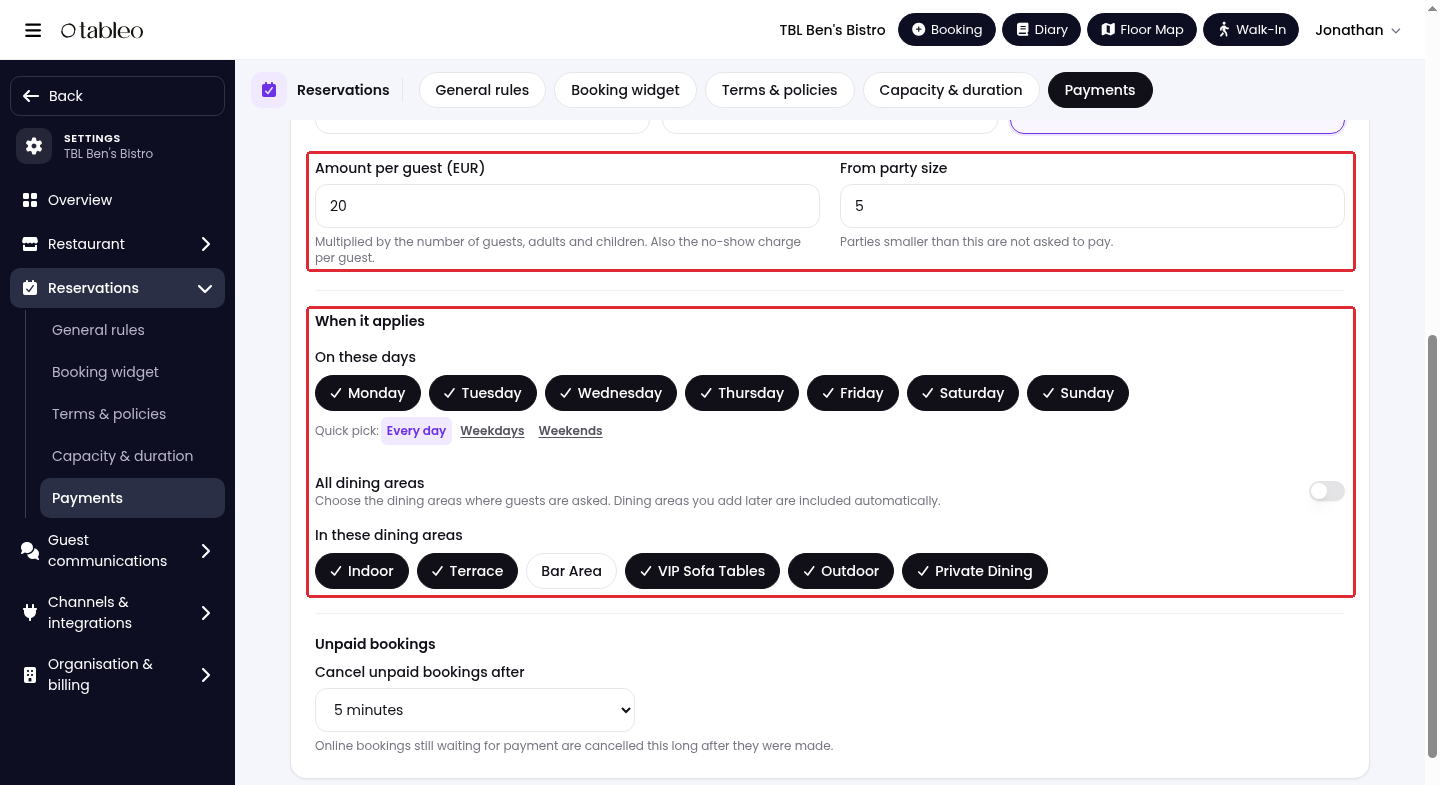
8. Review Seasons and events that change this: seasonal rules can replace the regular rule, and events can use their own deposit or opt out for their bookings.
In Cancellations, refunds and no-shows, use Change in Terms & policies to adjust the cancellation deadline. Once the payment rules are ready, click on Save changes.
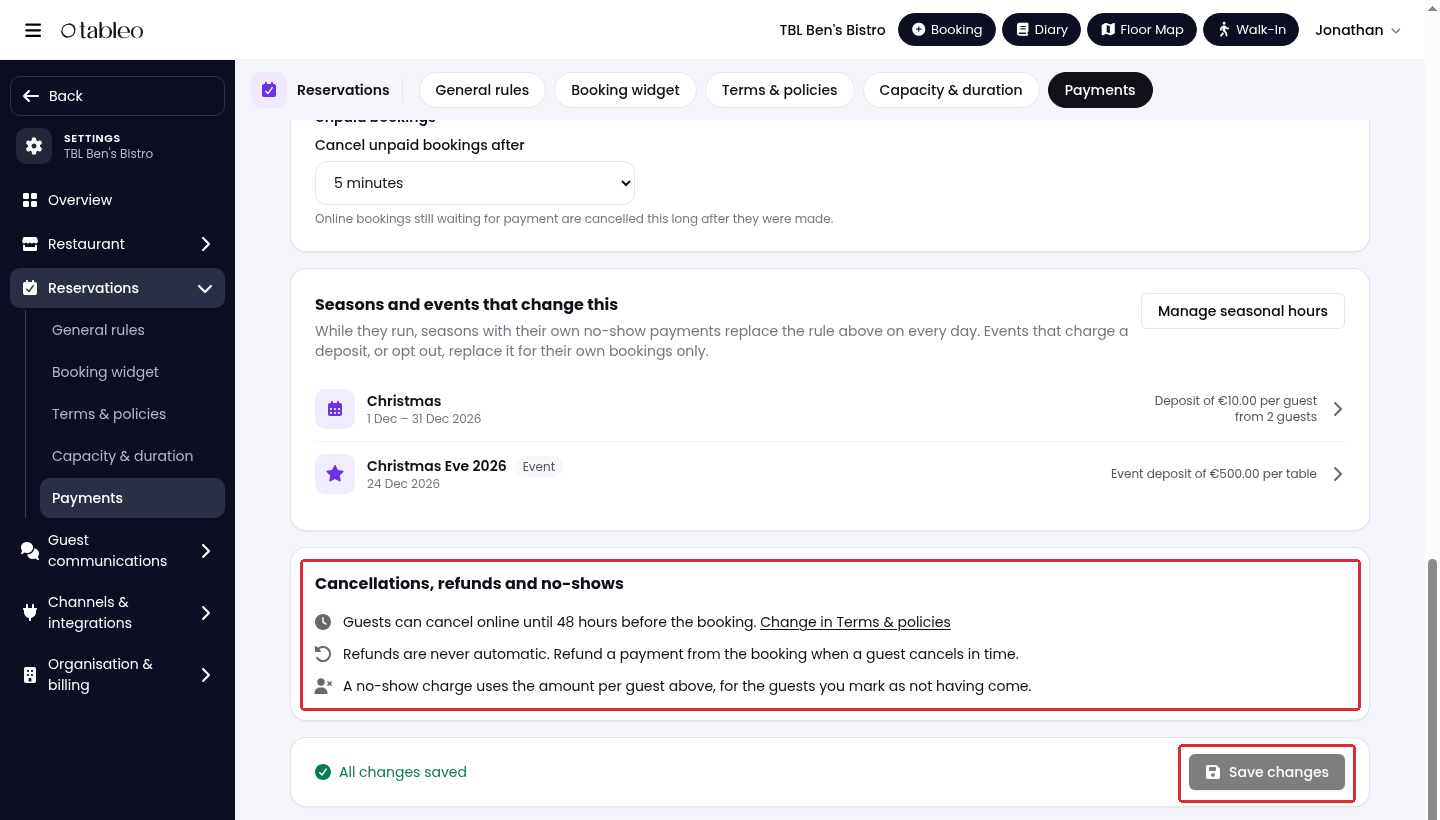
Refunds are not automatic. With Card verification, collect any permitted no-show fee from the booking; the bank can still decline the charge. See how to claim a no-show fee.
While we strive to ensure the accuracy and currency of the information in our knowledge base, some articles may contain minor discrepancies due to the constant evolution of our services and products.
Was this article helpful?
That’s Great!
Thank you for your feedback
Sorry! We couldn't be helpful
Thank you for your feedback
Feedback sent
We appreciate your effort and will try to fix the article