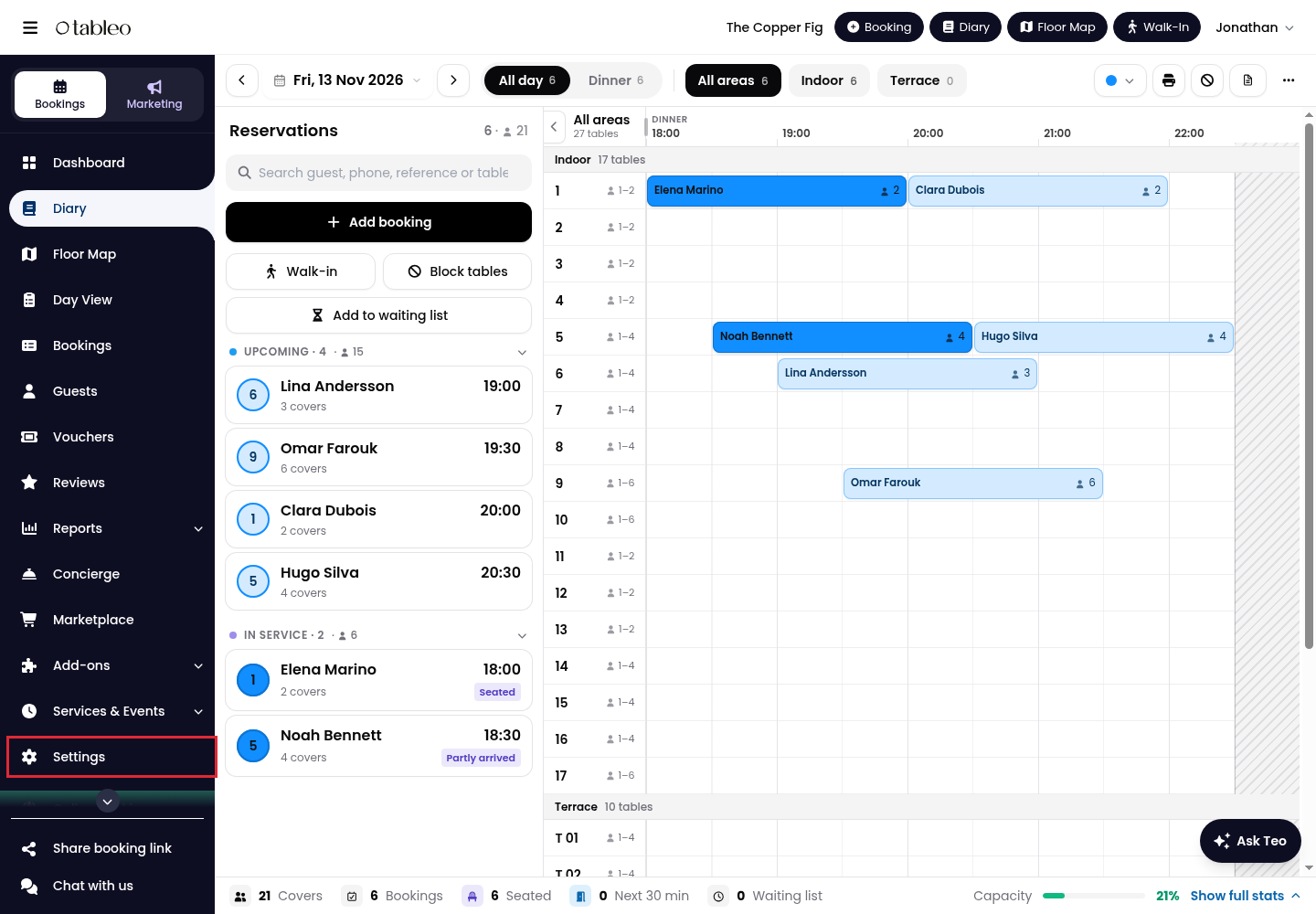
1. Click on Settings in the side menu.
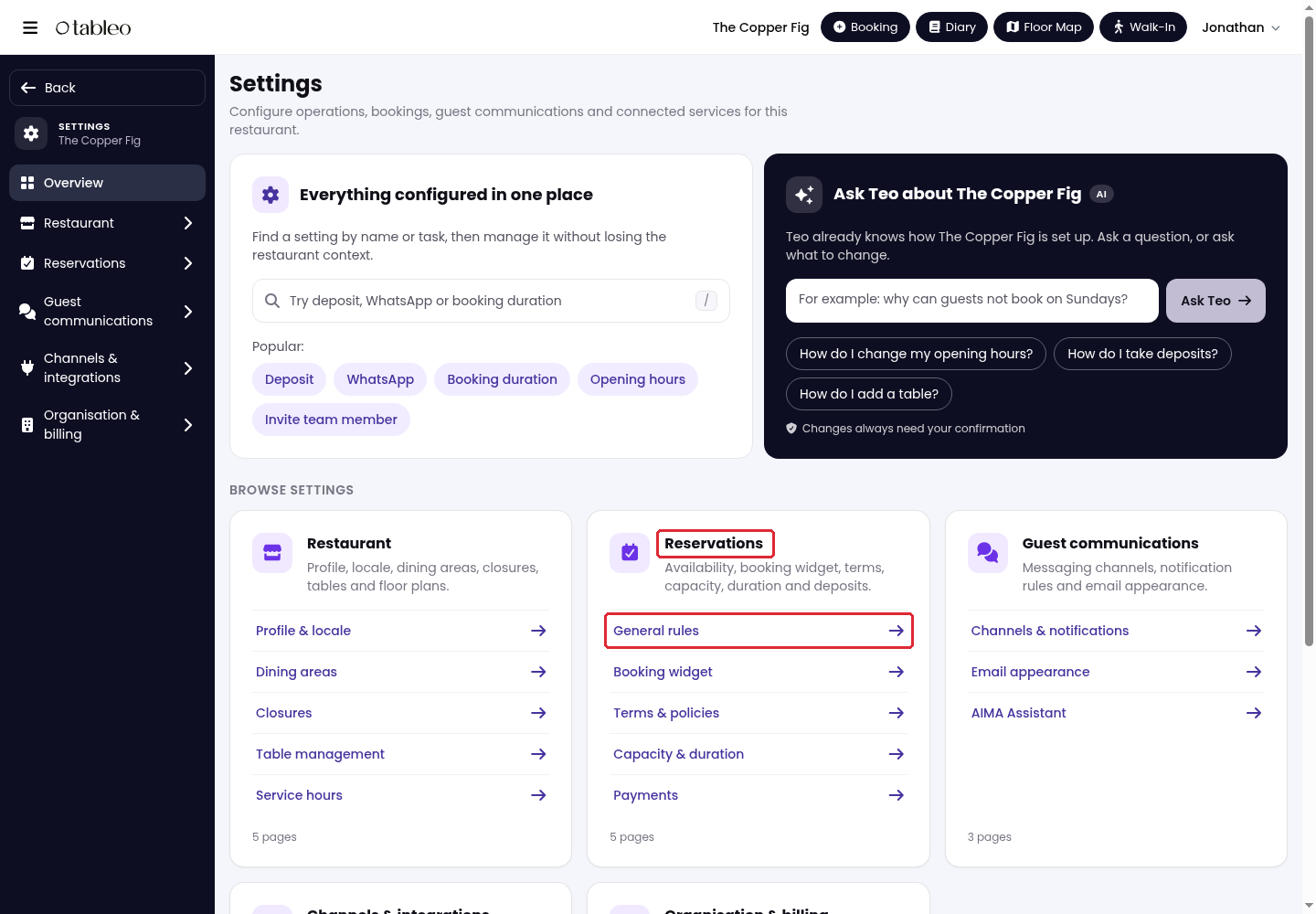
2. Go to Reservations > General rules.
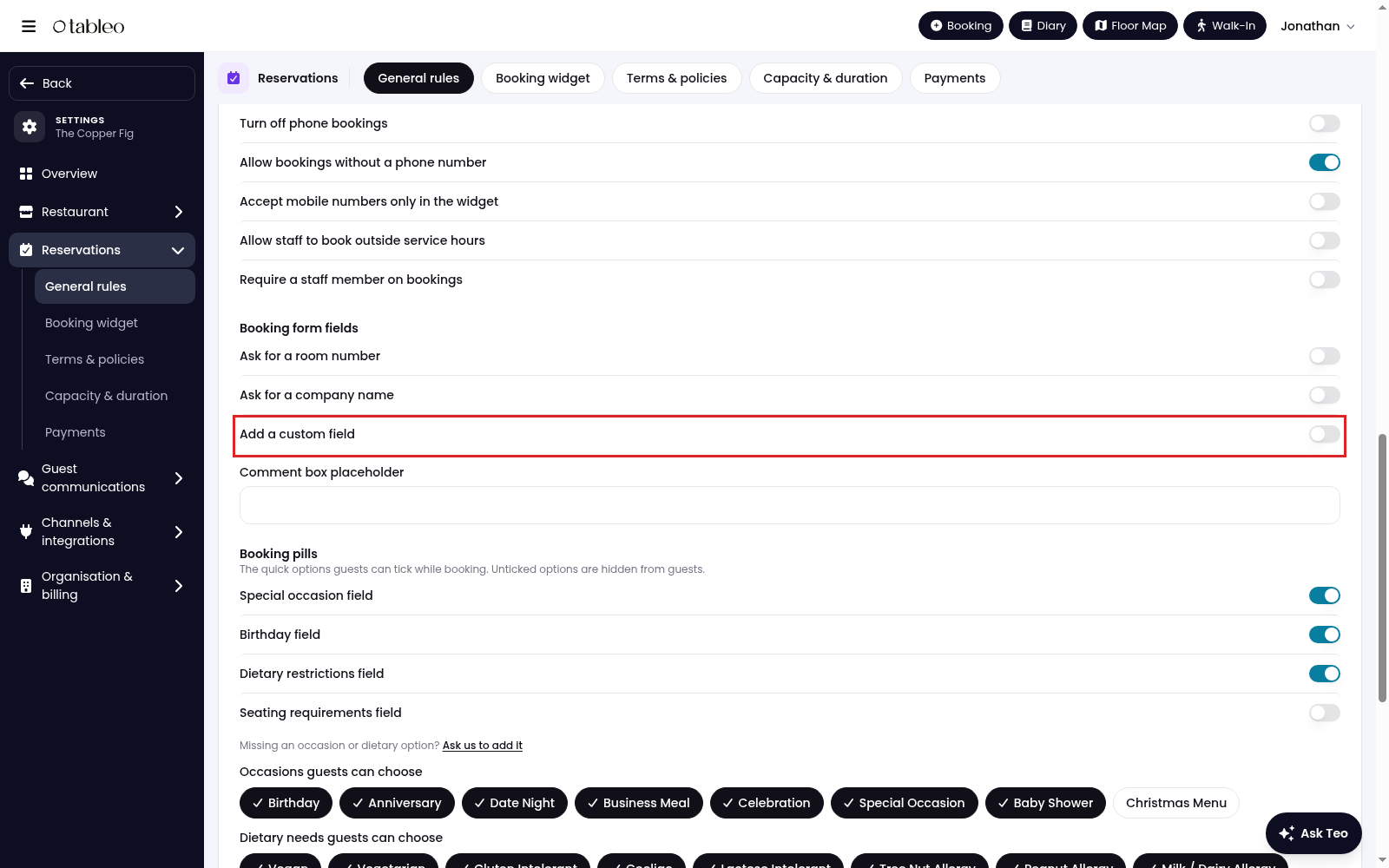
3. Expand Advanced rules. Under Booking form fields, turn on Add a custom field.
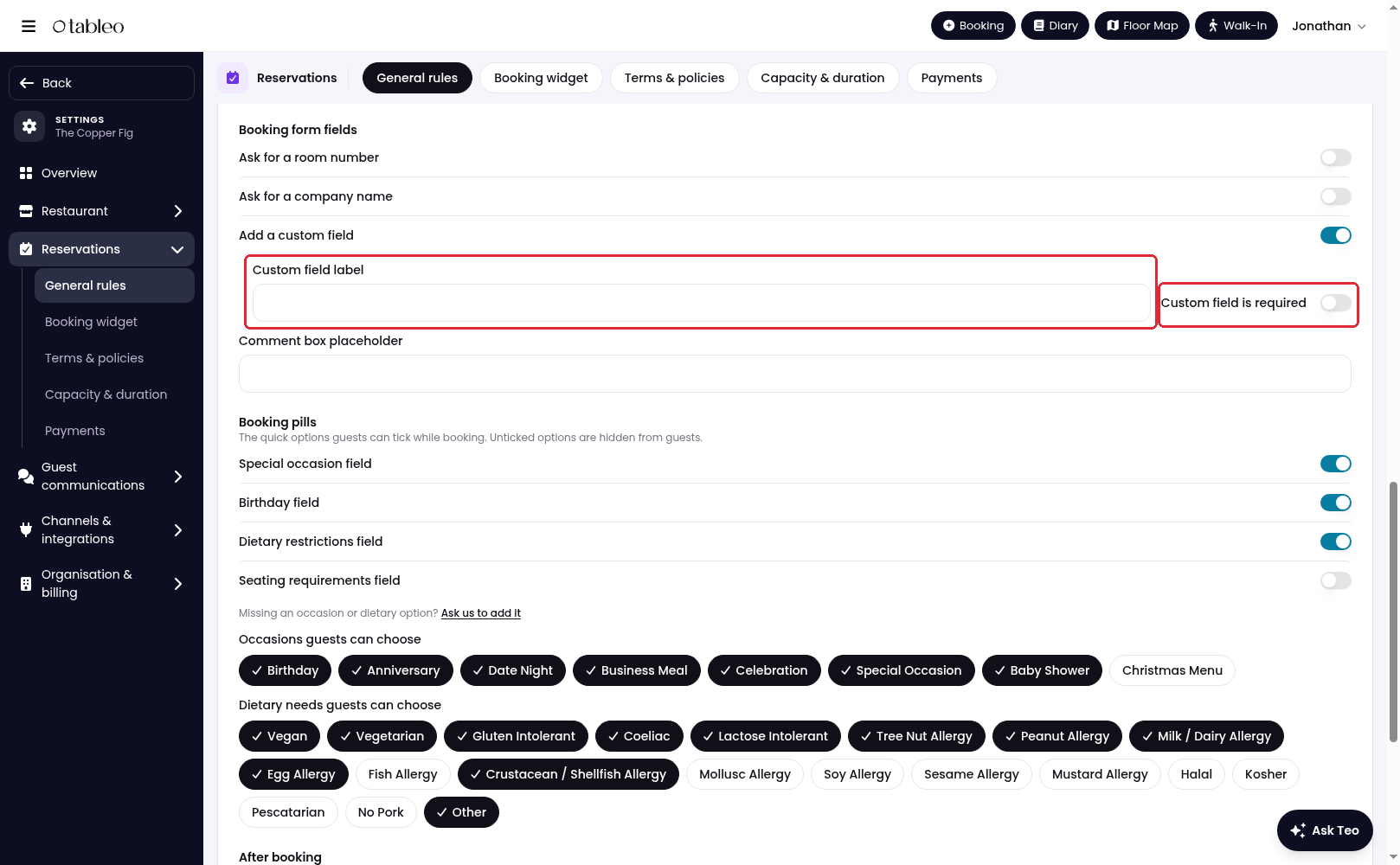
4. Enter the question or field name in Custom field label. Turn on Custom field is required if guests must answer it.
5. Scroll to the bottom of the page and click on Save changes.
While we strive to ensure the accuracy and currency of the information in our knowledge base, some articles may contain minor discrepancies due to the constant evolution of our services and products.
Was this article helpful?
That’s Great!
Thank you for your feedback
Sorry! We couldn't be helpful
Thank you for your feedback
Feedback sent
We appreciate your effort and will try to fix the article