Use the waiting list to record guests who are waiting for a table. Guests can join through your booking widget, or staff can add them manually.
Let guests join through the booking widget
1. Click on Marketplace in the side menu.
2. Search for Waiting List and turn on its toggle if it is not already enabled.
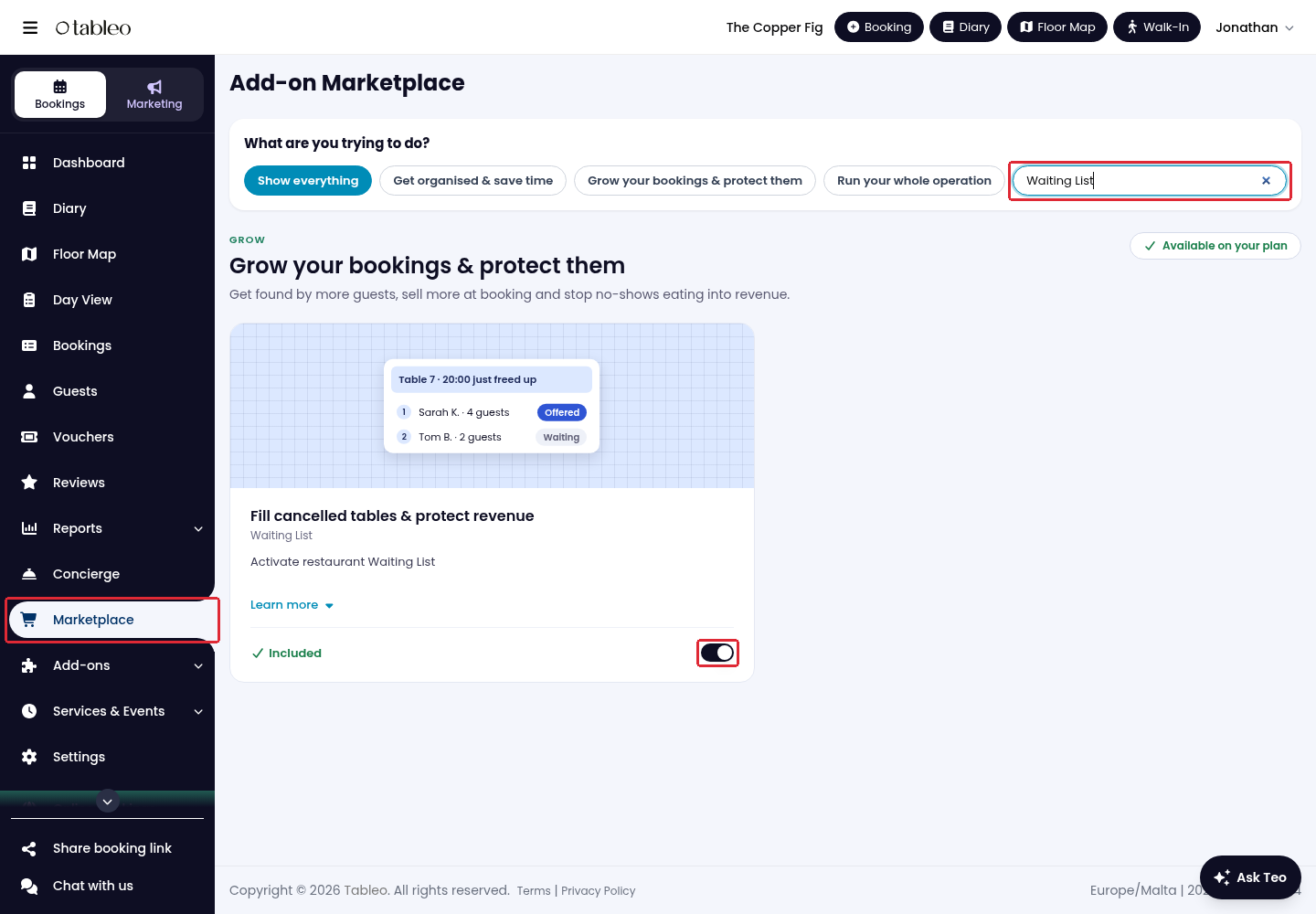
When a requested time is full or unavailable, guests can choose to join the waiting list through your booking widget. Joining the list does not confirm a table.
Add a guest manually
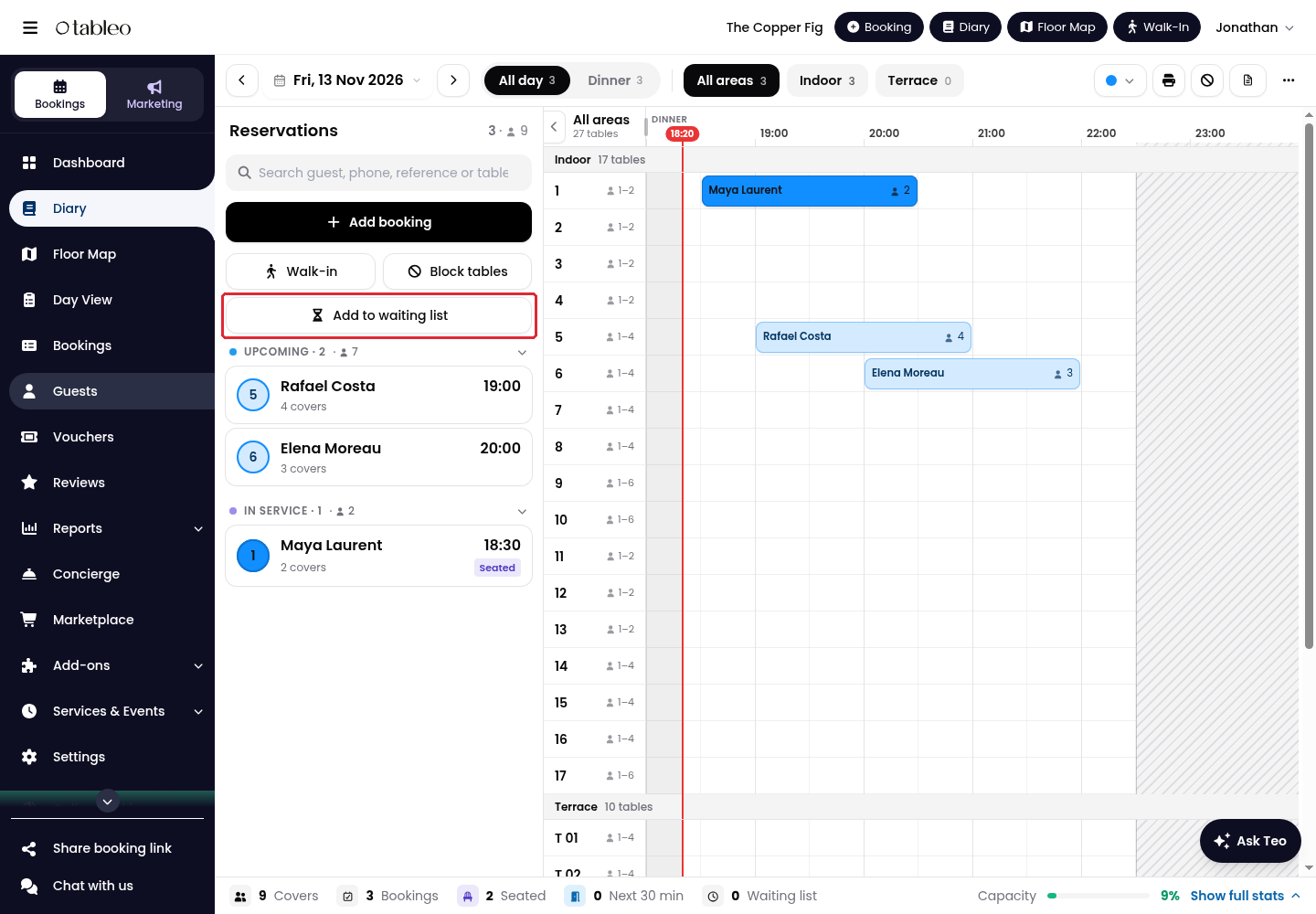
1. Click on Diary in the side menu and select the booking date.
2. Click on Add to waiting list in the reservations panel.
3. Set the time, Duration and number of Adults. Use Add children if needed, then select the Channel and enter the guest’s details.
4. Check the details, then click Add to waiting list.
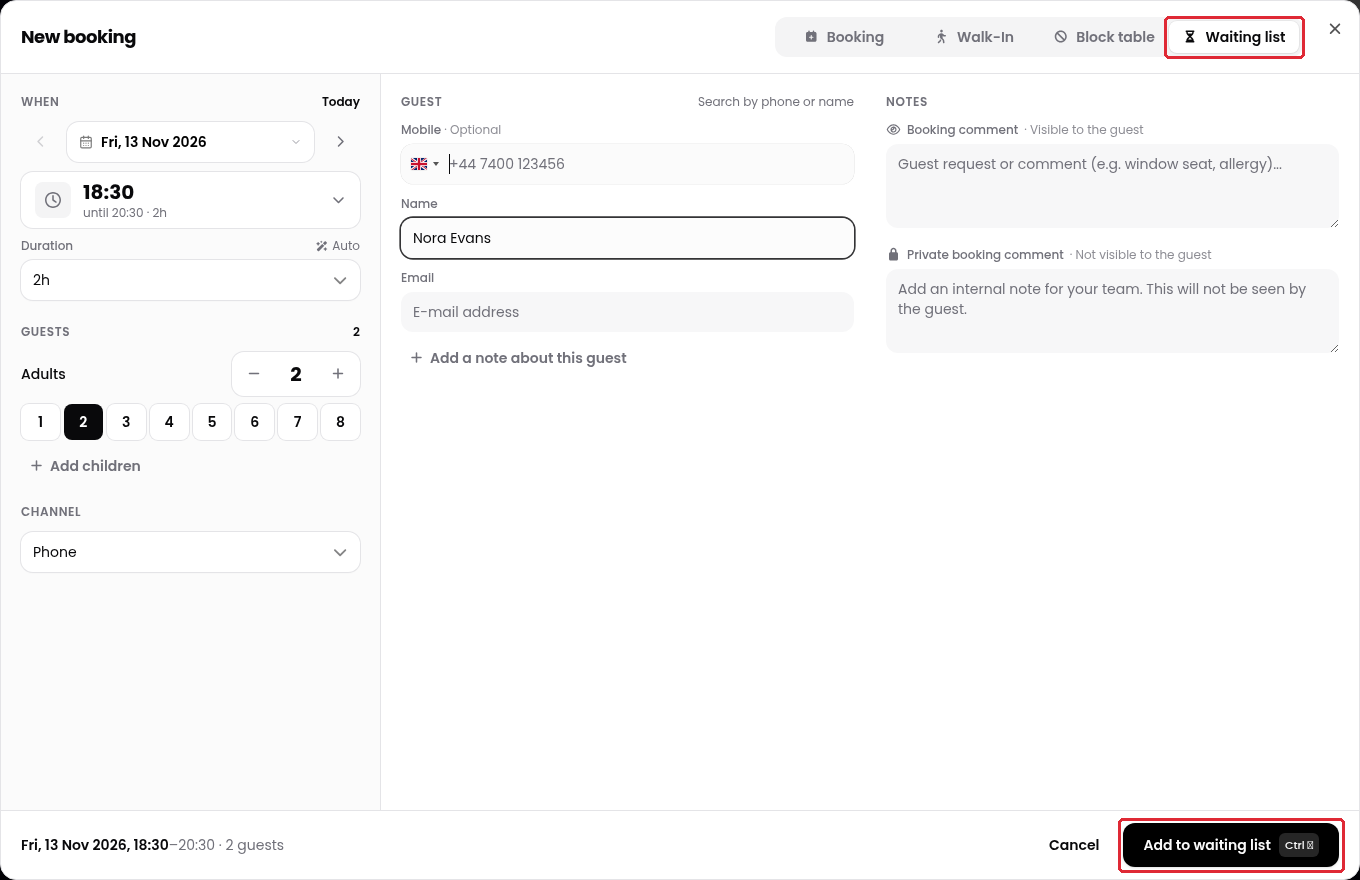
Alternatively, click Add booking and select the Waiting list tab to open the same form.
Assign a table to a waiting guest
1. In Diary, select the booking date and find the guest in the Waiting list section of the reservations panel. Clear the search field if it is hiding the guest.
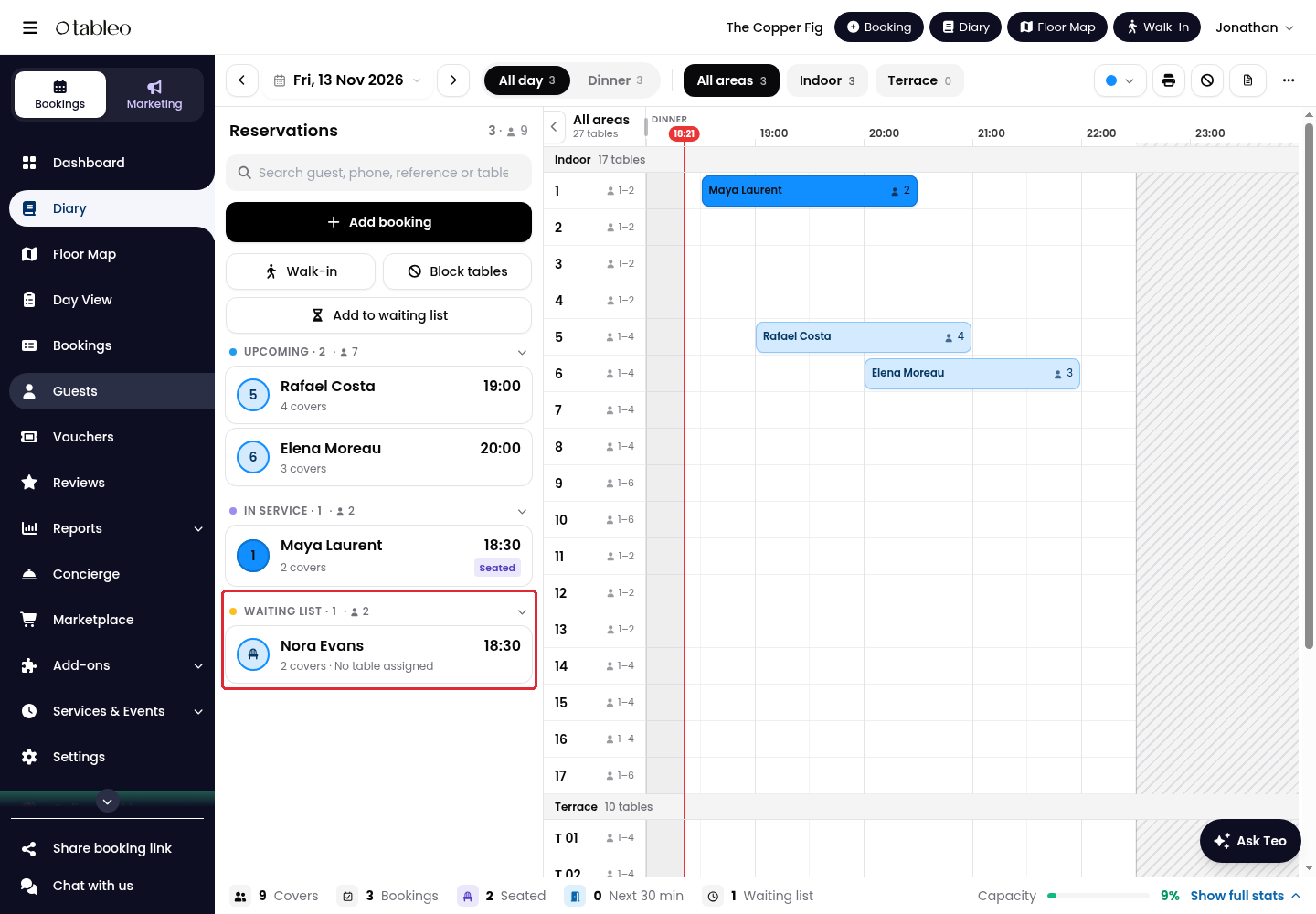
2. Contact the guest to confirm they can attend when a table becomes available.
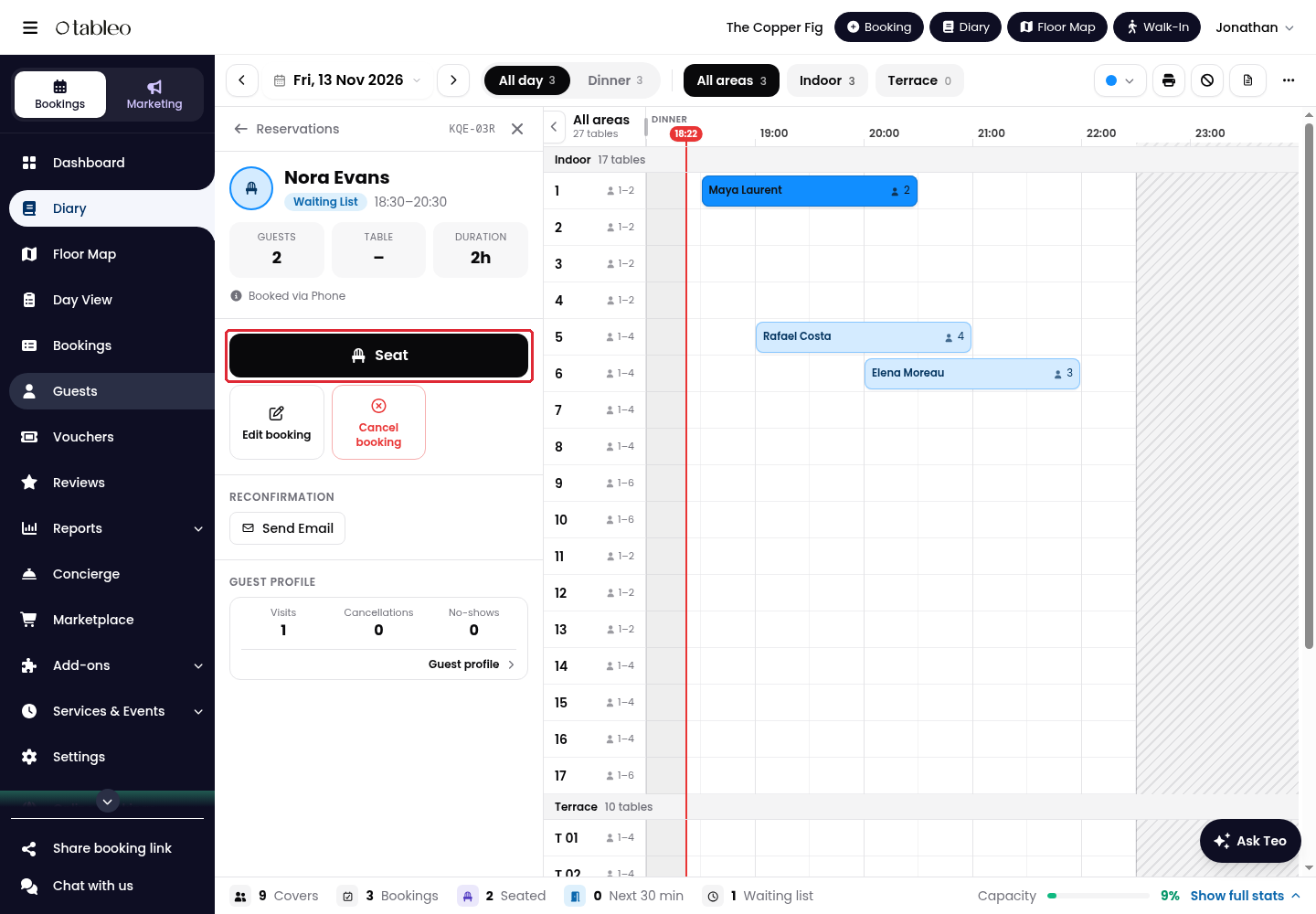
3. When you are ready to seat the guest, open their waiting-list entry and click Seat.
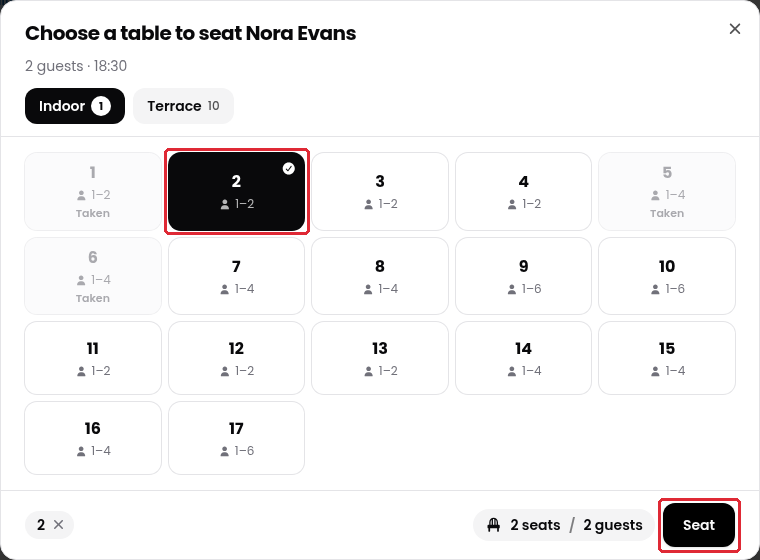
4. Select an available table, switching dining areas if needed, then click Seat to assign the table.
While we strive to ensure the accuracy and currency of the information in our knowledge base, some articles may contain minor discrepancies due to the constant evolution of our services and products.
Was this article helpful?
That’s Great!
Thank you for your feedback
Sorry! We couldn't be helpful
Thank you for your feedback
Feedback sent
We appreciate your effort and will try to fix the article