Before sending a request, connect your payment provider and enable Take online payments. See how to configure payments, deposits and card verification.
Sending a payment request when creating a booking
1. Click on Add booking in the Diary.
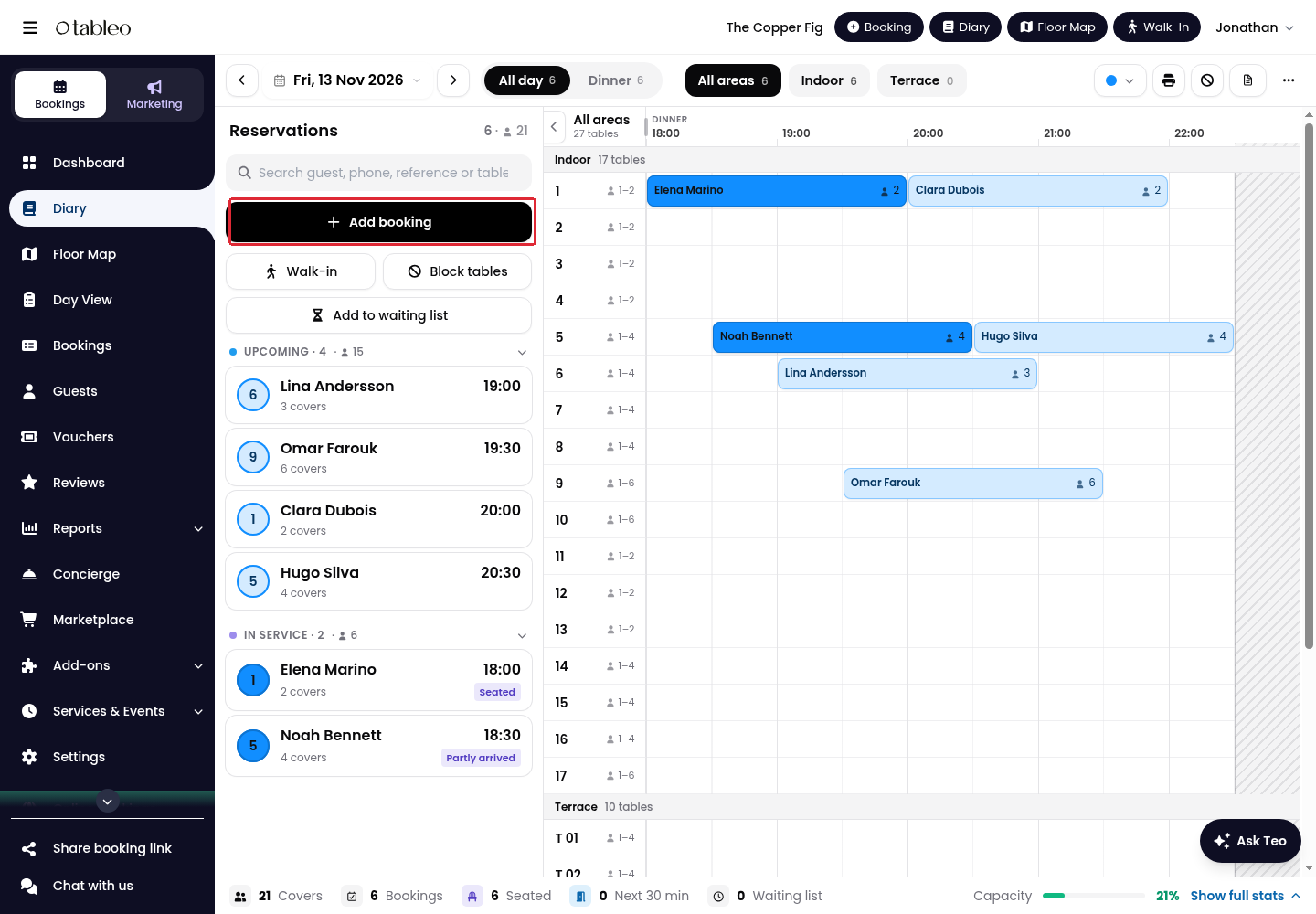
2. Enter the booking date, time, Duration and Adults. Under Tables, use Choose tables if no table is assigned. Enter the guest’s Name and Email, and any other required details.
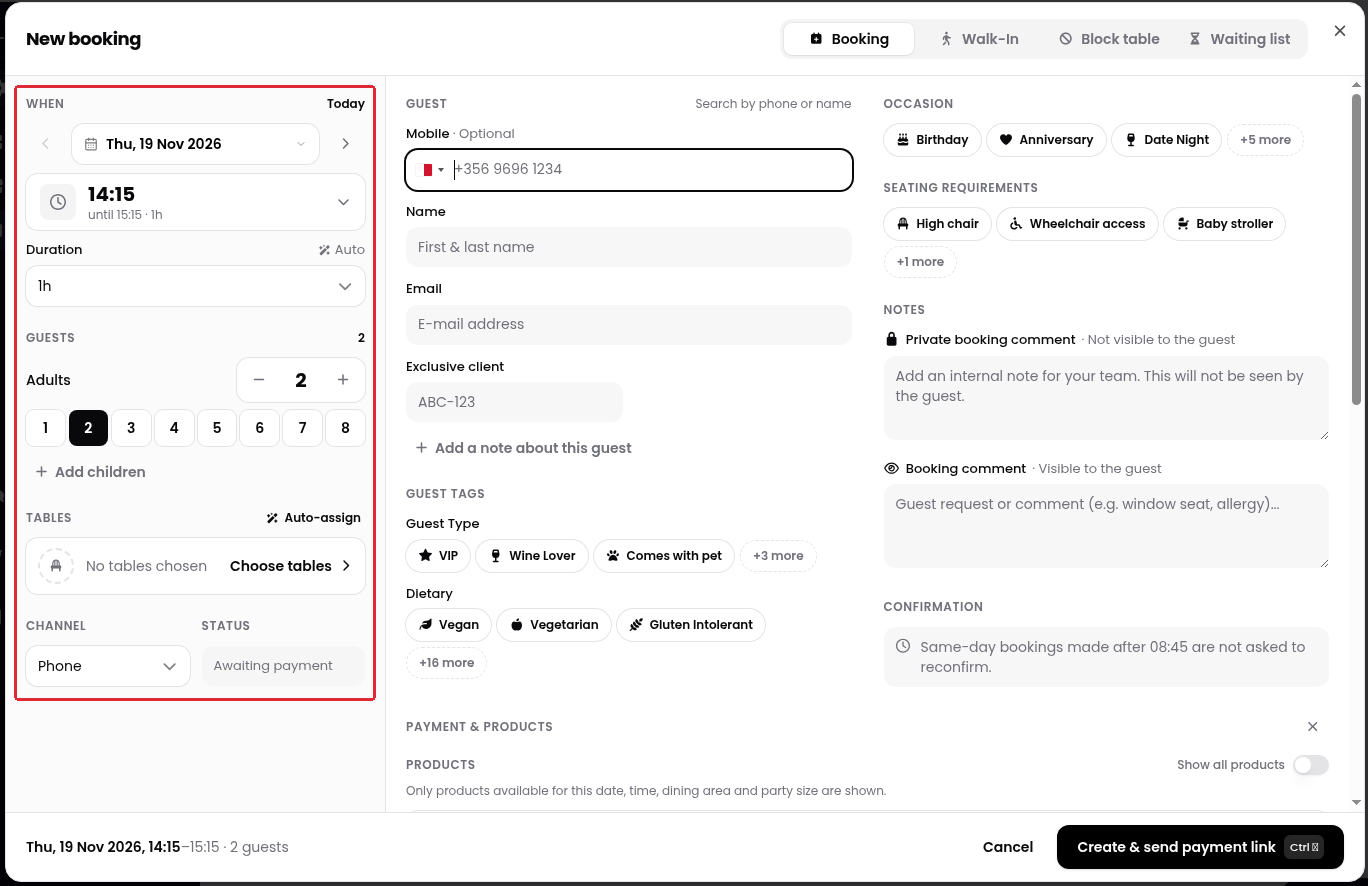
3. Scroll to Payment & Products and click on Add payment or products. Select any required products. Under Deposit, choose Per cover or Per table and enter the amount.
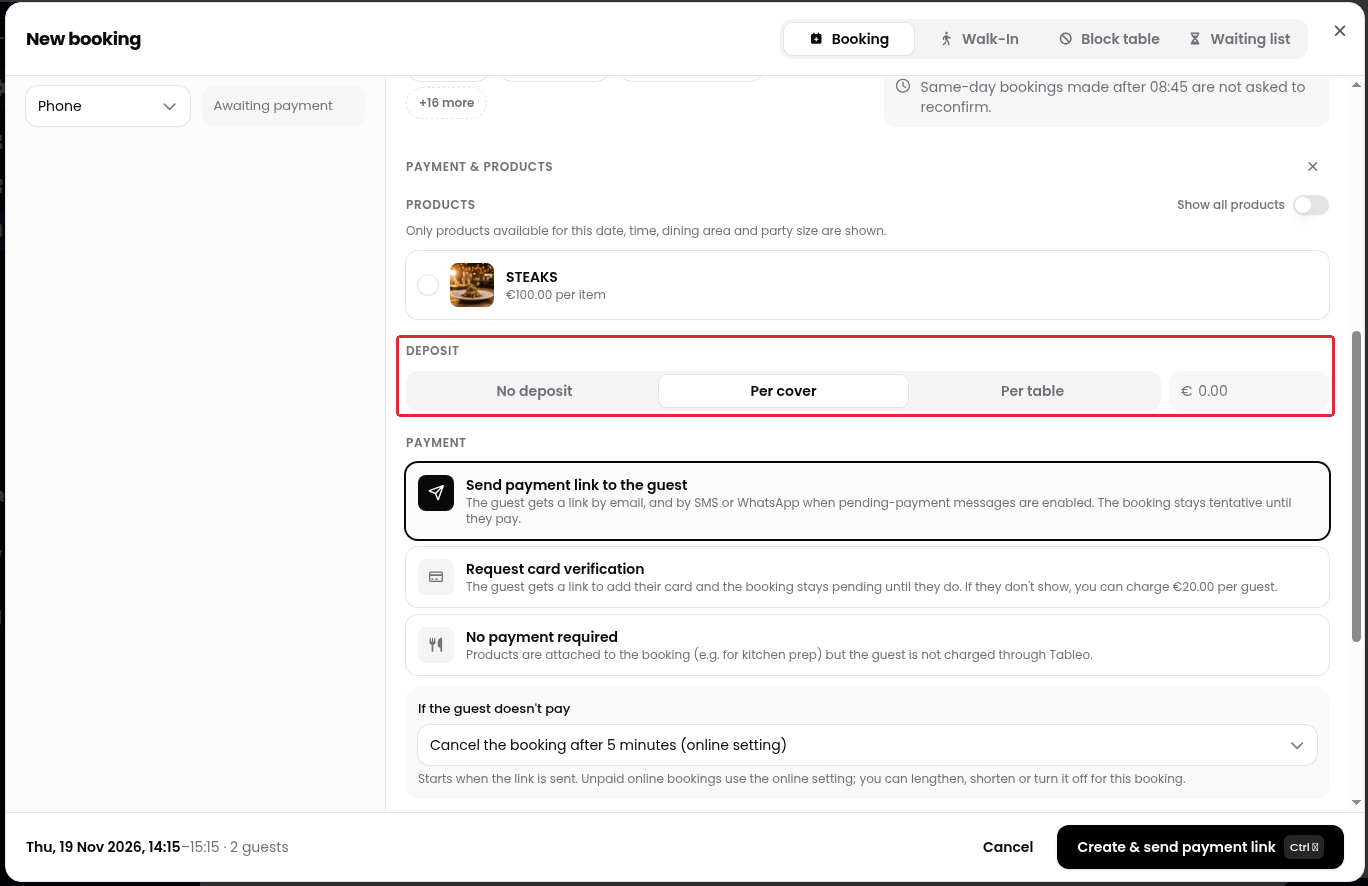
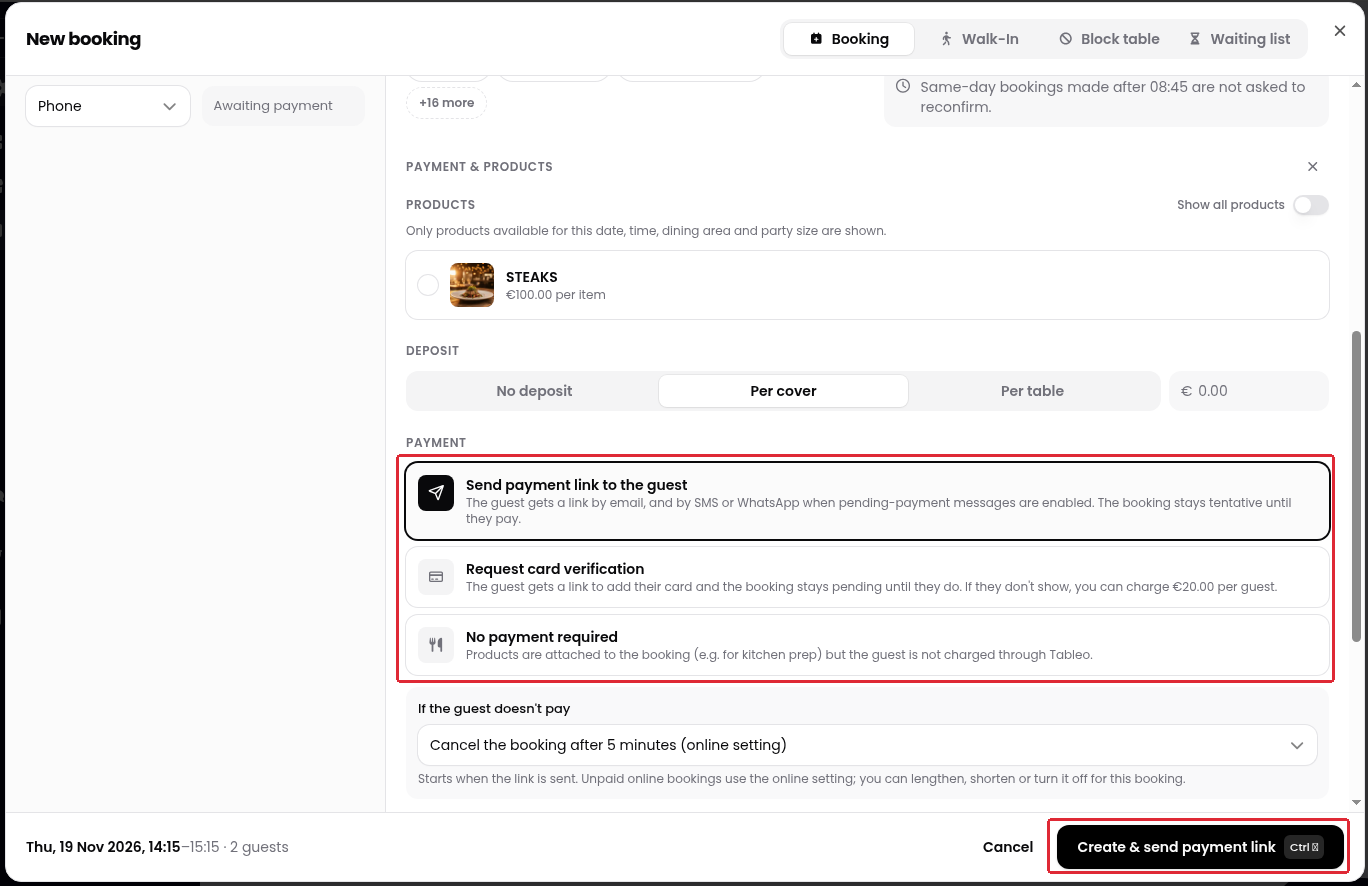
4. Under Payment, choose Send payment link to the guest. Review If the guest doesn't pay and the booking’s cancellation timeout, then click on Create & send payment link when you are ready to send the request.
Sending a payment link for an existing booking
1. Click on Bookings in the side menu.
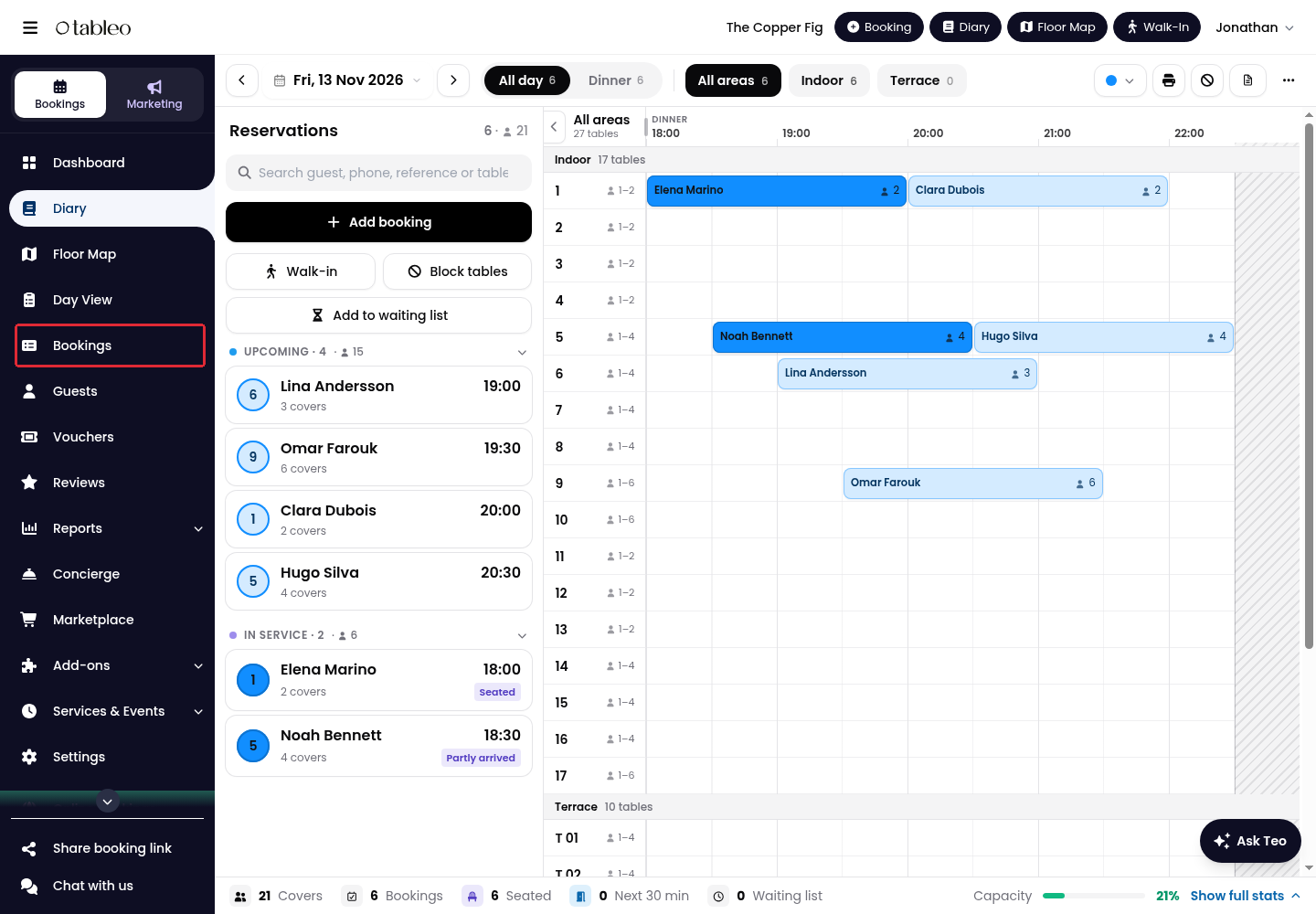
2. Find the existing booking and click on its reference to open Booking Details. Click on Edit Booking.
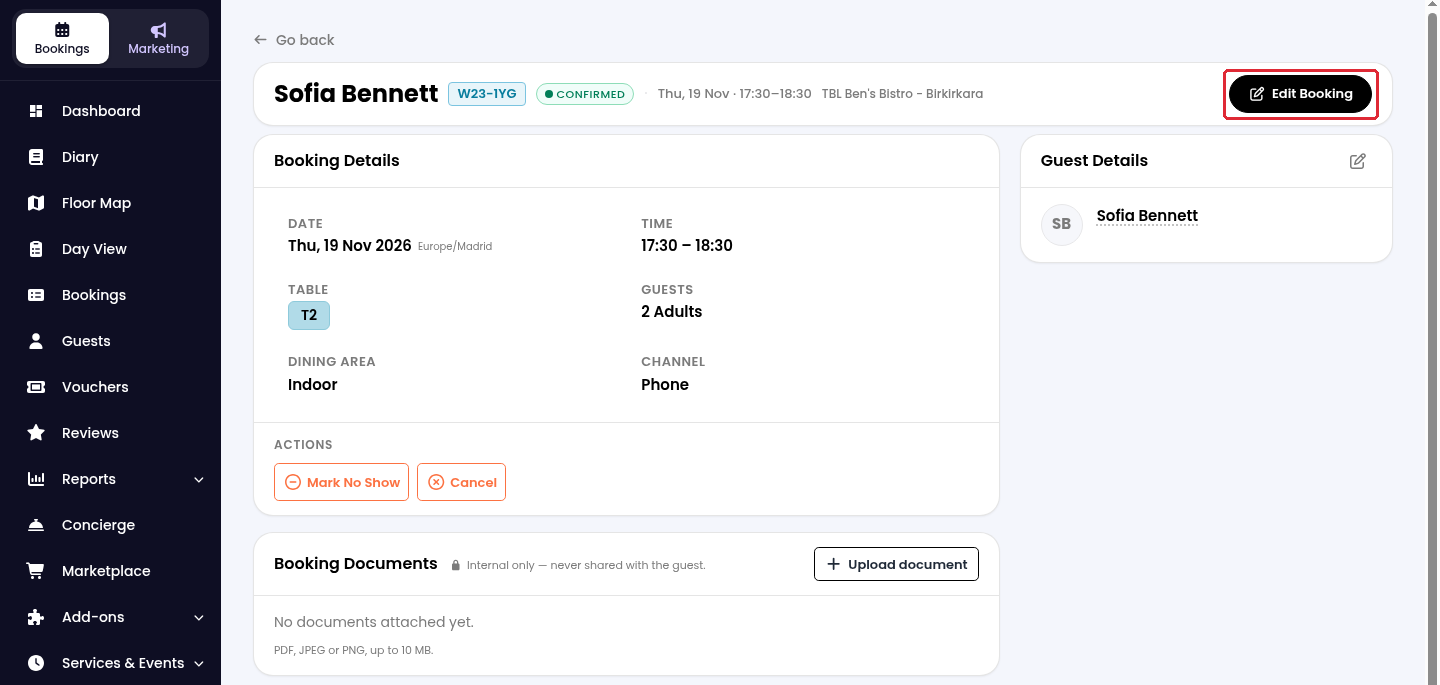
3. Check the booking and guest details, including the guest’s email address. Scroll to Payment & Products and click on Add payment or products if the section is collapsed.
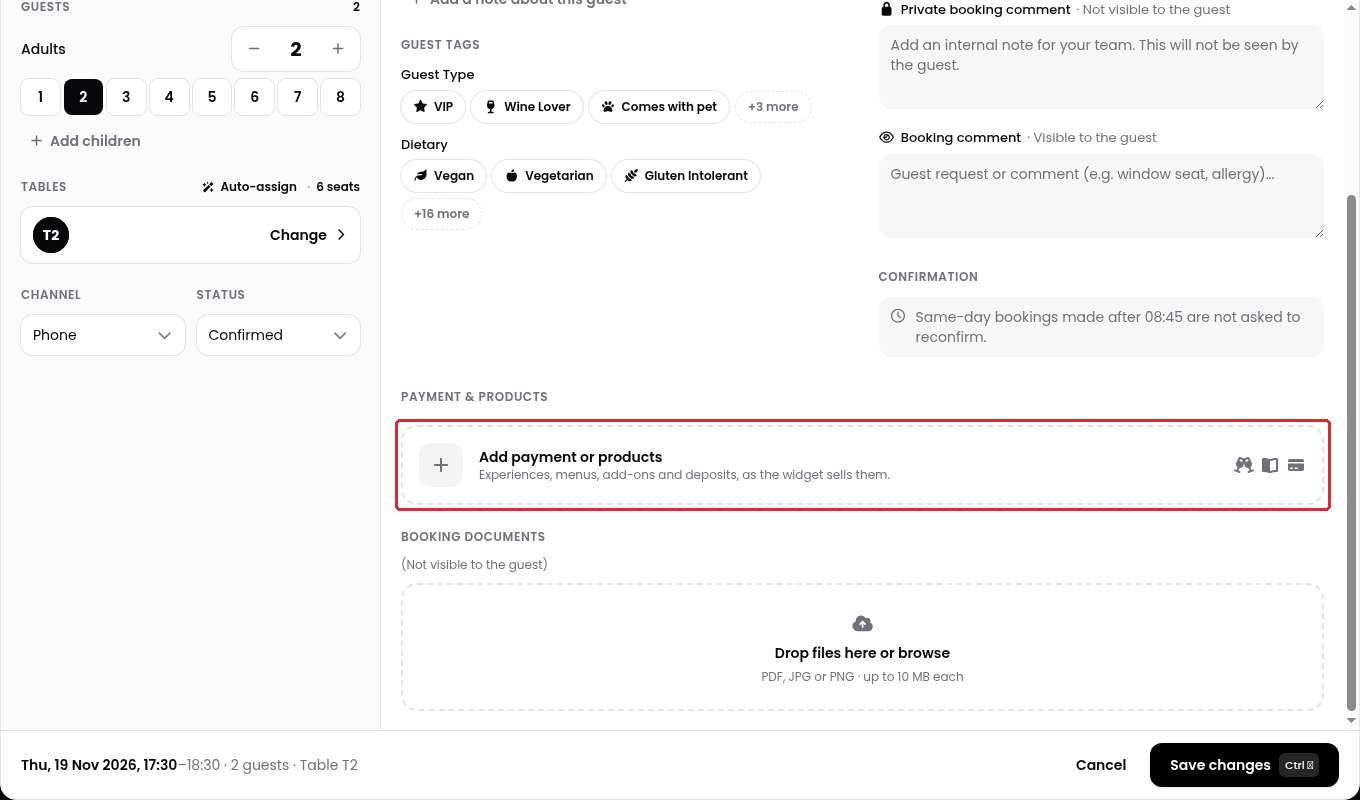
4. Select the required products and/or choose Per cover or Per table under Deposit and enter the amount. Under Payment, choose Send payment link to the guest. Review the total and If the guest doesn't pay, then click on Save & send payment link when you are ready to send the request.
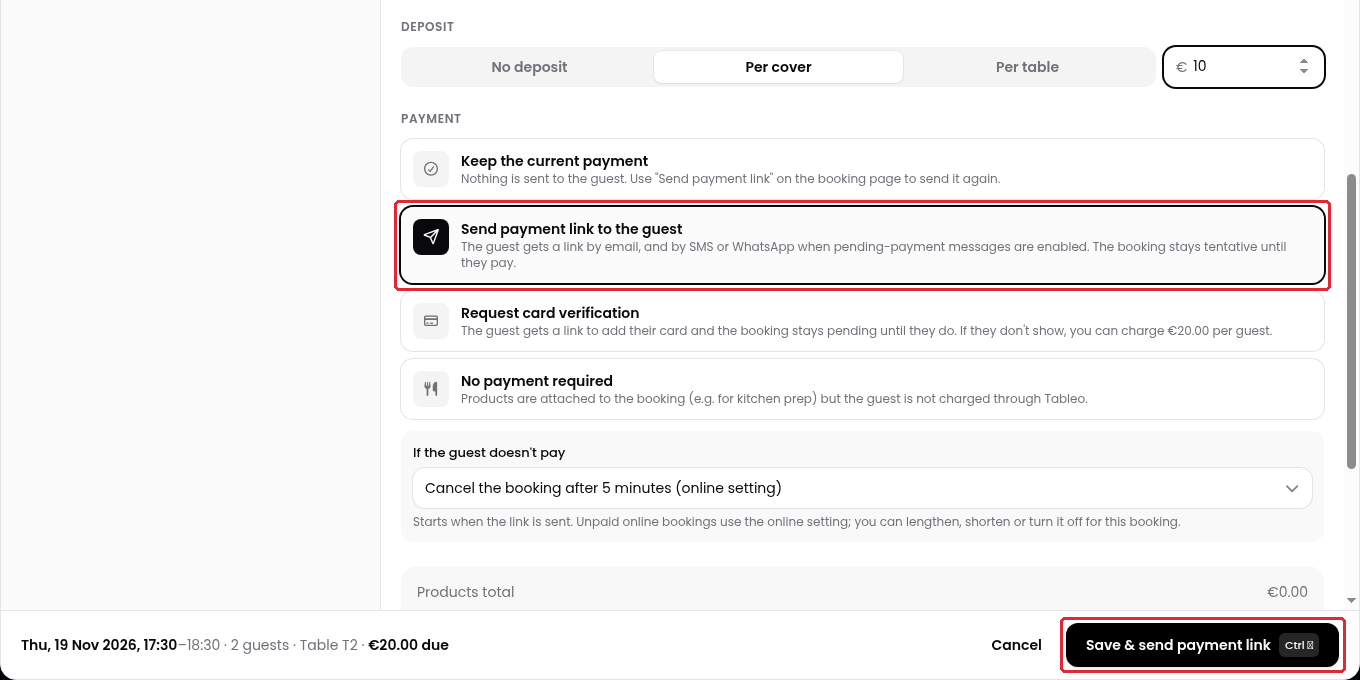
Keep the current payment does not send anything to the guest. Choose Send payment link to the guest when you want to send a request while saving the edited booking.
The guest receives a link by email, and by SMS or WhatsApp when pending-payment messages are enabled. The booking stays tentative until payment is completed.
For a card guarantee instead of an immediate payment, choose Request card verification. No payment required attaches products without charging the guest through Tableo.
While we strive to ensure the accuracy and currency of the information in our knowledge base, some articles may contain minor discrepancies due to the constant evolution of our services and products.
Was this article helpful?
That’s Great!
Thank you for your feedback
Sorry! We couldn't be helpful
Thank you for your feedback
Feedback sent
We appreciate your effort and will try to fix the article