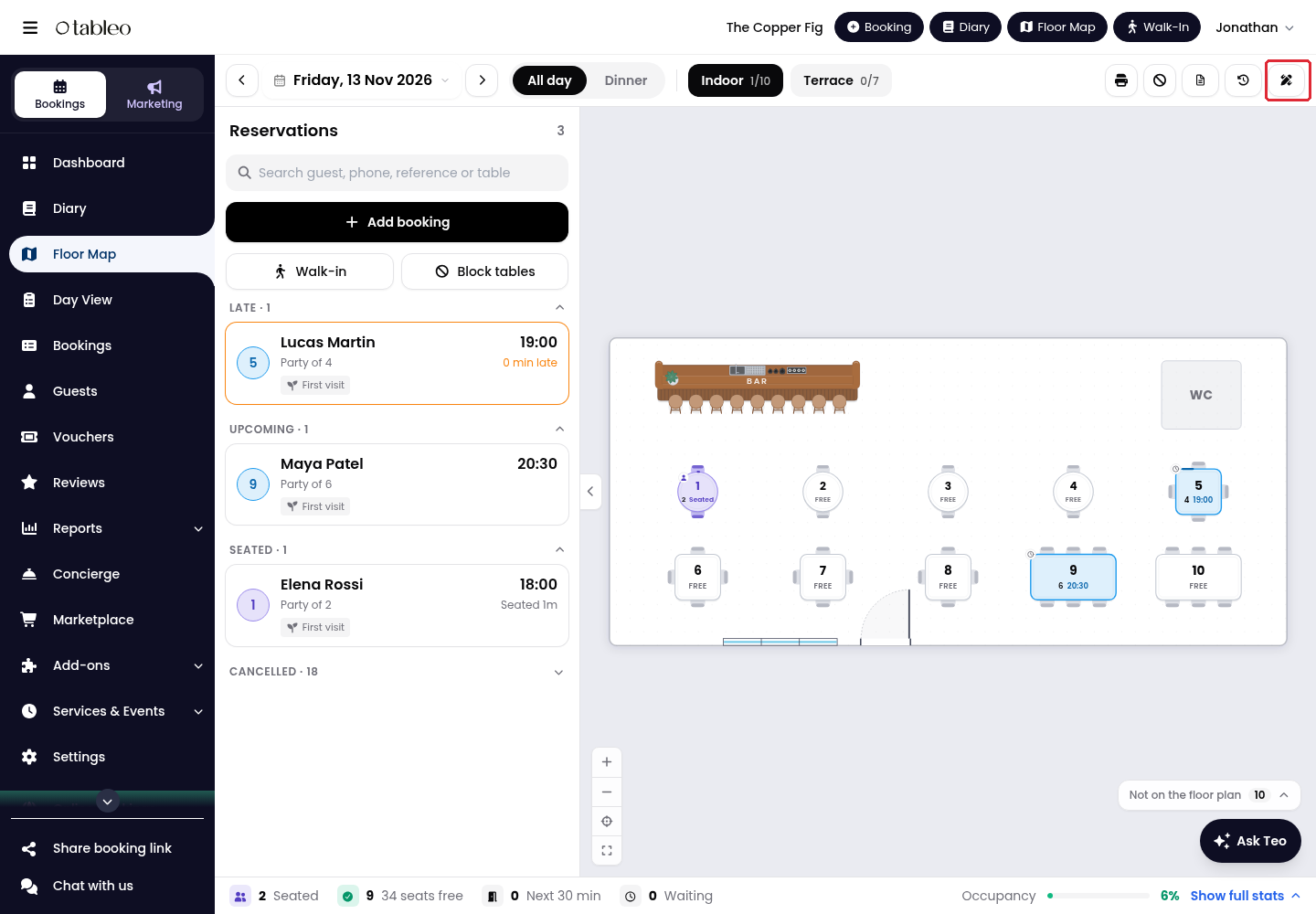
1. Click Floor Map in the top bar, then click the Edit floor plan icon at the top right.
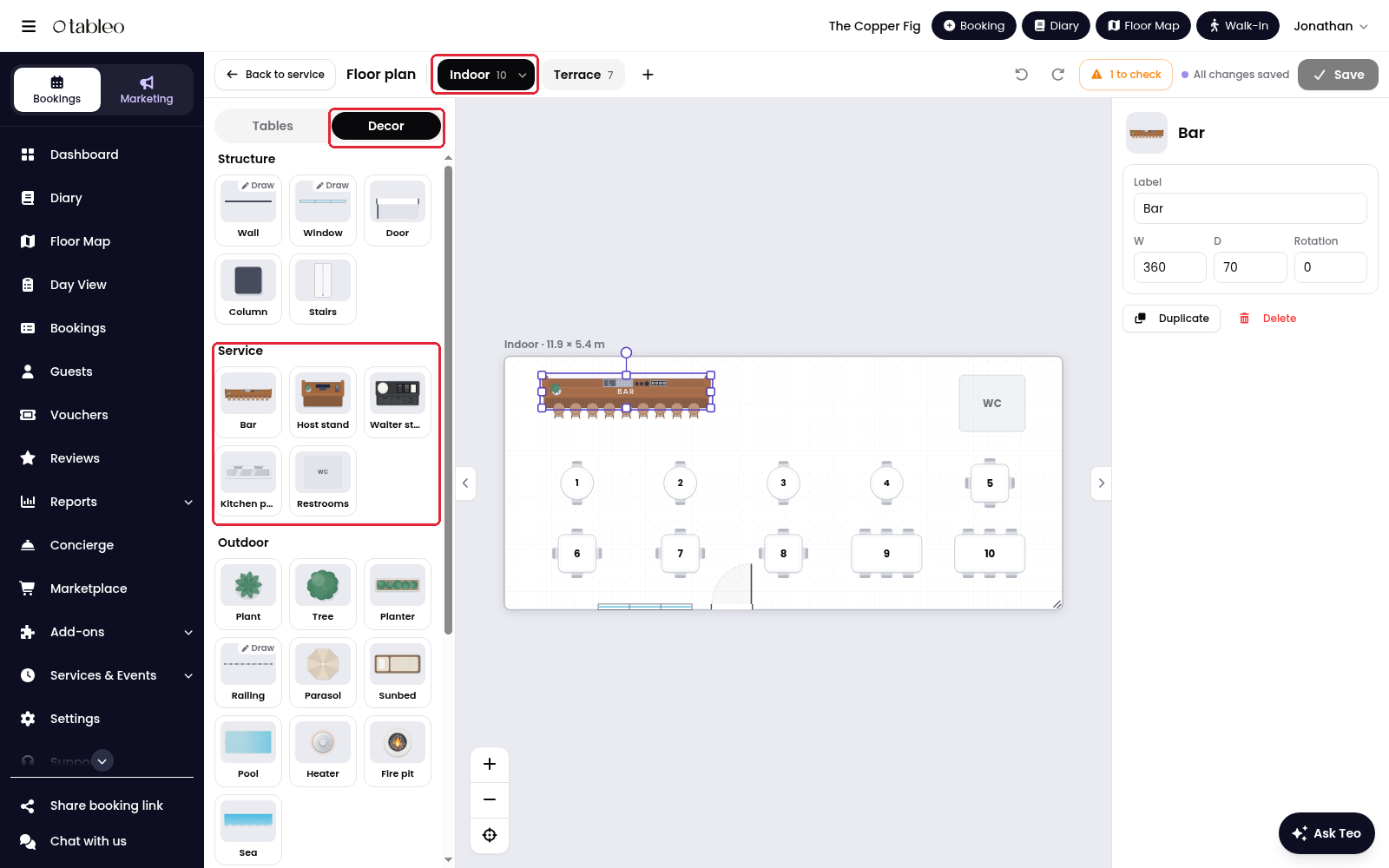
2. Select the room tab, then open Decor. To add an item such as a bar or plant, drag it onto the floor, or click it to add it in the middle.
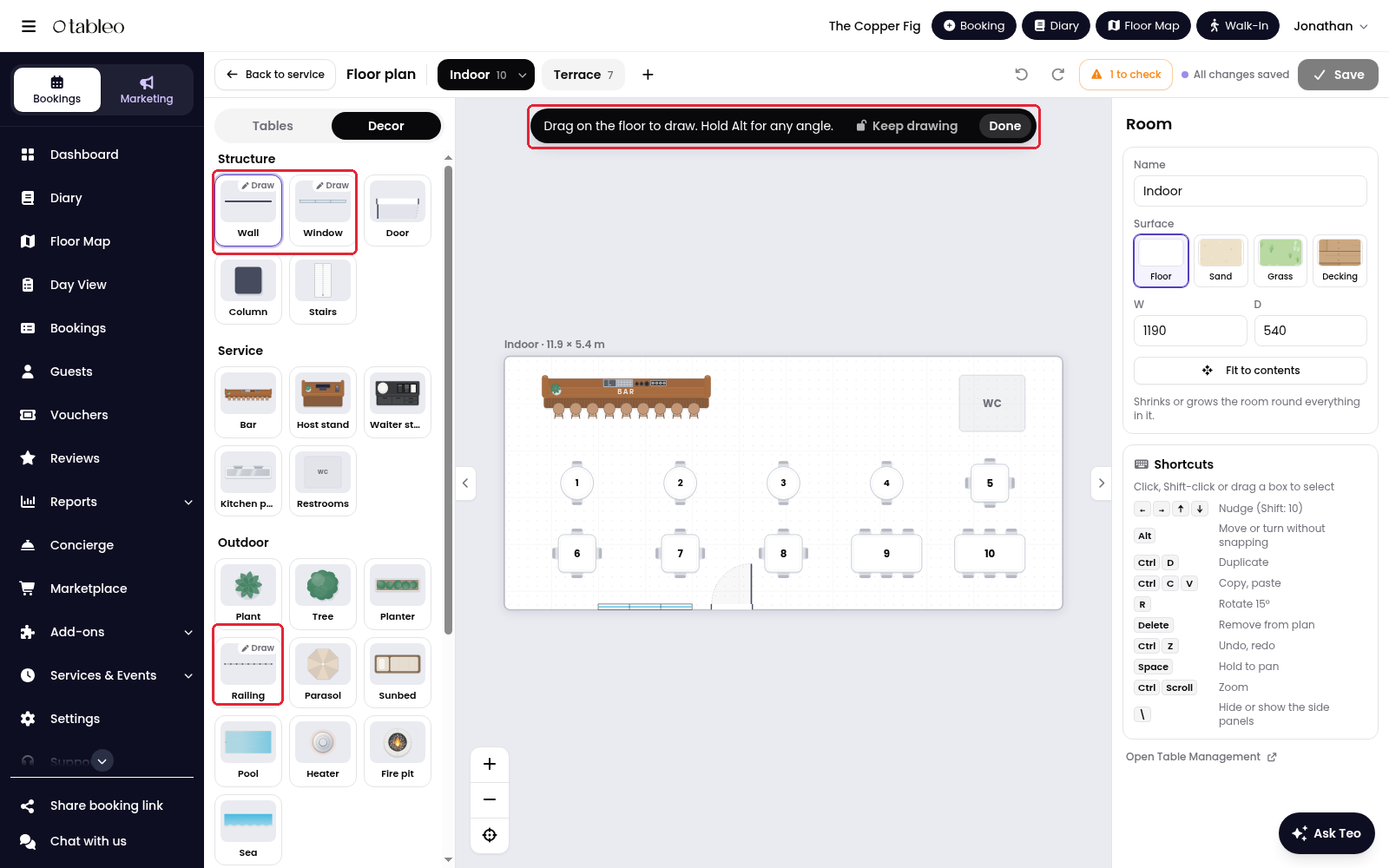
3. To draw a wall or window, choose Wall or Window under Structure. For a railing, choose Railing under Outdoor. These items show Draw. Drag on the floor to draw the line; hold Alt for any angle. Use Keep drawing for several sections, then click Done.
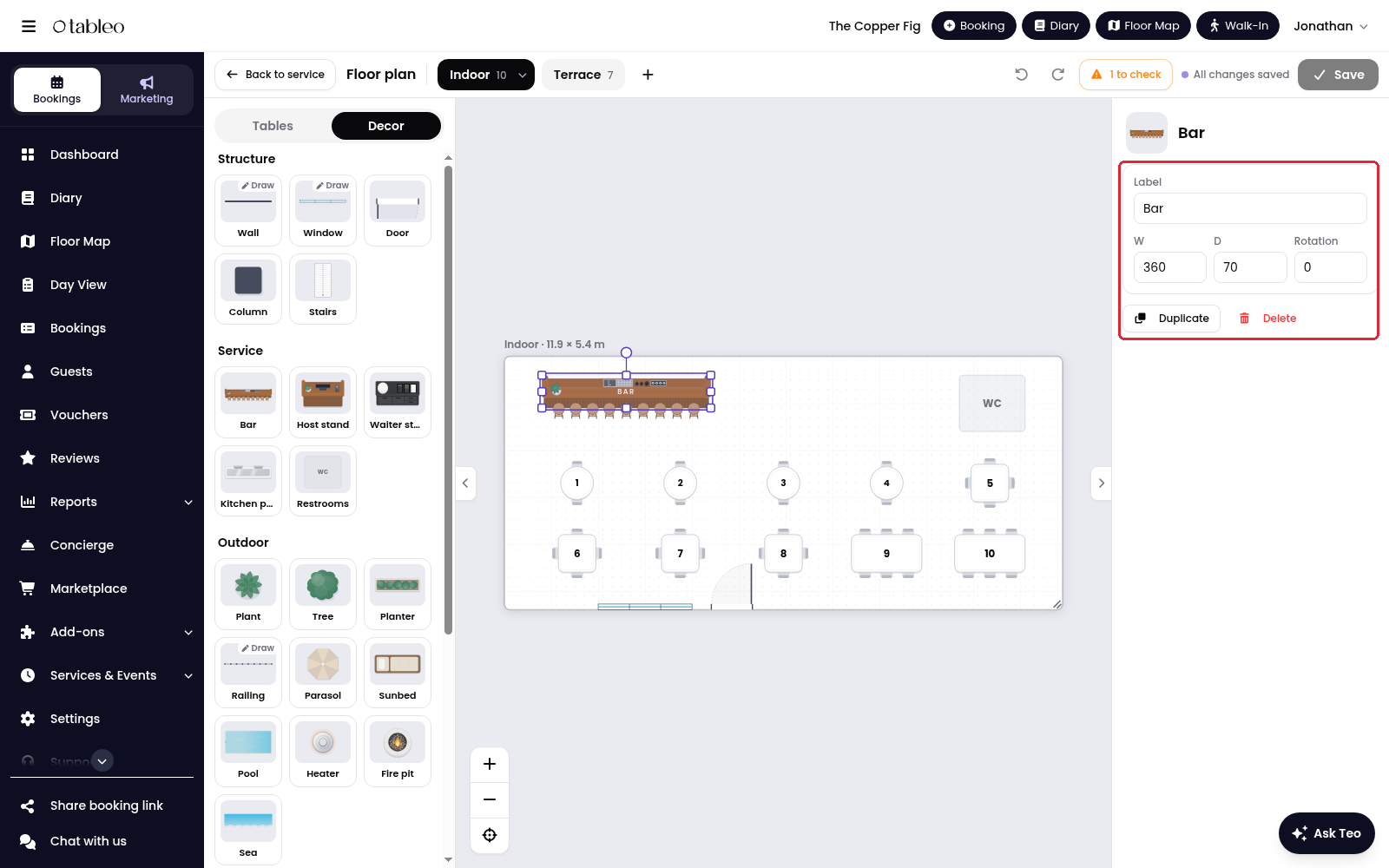
4. Select a decor item and drag it into position. In the right panel, edit its Label, W (width), D (depth) and Rotation. Use Duplicate to copy it or Delete to remove it.
5. Click Save at the top right. Check that the status reads All changes saved, then use Back to service to return to the Floor Map.
Decor and layout changes need Save; leaving without saving discards those changes.
See also: How to set up and edit your Floor Map.
While we strive to ensure the accuracy and currency of the information in our knowledge base, some articles may contain minor discrepancies due to the constant evolution of our services and products.
Was this article helpful?
That’s Great!
Thank you for your feedback
Sorry! We couldn't be helpful
Thank you for your feedback
Feedback sent
We appreciate your effort and will try to fix the article