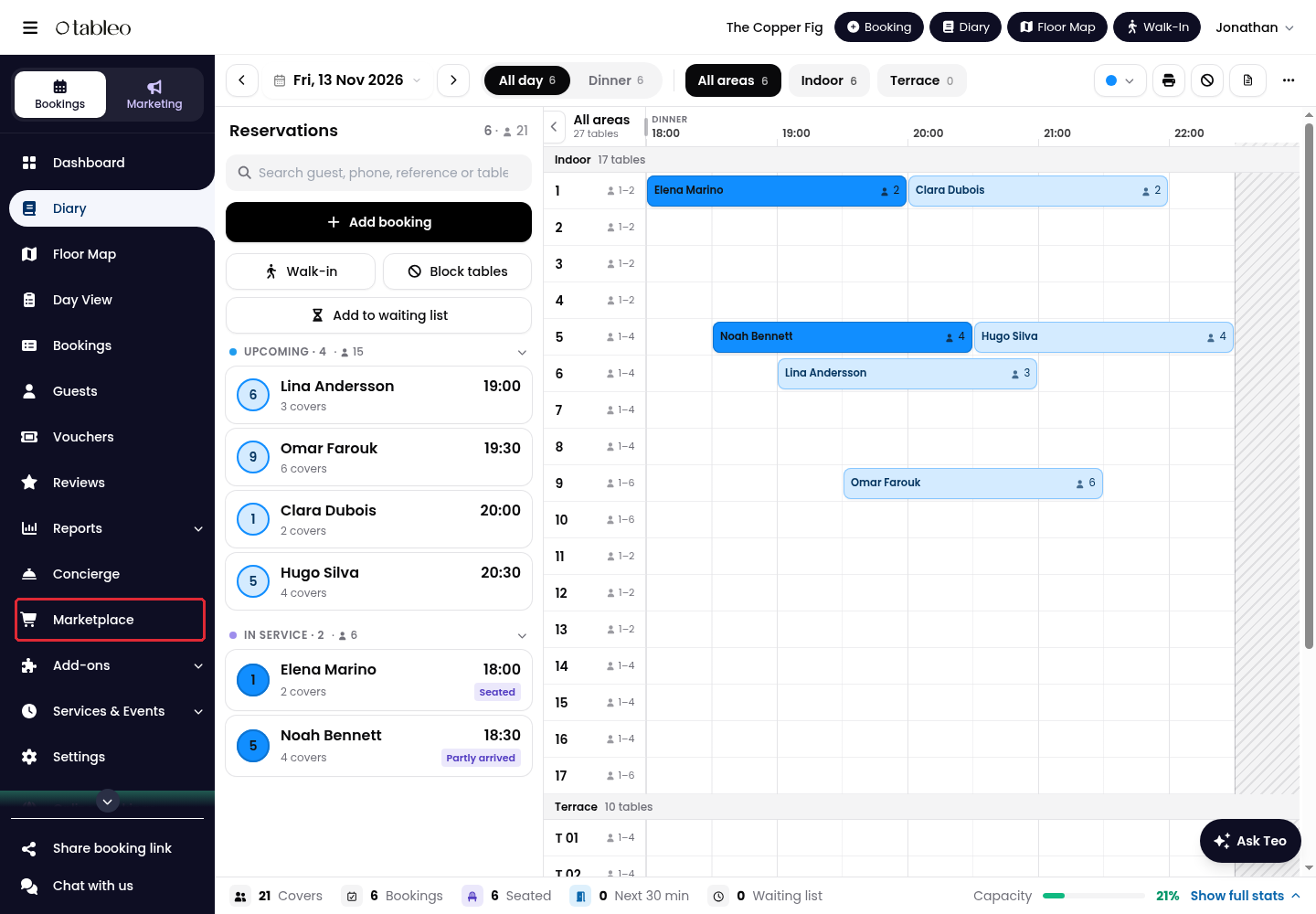
1. Click on Marketplace in the side menu.
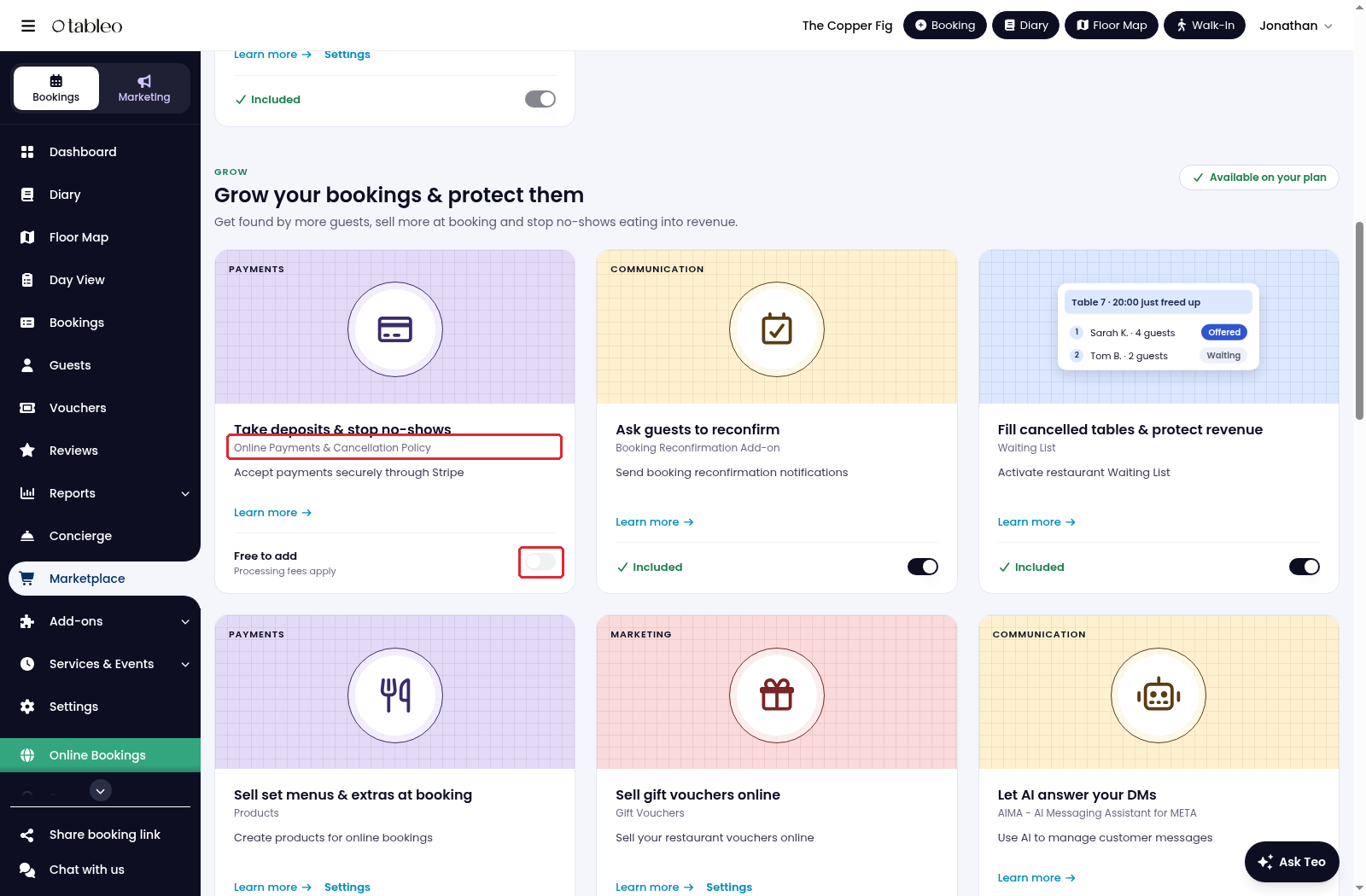
2. Find Online Payments & Cancellation Policy and activate its switch if it is not already active.
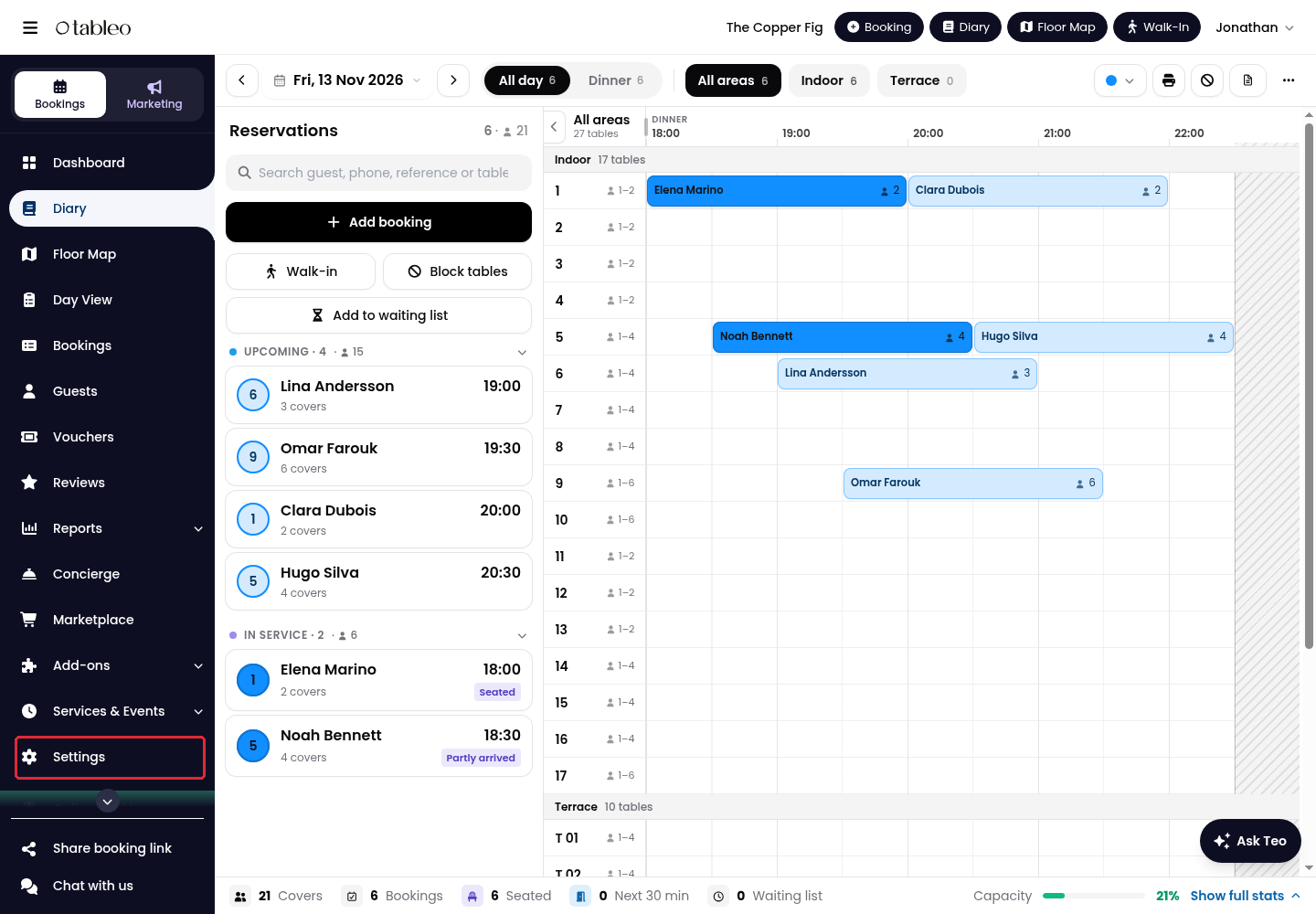
3. Click on Settings in the side menu.
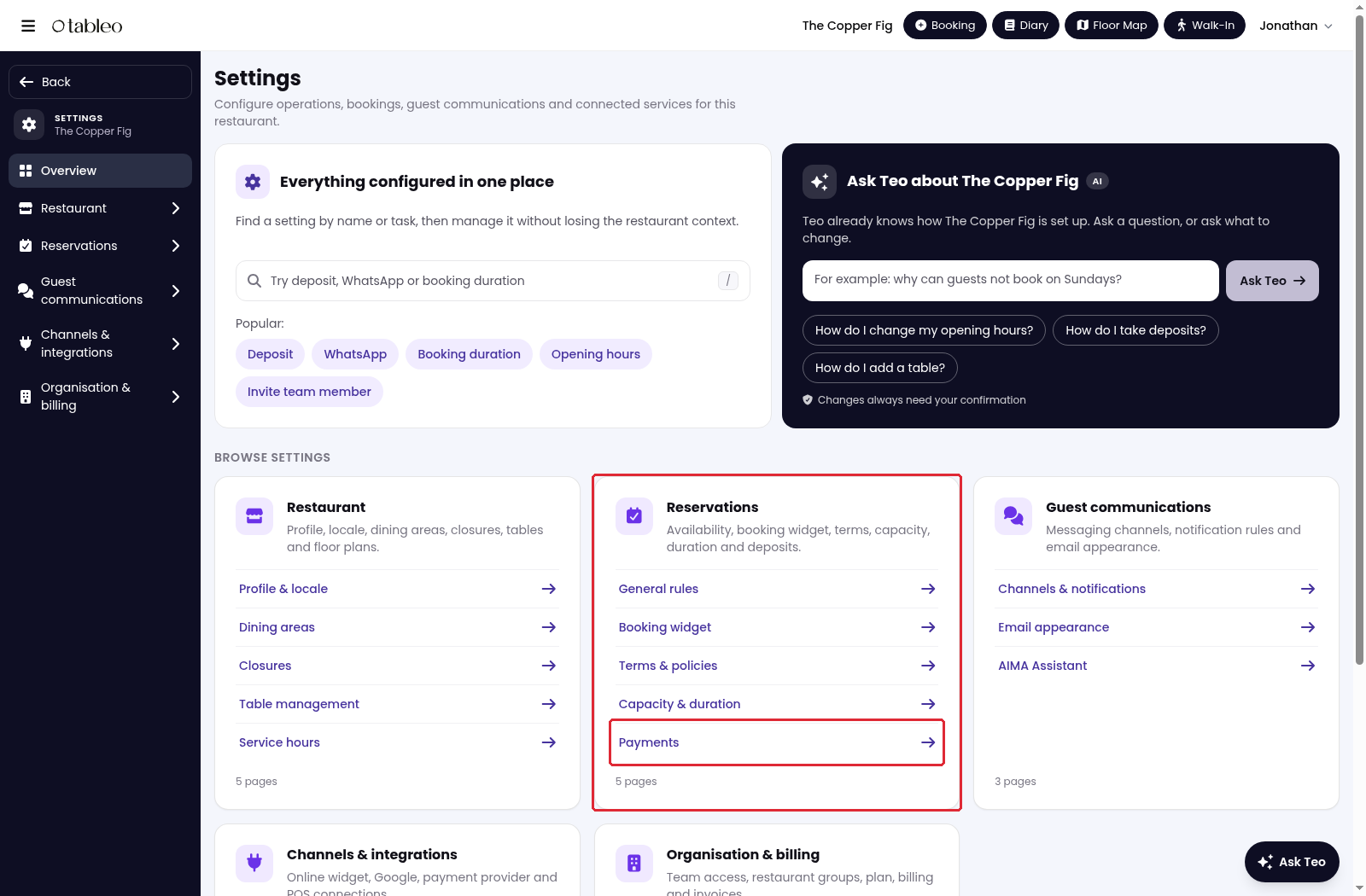
4. Under Reservations, click on Payments.
5. Under Payment provider, choose Stripe. Enter the Email for your Stripe account, then click on Connect Stripe.
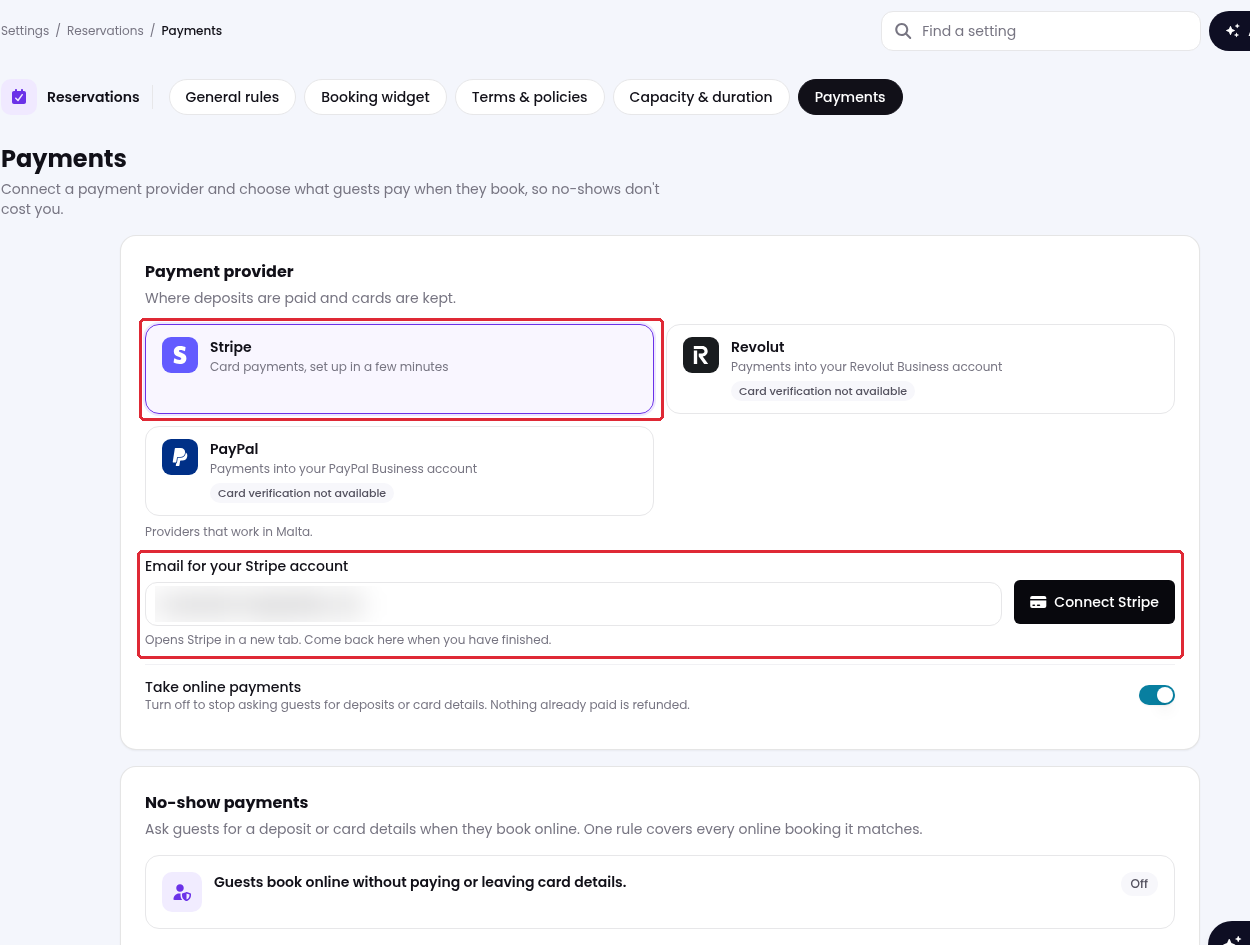
6. Complete the setup in the Stripe tab, then return to Tableo. Turn on Take online payments and click on Save changes.
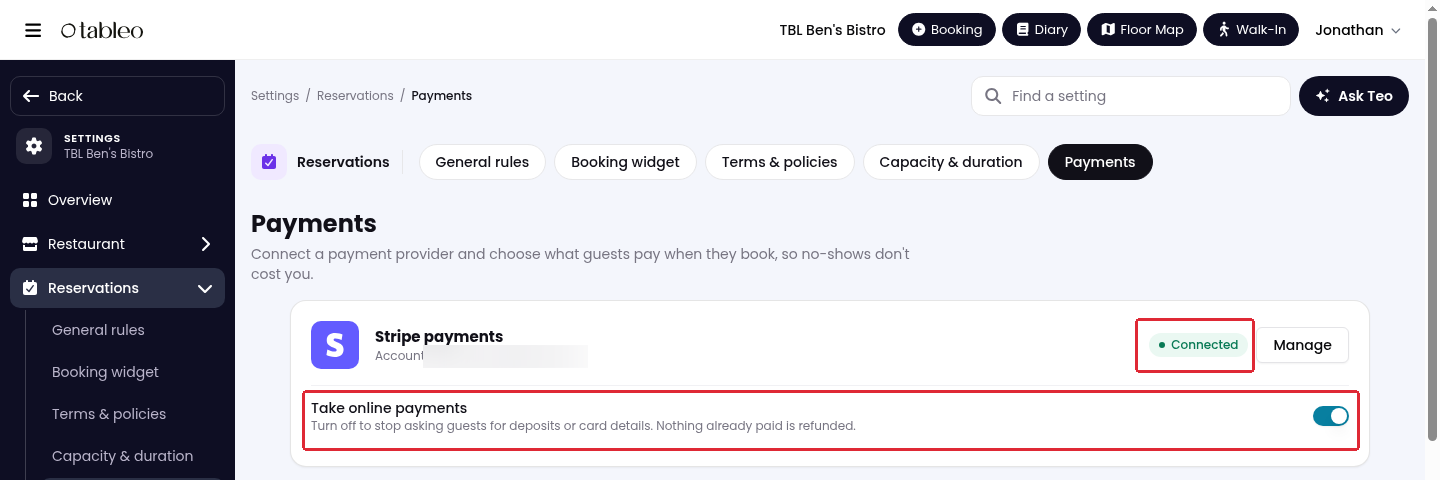
Next, set your deposit or card-verification rules. For fees, see Stripe payment costs.
While we strive to ensure the accuracy and currency of the information in our knowledge base, some articles may contain minor discrepancies due to the constant evolution of our services and products.
Was this article helpful?
That’s Great!
Thank you for your feedback
Sorry! We couldn't be helpful
Thank you for your feedback
Feedback sent
We appreciate your effort and will try to fix the article