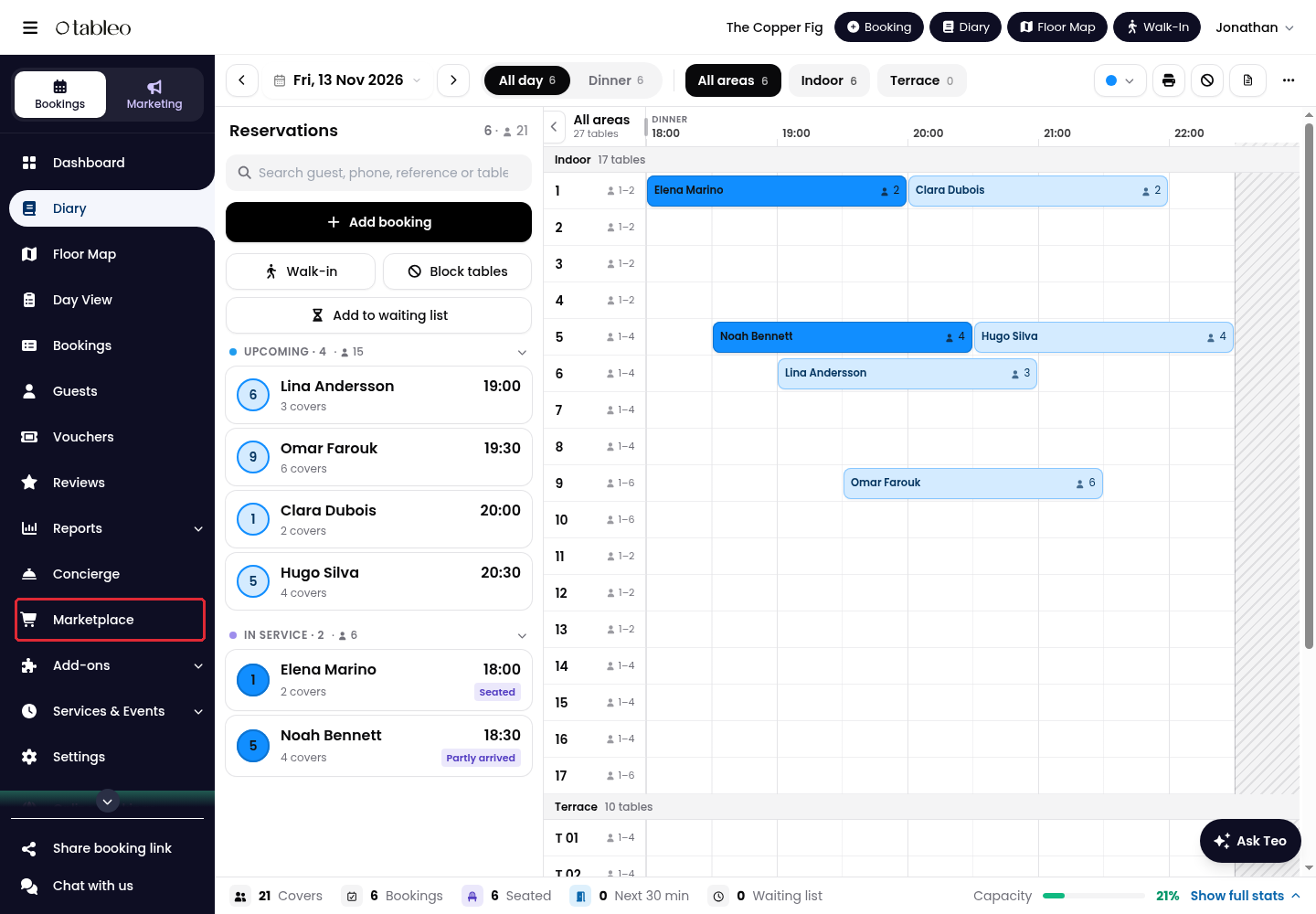
1. Click on Marketplace in the side menu.
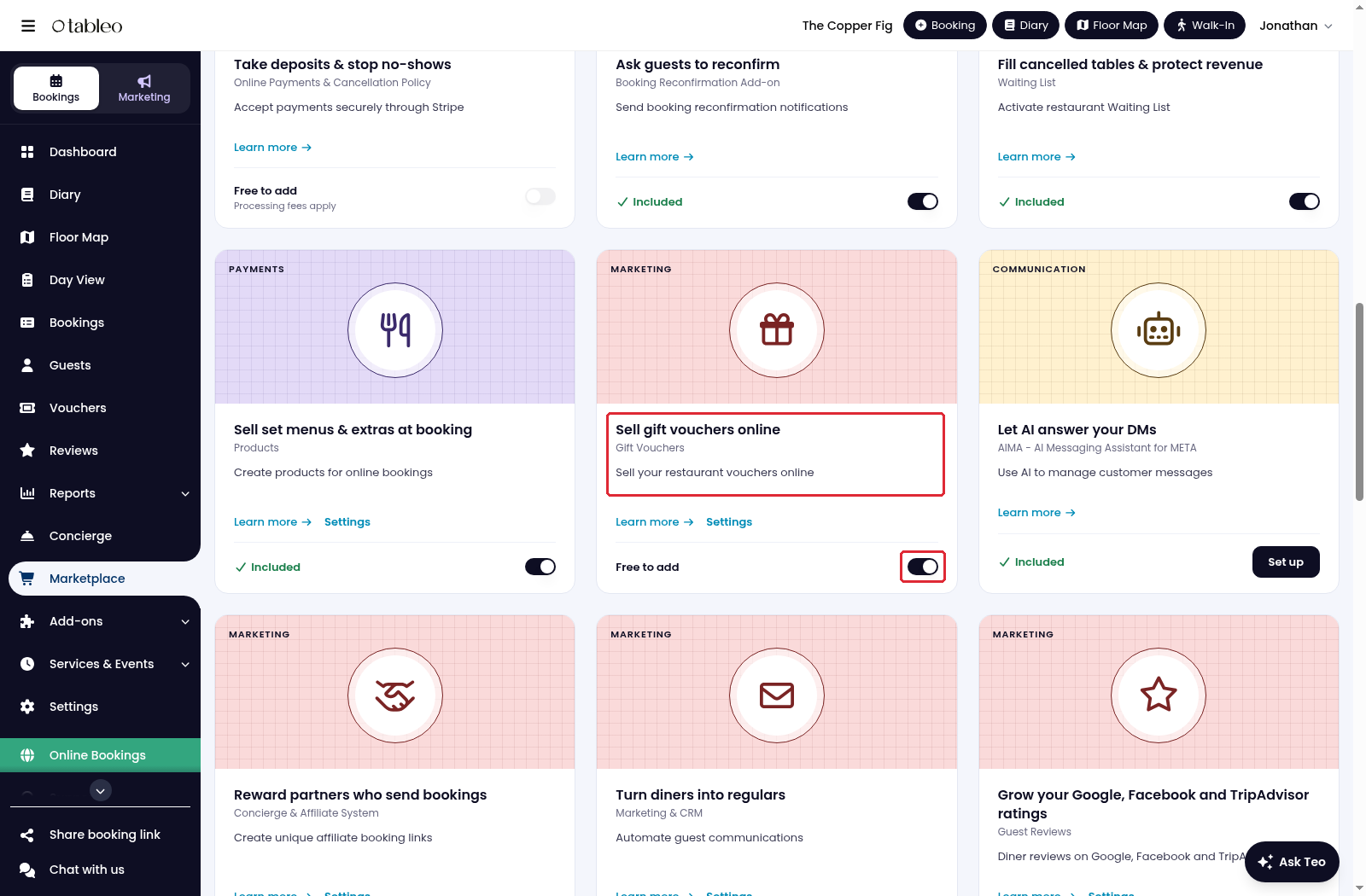
2. Find Gift Vouchers and activate its switch if it is not already active.
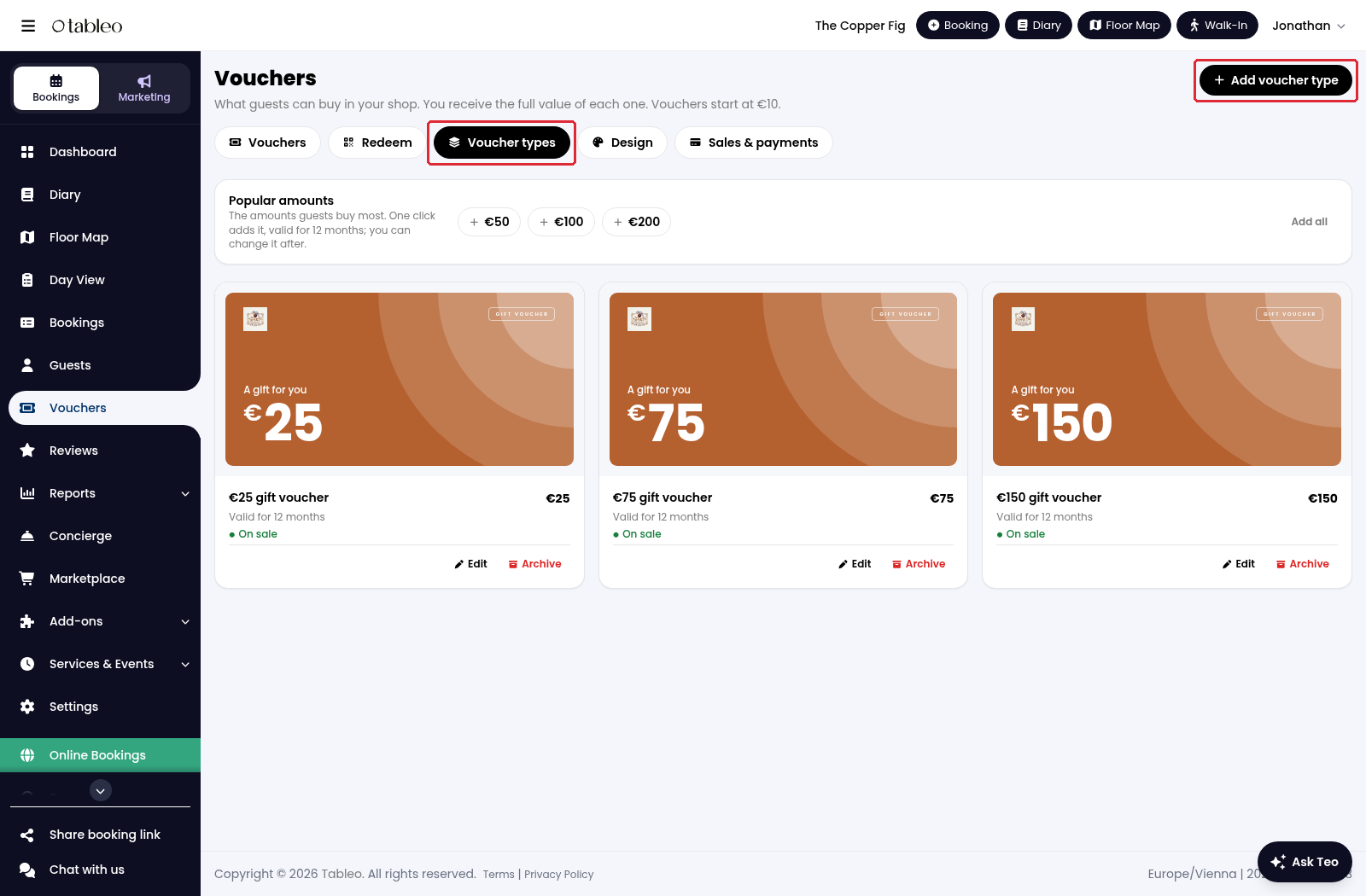
3. Click on Vouchers in the side menu, open Voucher types, then click on Add voucher type.
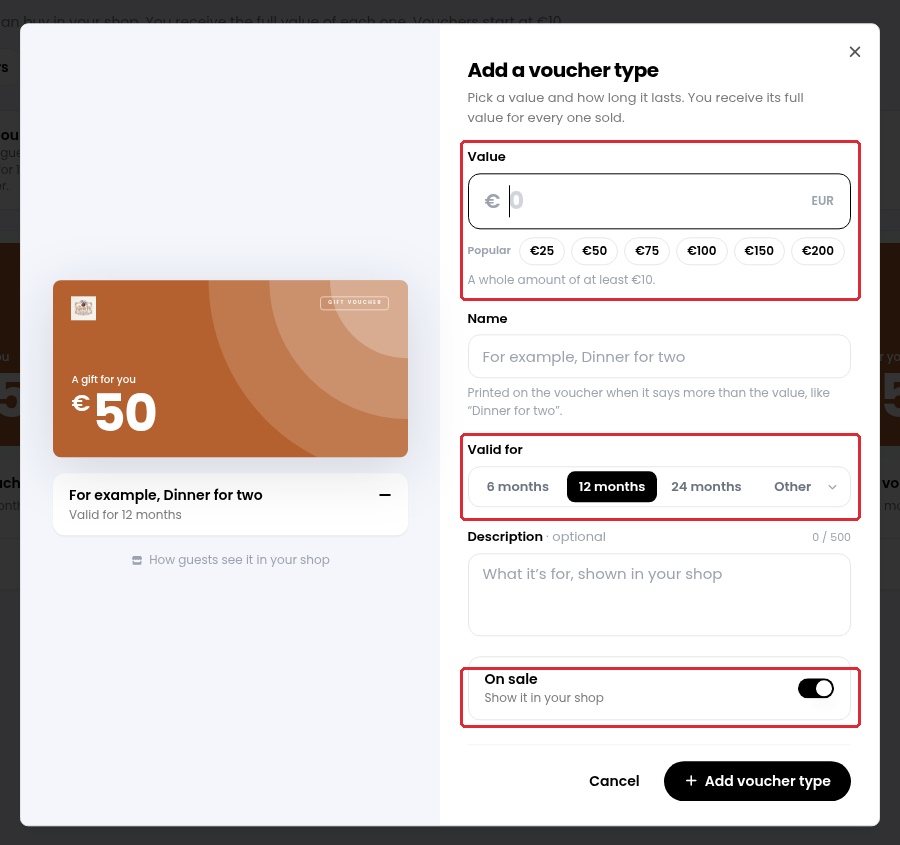
4. Enter the Value and Name, choose Valid for, and add a description if required. Keep On sale on to show it in the shop, then click on Add voucher type.
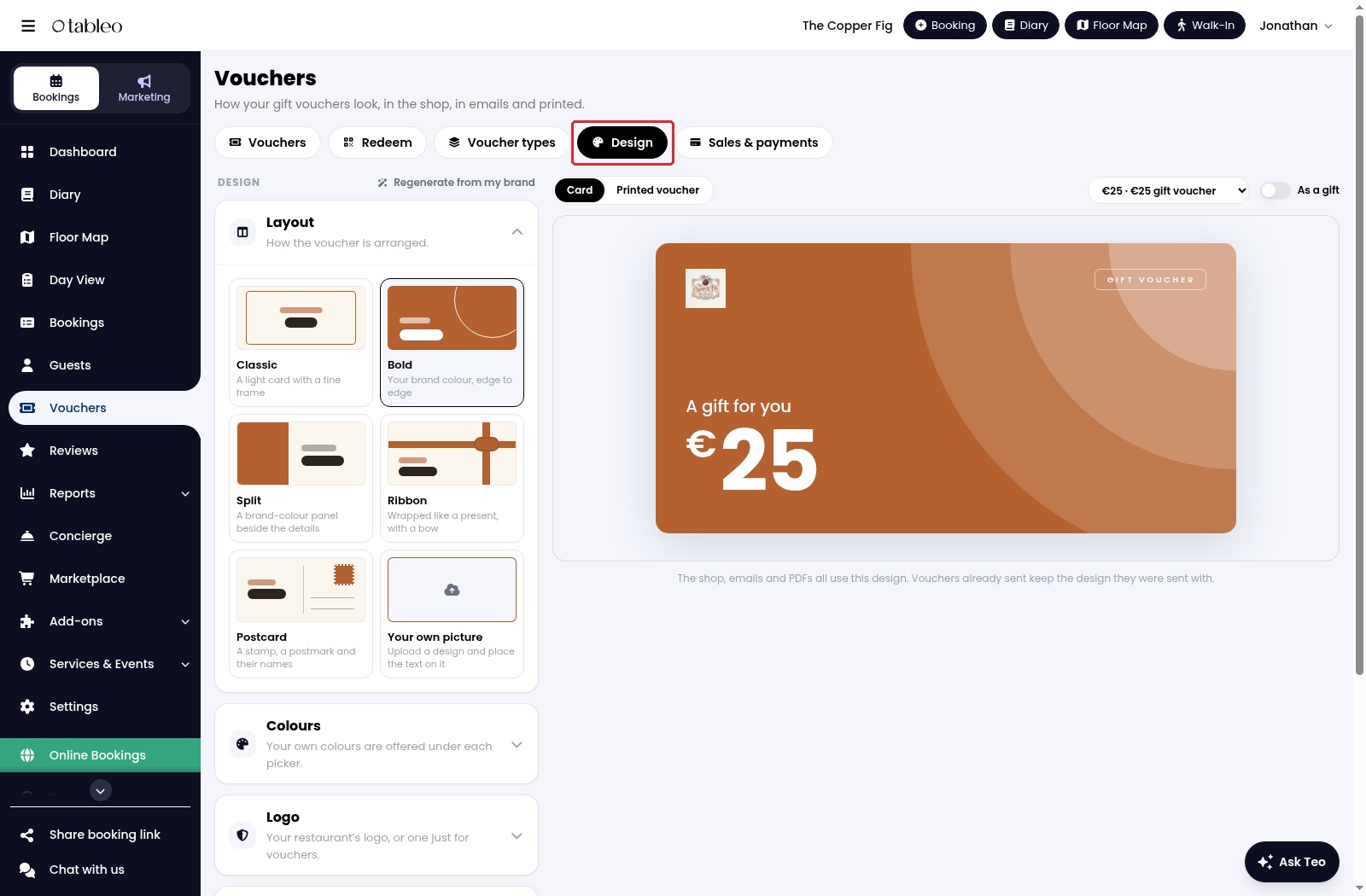
5. Open Design to customise the layout, colours, logo and wording. Use Card and Printed voucher to preview the result.
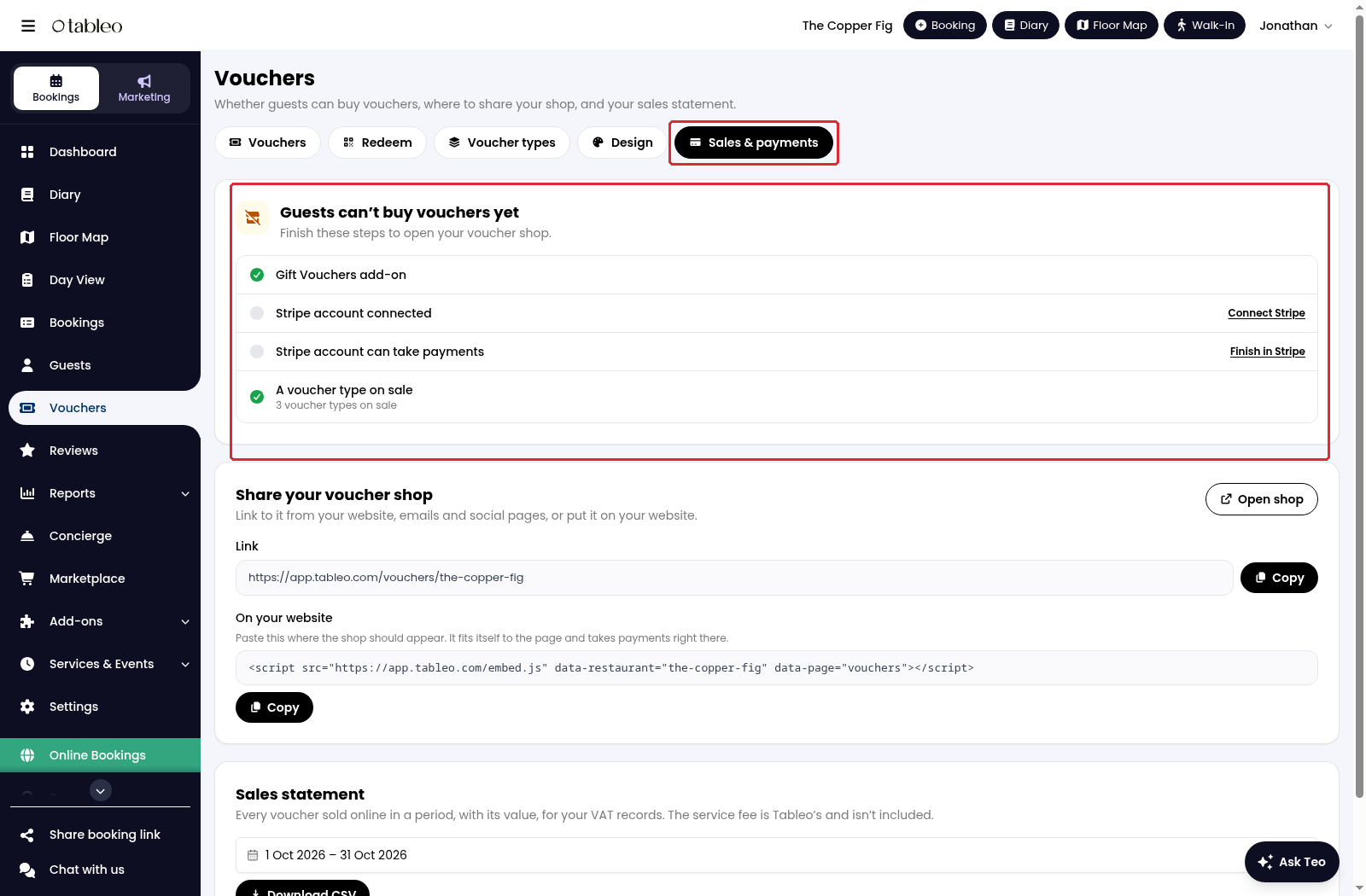
6. Open Sales & payments and complete any missing requirements. Guests can buy vouchers when the Gift Vouchers add-on is active, Stripe is connected and able to take payments, and at least one voucher type is on sale.
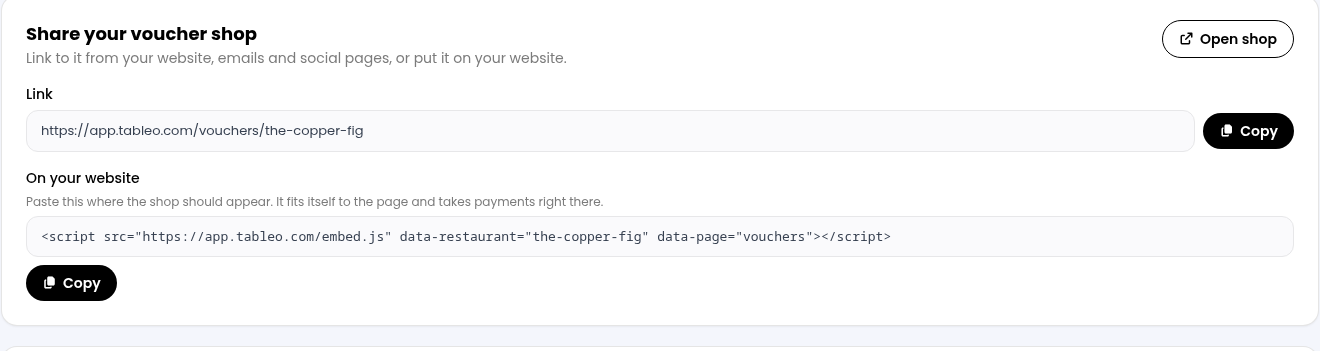
7. Under Share your voucher shop, copy the Link for your website or social pages. Use the code under On your website to embed the shop, or click on Open shop to view it.
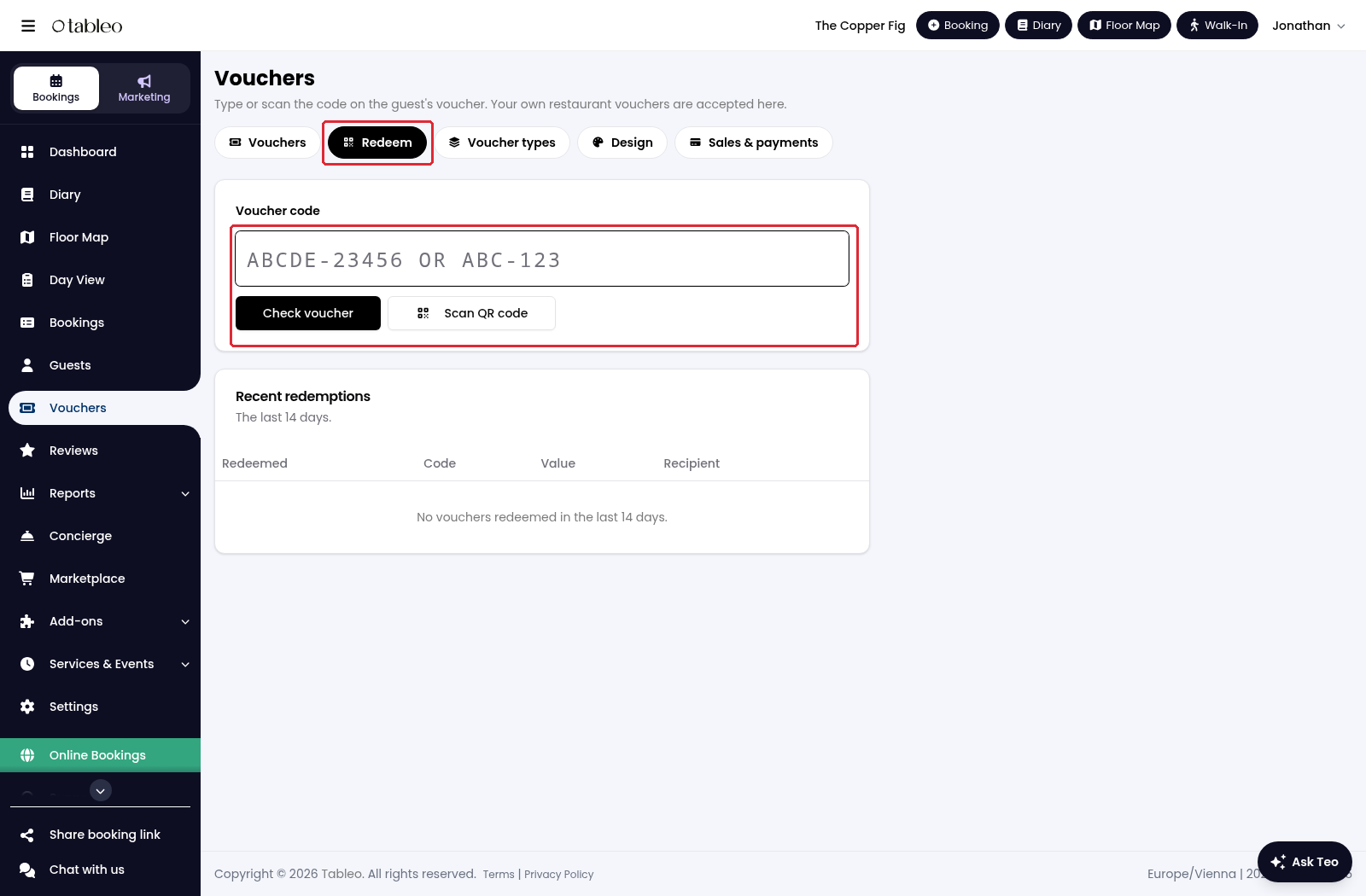
8. To check a guest’s voucher, open Redeem, enter the Voucher code and click on Check voucher, or use Scan QR code. Review the voucher before completing its redemption.
While we strive to ensure the accuracy and currency of the information in our knowledge base, some articles may contain minor discrepancies due to the constant evolution of our services and products.
Was this article helpful?
That’s Great!
Thank you for your feedback
Sorry! We couldn't be helpful
Thank you for your feedback
Feedback sent
We appreciate your effort and will try to fix the article