Create an email campaign, choose its audience, then review it before sending or scheduling.
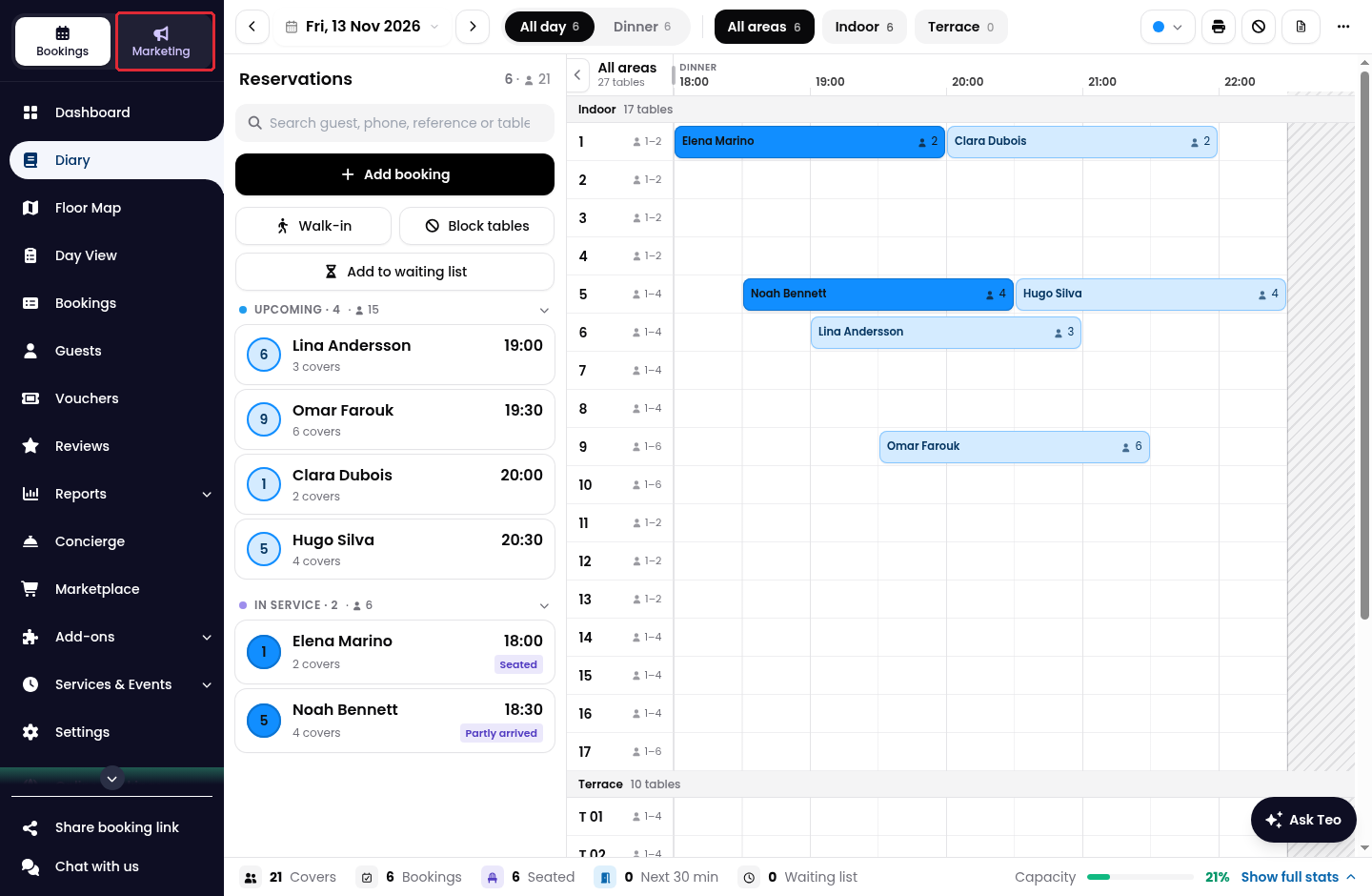
1. Click on Marketing in the side menu.
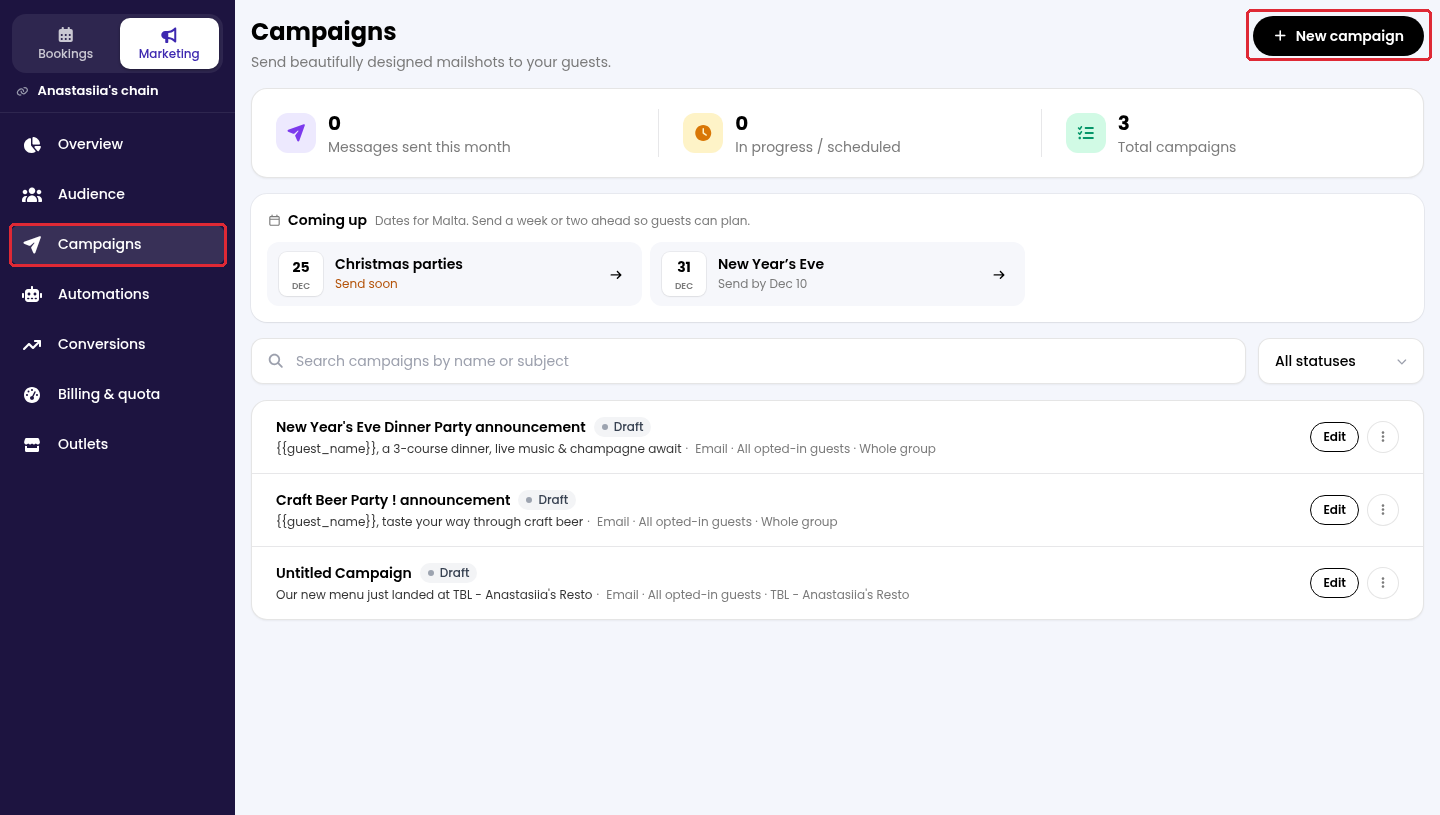
2. Open Campaigns, then click on New campaign.
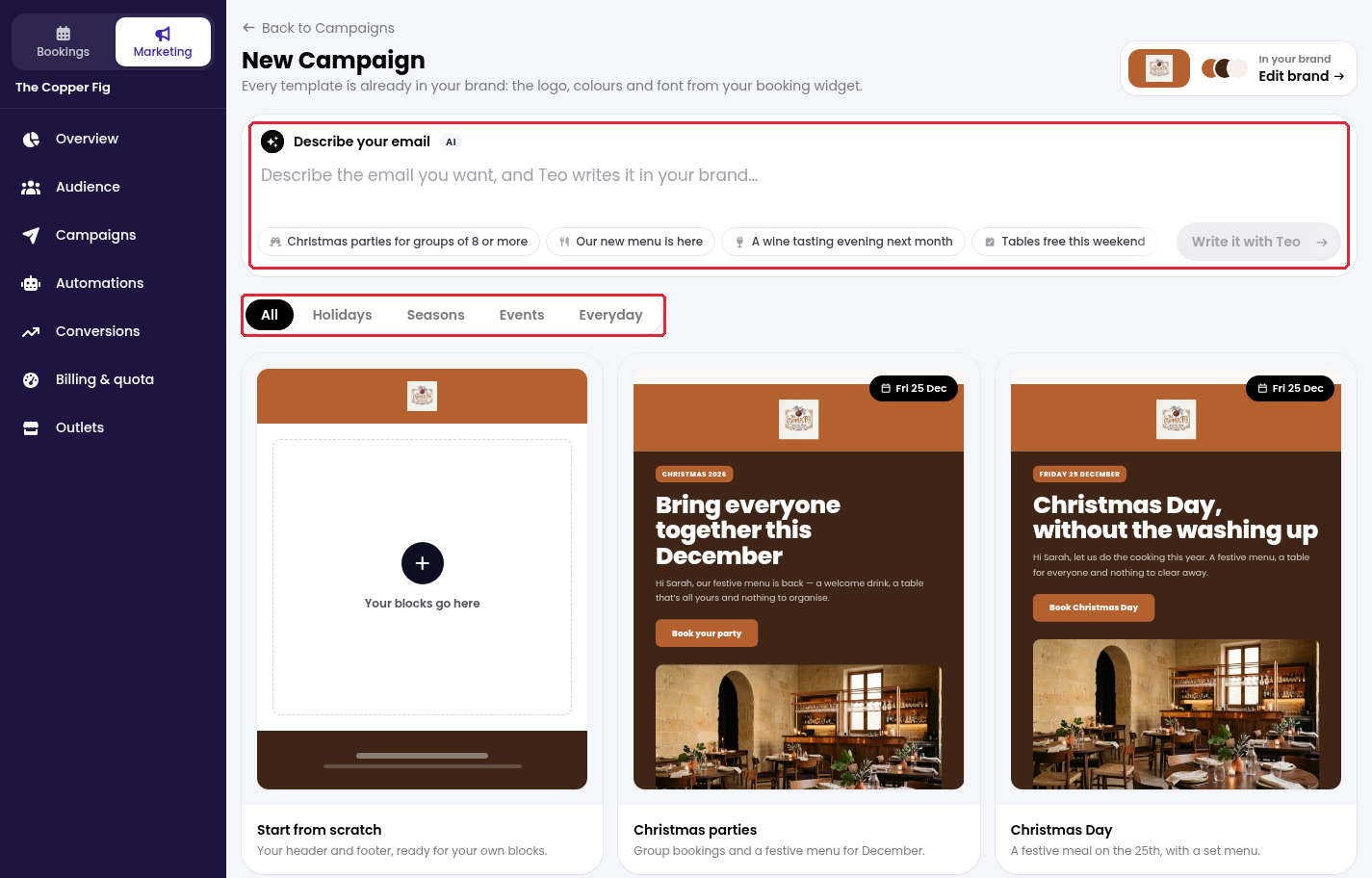
3. To have Teo create a campaign template for you, enter what you want in Describe your email, then click on Write it with Teo. Alternatively, choose a template or Start from scratch. Use the category tabs to browse the templates.
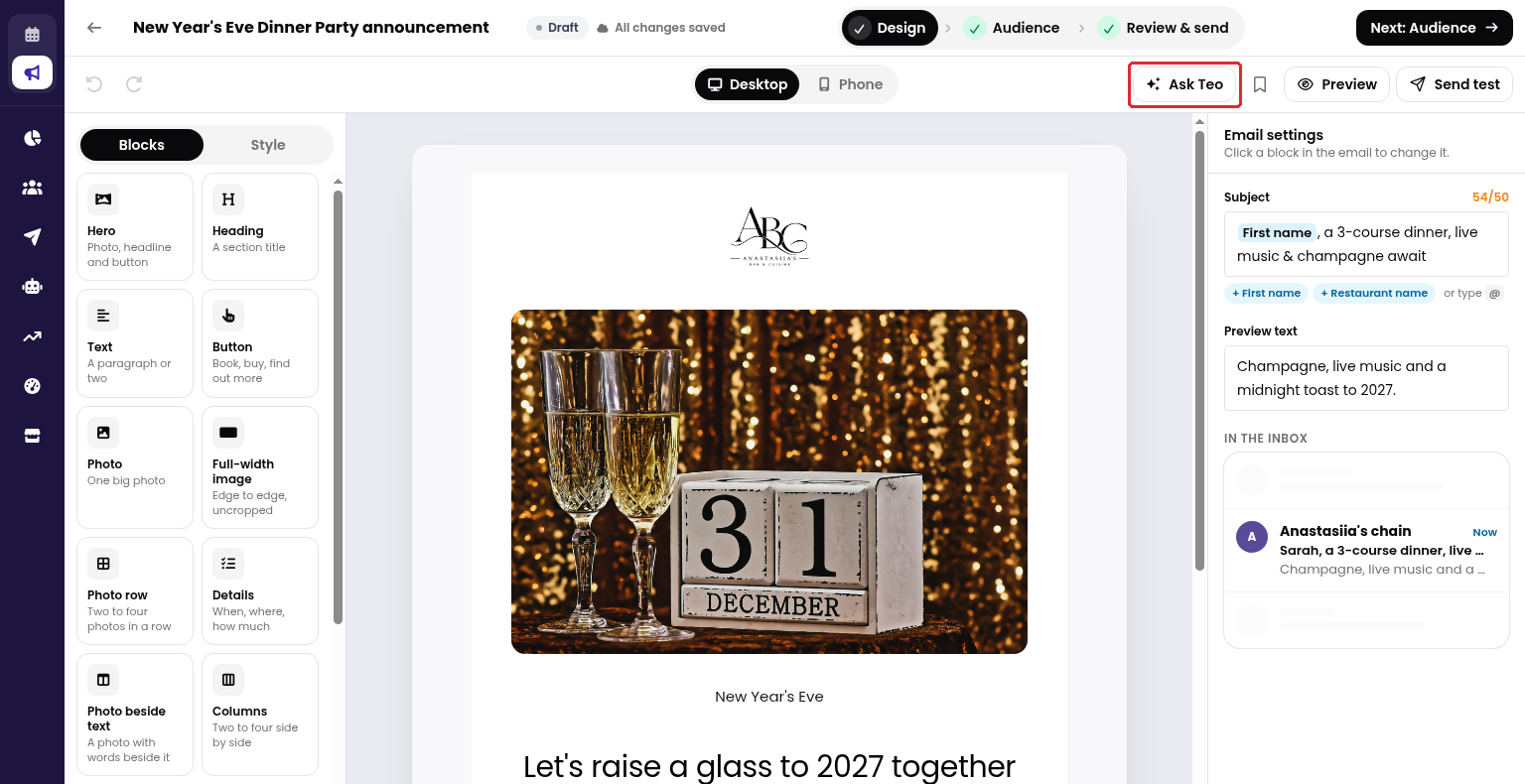
4. Enter a campaign name at the top. Use Blocks and Style to edit the design, and complete Subject and Preview text. Check the Desktop and Phone views, then click on Next: Audience.
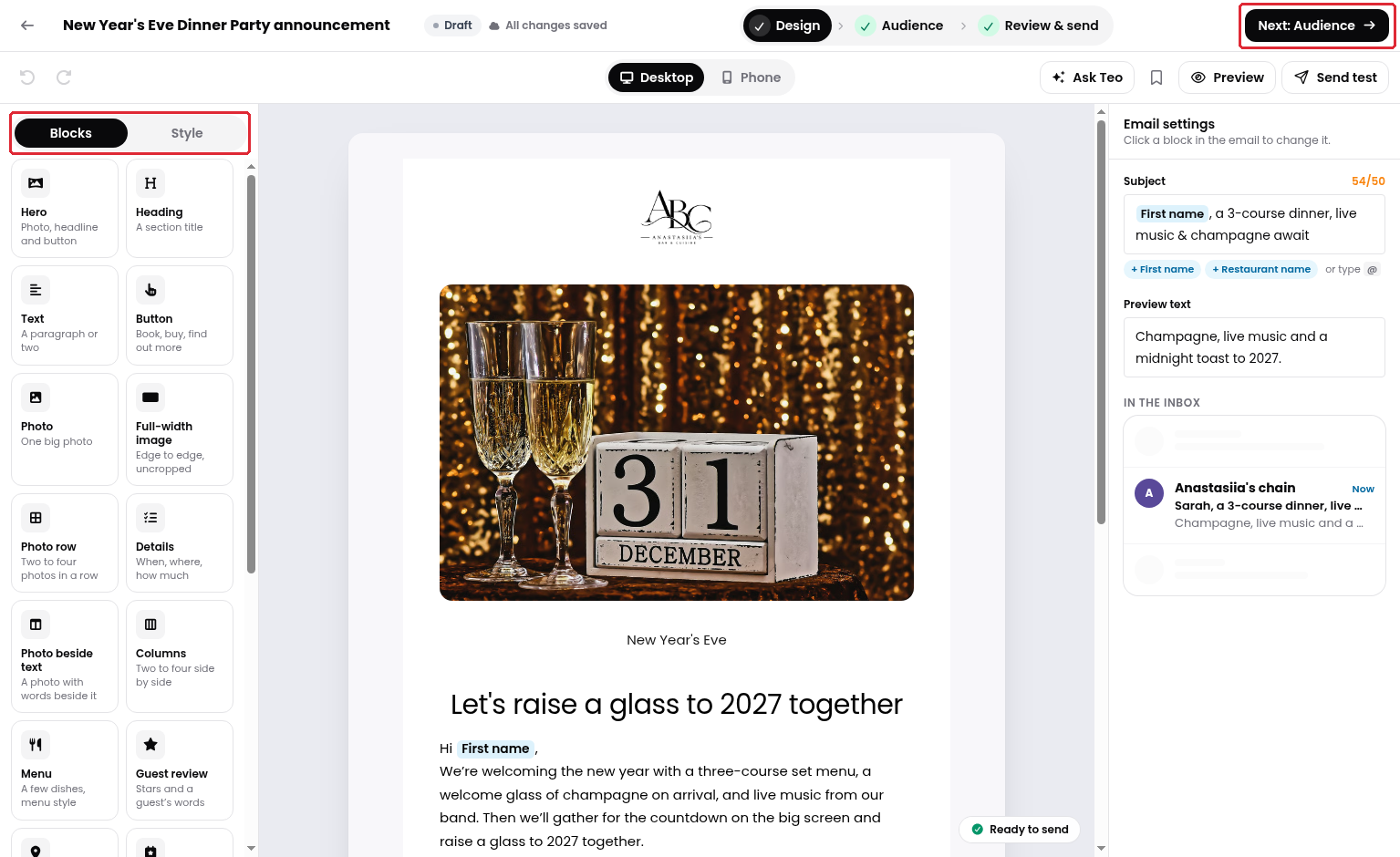
You can still access Teo while editing the design by clicking on Ask Teo in the design toolbar.
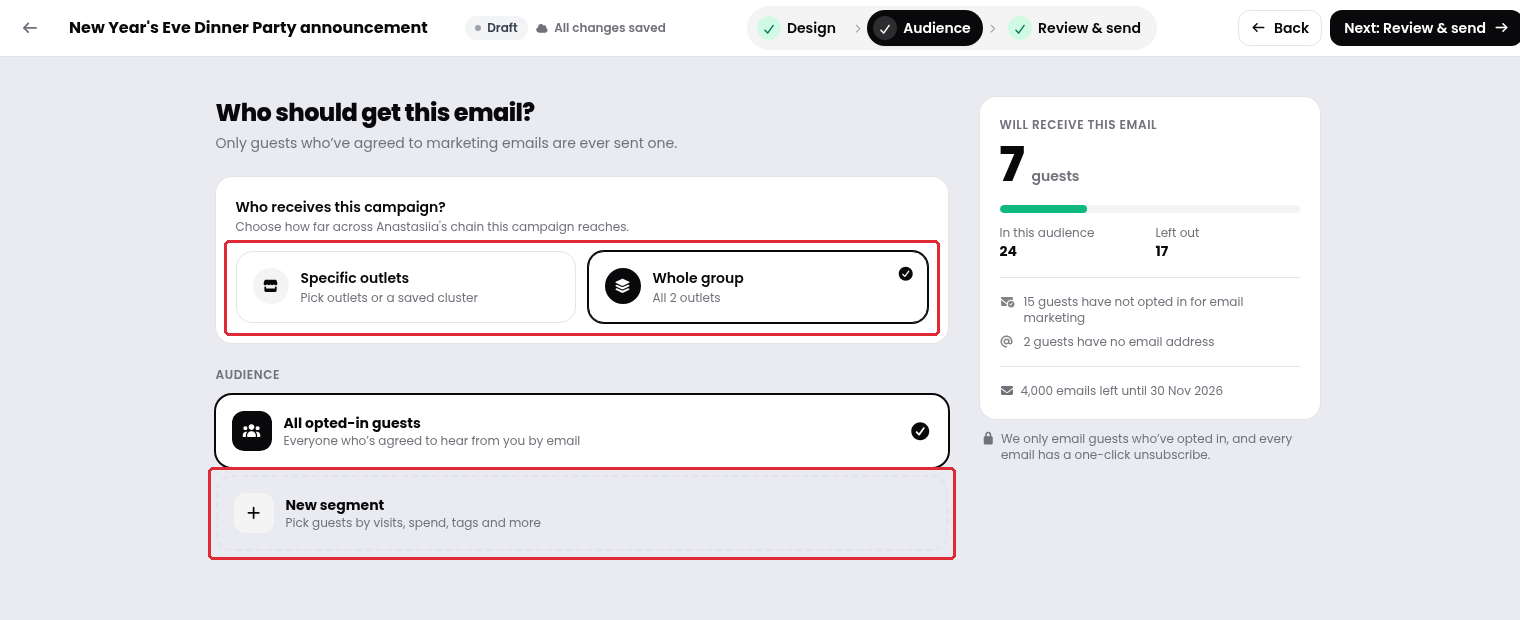
5. Choose the audience. For a group, select Whole group or Specific outlets. Use All opted-in guests or New segment to narrow the recipients. The summary shows how many guests will receive the email and why others are excluded.
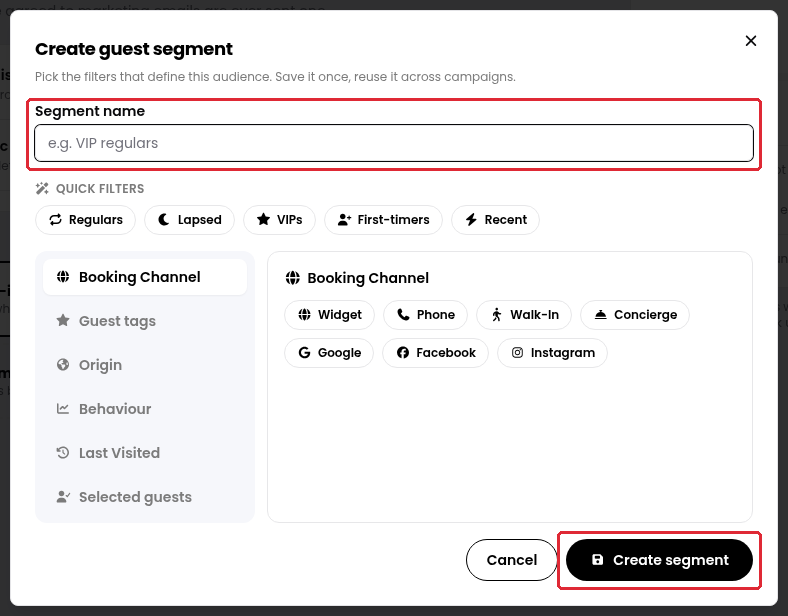
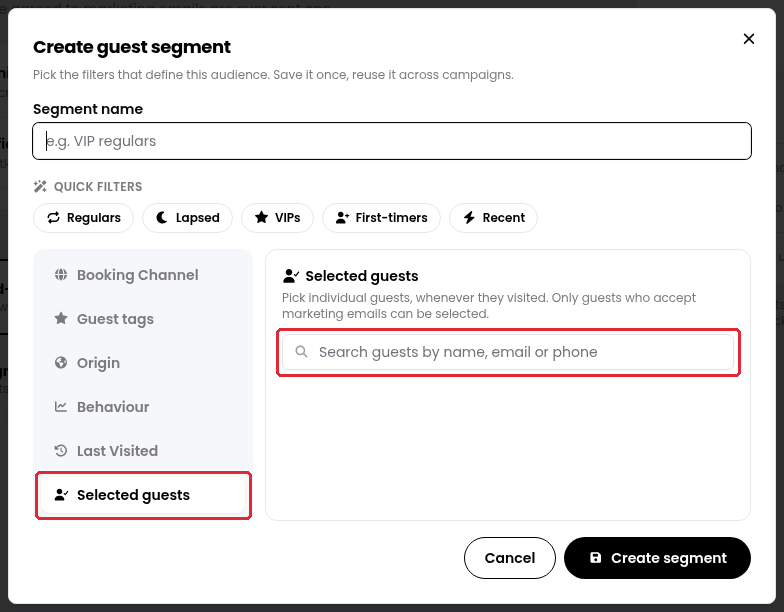
6. To create a segment, enter a Segment name and apply filters, or use Selected guests to choose individual recipients who accept marketing emails. Click on Create segment, then Next: Review & send.
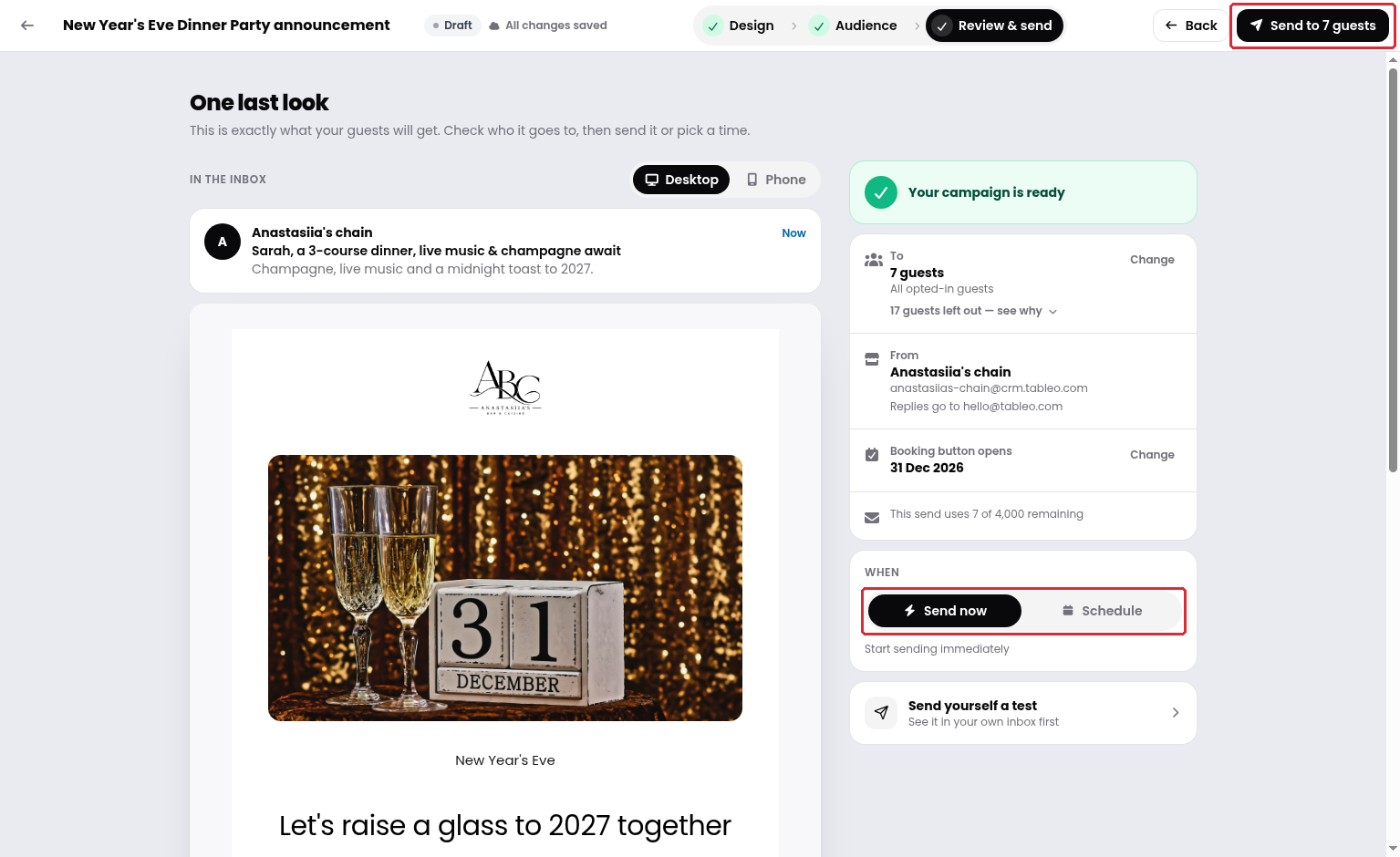
7. Review the campaign and use Send yourself a test if needed. Choose Send now or Schedule to proceed, or leave once All changes saved appears to keep it as a draft.
While we strive to ensure the accuracy and currency of the information in our knowledge base, some articles may contain minor discrepancies due to the constant evolution of our services and products.
Was this article helpful?
That’s Great!
Thank you for your feedback
Sorry! We couldn't be helpful
Thank you for your feedback
Feedback sent
We appreciate your effort and will try to fix the article