You can access Tableo directly from our App or by saving Tableo’s web app on your device’s home screen.
To download the App:
On Android:
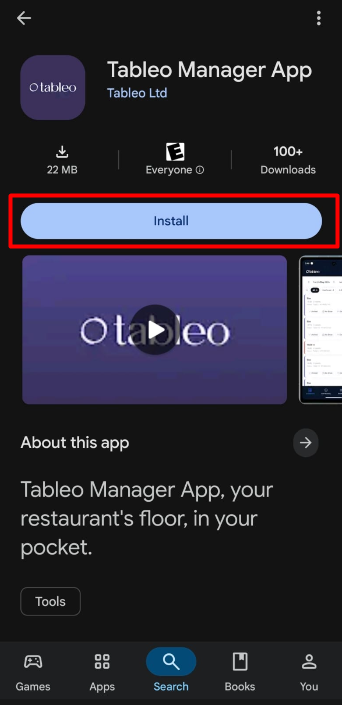
1. Go to the Google Play Store.
2. Go to the search box at the top and type “Tableo”.
3. Open the Tableo Manager App and click the Install button.
4. Open the App once it’s downloaded and log in with your credentials.
On IOS:
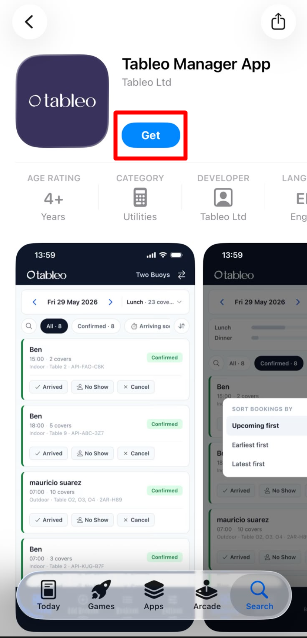
1. Go to the App Store.
2. Go to the search box in the lower-right corner and type “Tableo”.
3. Open Tableo Manager App and click the Get button.
4. Open the App once it’s downloaded and log in with your credentials.
To save the Tableo web app on your device’s home screen, follow the steps below.
On Android:
1. Go to Google Chrome (if you do not have it, download it from the Google Play Store).
2. Visit app.tableo.com
3. Log in with your credentials and select Remember me to save your credentials.
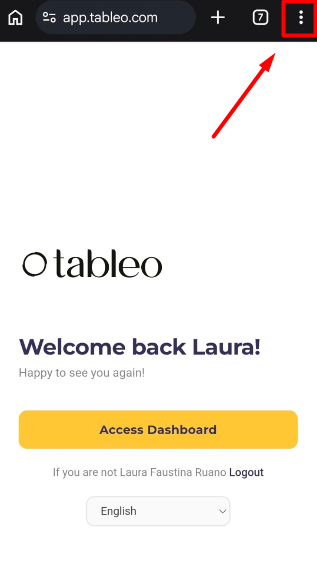
4. In the top right-hand corner, click on the 3 dots.
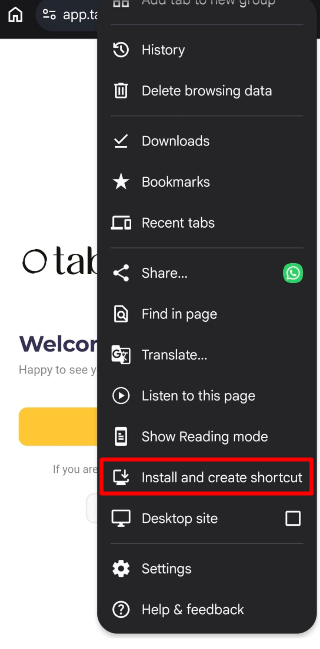
5. Scroll down and then click on Install and create shortcut.
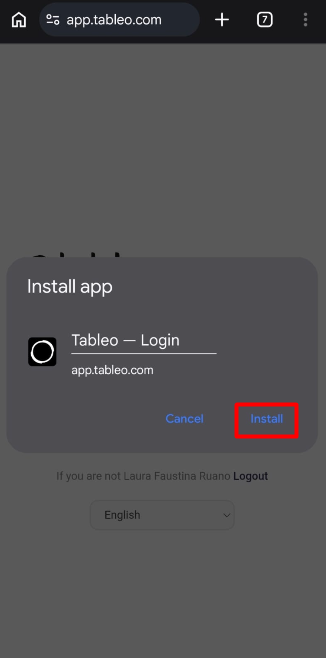
6. Click Install to create an icon on your home screen.
On iOS:
1. Go to Safari.
2. Visit app.tableo.com
3. Login with your credentials and select Remember me to save your credentials.
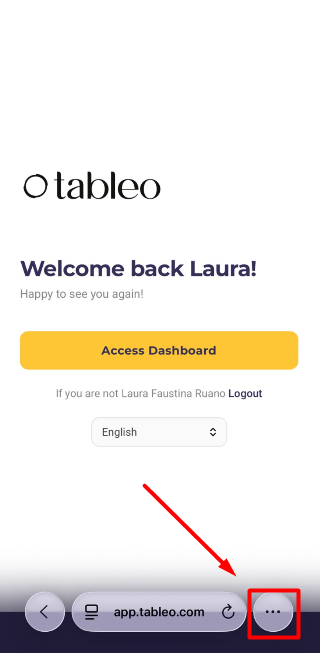
4. At the bottom, click on the three dots.
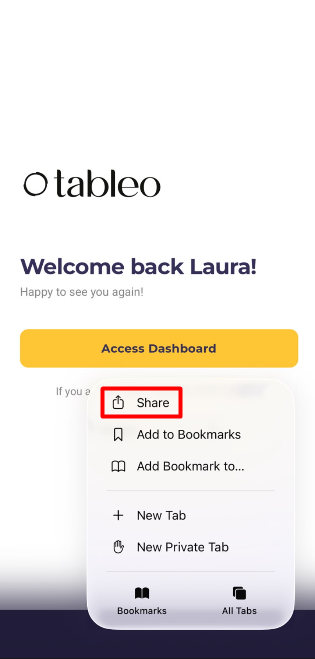
5. Then click Share.
6. Click on View More to see more settings.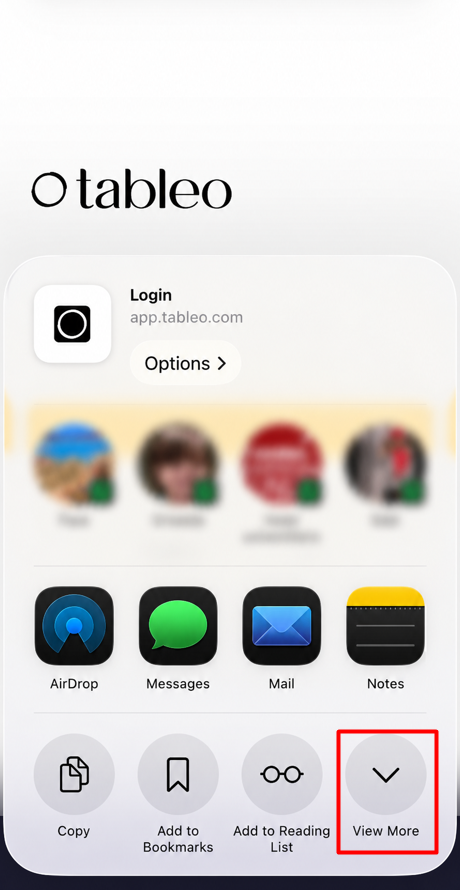
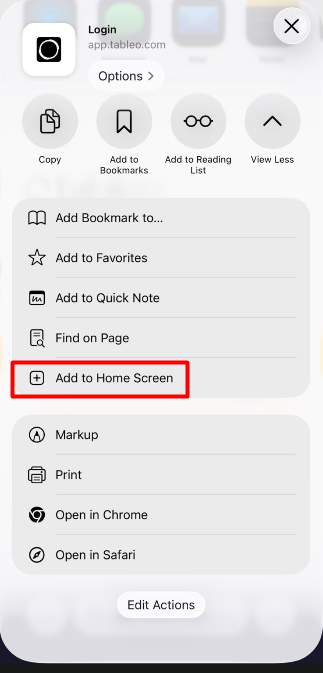
6. Select the + Add to Home Screen option.
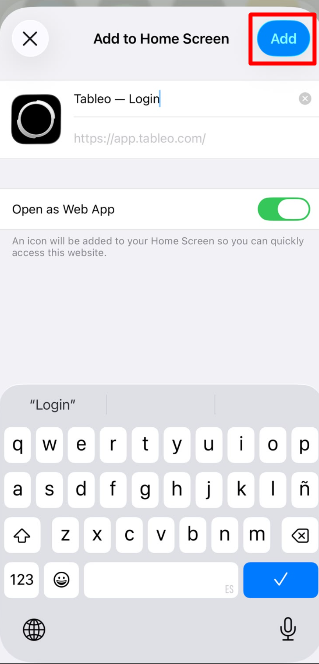
7. Click Add to create an icon on your home screen.
Was this article helpful?
That’s Great!
Thank you for your feedback
Sorry! We couldn't be helpful
Thank you for your feedback
Feedback sent
We appreciate your effort and will try to fix the article