The floor plan editor is where you draw your restaurant: the rooms, the tables, and extras such as walls, doors, and a bar. Your team then sees this layout on the floor map during service.
How to open the editor:
1. Click Floor Map in the top bar.
2. Click the Edit floor plan icon in the toolbar (top right).
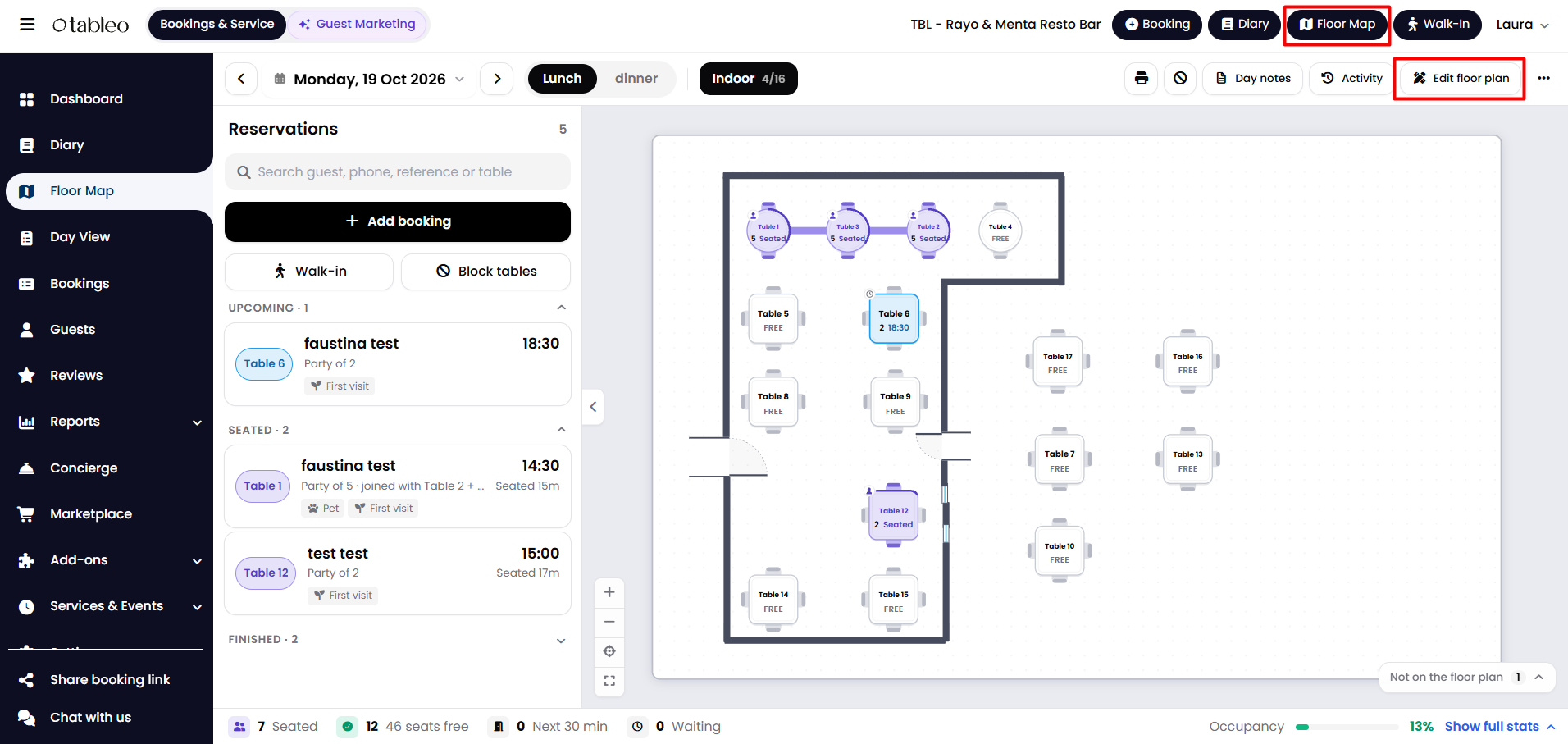
To leave, click Back to service at the top left.
What you see in the editor:
1. Room tabs across the top, one per dining area, each with its number of tables. Click a tab to work on that room. The + button adds a room.
2. Left panel with two tabs: Tables and Decor.
3. The canvas in the middle (use + and – to zoom).
4. Right panel with the settings of whatever is selected (the room, a table or a decor item).
5. At the top right: undo, redo, a status that reads "All changes saved" or "Unsaved changes", and the Save button.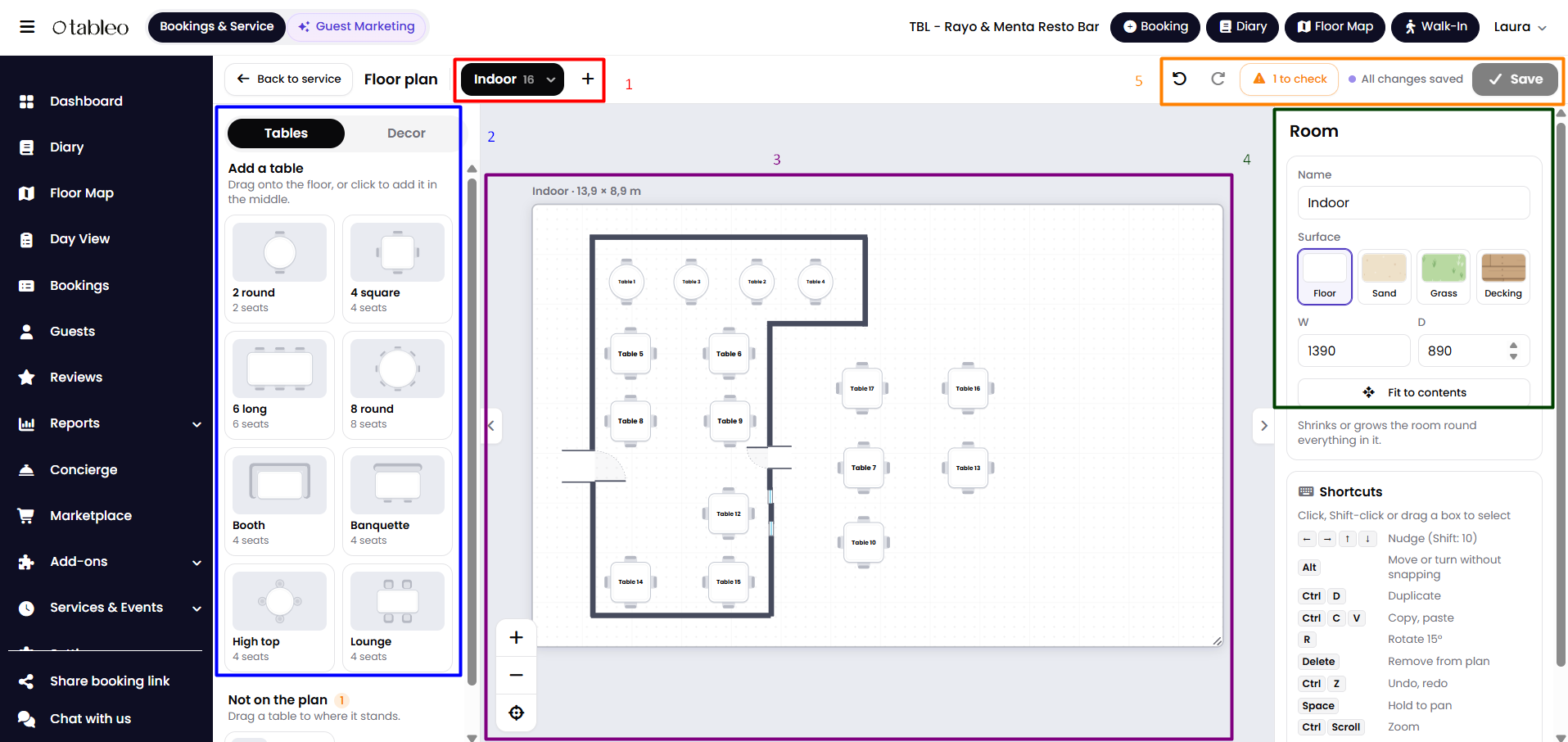
Important: what saves straight away and what needs Save:
Table settings save immediately. When you select a table, the panel says "Saved straight away, as they change bookings and availability". The table's name, covers, dining area, and "Bookable online" switch are updated as soon as you change them, without clicking Save.
Everything else needs Save. Moving, rotating, or reshaping tables, adding new tables, adding decor, and adding rooms only take effect when you click Save. Until then, the status shows "Unsaved changes", and if you leave without saving, those changes are lost.
How to add a table:
1. In the left panel, open the Tables tab.
2. Choose a template: 2 round, 4 square, 6 long, 8 round, Booth, Banquette, High top, or Lounge.
3. Drag it onto the floor, or click it to add it in the middle of the room.
4. Select the new table and set its name, covers (minimum and maximum), dining area, and "Bookable online" in the right panel.
5. Click Save.
A new table is marked "New table" and shows "Created when you save the plan". It only becomes a real, bookable table after you save. Check its dining area carefully, as it may not be the room you dropped it in.
How to change a table:
Click a table to select it. In the right panel, you can change its Name, Covers, Dining area, and whether to make it bookable online (switch it off to keep the table out of online booking; staff can still book it). Under On the plan, you can change the seating (Chairs, Booth, Banquette, Stools or Armchairs), the shape (Round or Square), the width, depth, and rotation, or use Duplicate and Remove from plan.
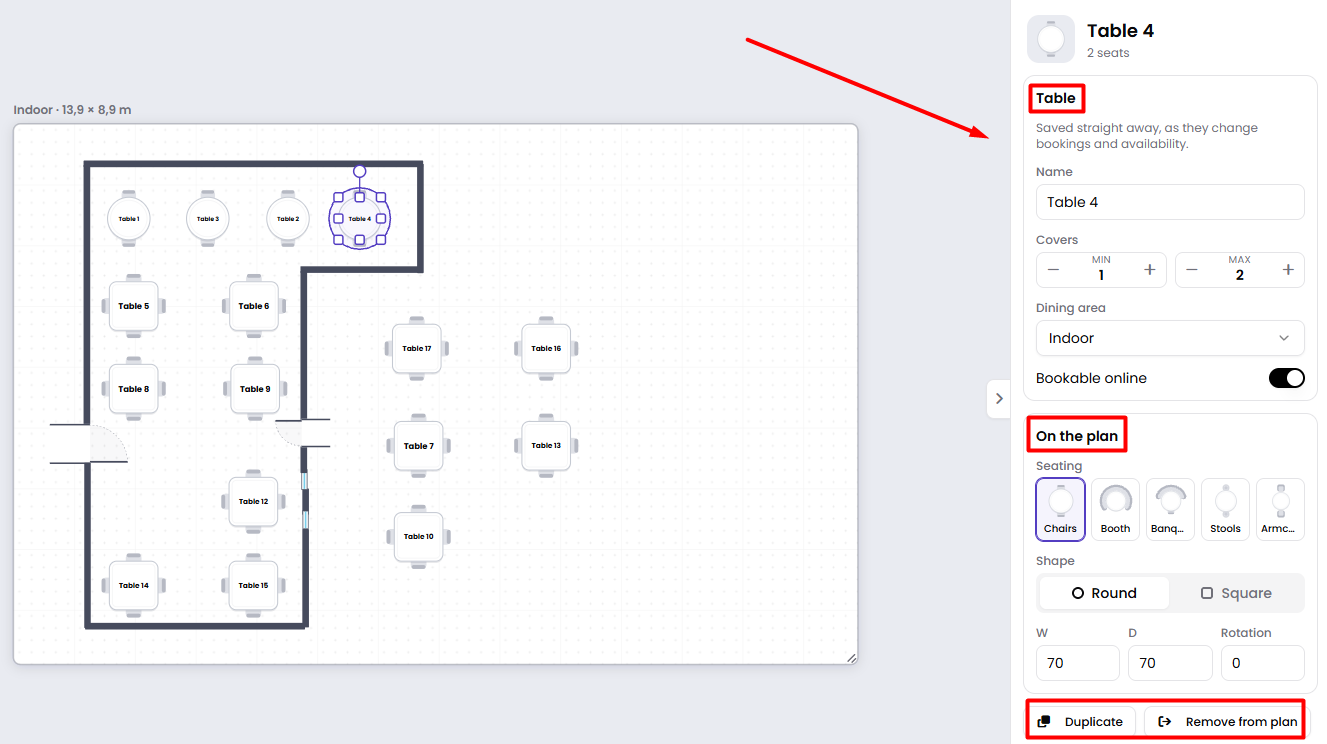
To move a table, drag it. To select several tables, hold Shift and click, or drag a box around them.
What "Remove from plan" does:
It takes the table off the drawing but does not delete it. The table appears in the Not on the plan list under the Tables tab, and you can drag it back onto the floor at any time. To fully delete or archive a table, go to Settings > Table Management.
How to add walls, doors, and other decor:
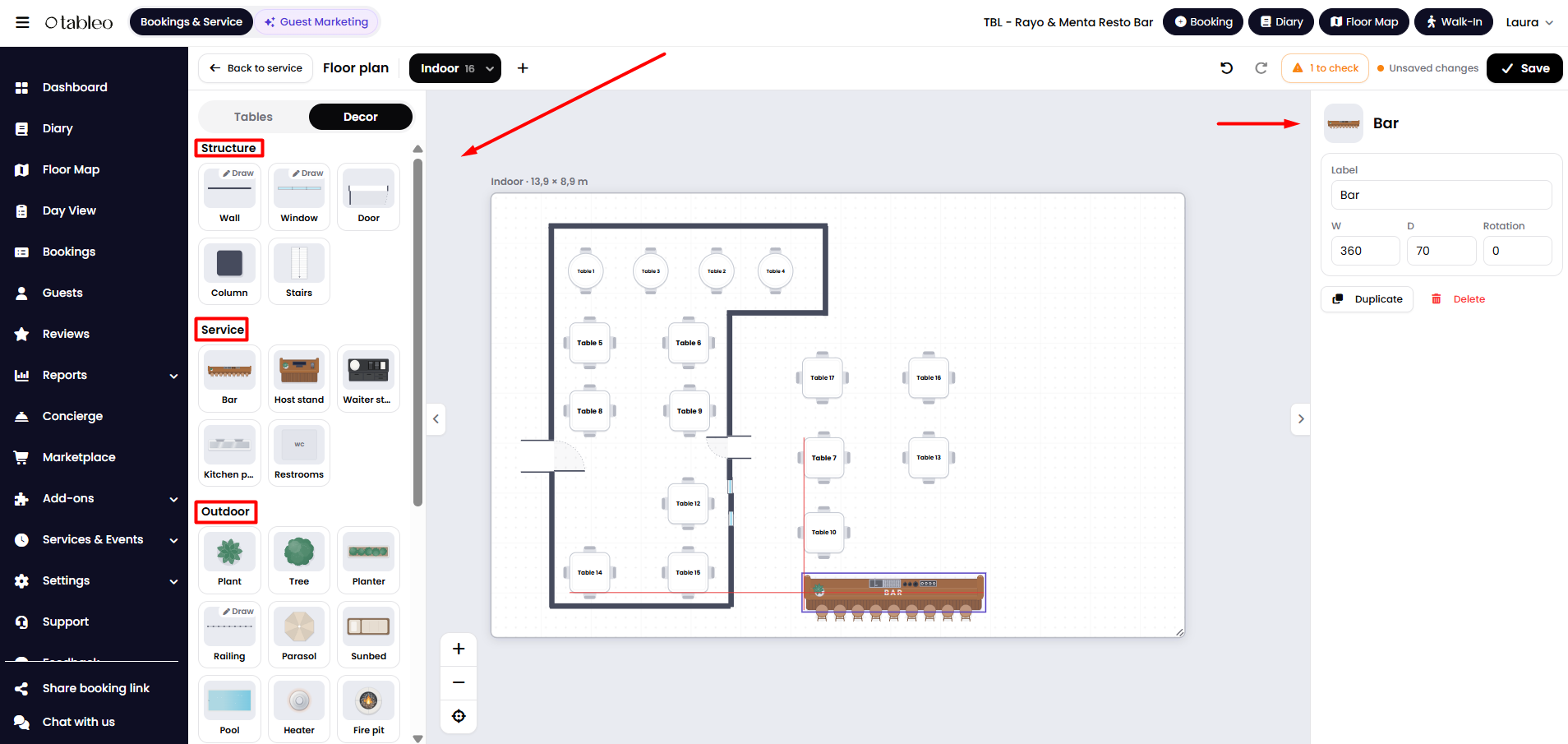
1. Open the Decor tab. The items are grouped as follows:
- Structure: Wall, Window, Door, Column, Stairs.
- Service: Bar, Host stand, Waiter station, Kitchen pass, Restrooms.
- Outdoor: Plant, Tree, Planter, Railing, Parasol, Sunbed, Pool, Heater, Fire pit, Sea.
- Interior: Piano, Buffet, Fireplace, DJ booth, Stage.
- Labels and zones: Label, Zone.
2. Drag an item onto the floor, or click it to add it in the middle.
3. Select it to change its label, size, and rotation, or to duplicate or delete it.
How to draw walls, windows and railings:
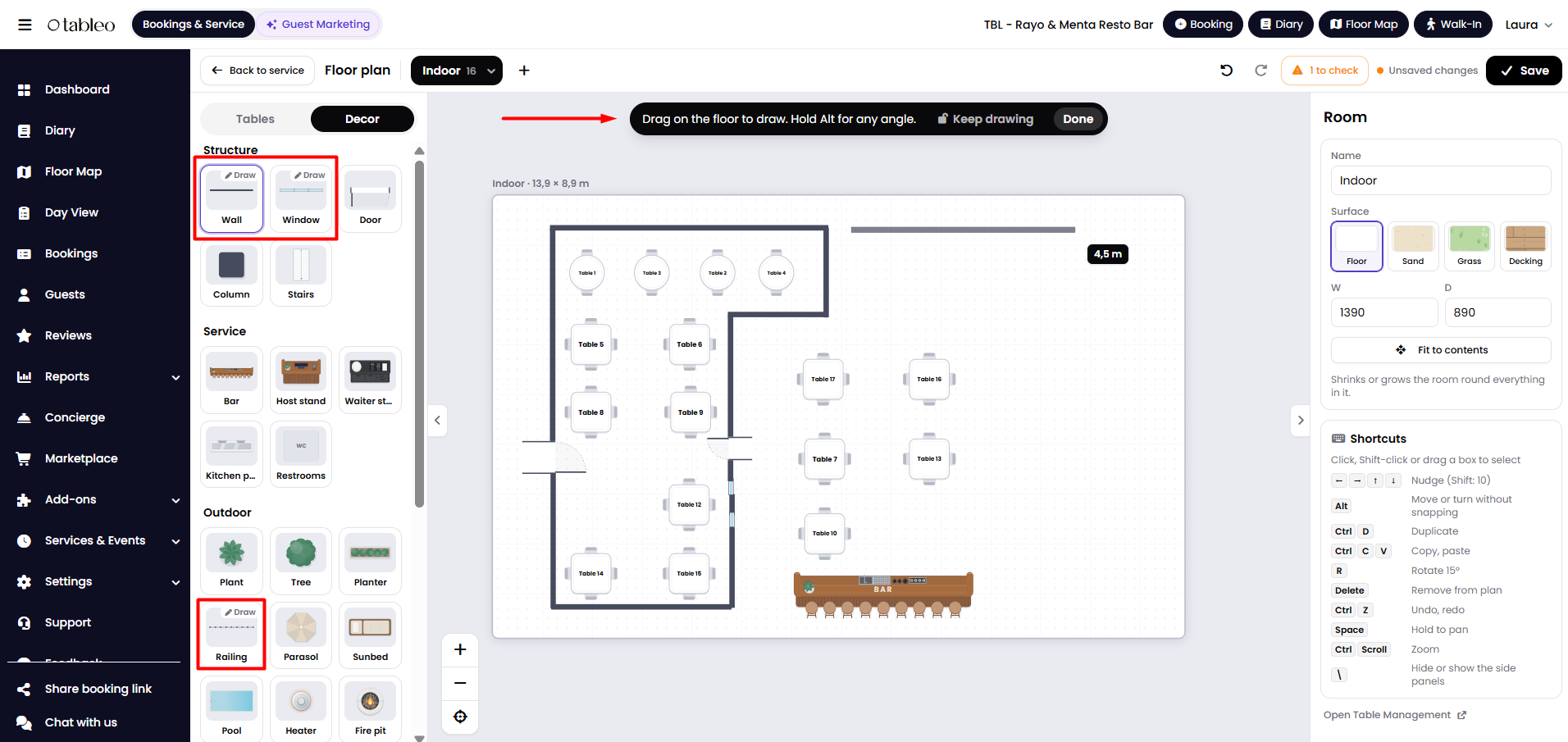
Wall, Window and Railing have a Draw option. Click it, then drag on the floor to draw the line. A banner reads "Drag on the floor to draw. Hold Alt for any angle". Click Keep drawing to draw several in a row, or Done when finished. You can resize and rotate what you drew afterwards.
How to set up a room:
With nothing selected, the right panel shows the room settings: Name, Surface (Floor, Sand, Grass or Decking), the room's width and depth in centimetres, and Fit to contents, which shrinks or grows the room so it fits closely around everything in it.
How to add, rename, reorder or delete a room:
1. Click + next to the room tabs to add a room. It stays unsaved until you click Save.
2. Click the small arrow on a room tab for Rename, Move left, Move right, and Delete room. The order of the tabs is the order your team sees on the floor map.
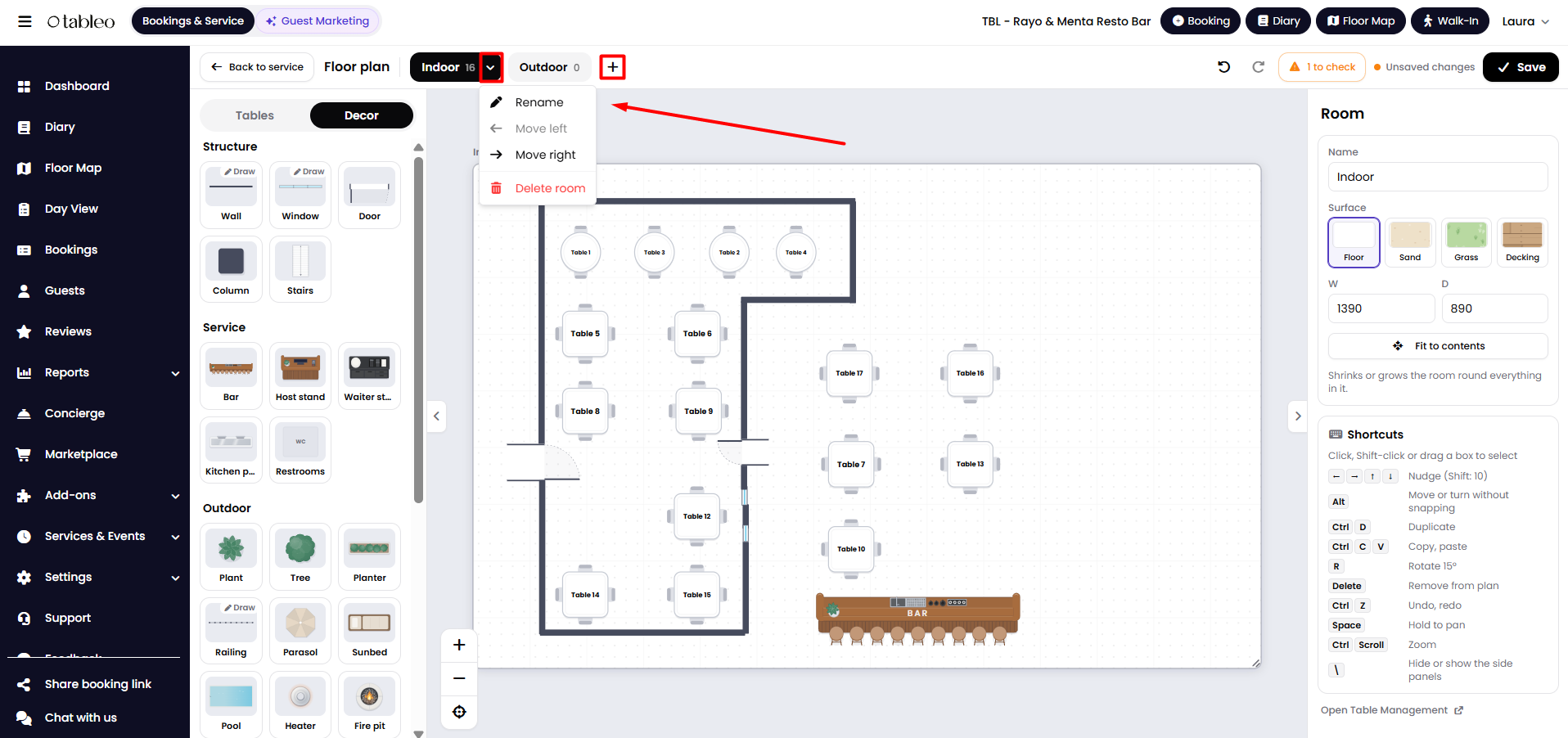
Be careful with Delete room, and check with your team first if the room has tables with upcoming bookings.
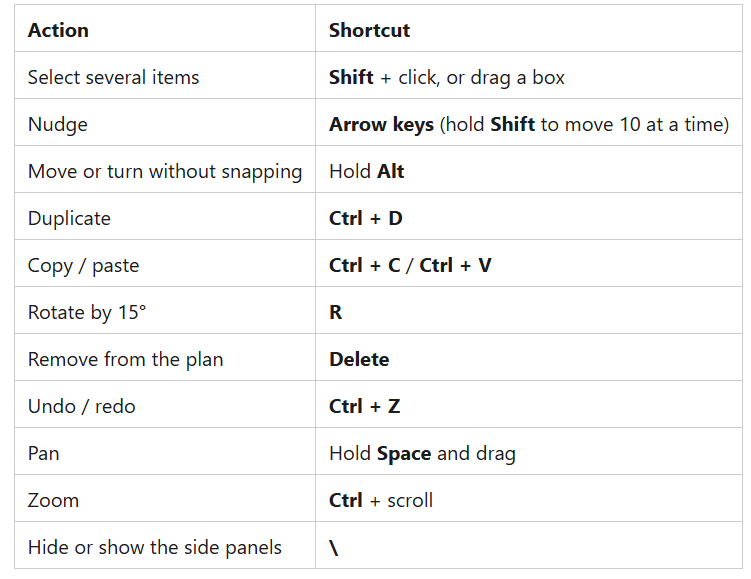
Keyboard shortcuts:
How to save your changes:
Click Save at the top right. The status changes to "All changes saved," and the floor map uses the new layout.
Tip: Make bigger layout changes outside service hours so your team does not see the map change halfway through the evening.
Good to know:
- Undo and redo (top right, or Ctrl+Z) work on layout changes before you save.
- Settings > Table Management is where tables are created in bulk, grouped, hidden, or archived.
- Each room tab is a dining area. The dining areas guests see in the booking widget are set under Settings > Account Settings > Dining Areas.
While we strive to ensure the accuracy and currency of the information in our knowledge base, some articles may contain minor discrepancies due to the constant evolution of our services and products.
Was this article helpful?
That’s Great!
Thank you for your feedback
Sorry! We couldn't be helpful
Thank you for your feedback
Feedback sent
We appreciate your effort and will try to fix the article