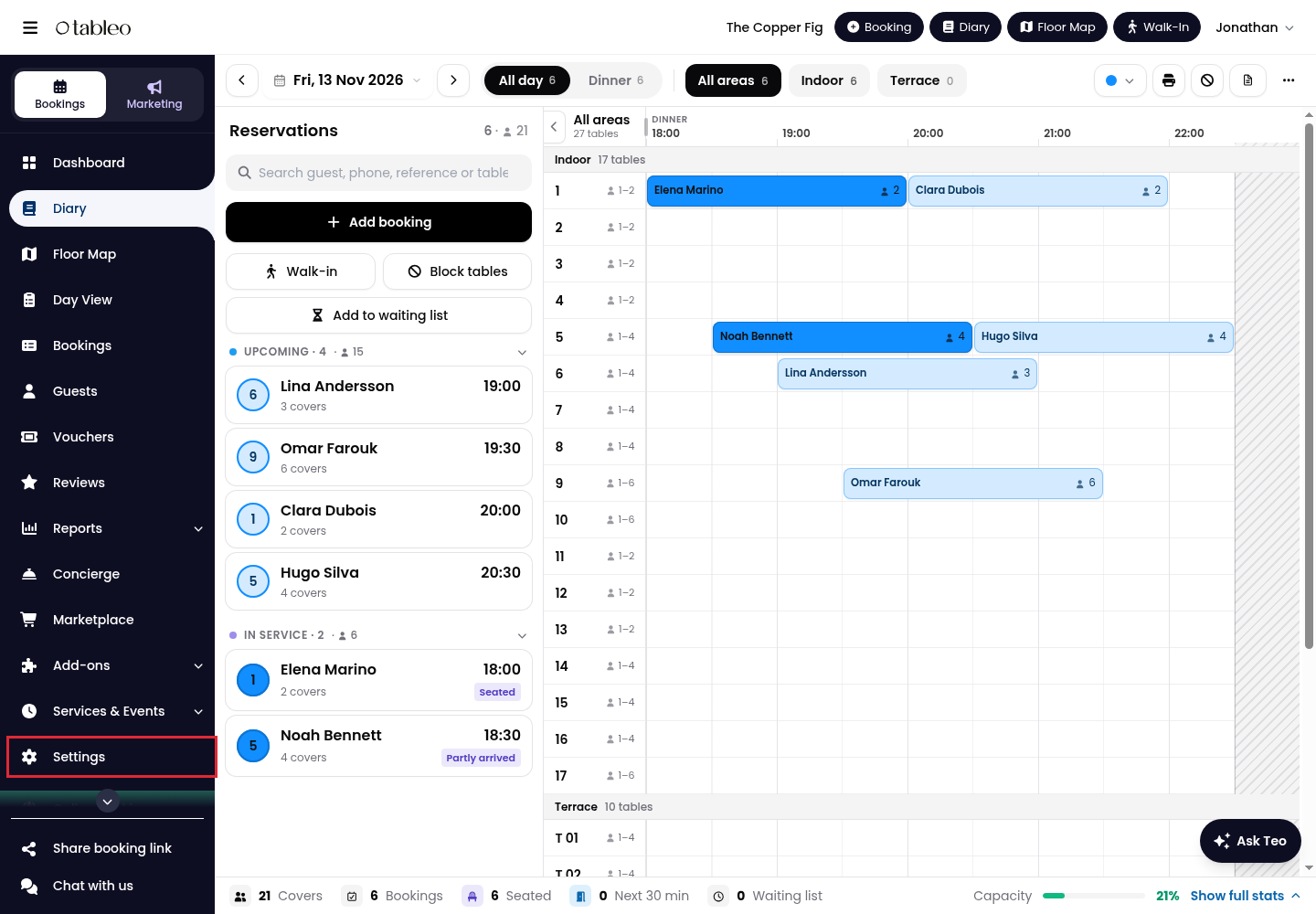
1. Click on Settings in the side menu.
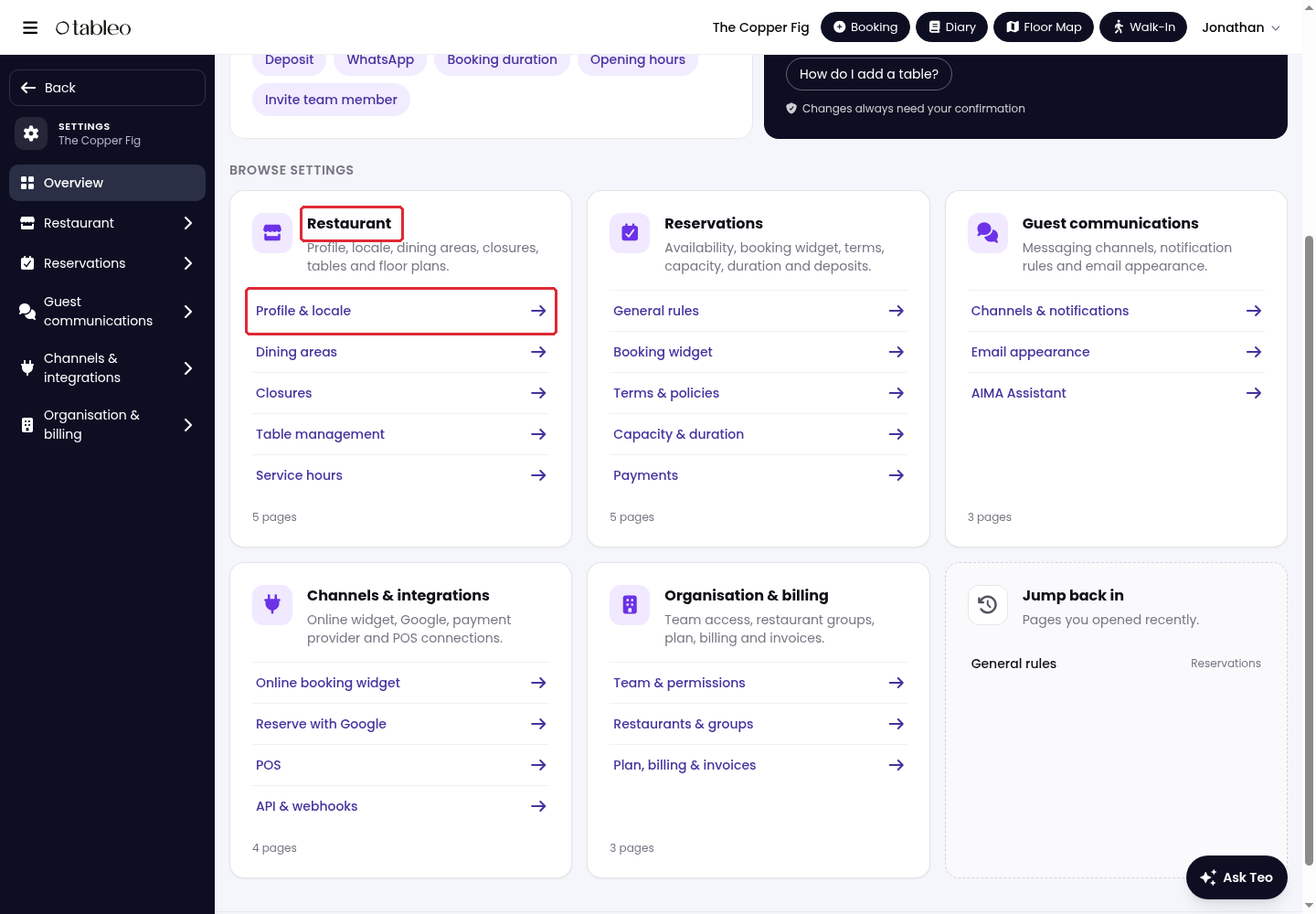
2. Under Restaurant, click on Profile & locale.
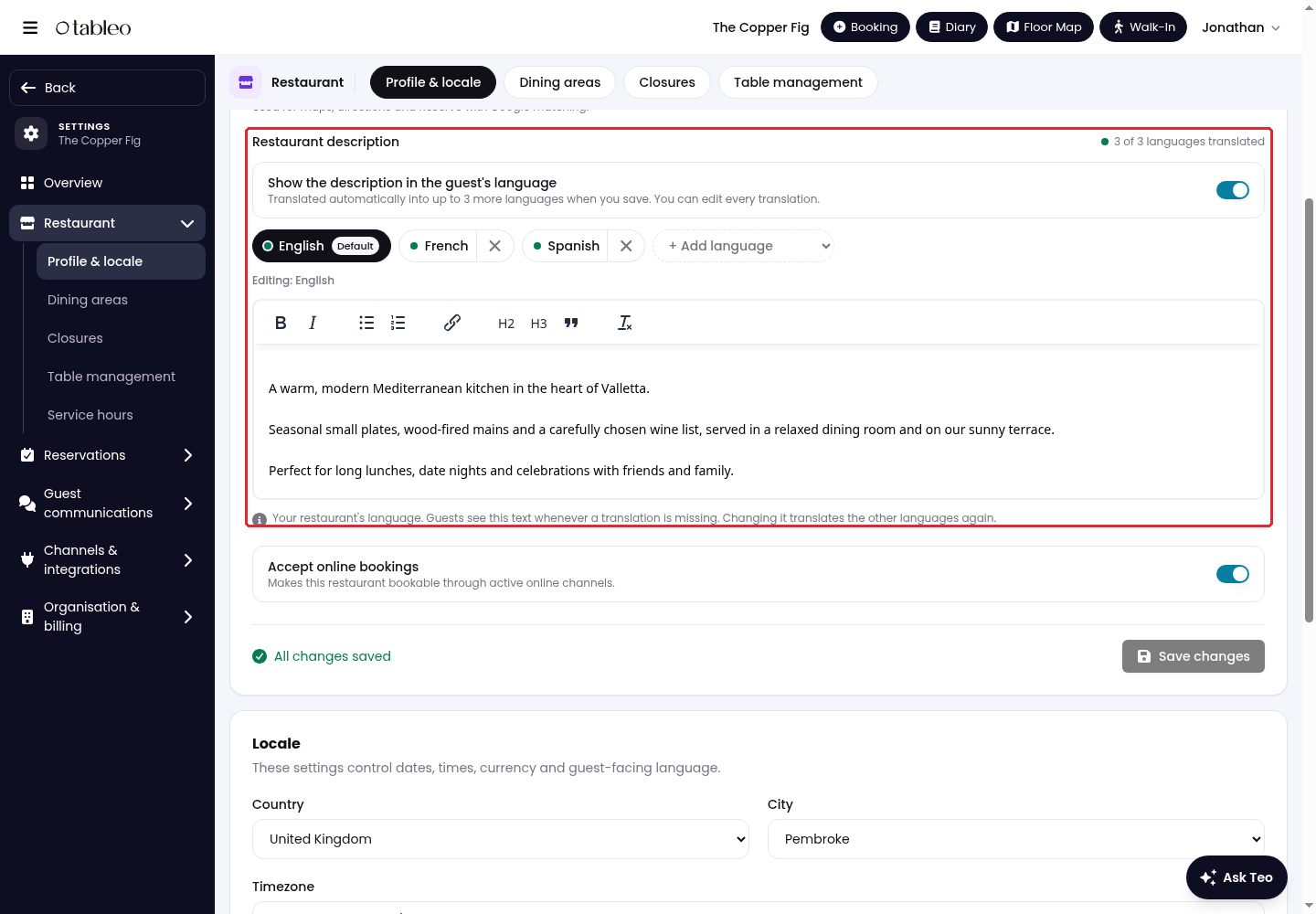
3. Scroll to Restaurant description. Open the tab marked Default and enter or edit the description in the editor.
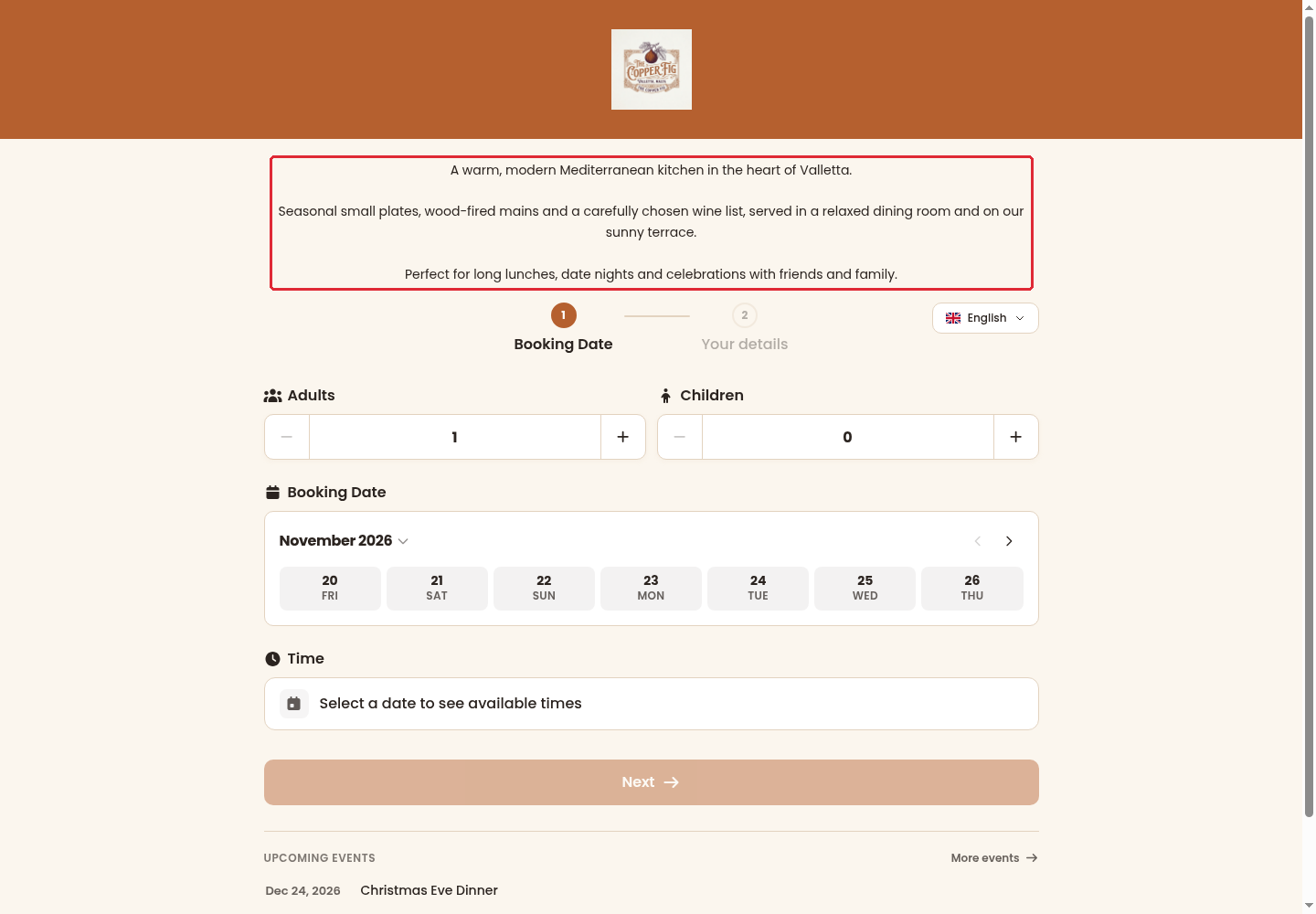
This description appears above the booking form. The default text is used when a translation is missing.
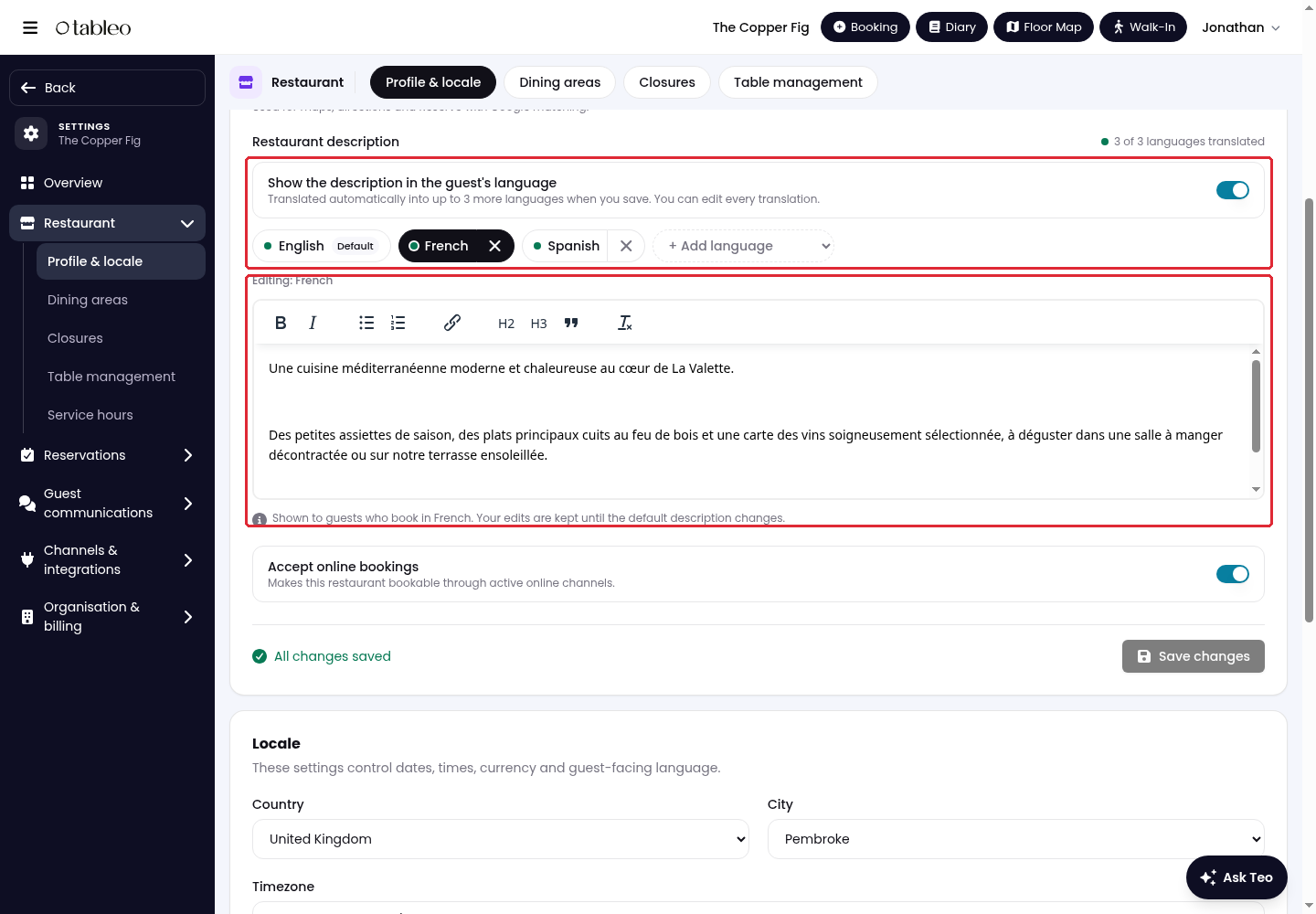
4. To translate the description, enable Show the description in the guest's language and use + Add language for the languages you need. Open a language tab to review or edit its translation.
When you save, Tableo can automatically translate the default description into up to three additional languages. Editing the default description translates the other languages again, so review any changes you made to those translations.
Description translation is not available on every plan. If the translation controls are unavailable, contact support to check availability for your restaurant.
5. Click on Save changes below the Restaurant profile section.
6. Open your booking widget and check the description above the booking form. Review each available translation using the widget language selector.
While we strive to ensure the accuracy and currency of the information in our knowledge base, some articles may contain minor discrepancies due to the constant evolution of our services and products.
Was this article helpful?
That’s Great!
Thank you for your feedback
Sorry! We couldn't be helpful
Thank you for your feedback
Feedback sent
We appreciate your effort and will try to fix the article