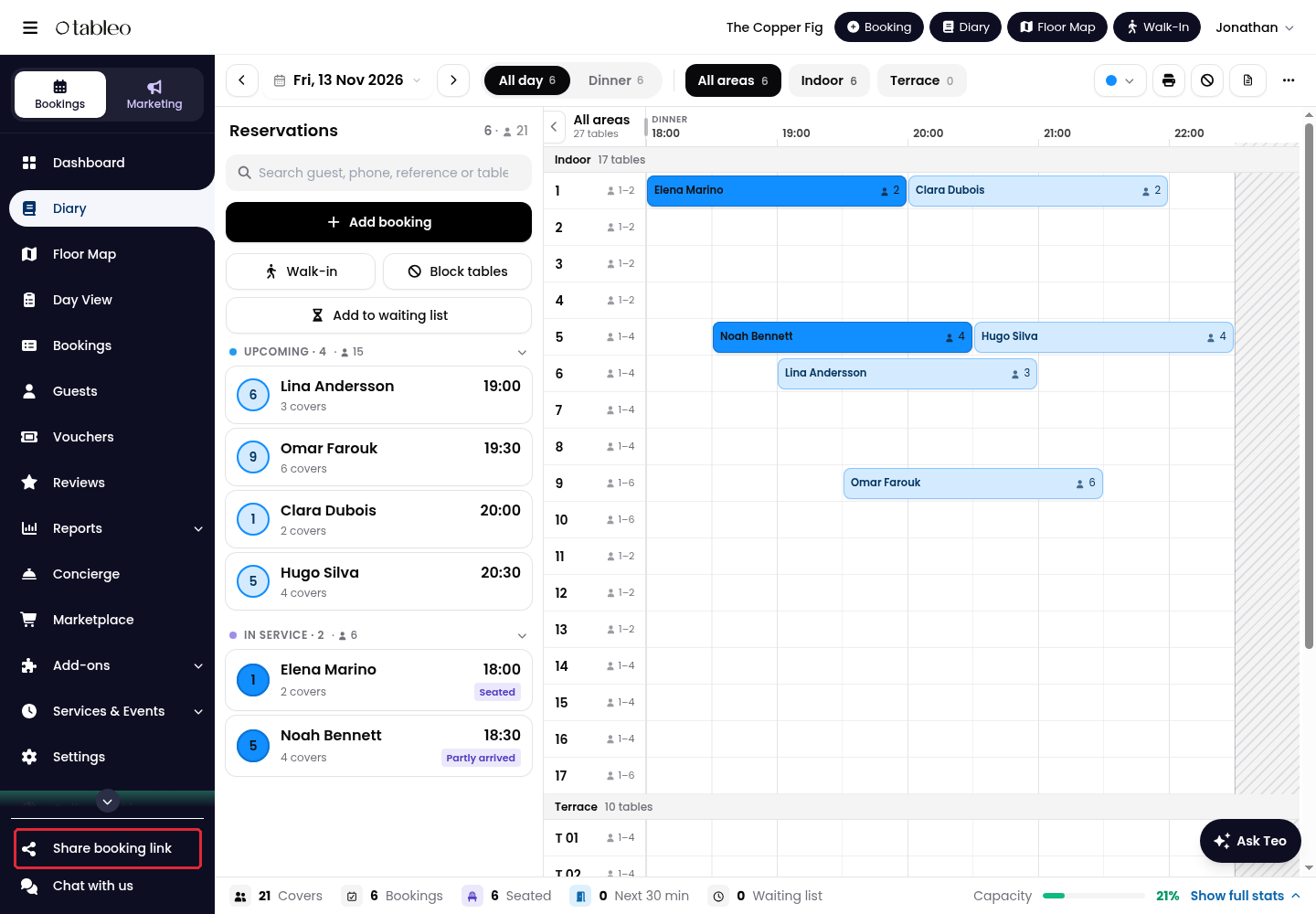
You need Facebook access to your restaurant’s Page to edit its action button. Copy your Tableo link first, then configure the button on Facebook.
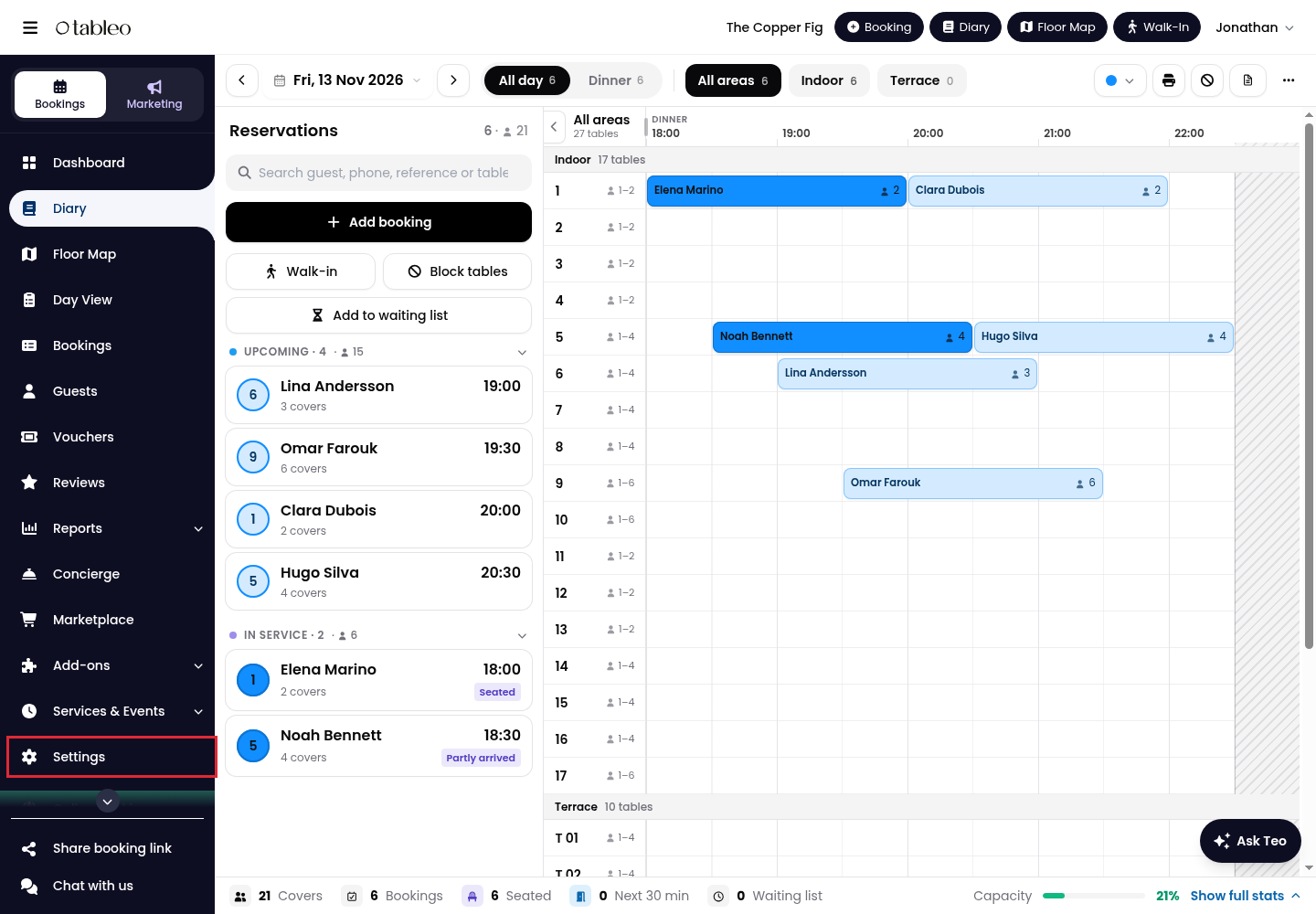
1. Click on Settings in the side menu.
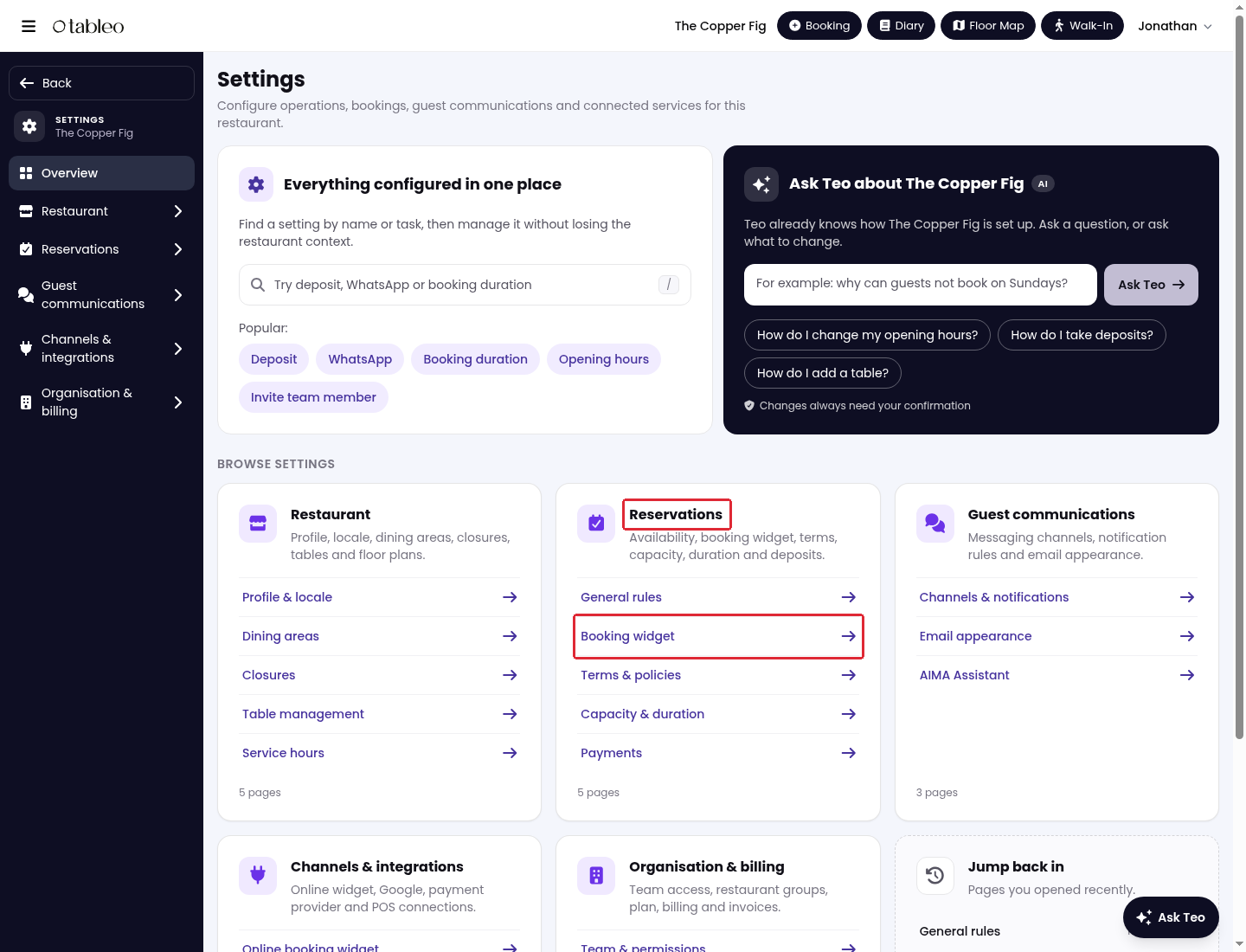
2. In Reservations, click on Booking widget.
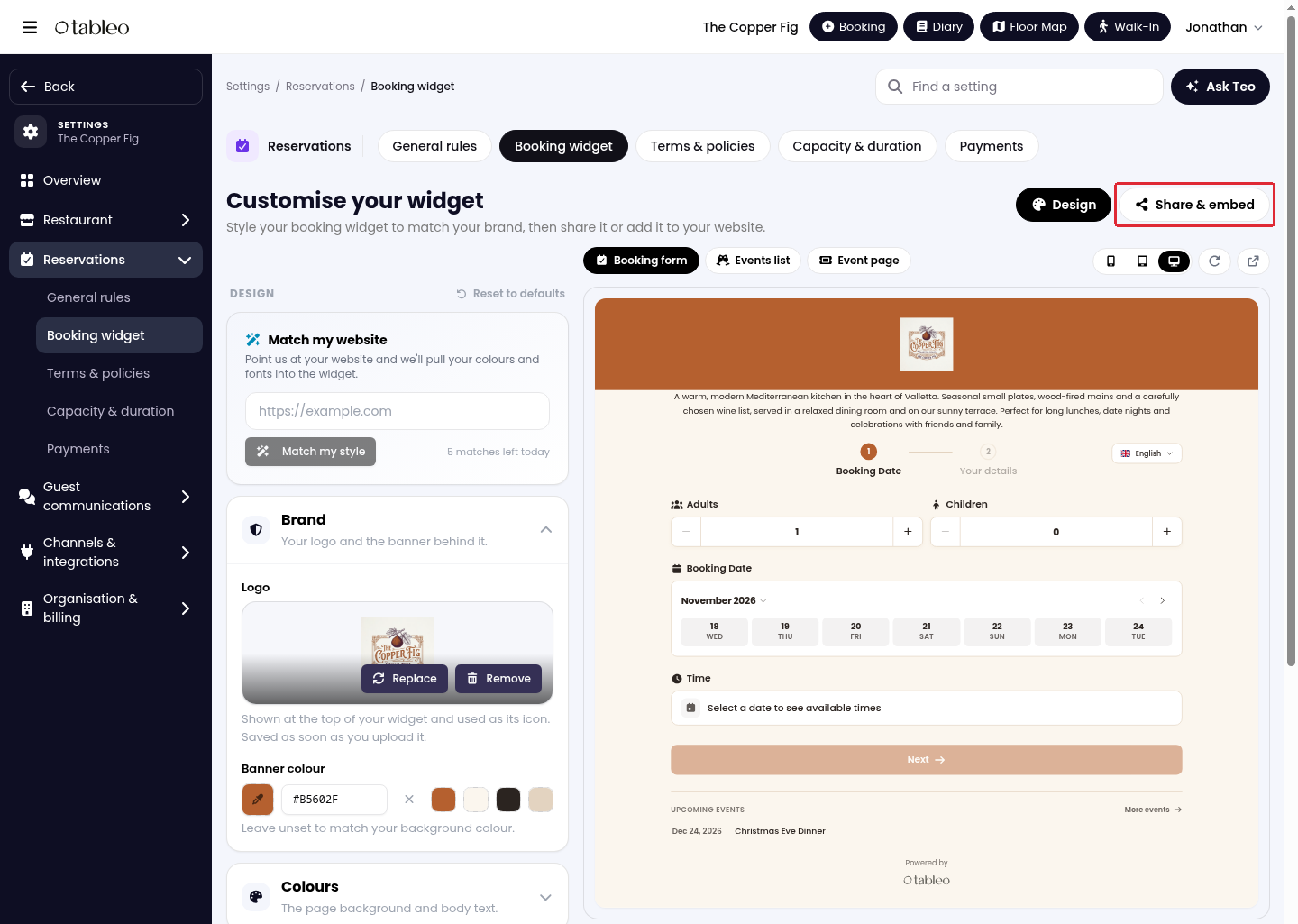
3. Click on Share & embed.
4. Under Share your booking link, click on Copy.
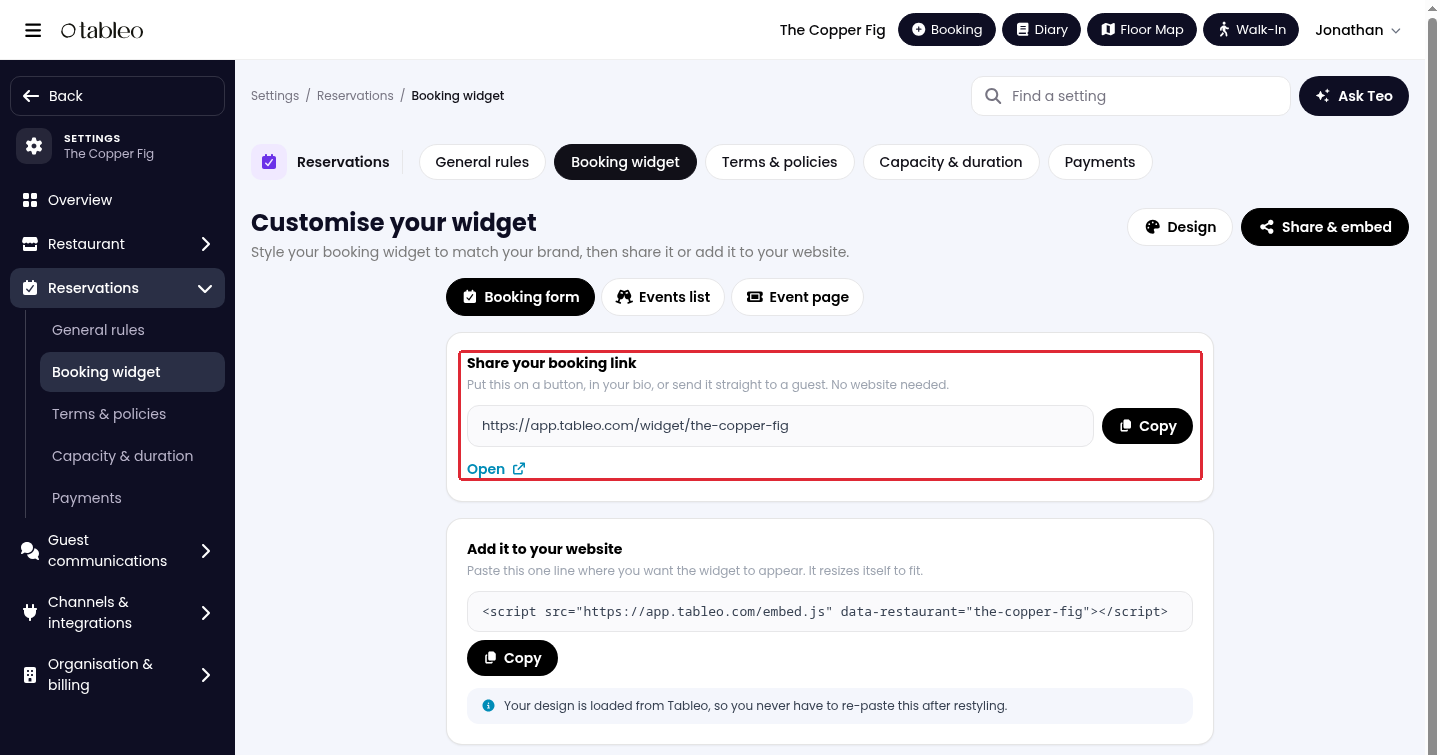
You can also click on Share booking link in the side menu to open the sharing page directly. Copy the URL under Share your booking link.
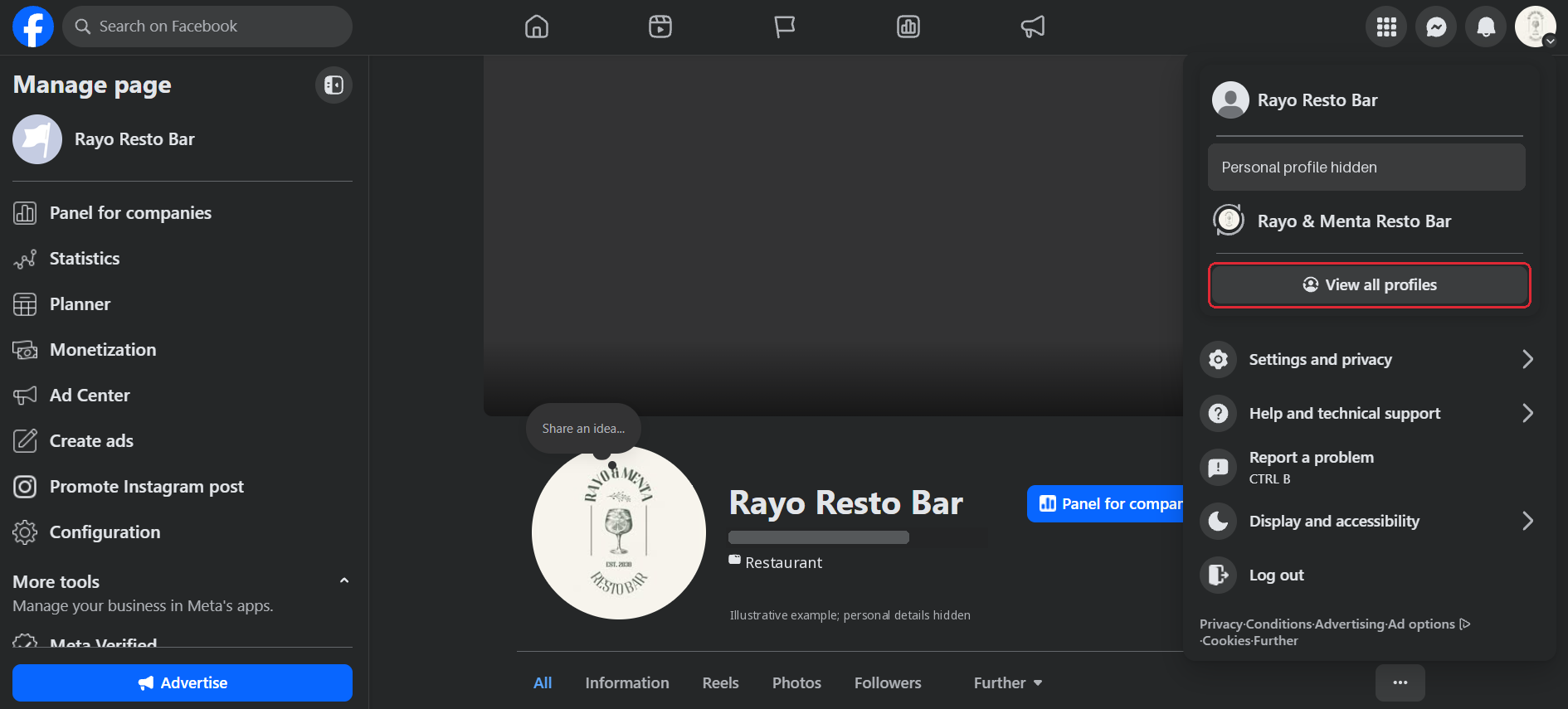
5. In Facebook, open your profile menu, choose View all profiles, and switch into your restaurant’s Page. Open the Page.
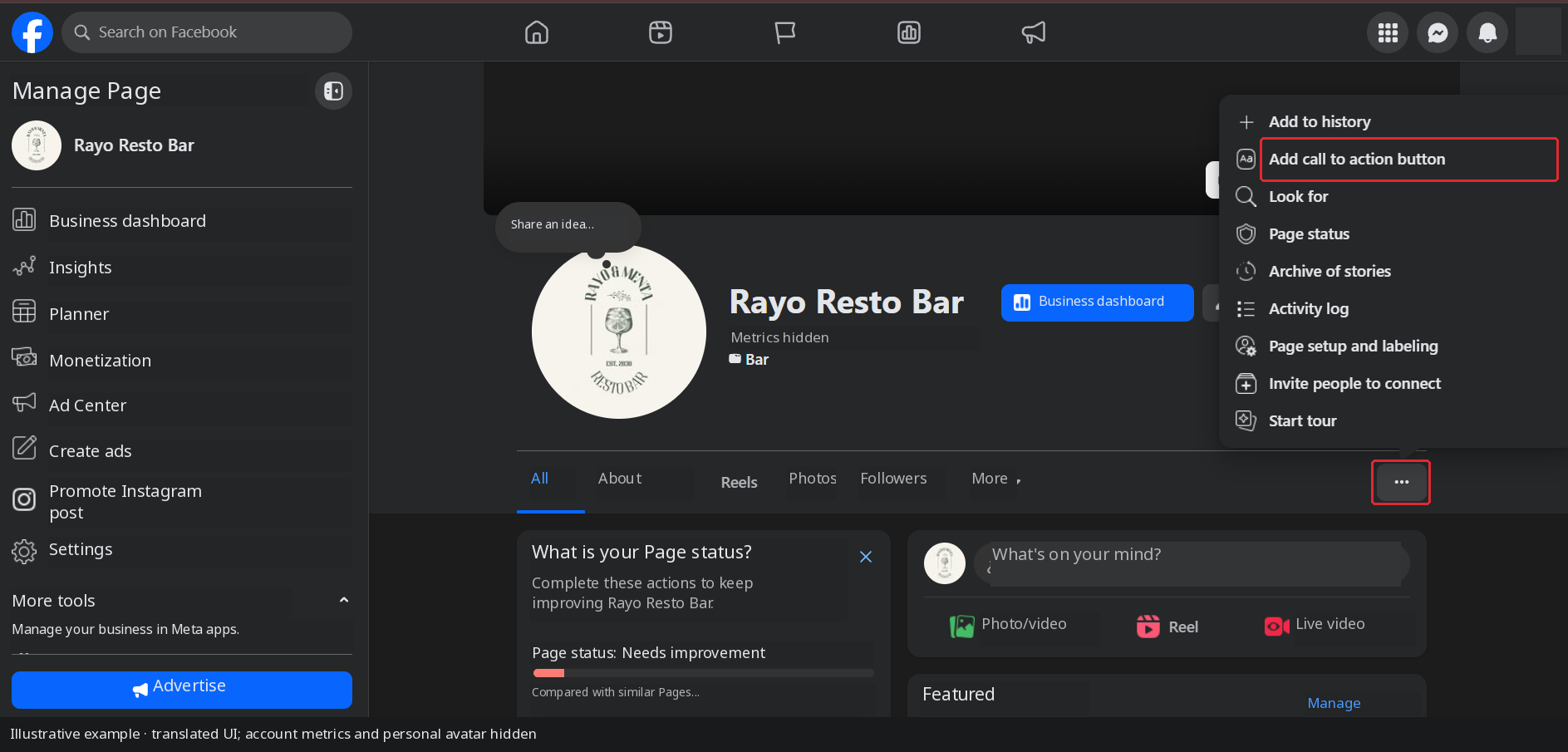
6. On your restaurant’s Facebook Page, open the three-dot menu (…) and select Add call to action button.
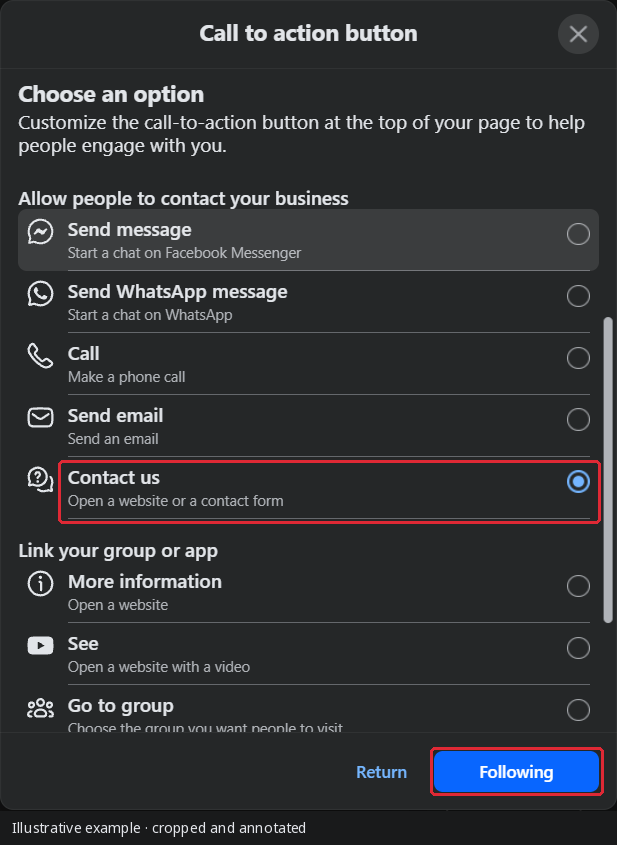
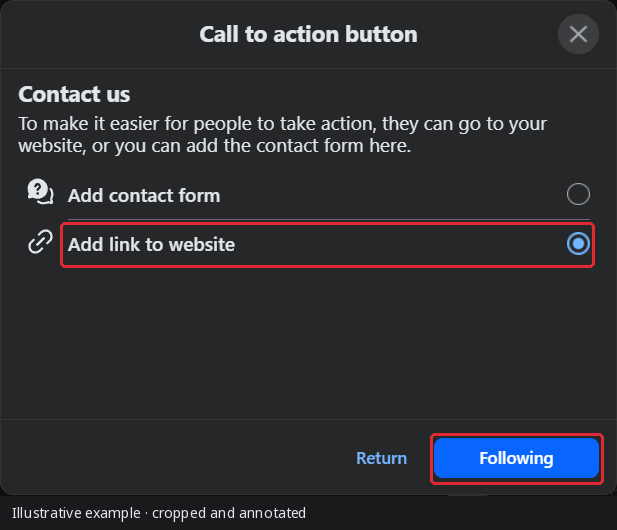
7. Select Contact us, then select Following.
8. Select Add link to website, then select Following.
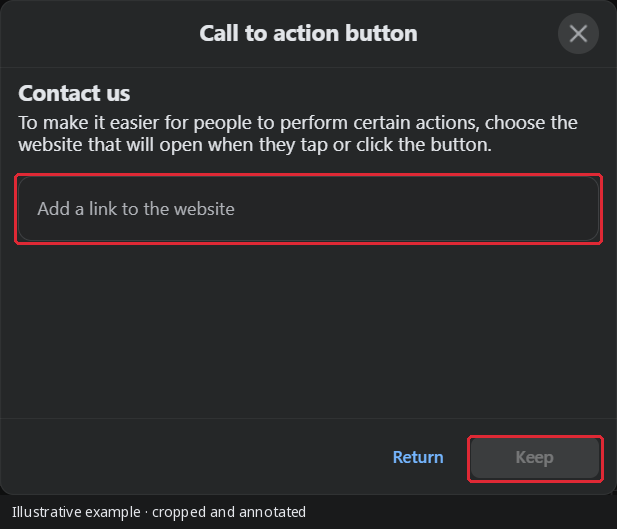
9. Paste the Tableo booking URL copied in step 4 into Add a link to the website, then select Keep to save.
If Contact Us is not offered, consult Facebook’s action-button help for the options available to your Page. The available buttons and subsequent screens can vary.
Check the Page’s button after saving and confirm that it opens your restaurant’s booking form.
While we strive to ensure the accuracy and currency of the information in our knowledge base, some articles may contain minor discrepancies due to the constant evolution of our services and products.
Was this article helpful?
That’s Great!
Thank you for your feedback
Sorry! We couldn't be helpful
Thank you for your feedback
Feedback sent
We appreciate your effort and will try to fix the article