Use automations to send messages for birthdays, anniversaries, lapsed guests, or after a visit. The available automations and your plan limit are shown on the Automations page.
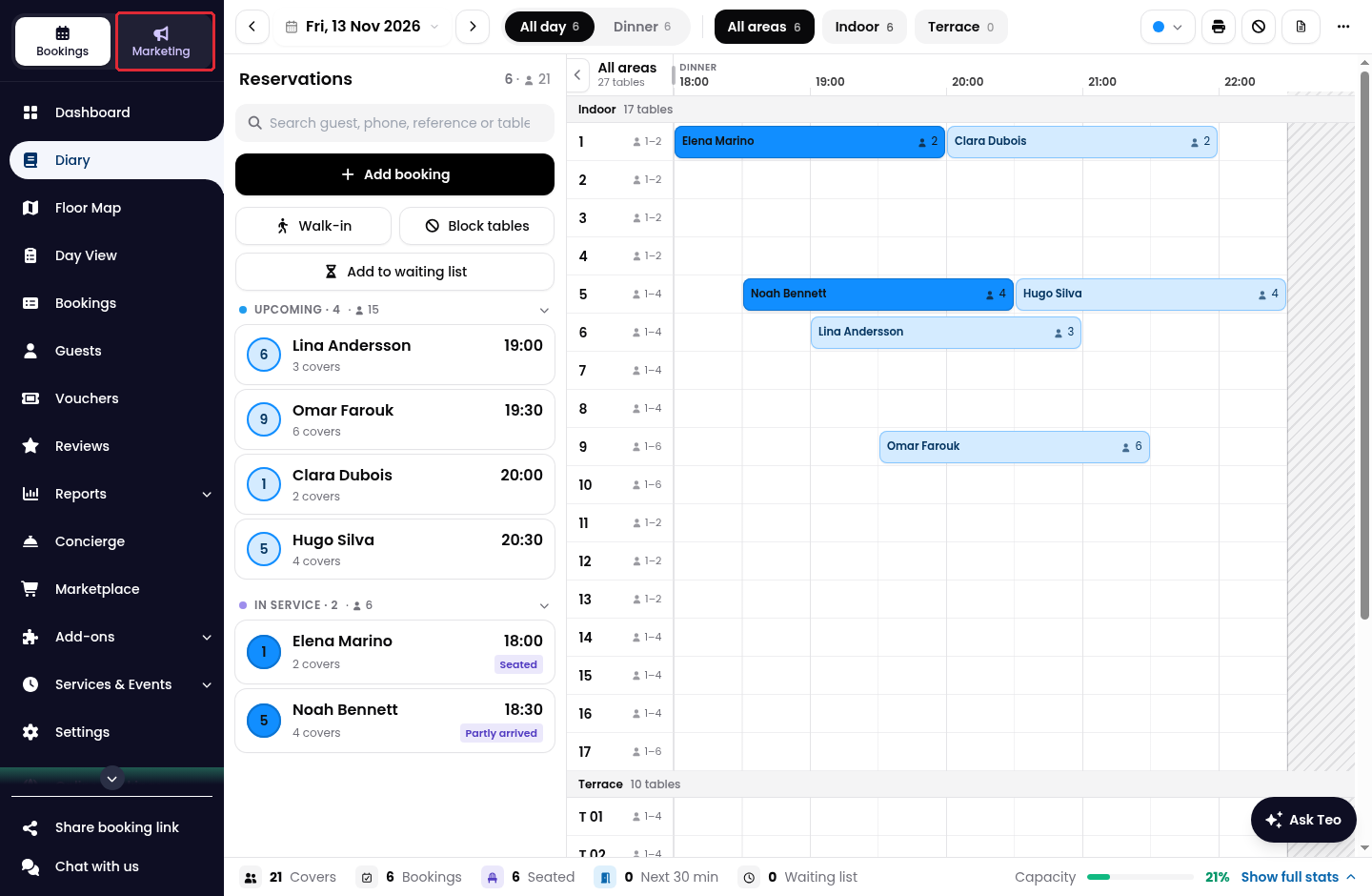
1. Click on Marketing in the side menu.
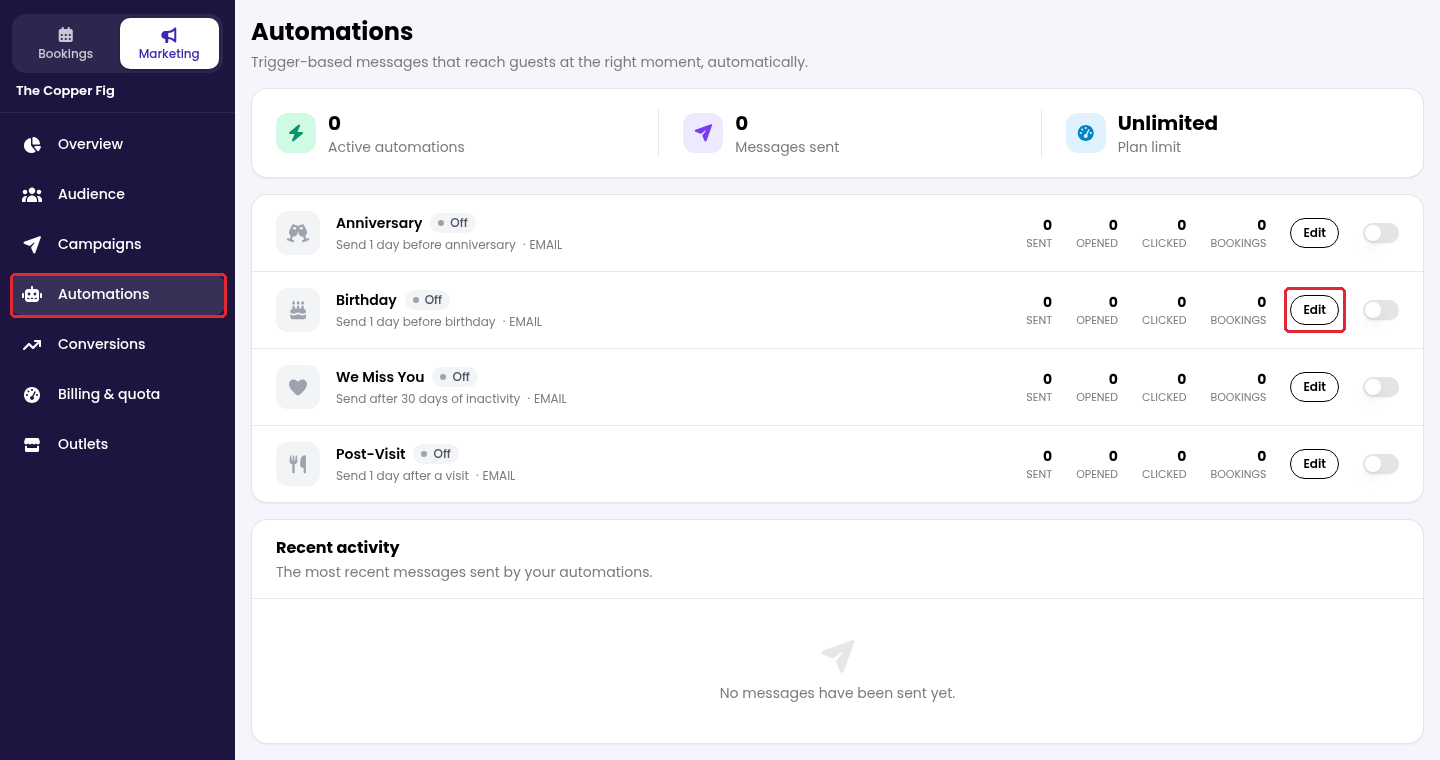
2. Open Automations, then click on Edit beside the automation you want to configure.
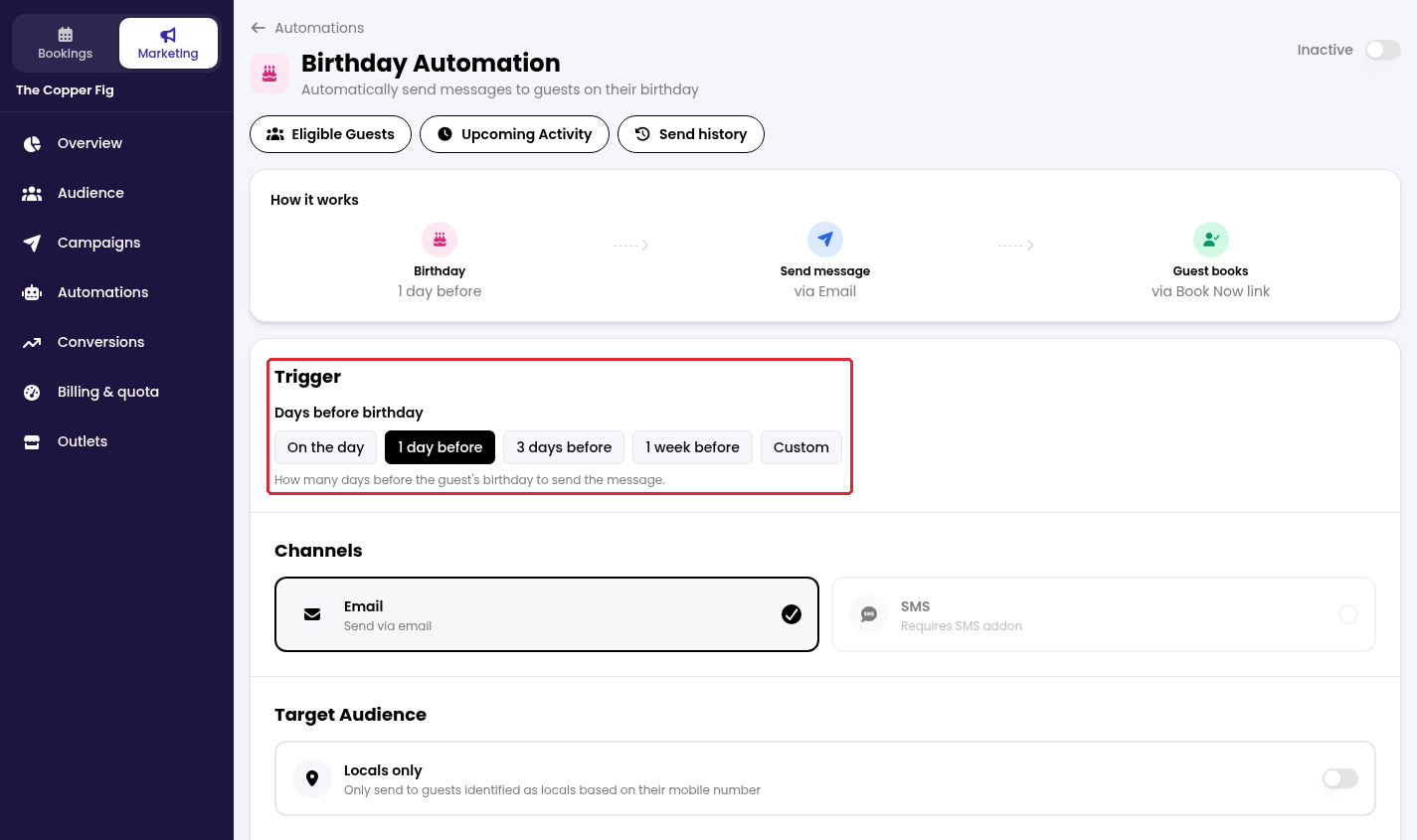
3. Under Trigger, choose when the message should be sent. For example, a birthday message can be sent on the day or a chosen number of days before.
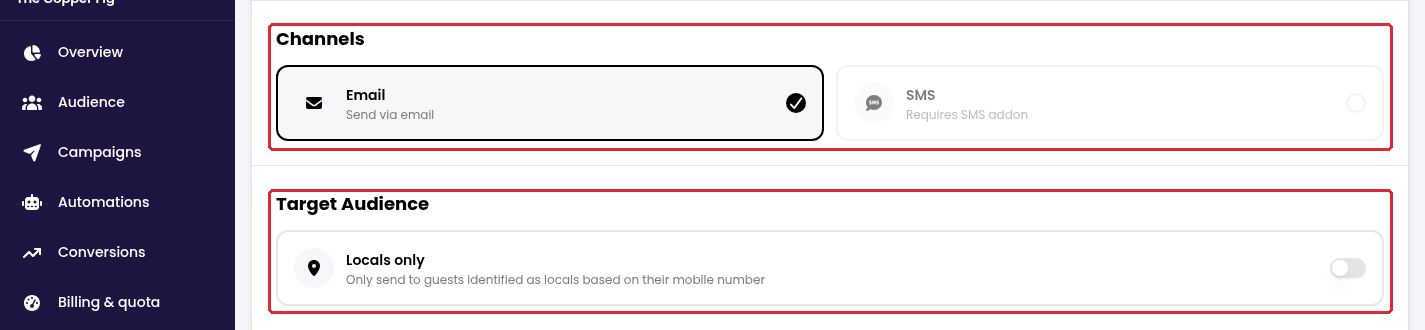
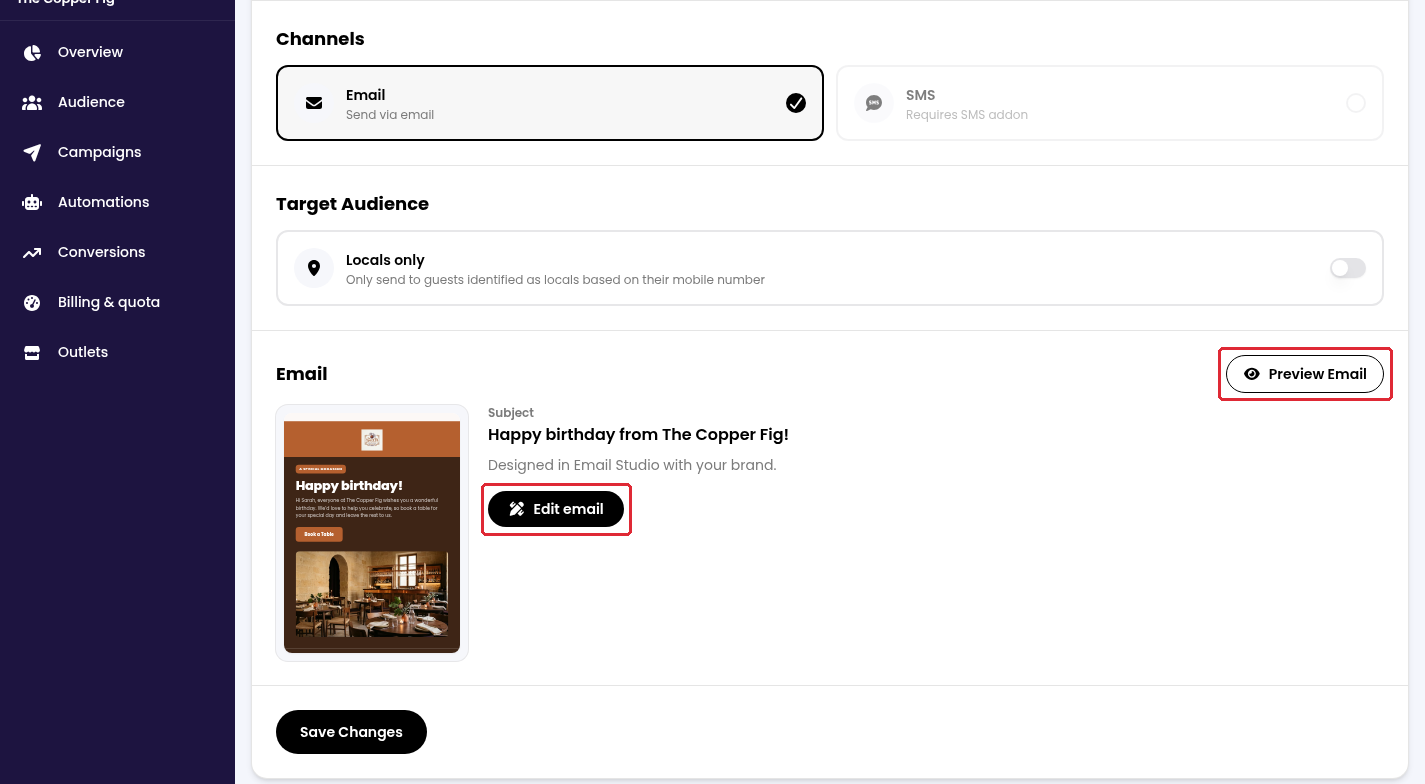
4. Select the available delivery options under Channels. SMS requires the SMS add-on. Turn on Locals only if you want to limit the audience to guests identified as local from their mobile number.
5. Under Email, click on Edit email to customise the message. Use Preview Email to view the current design.
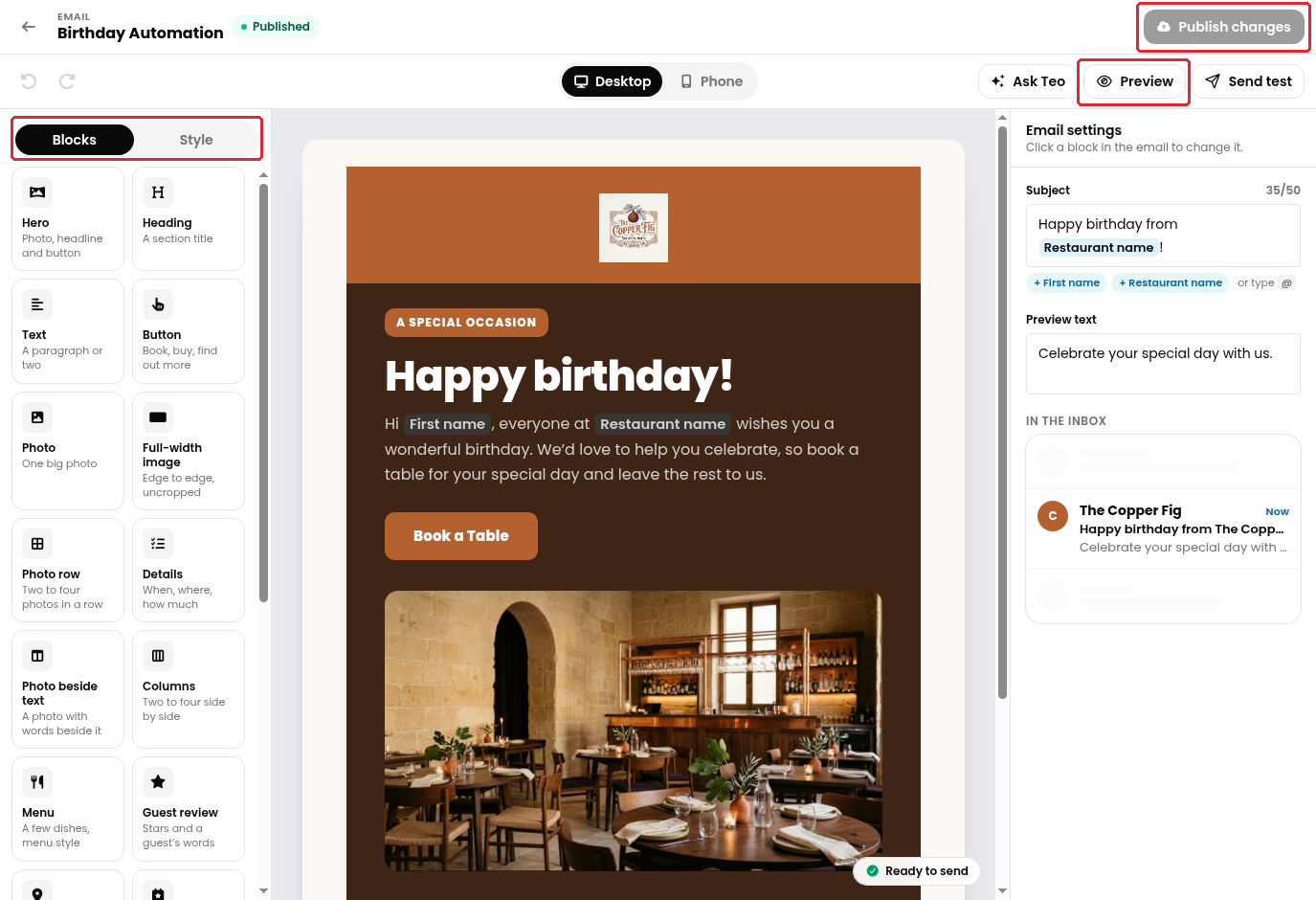
6. In Email Studio, use Blocks and Style to adjust the email, and edit Subject and Preview text on the right. Use Preview to check it, then click on Publish changes when your email changes are ready.
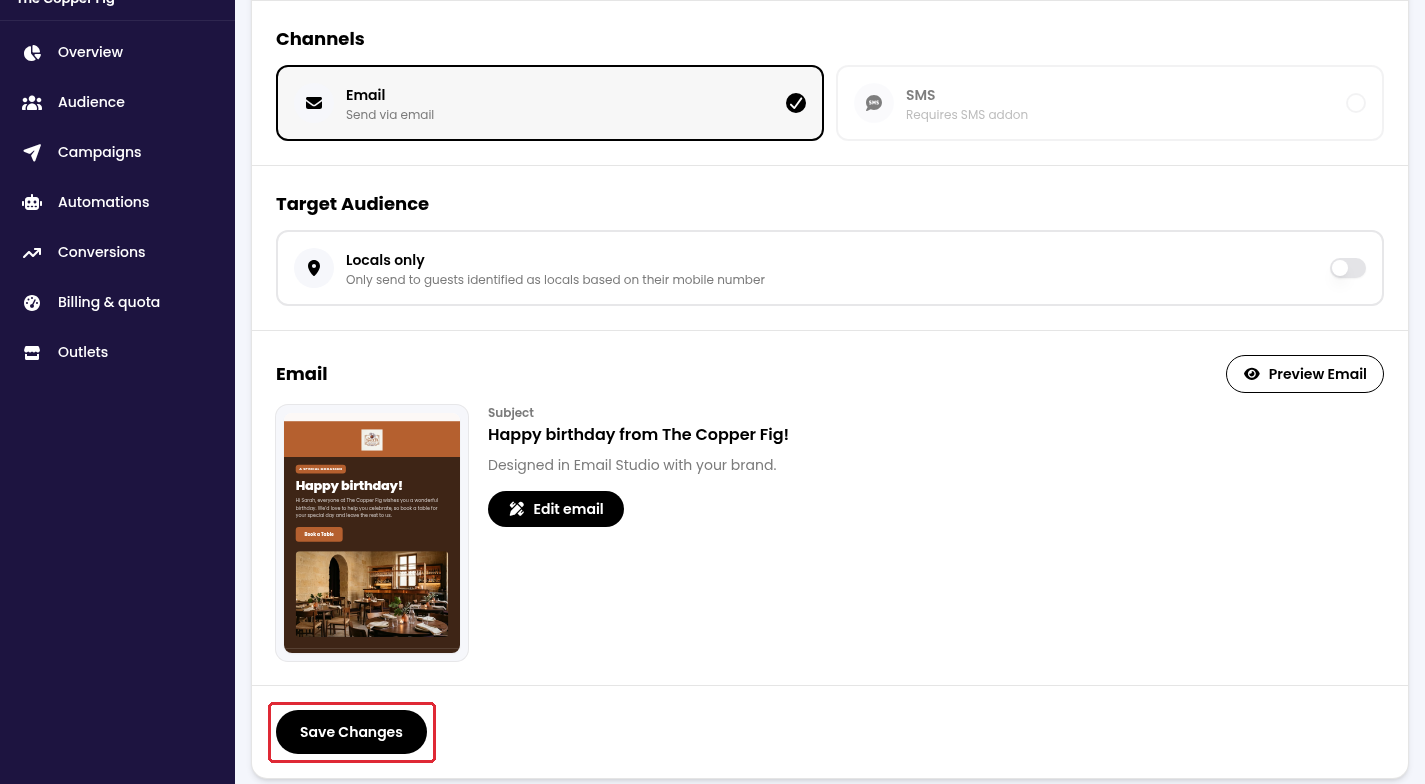
7. Return to the automation settings and click on Save Changes.
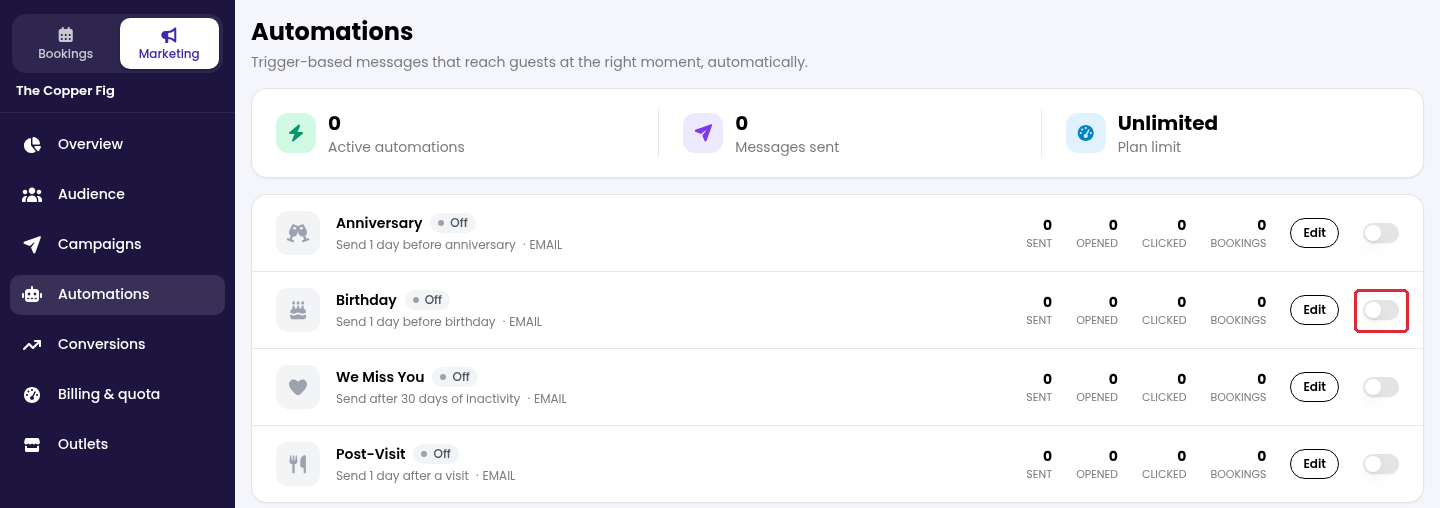
8. Return to Automations and switch the automation on when you are ready to activate it. Switch it off to stop future automated messages.
While we strive to ensure the accuracy and currency of the information in our knowledge base, some articles may contain minor discrepancies due to the constant evolution of our services and products.
Was this article helpful?
That’s Great!
Thank you for your feedback
Sorry! We couldn't be helpful
Thank you for your feedback
Feedback sent
We appreciate your effort and will try to fix the article