When Show closing time as the last bookable slot is disabled, the last bookable time is the closing time minus the default booking duration. For example, closing at 14:30 with a two-hour duration makes 12:30 the last bookable time.
To allow bookings up to the service’s closing time:
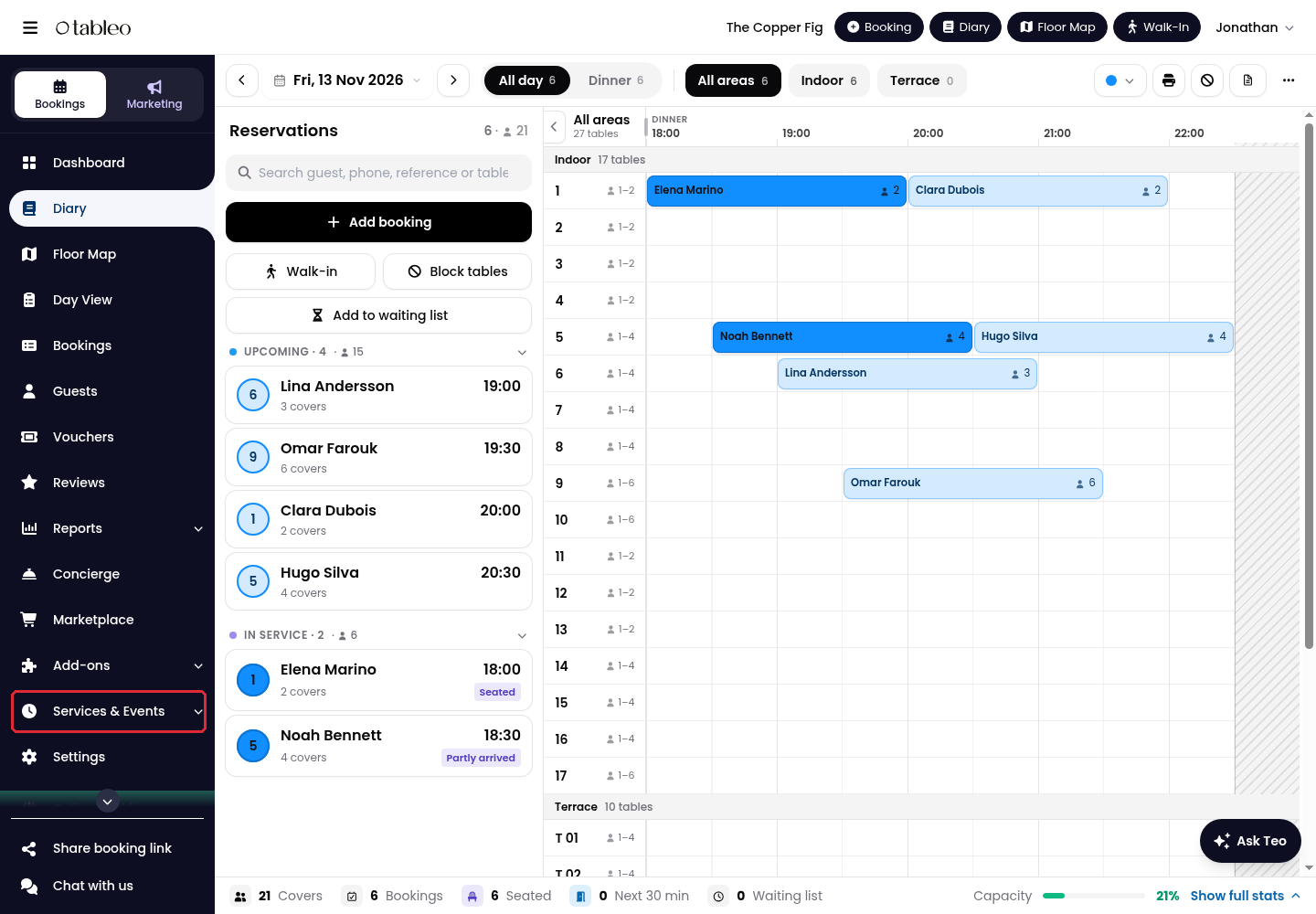
1. In the side menu, open Services & Events and select Regular Hours.
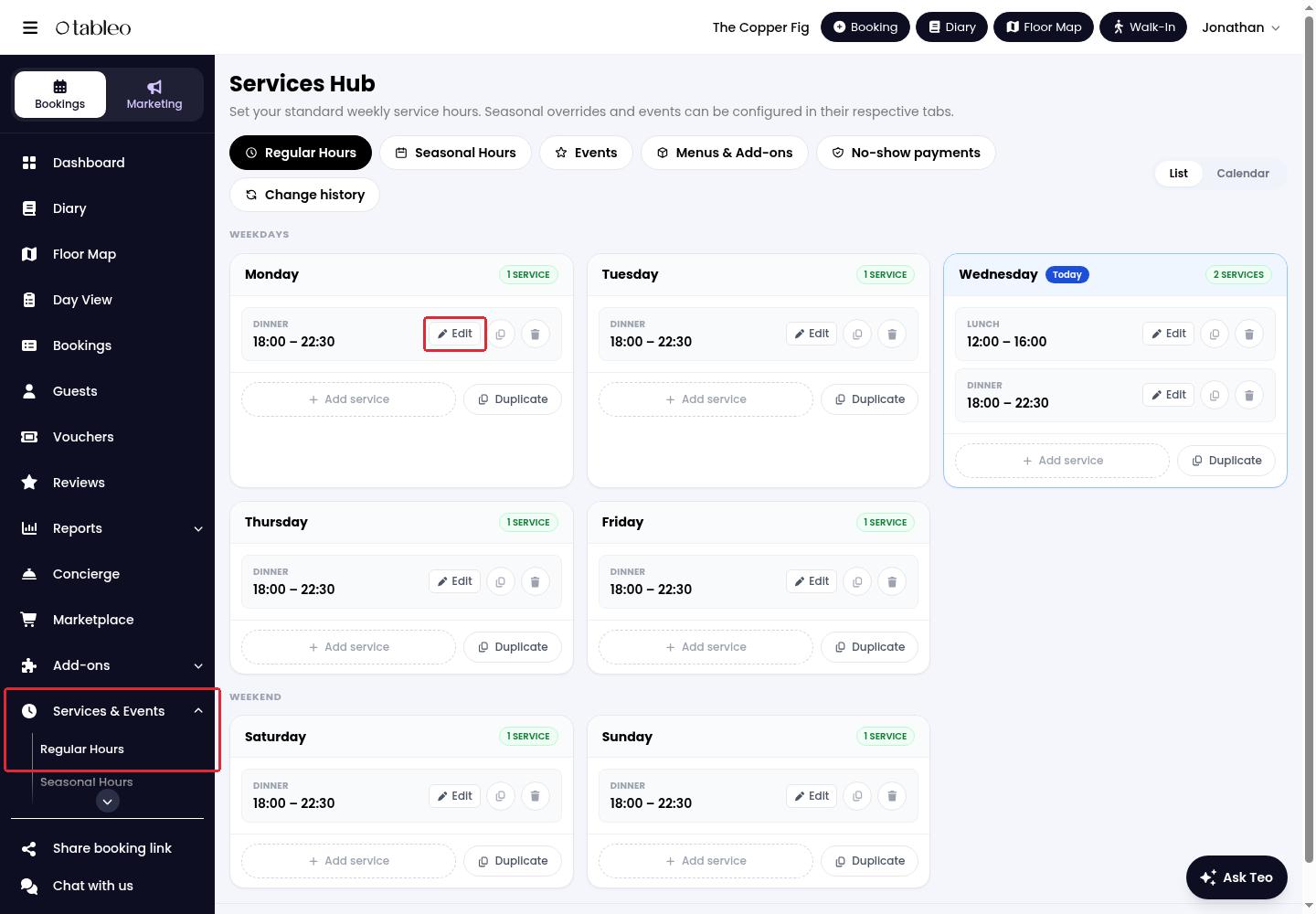
2. Find the relevant weekday and click Edit beside the service.
3. Expand Advanced Settings, then turn on Show closing time as the last bookable slot.
4. Click Save Changes.
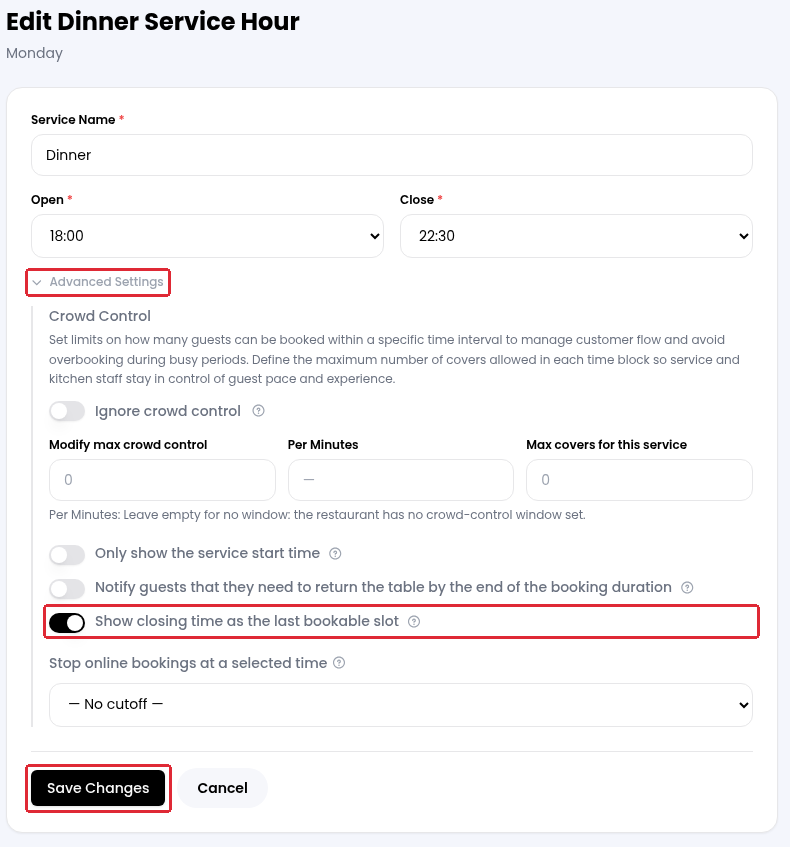
When enabled, the Close time itself is bookable. For example, if Close is 22:00, guests can book at 22:00. To make 21:30 the last bookable time instead, set Close to 21:30.
Apply the same service hours to other weekdays
1. Return to Regular Hours and click Duplicate below the day you want to copy.
2. Select the destination weekdays under Copy to, then click Duplicate.
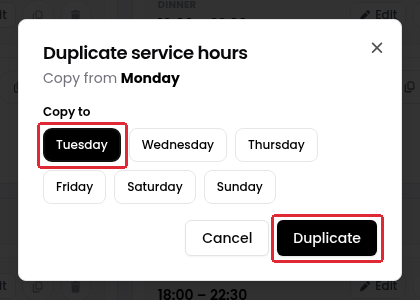
This copies the day’s service hours and settings, not just the closing-time option. Use it only when the same schedule should apply to those days.
While we strive to ensure the accuracy and currency of the information in our knowledge base, some articles may contain minor discrepancies due to the constant evolution of our services and products.
Was this article helpful?
That’s Great!
Thank you for your feedback
Sorry! We couldn't be helpful
Thank you for your feedback
Feedback sent
We appreciate your effort and will try to fix the article