There are two ways to close off days: through Settings or from the Diary.
Using Settings
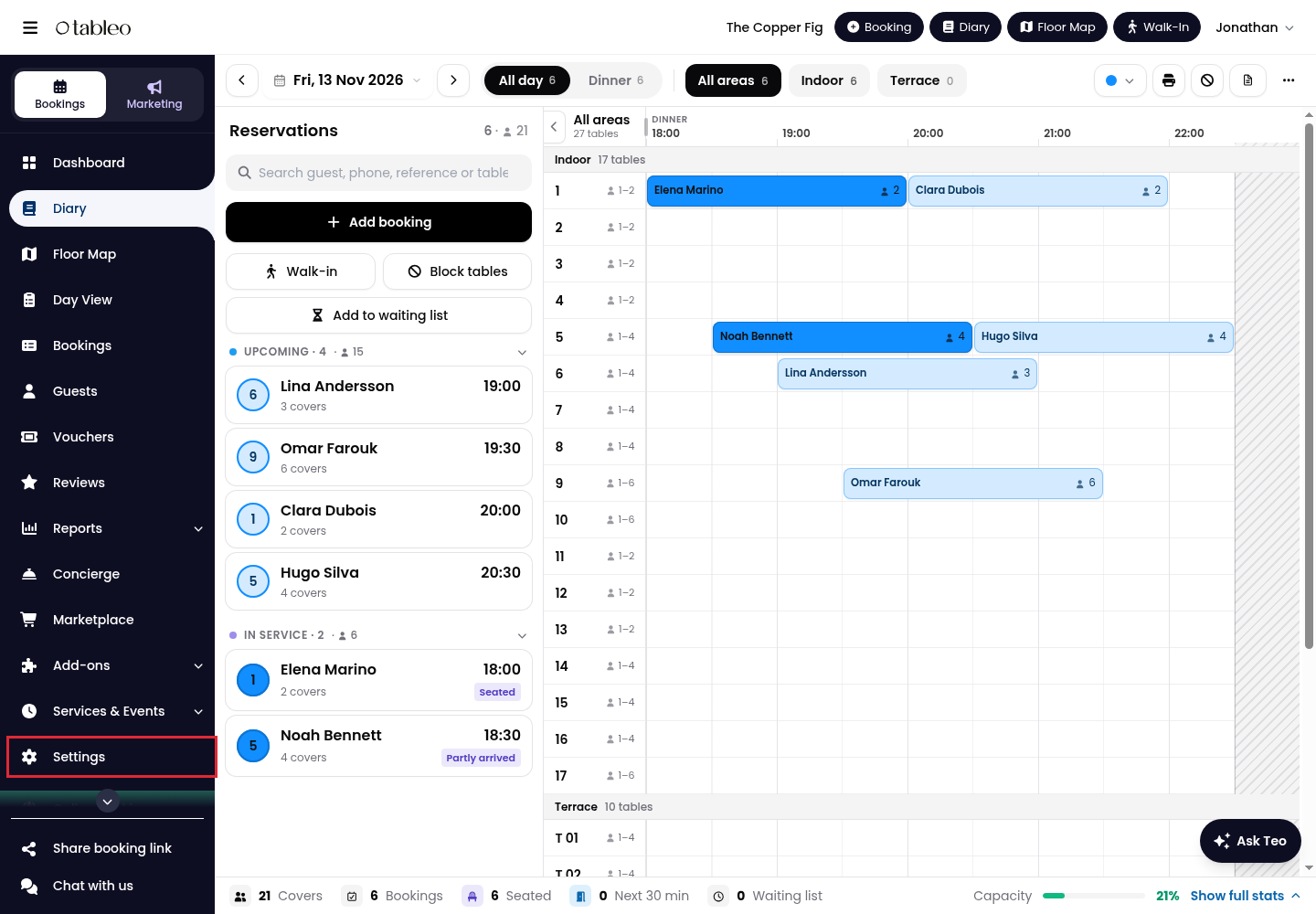
1. Click on Settings in the side menu.
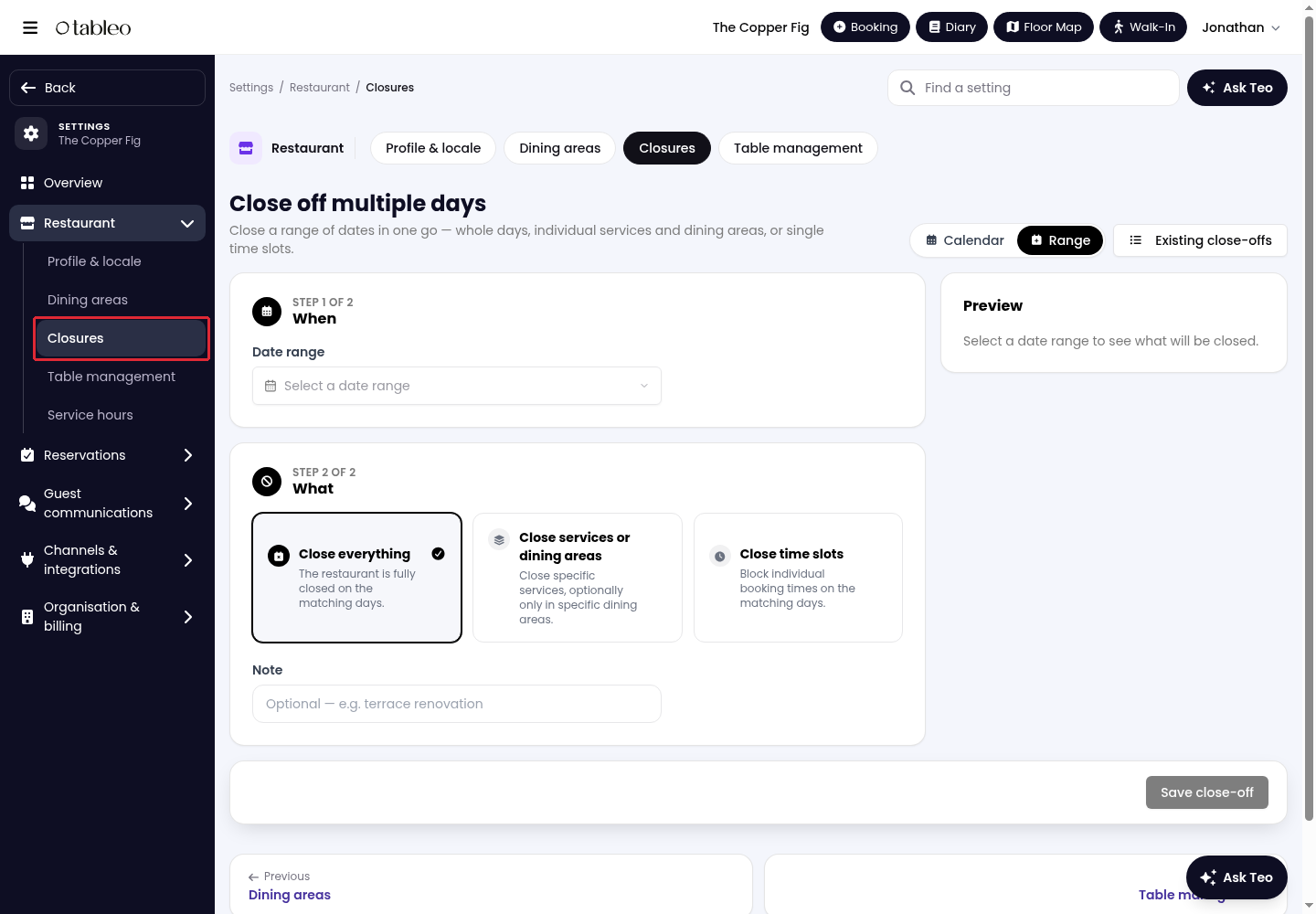
2. Open Restaurant, then select Closures.
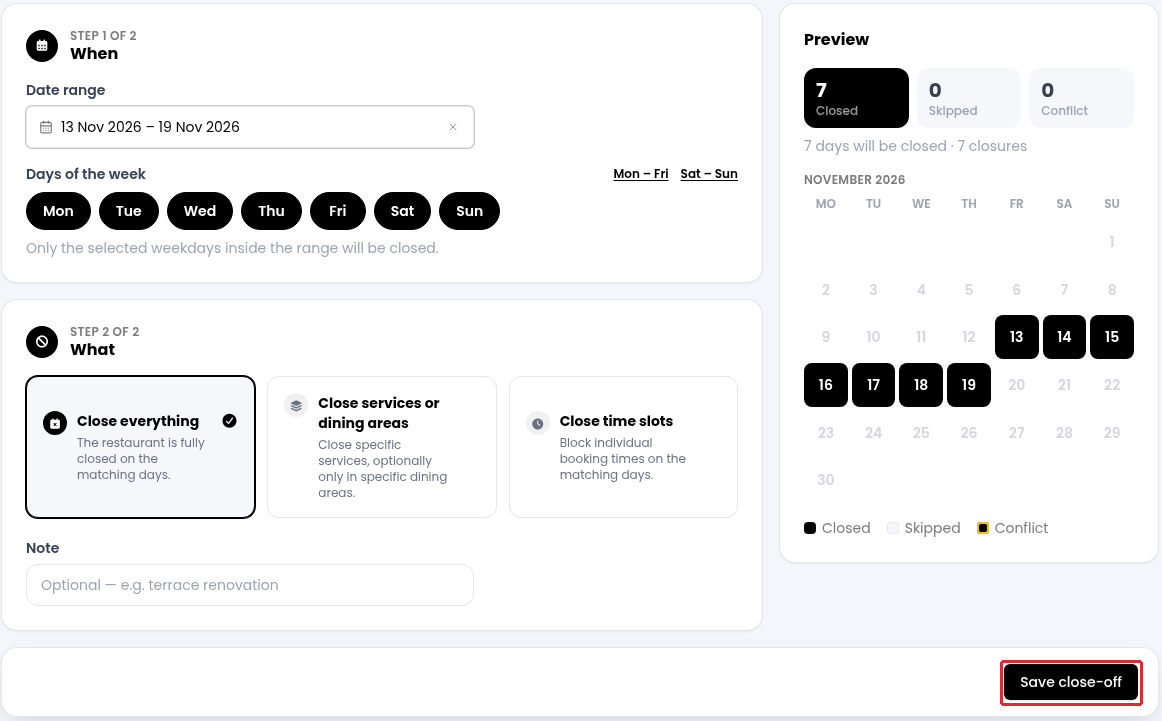
3. Under When, open Date range. Choose the first and last day, then click on Done.
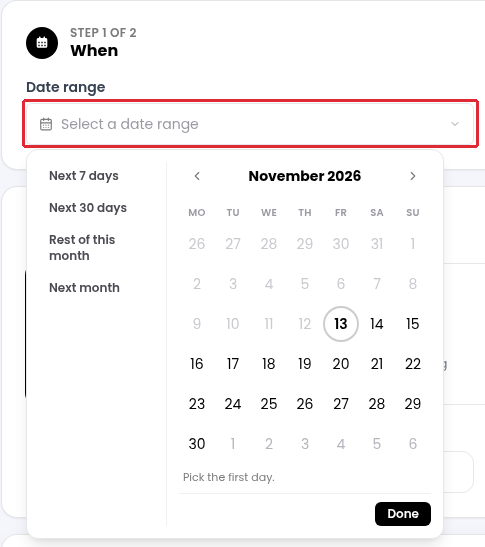
Use Days of the week to keep only the weekdays you want to close within that range.
4. Under What, choose the type of closure:
- Close everything: close the restaurant completely on the selected days.
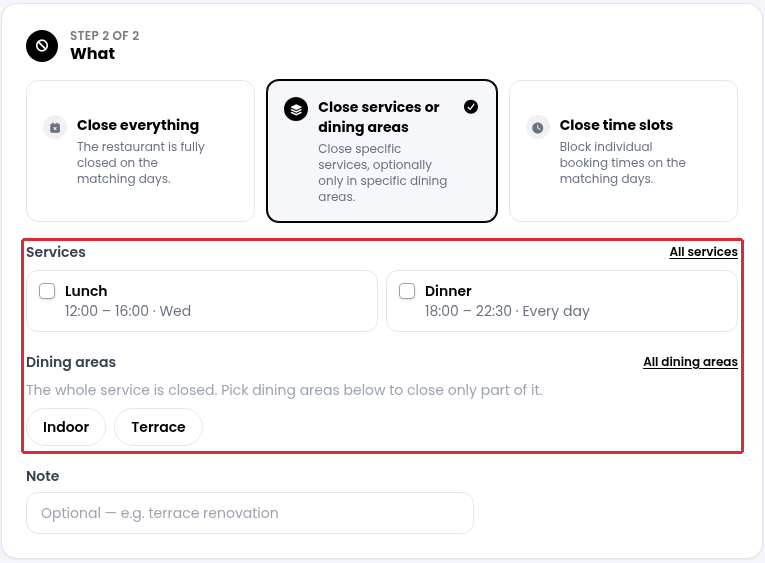
- Close services or dining areas: select the services you want to close. To close only part of a service, also select the dining areas. If no dining area is selected, the whole selected service is closed.
- Close time slots: select the booking times you want to block. The selected times are blocked across all services on the matching days.
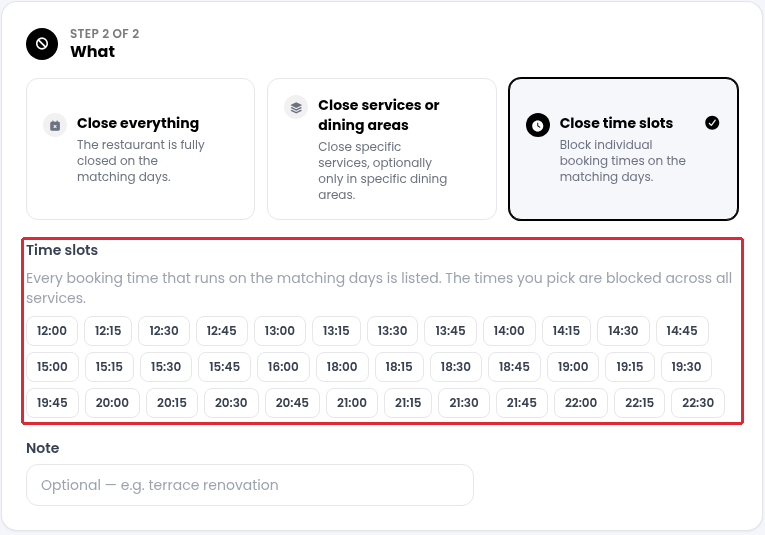
5. Check the dates and selection in Preview. Add an optional Note, then click on Save close-off.
Using the Diary
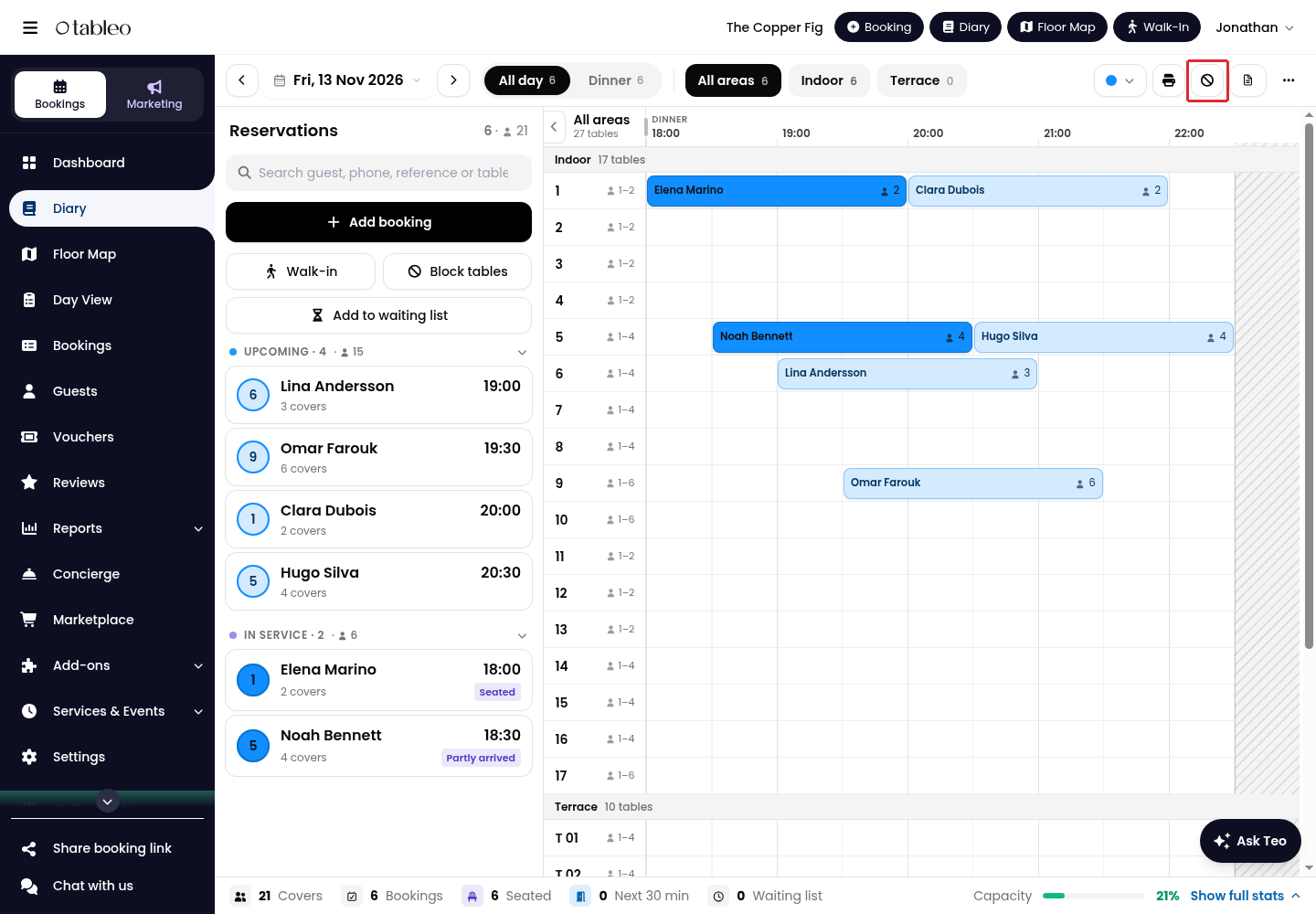
1. In the Diary, click on the Stop bookings icon in the top toolbar.
2. Select Multiple days.
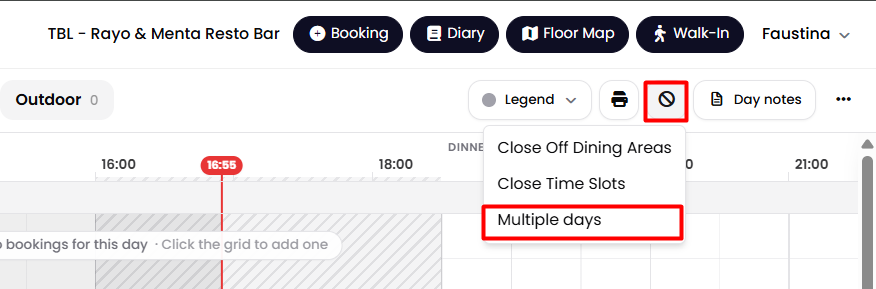
This opens Close off multiple days. Set When and What, check Preview, then click on Save close-off, as described above.
While we strive to ensure the accuracy and currency of the information in our knowledge base, some articles may contain minor discrepancies due to the constant evolution of our services and products.
Was this article helpful?
That’s Great!
Thank you for your feedback
Sorry! We couldn't be helpful
Thank you for your feedback
Feedback sent
We appreciate your effort and will try to fix the article