Use the Floor Map to see bookings and table availability during service.
1. Click Floor Map in the top bar.
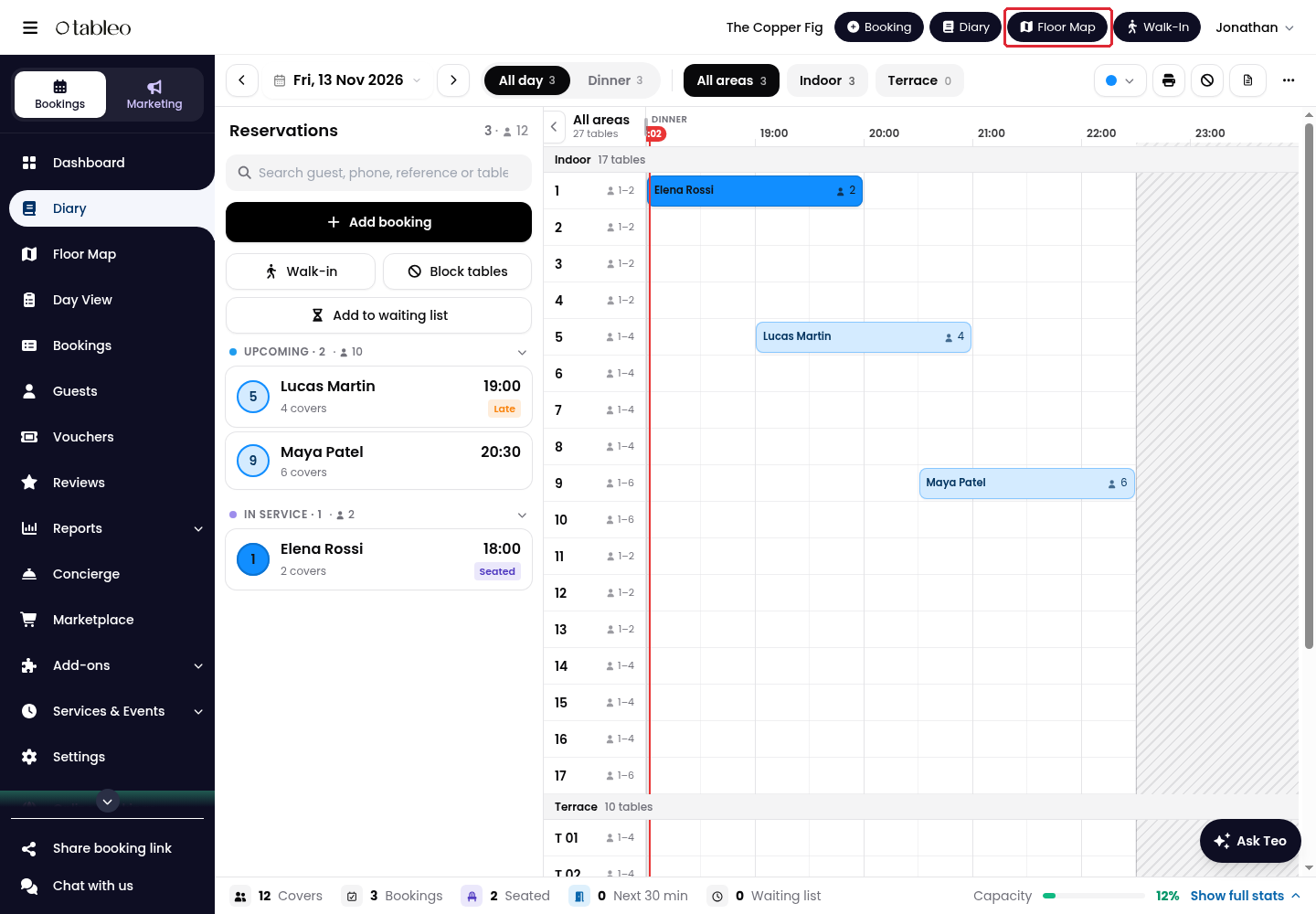
2. Choose the day using the date picker or arrows, select the service or All day, then click the dining-area tab you want to view.
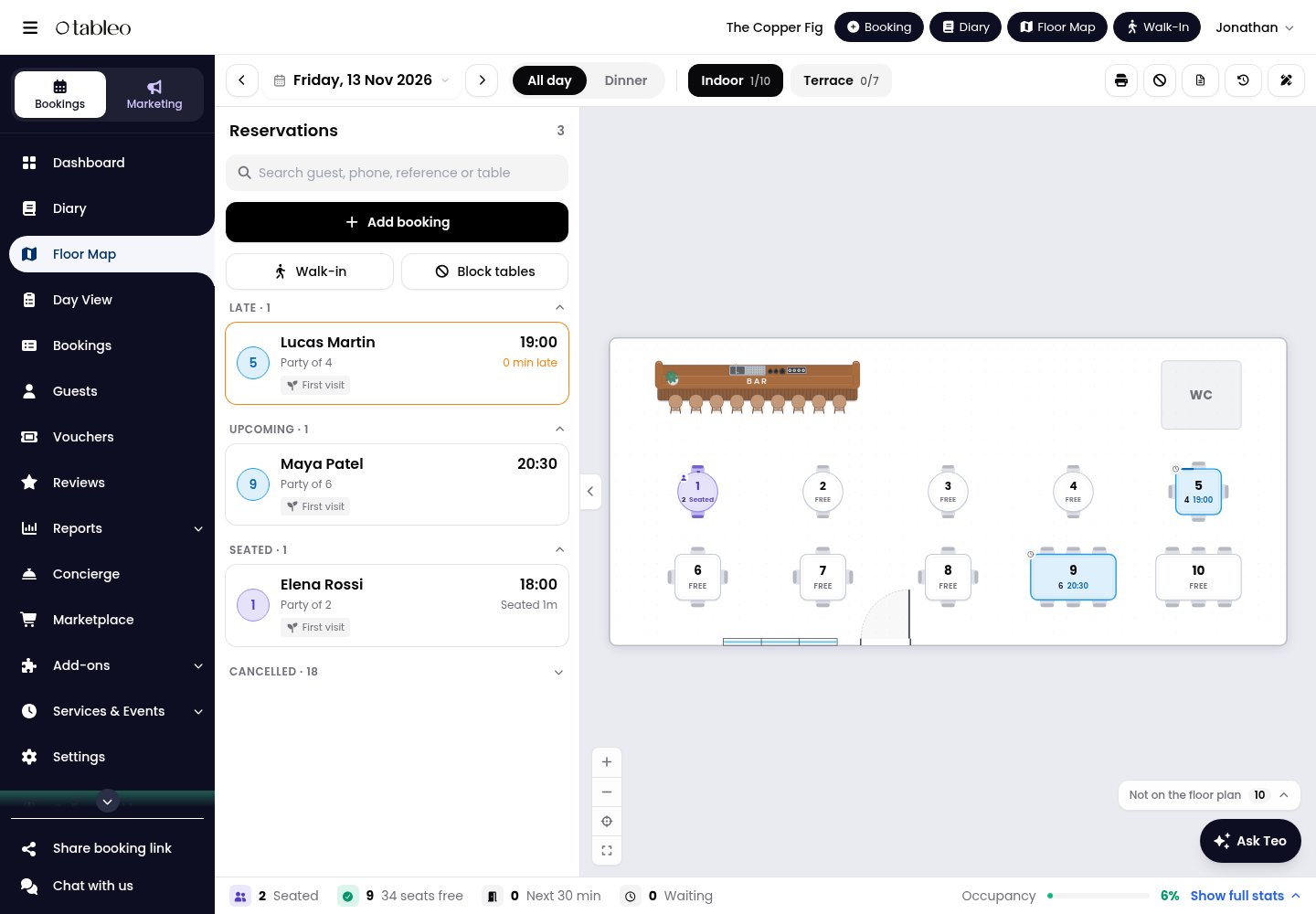
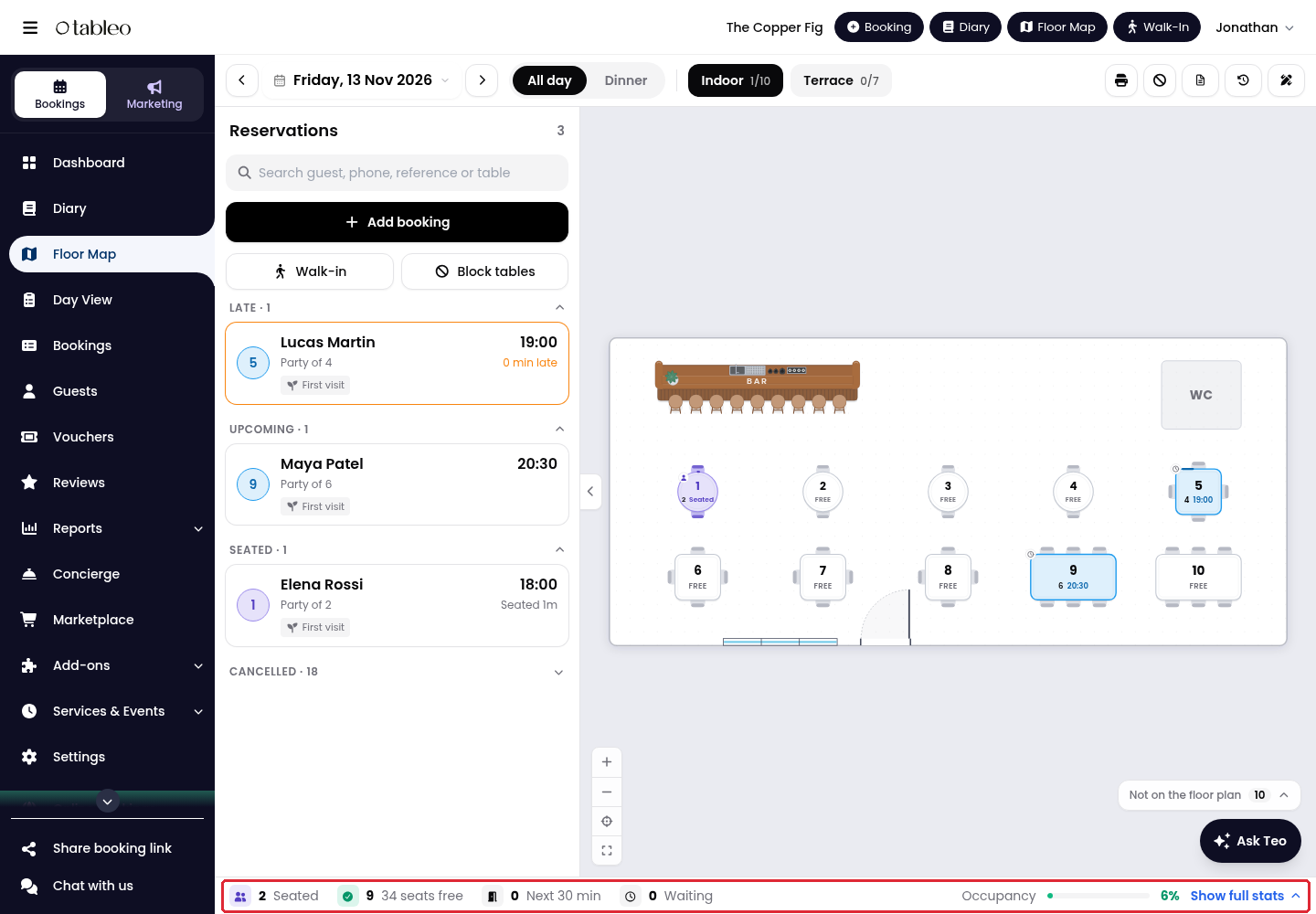
3. Use the Reservations panel to find a booking. Cards are grouped by status, such as Upcoming, Seated and Cancelled. Search by guest name, phone number, booking reference or table.
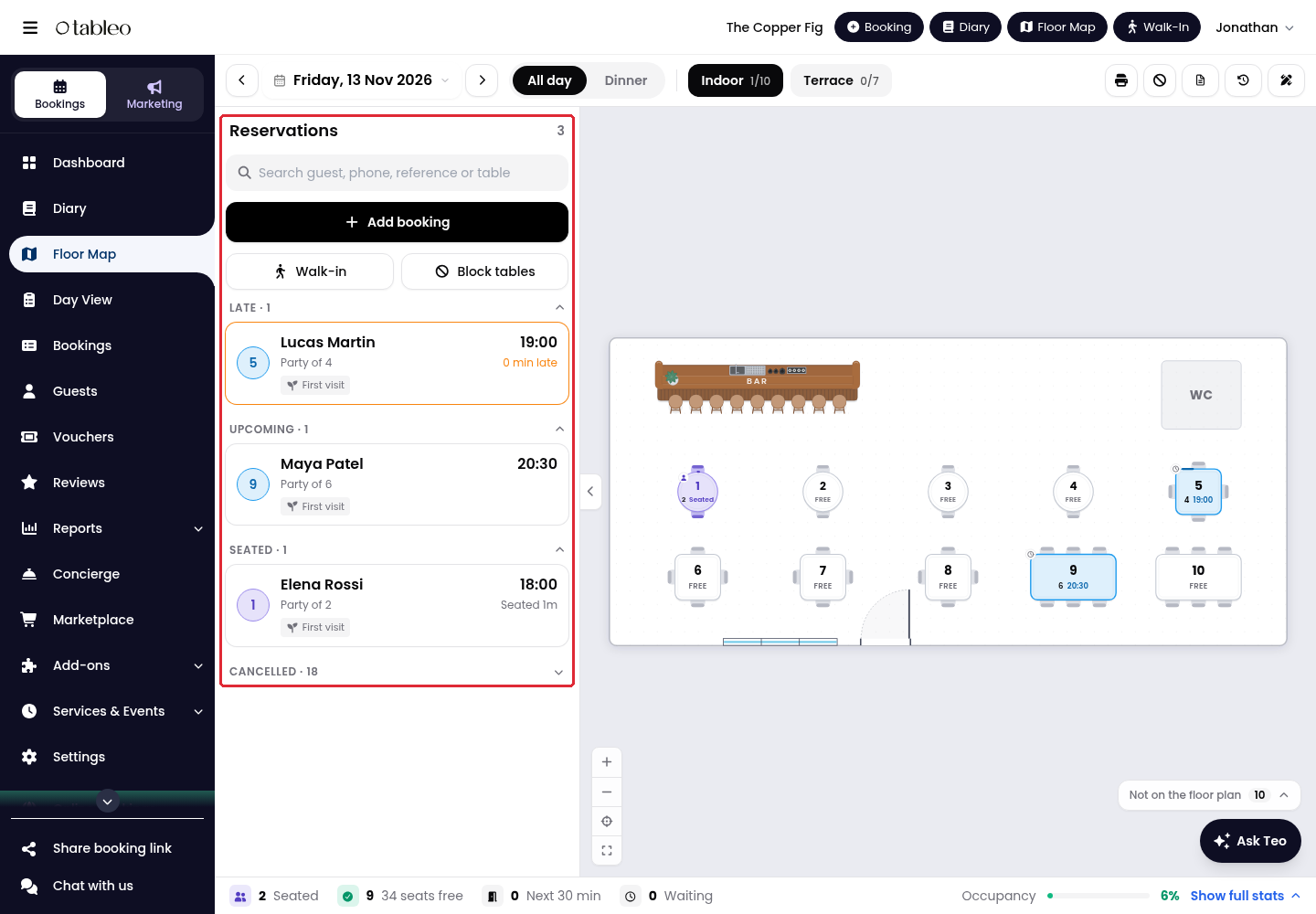
4. Read the table labels on the map: FREE means the table is available; other tables show the next booking time and guest count, or the seated party. Purple tables indicate seated guests. Use + and − to zoom.
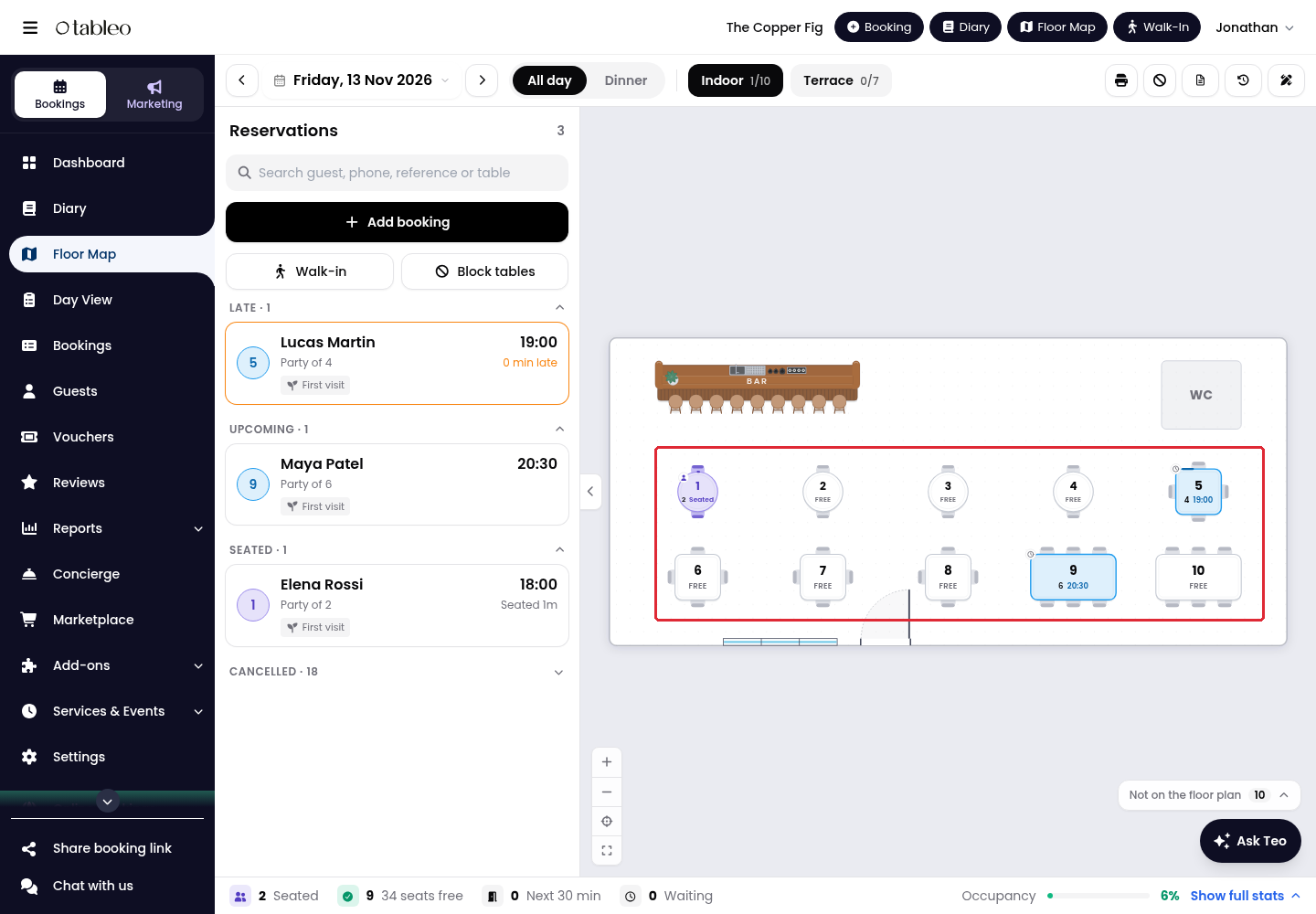
5. Check the bottom bar for guests seated, free seats, bookings in the next 30 minutes, the waiting list and occupancy. Click Show full stats for a dining-area breakdown.
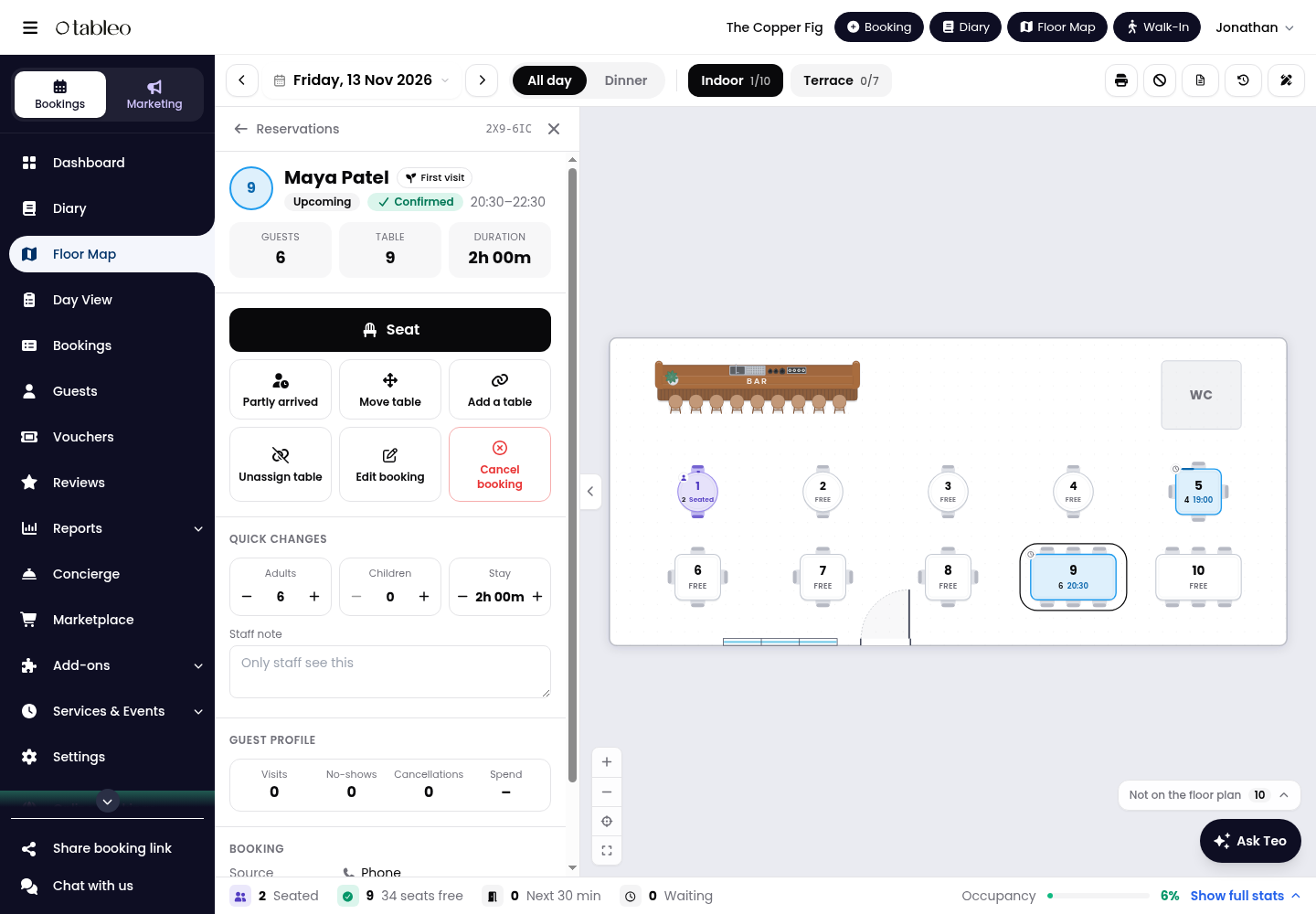
6. Click a booking card or its table to open the booking panel. Check the guest name, status, time, guest count, assigned table and duration before choosing an action.
The Notes icon in the top-right toolbar opens the same-day team notes also shown in the Diary.
While we strive to ensure the accuracy and currency of the information in our knowledge base, some articles may contain minor discrepancies due to the constant evolution of our services and products.
Was this article helpful?
That’s Great!
Thank you for your feedback
Sorry! We couldn't be helpful
Thank you for your feedback
Feedback sent
We appreciate your effort and will try to fix the article