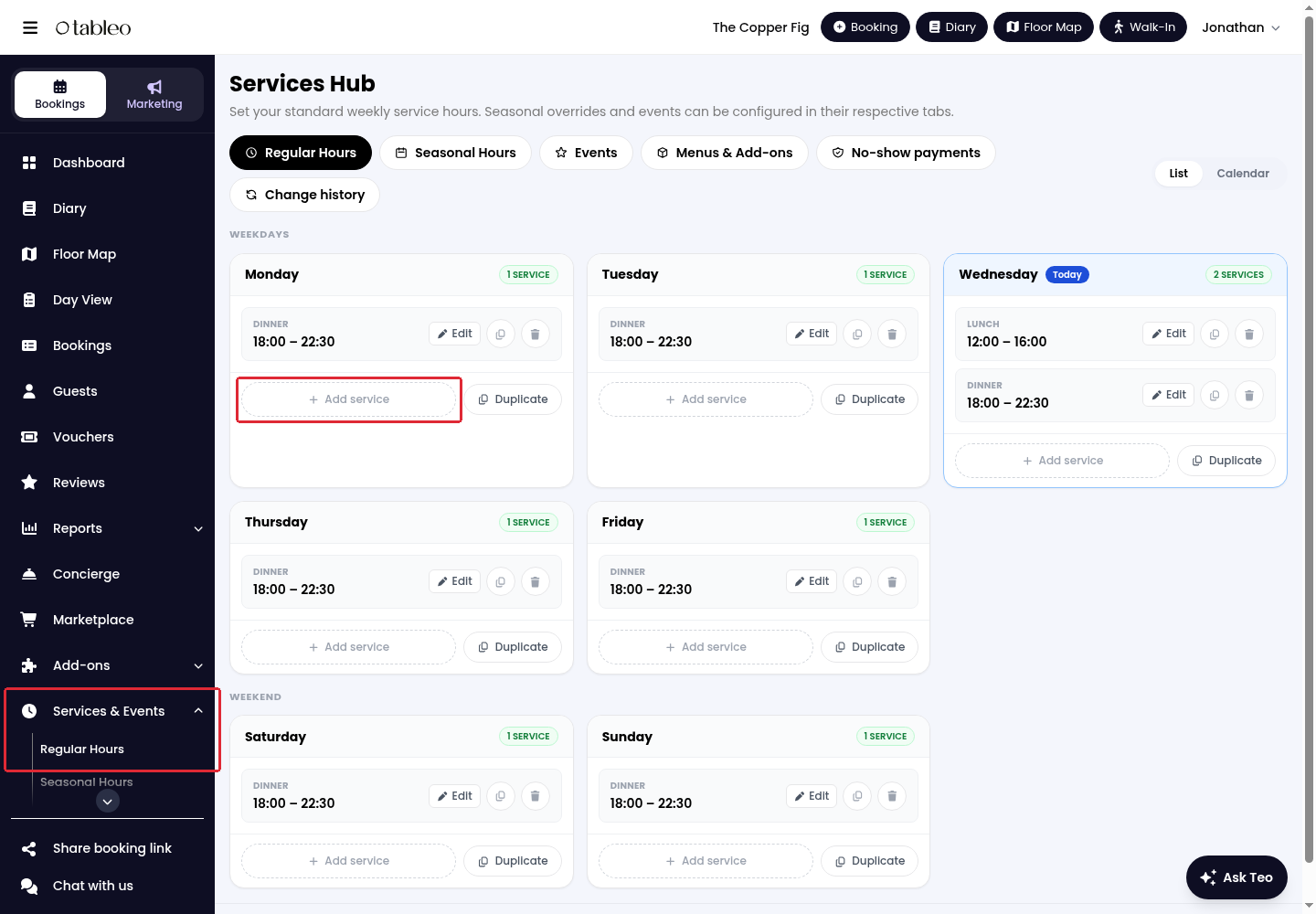
1. In the side menu, open Services & Events and select Regular Hours.
2. Click Add service under the weekday you want to configure.
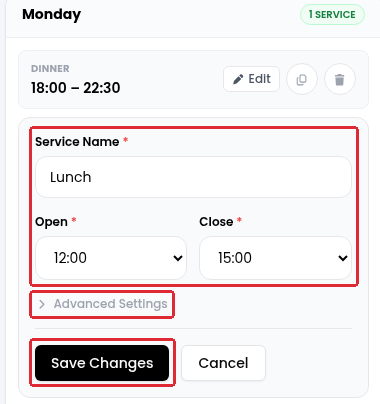
3. Enter a Service Name, then set the Open and Close times.
4. To customise rules for this service, expand Advanced Settings. These settings apply to this service rather than your general booking rules.
5. Click Save Changes.
The service will appear under the selected weekday. Repeat these steps to add another service, such as lunch and dinner on the same day.
Edit or copy service hours
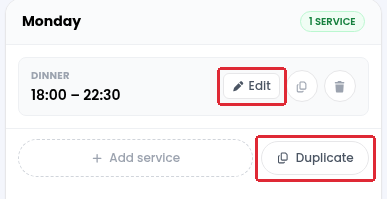
To update a service, click Edit beside it, make your changes, and click Save Changes. To copy a day’s schedule, click Duplicate below that weekday.
Select the destination weekdays under Copy to, then click Duplicate.
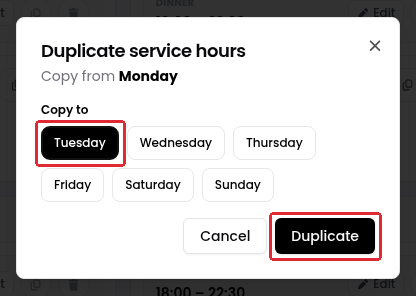
This copies the day’s service hours and settings, not just one service. Use it only when the whole schedule should match.
Was this article helpful?
That’s Great!
Thank you for your feedback
Sorry! We couldn't be helpful
Thank you for your feedback
Feedback sent
We appreciate your effort and will try to fix the article