If Show closing time as the last bookable slot option is disabled, the last bookable time is calculated by subtracting the default booking duration from the service’s closing time.
For example, if your service closes at 14:30 and the booking duration is 2 hours, the last bookable time will be 12:30. If you would like to show all available booking times up to the service’s closing time:
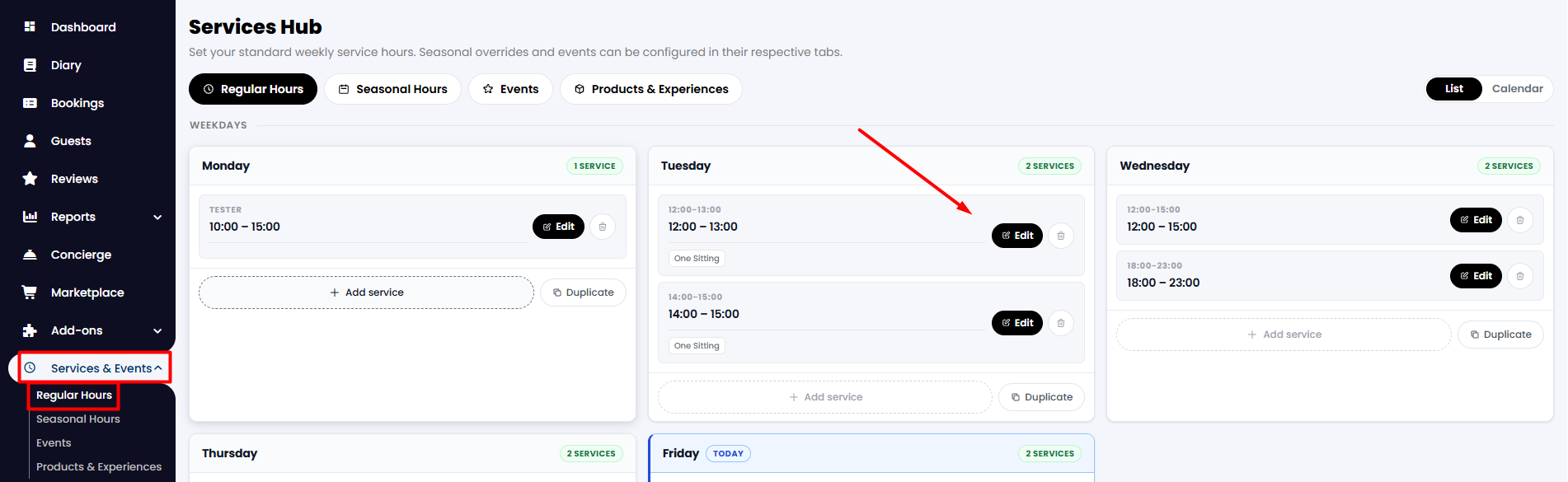
1. Go to Service & Events > Regular Hours from the side menu.
2. Select the relevant service and click Edit.
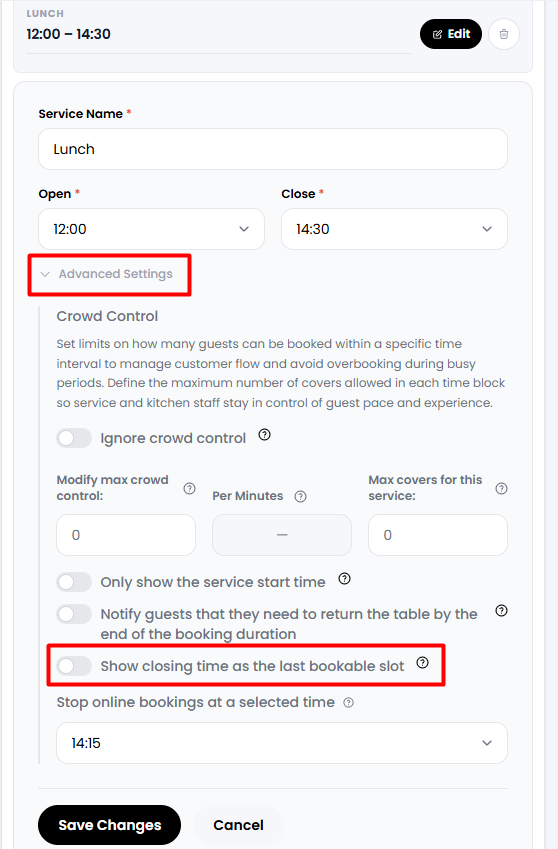
3. Open Advanced settings. Find the Show closing time as the last bookable slot option and click the toggle to enable it. When finished, click Save changes.
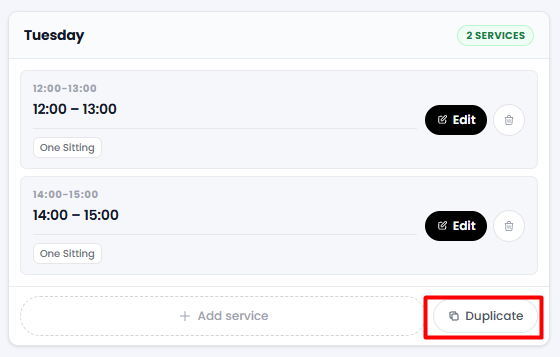
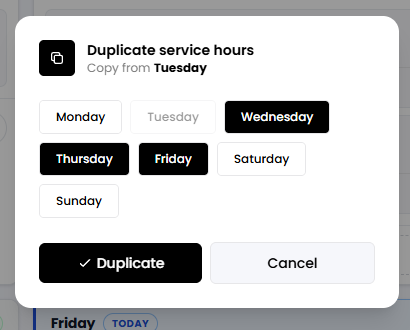
If the same schedule applies to other weekdays, click Duplicate to apply the setting to the other days without having to update them manually.
Note: When this option is enabled, the Close time is also available as a bookable time slot. For example, if the service’s Close time is set to 22:00, guests will be able to book at 22:00. If you would like 21:30 to be the last available booking time, simply set the service’s Close time to 21:30.
Was this article helpful?
That’s Great!
Thank you for your feedback
Sorry! We couldn't be helpful
Thank you for your feedback
Feedback sent
We appreciate your effort and will try to fix the article