Use Settings to find and manage your restaurant’s booking rules, guest communications and connected services.
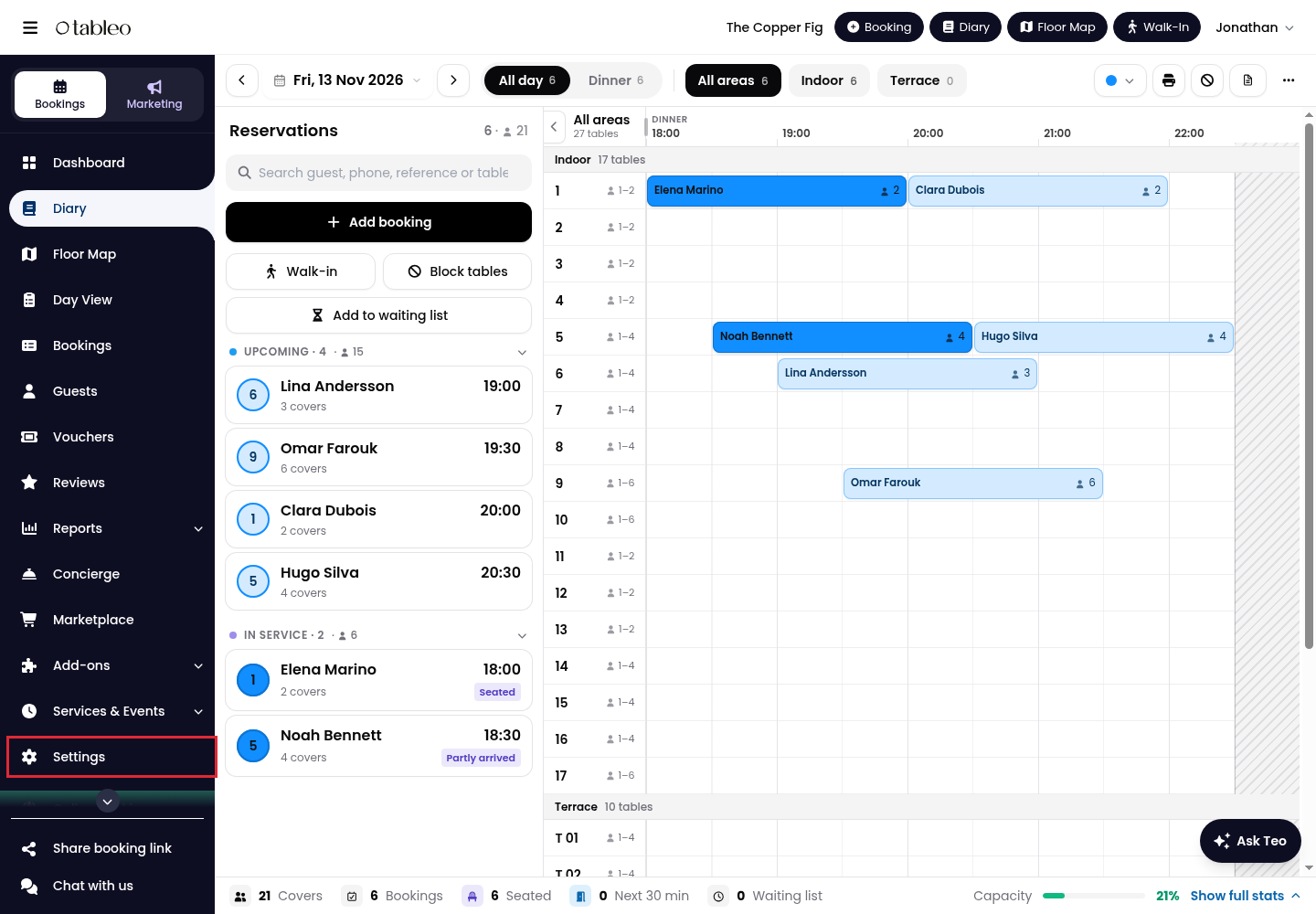
1. Click on Settings in the side menu.
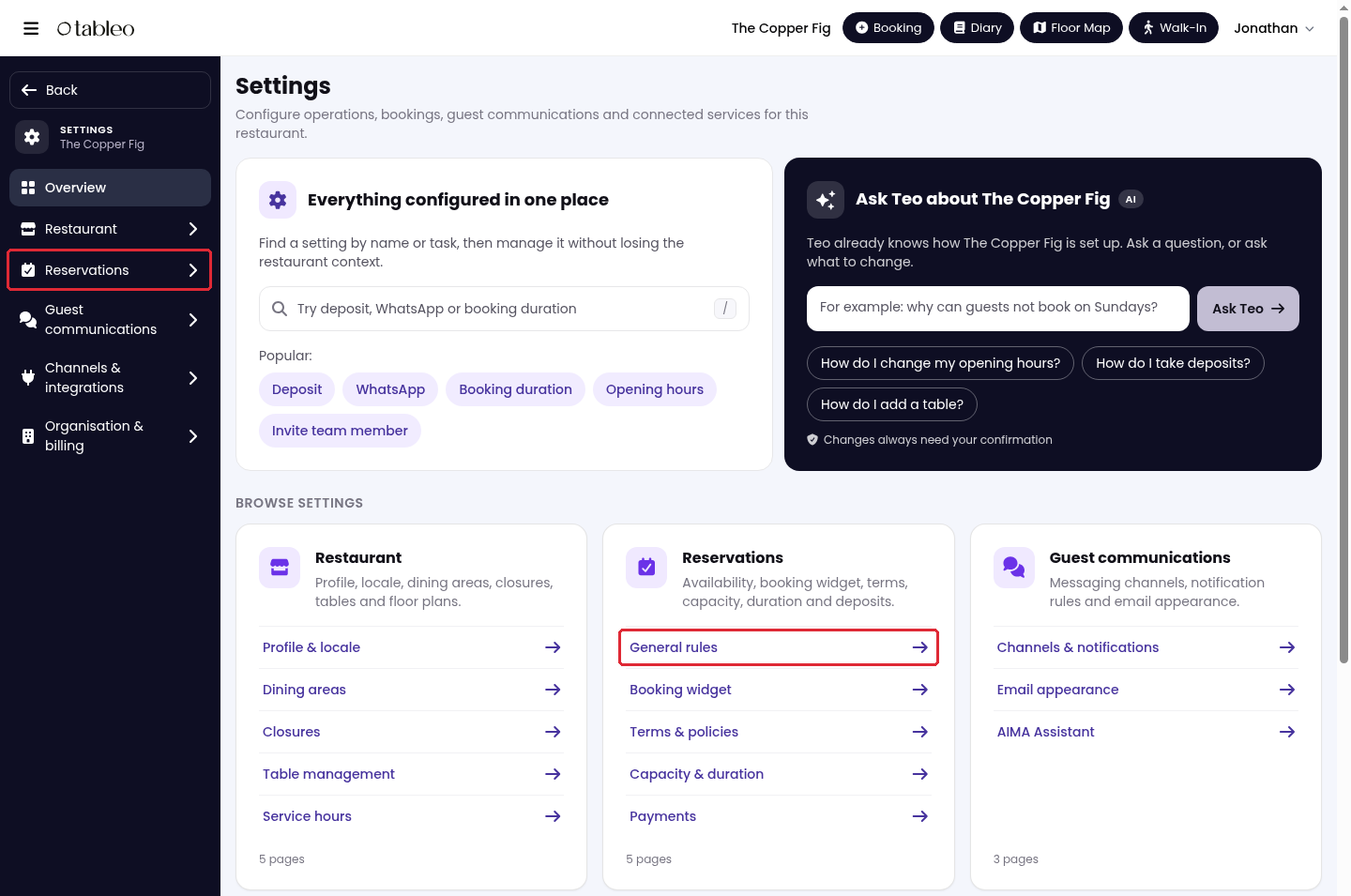
2. Click a category in the side menu, then choose a page. For example, click Reservations, then General rules. You can also open pages from the category cards on Overview.
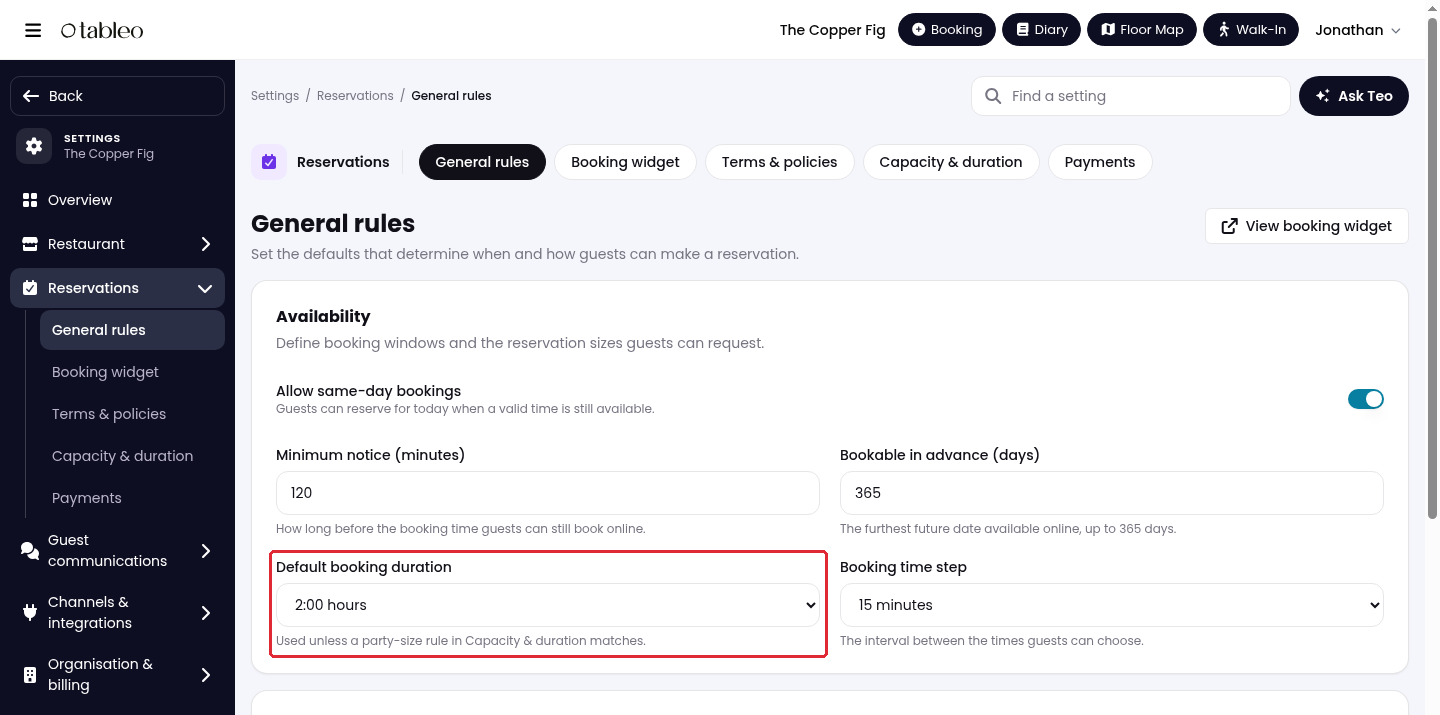
3. Use the tabs across the top to move between pages in the same category. Each page groups settings into sections, such as Availability.
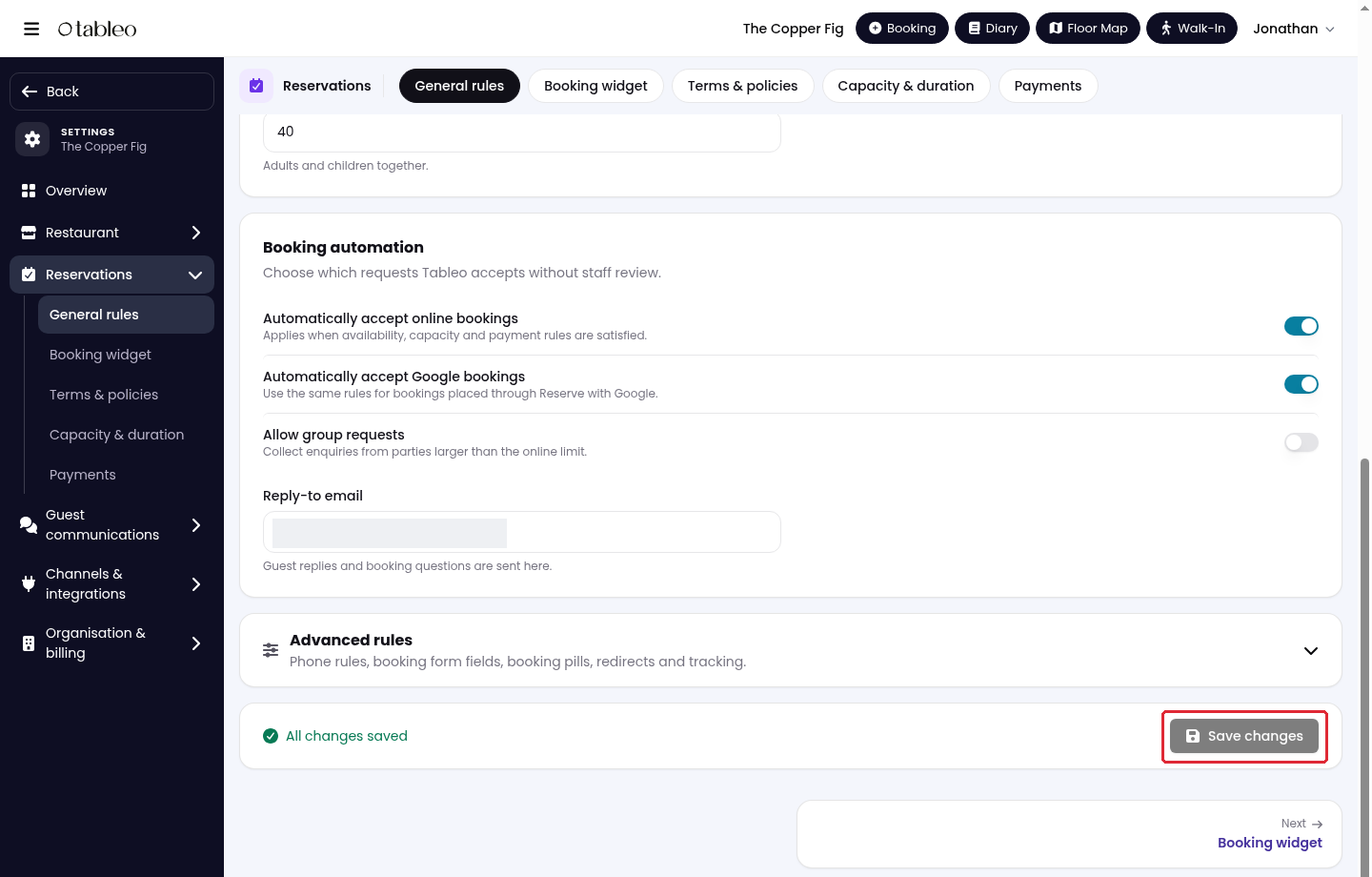
4. After changing a value, scroll to the bottom and click Save changes before leaving the page. If nothing needs saving, the button is greyed out, and All changes saved appears beside it.
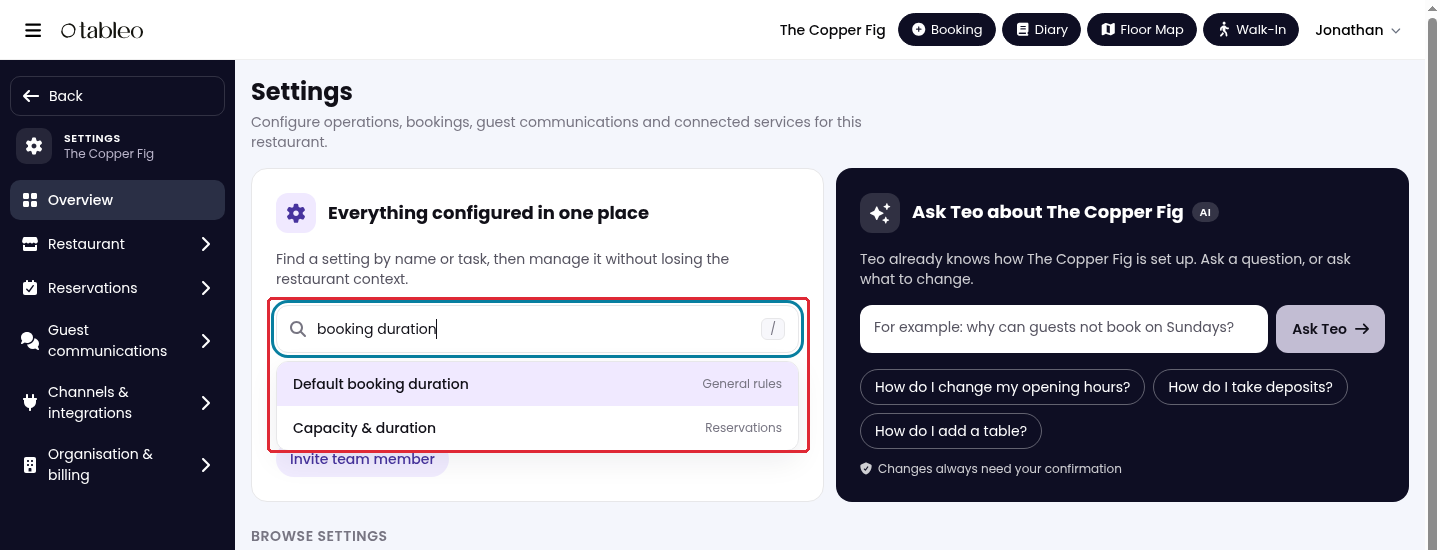
5. To search, click Overview and enter a setting name or task, such as booking duration, in Find a setting. Select Default booking duration from the results to open the relevant field. You can also use Find a setting at the top of a settings page.
6. For help, type a question in the Ask Teo section on Overview, then click Ask Teo. For example, ask where to change your opening hours. You can also open Teo using an Ask Teo button on a settings page.
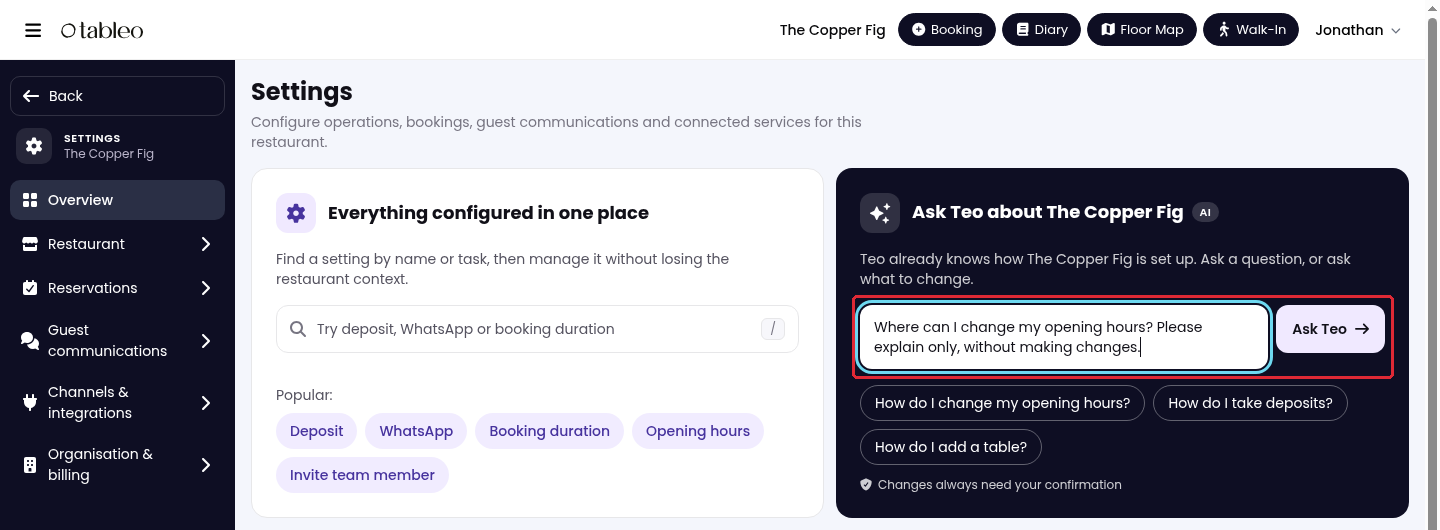
Teo opens in a side panel, where you can read the reply, follow links to settings and ask follow-up questions. Review any proposed changes before confirming them.
While we strive to ensure the accuracy and currency of the information in our knowledge base, some articles may contain minor discrepancies due to the constant evolution of our services and products.
Was this article helpful?
That’s Great!
Thank you for your feedback
Sorry! We couldn't be helpful
Thank you for your feedback
Feedback sent
We appreciate your effort and will try to fix the article