Use a sign-up page, embedded form or website pop-up to invite guests to join your marketing audience without making a booking.
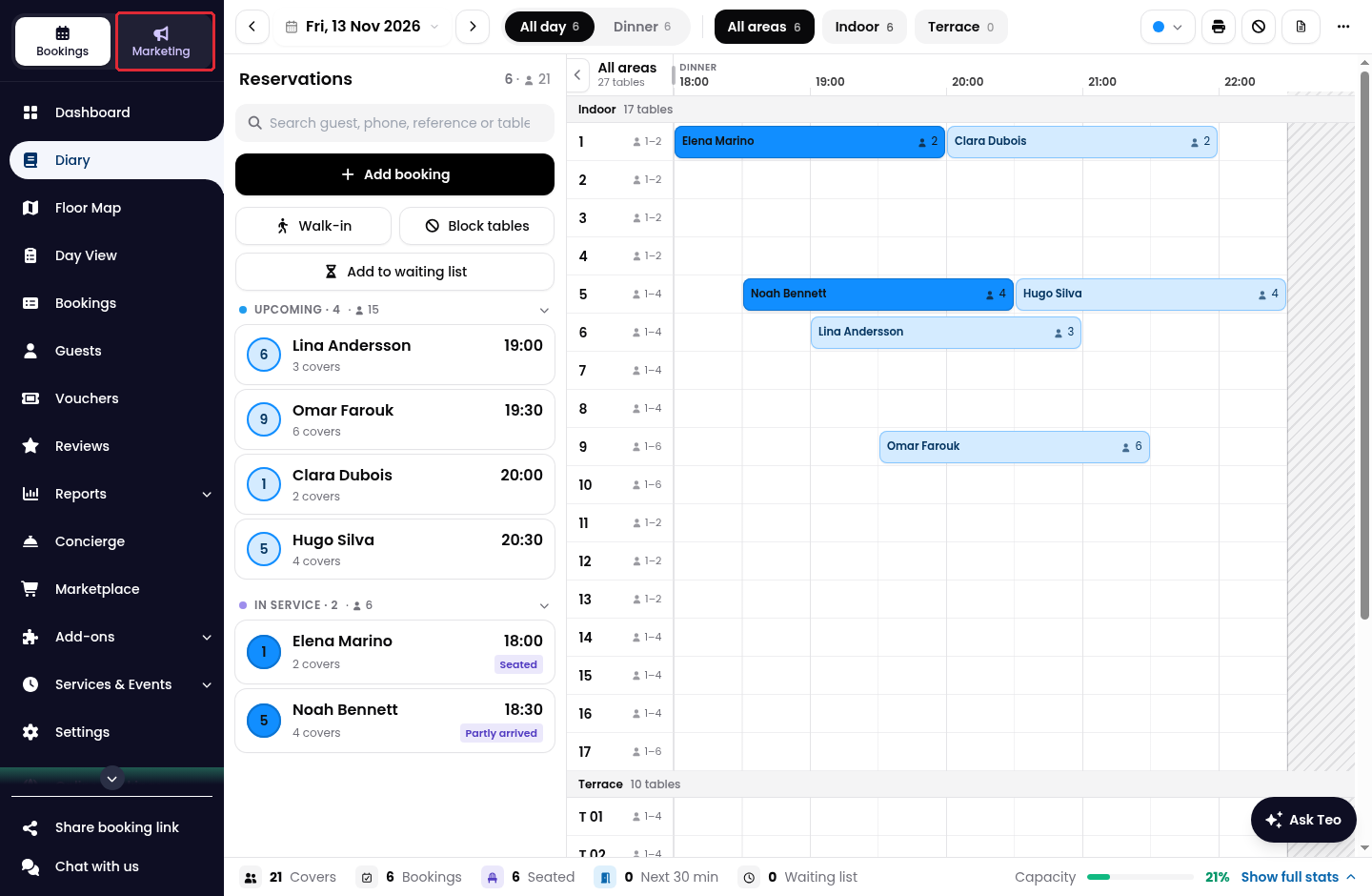
1. Click on Marketing in the side menu.
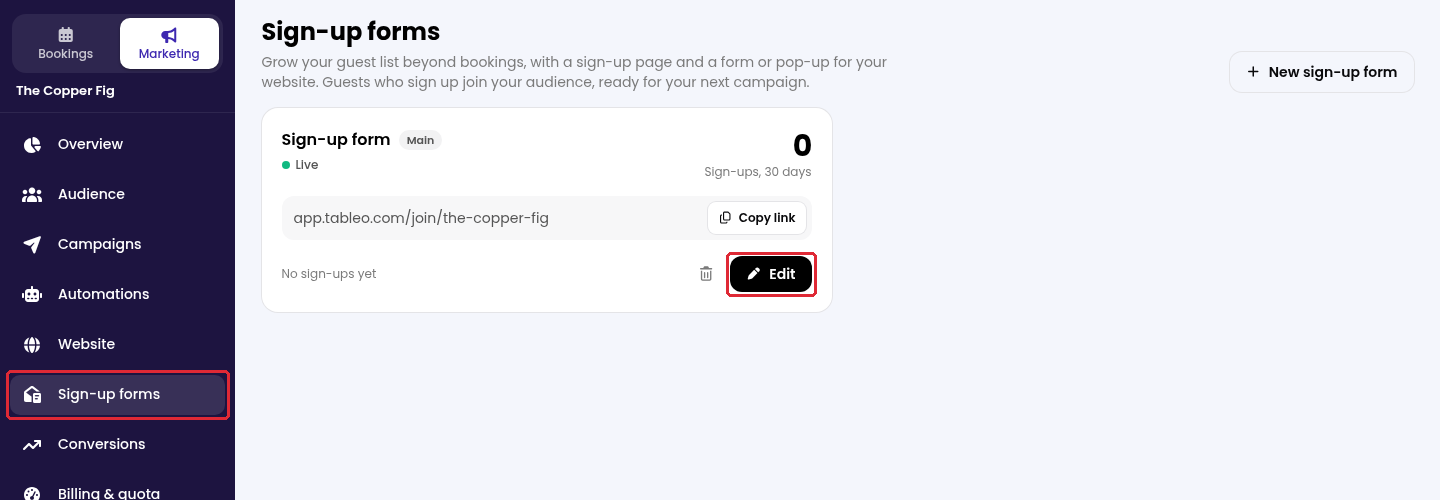
2. Open Sign-up forms, then click on Edit on the form you want to customise.
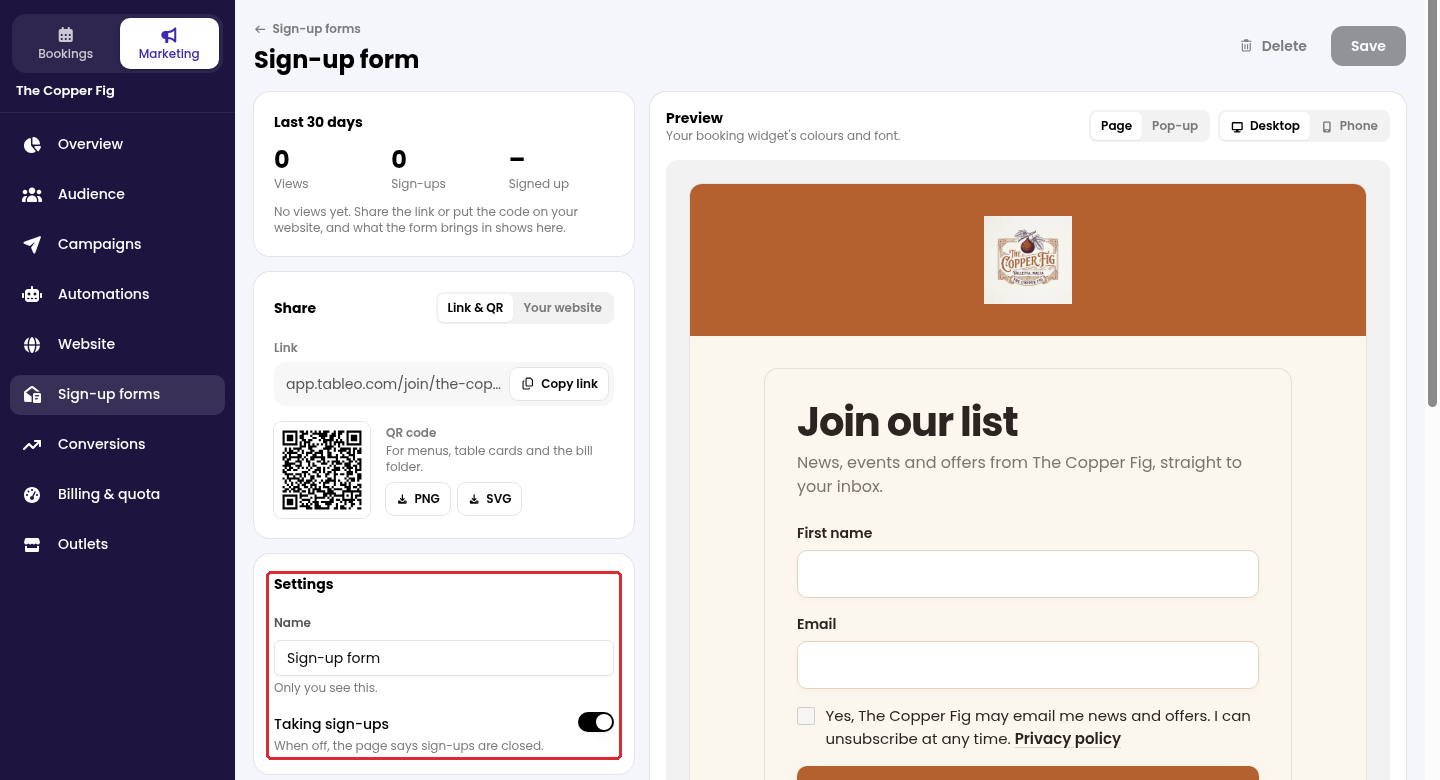
3. Under Settings, name the form and switch Taking sign-ups on or off.
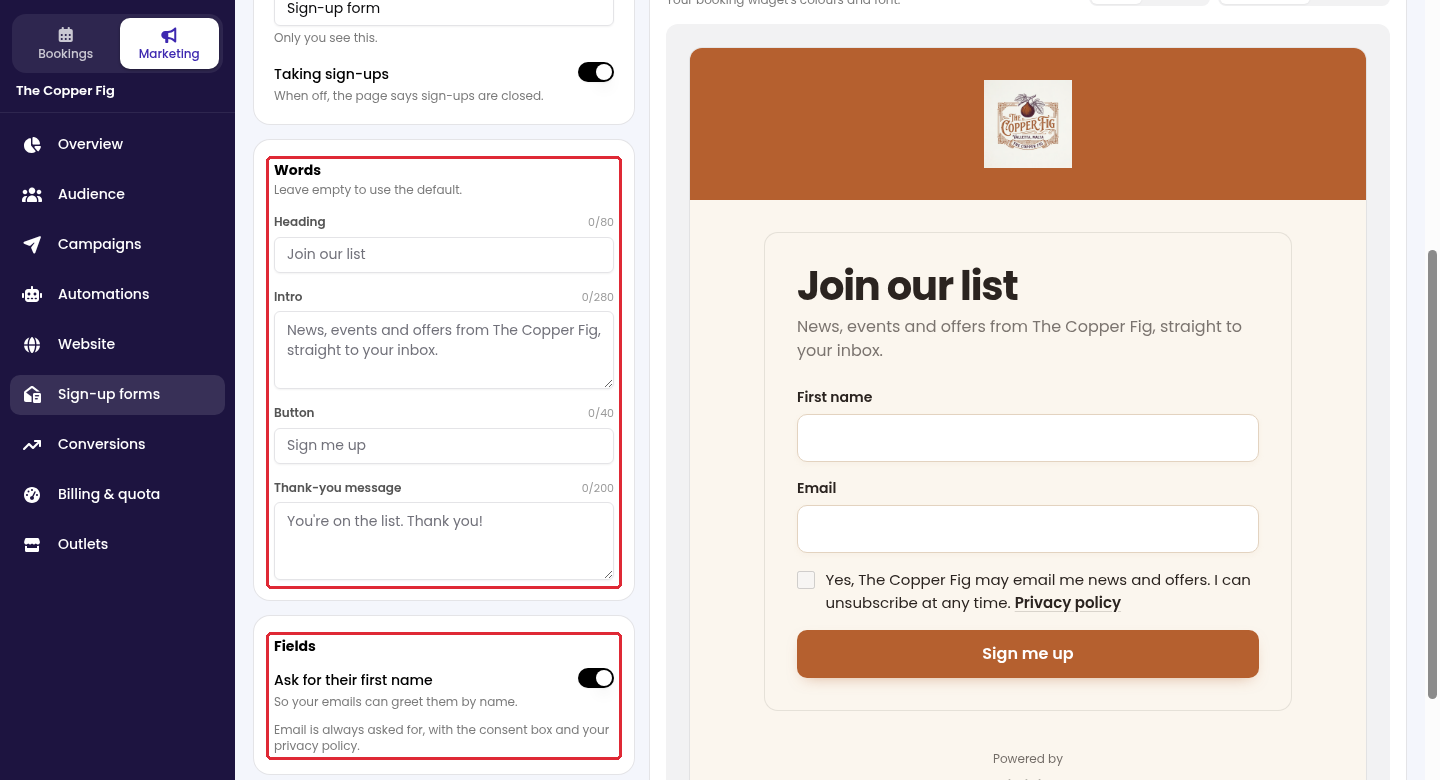
4. Under Words, edit the Heading, Intro, Button and Thank-you message. Empty fields use the default wording.
Under Fields, choose whether to Ask for their first name. Email and marketing consent are always requested.
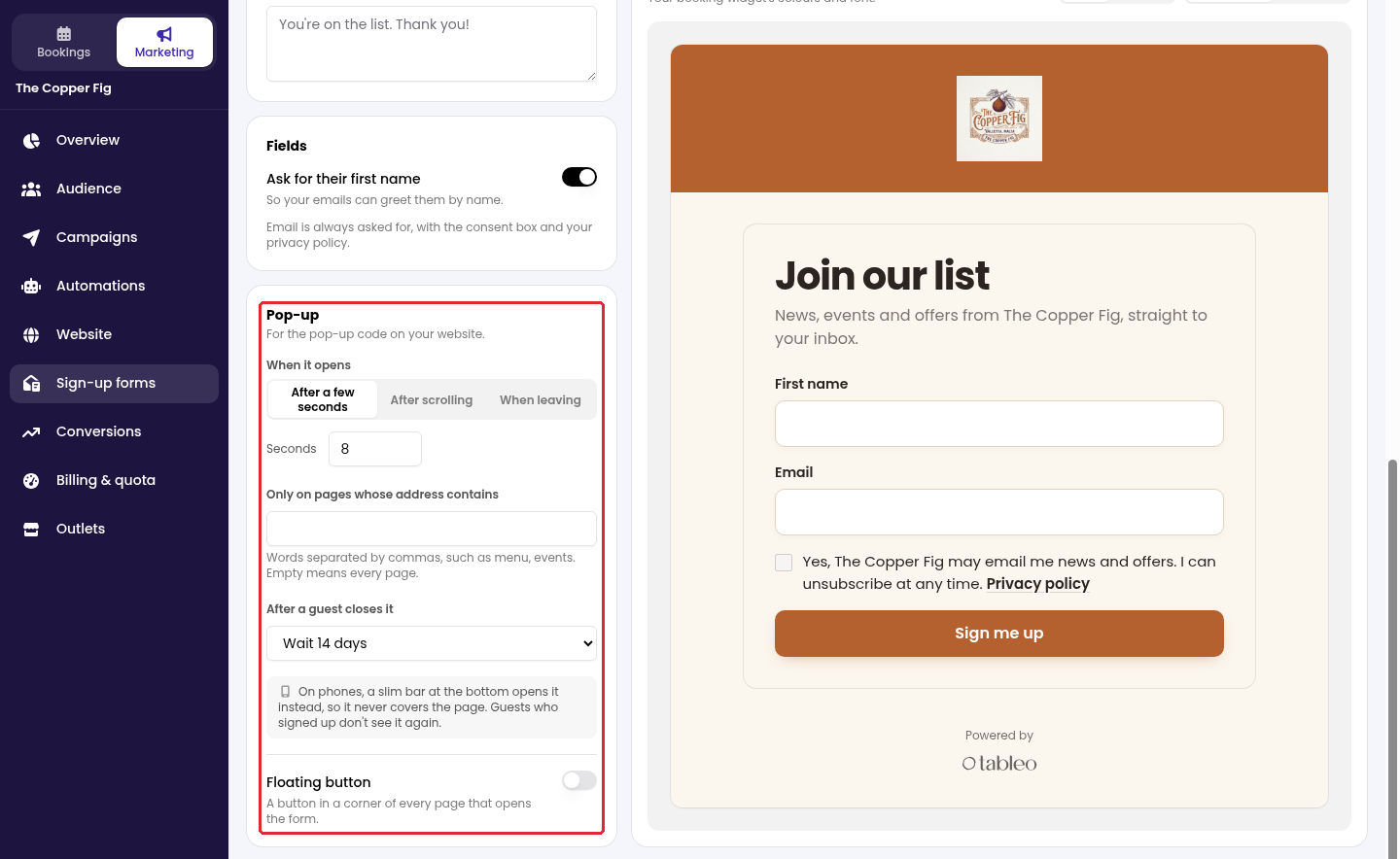
5. For a website pop-up, use When it opens to choose its trigger. Set the delay under Seconds if needed.
Use Only on pages whose address contains to limit where it appears, or leave it empty for all pages. Choose when it can reappear under After a guest closes it.
Enable Floating button to let guests reopen the form from a corner button.
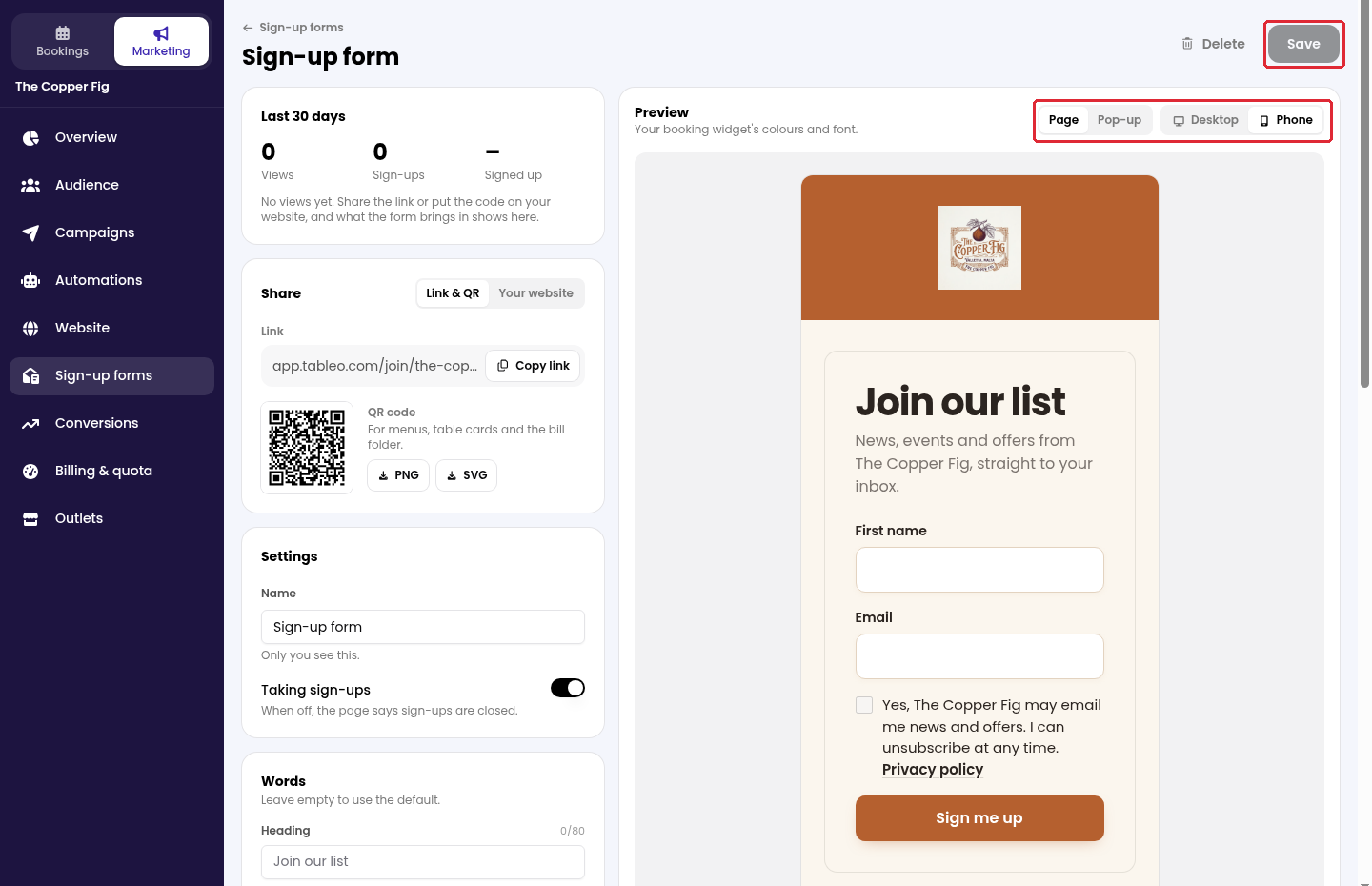
6. Check Preview in Page or Pop-up mode, on Desktop or Phone. Click on Save.
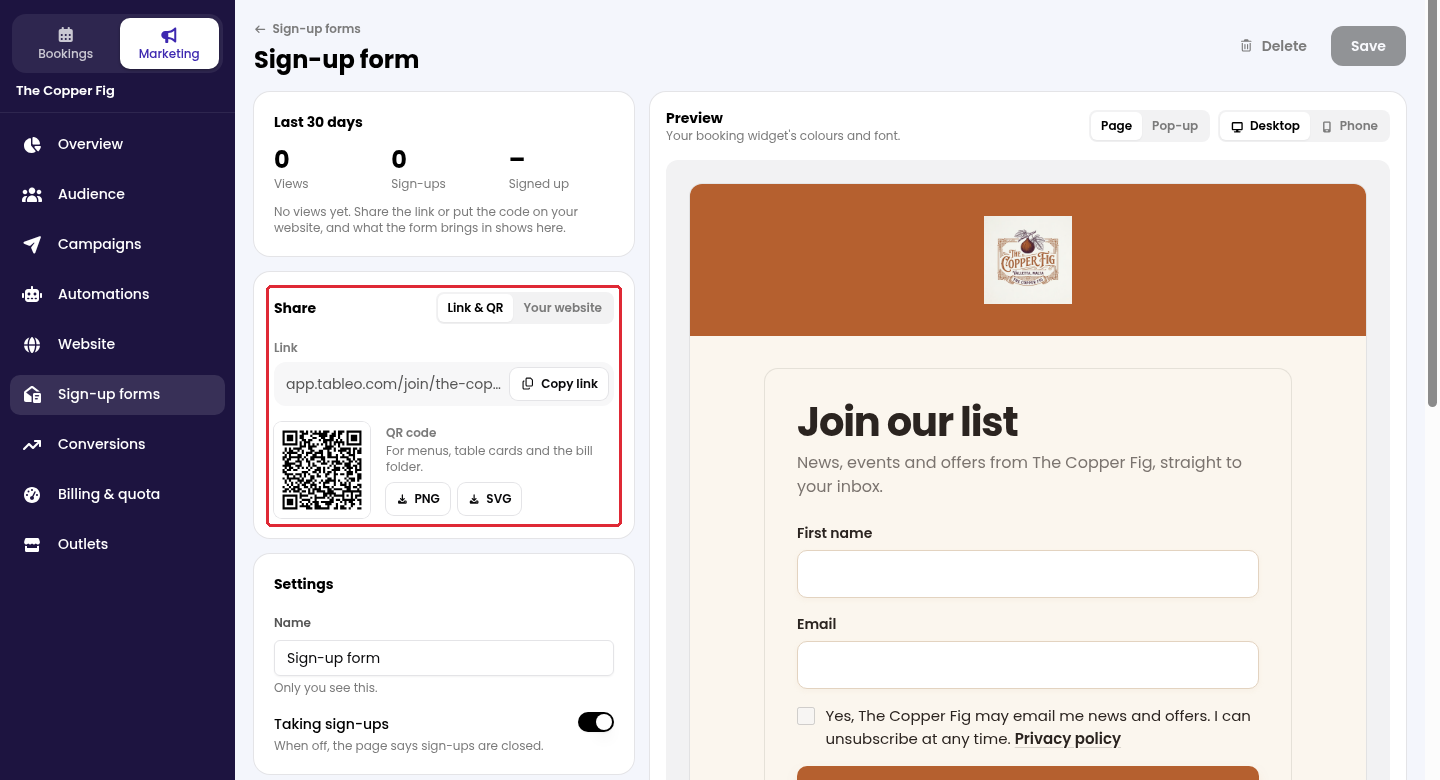
7. To share the form, open Share → Link & QR. Click on Copy link or download the QR code as PNG or SVG.
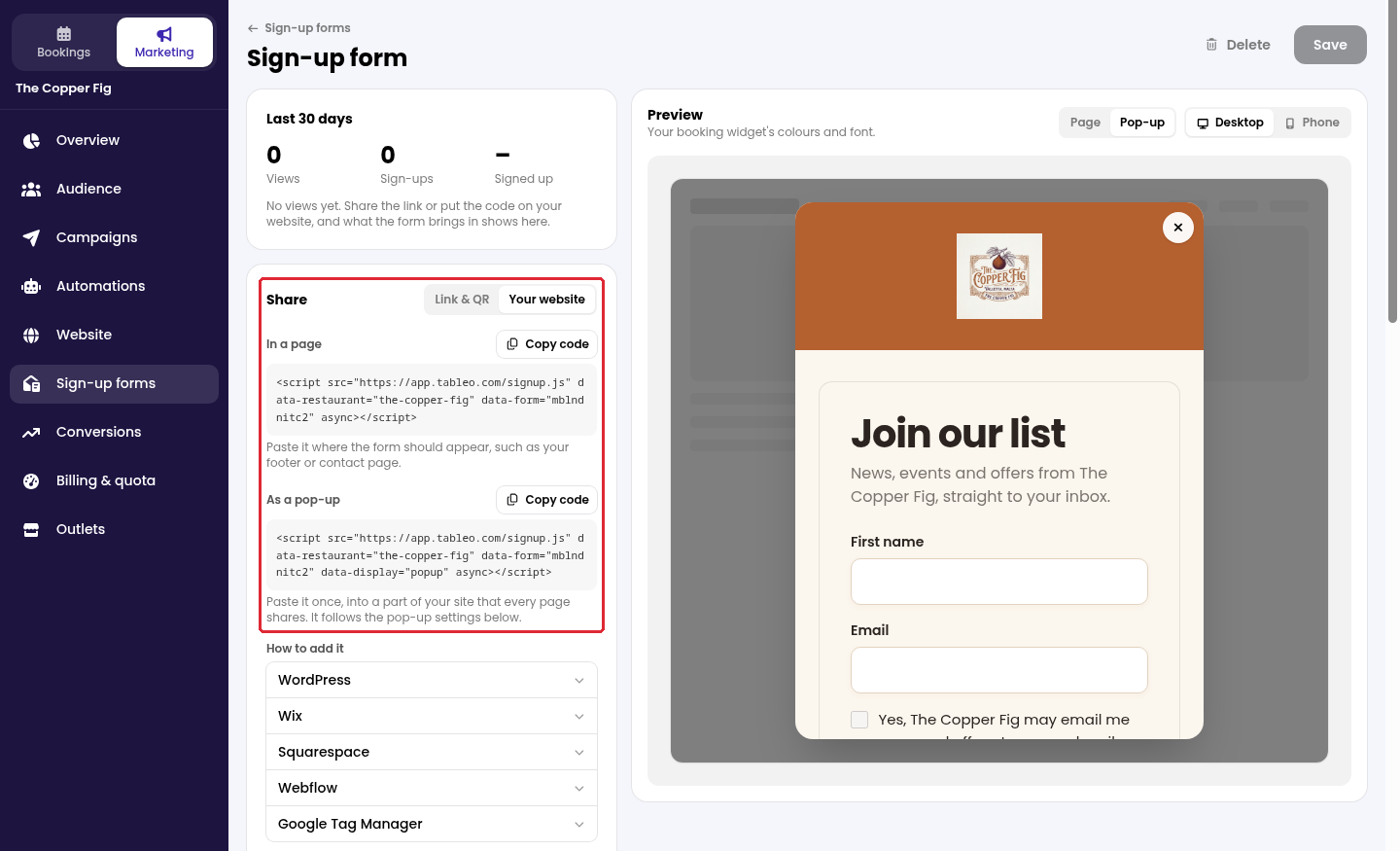
8. To embed the form, open Your website and click on Copy code under In a page. Paste it where the form should appear.
For a pop-up, use the As a pop-up code instead and add it once across your site. Open How to add it for platform-specific instructions.
Check Last 30 days for views and sign-up results.
While we strive to ensure the accuracy and currency of the information in our knowledge base, some articles may contain minor discrepancies due to the constant evolution of our services and products.
Was this article helpful?
That’s Great!
Thank you for your feedback
Sorry! We couldn't be helpful
Thank you for your feedback
Feedback sent
We appreciate your effort and will try to fix the article