Group guests using filters, then reuse the saved segment in your guest list or campaigns.
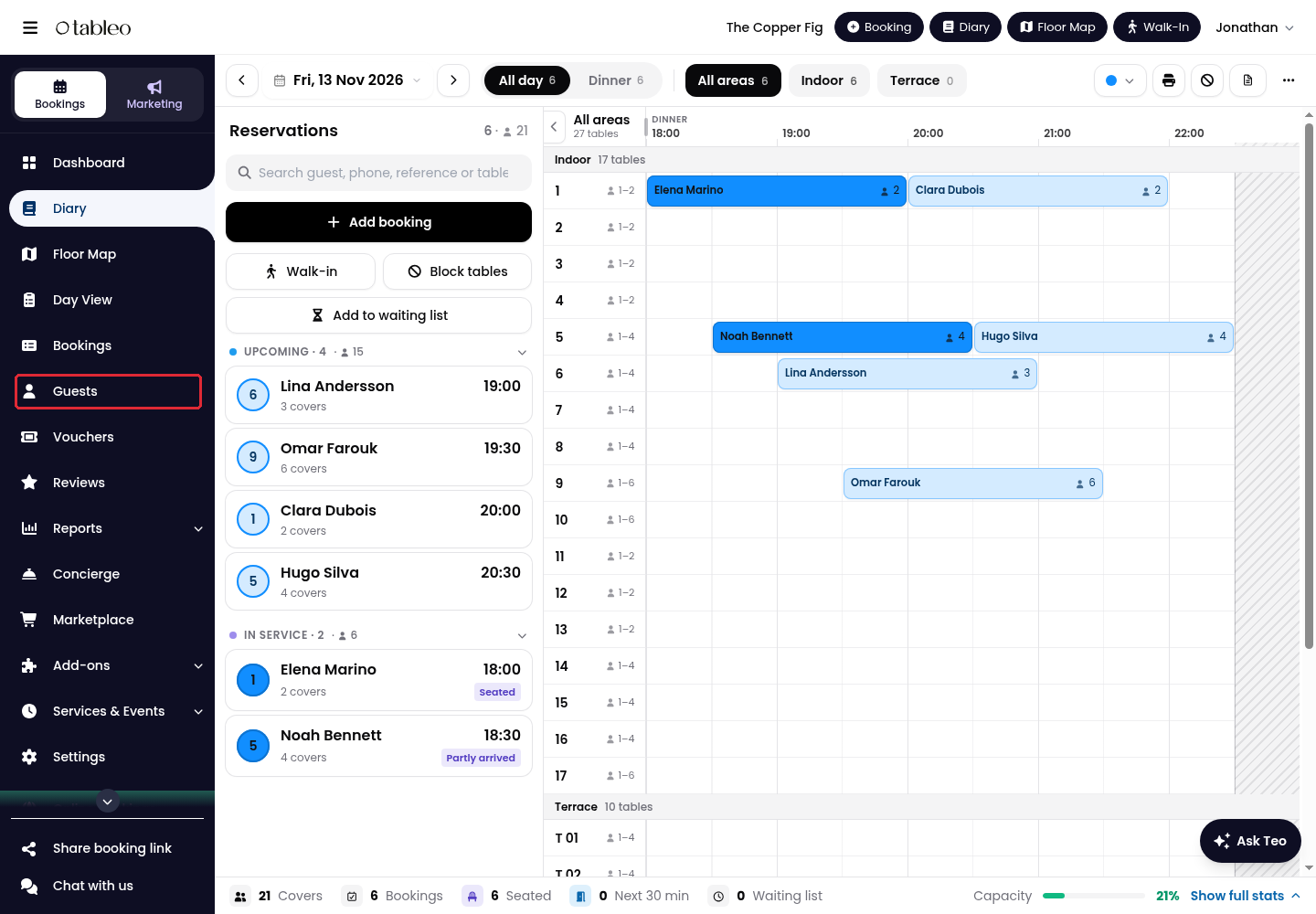
1. Click on Guests in the side menu.
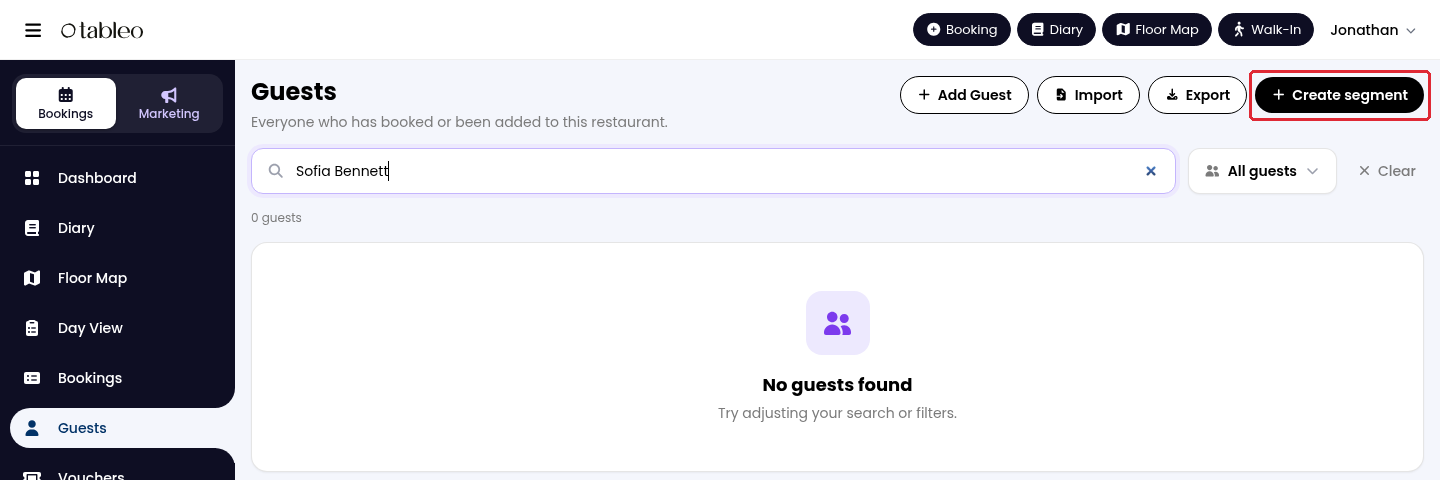
2. Click on Create segment.
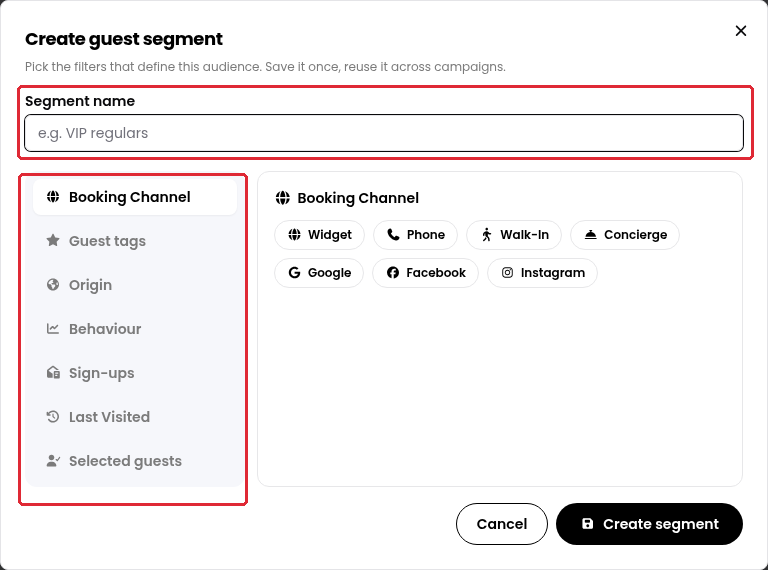
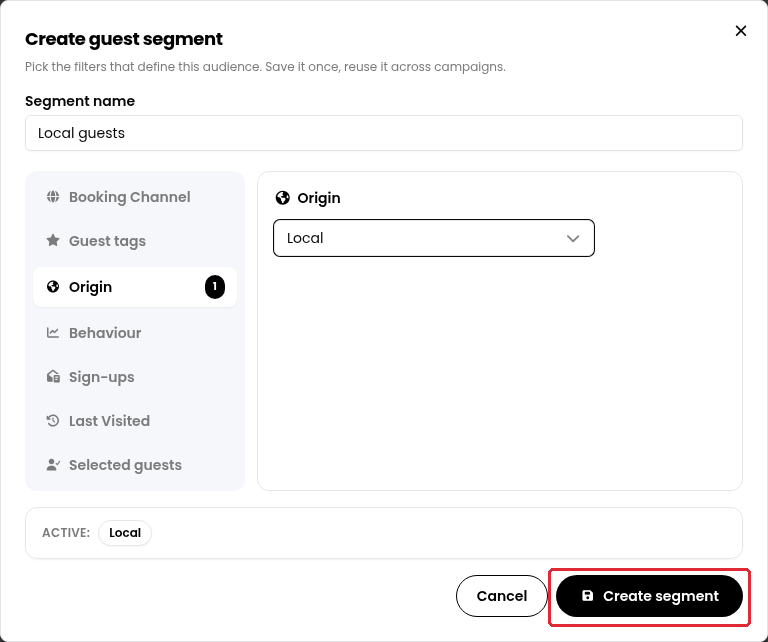
3. Enter a Segment name. Choose filters under Booking Channel, Guest tags, Origin, Behaviour, Sign-ups or Last Visited.
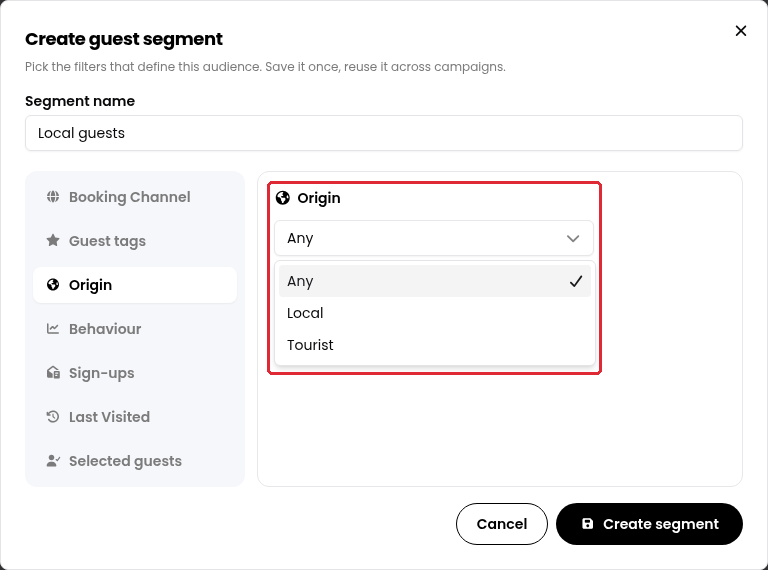
4. Set the conditions for your audience. For example, select Local under Origin to group local guests.
To choose individual recipients instead, use Selected guests. Only guests who accept marketing emails can be selected there.
5. Click on Create segment to save.
6. Open All guests and select your saved segment to view matching guests. When preparing a campaign, choose the saved segment in the audience step.
While we strive to ensure the accuracy and currency of the information in our knowledge base, some articles may contain minor discrepancies due to the constant evolution of our services and products.
Was this article helpful?
That’s Great!
Thank you for your feedback
Sorry! We couldn't be helpful
Thank you for your feedback
Feedback sent
We appreciate your effort and will try to fix the article