Use Website in Guest Marketing to create and edit your restaurant website with Tableo Sites.
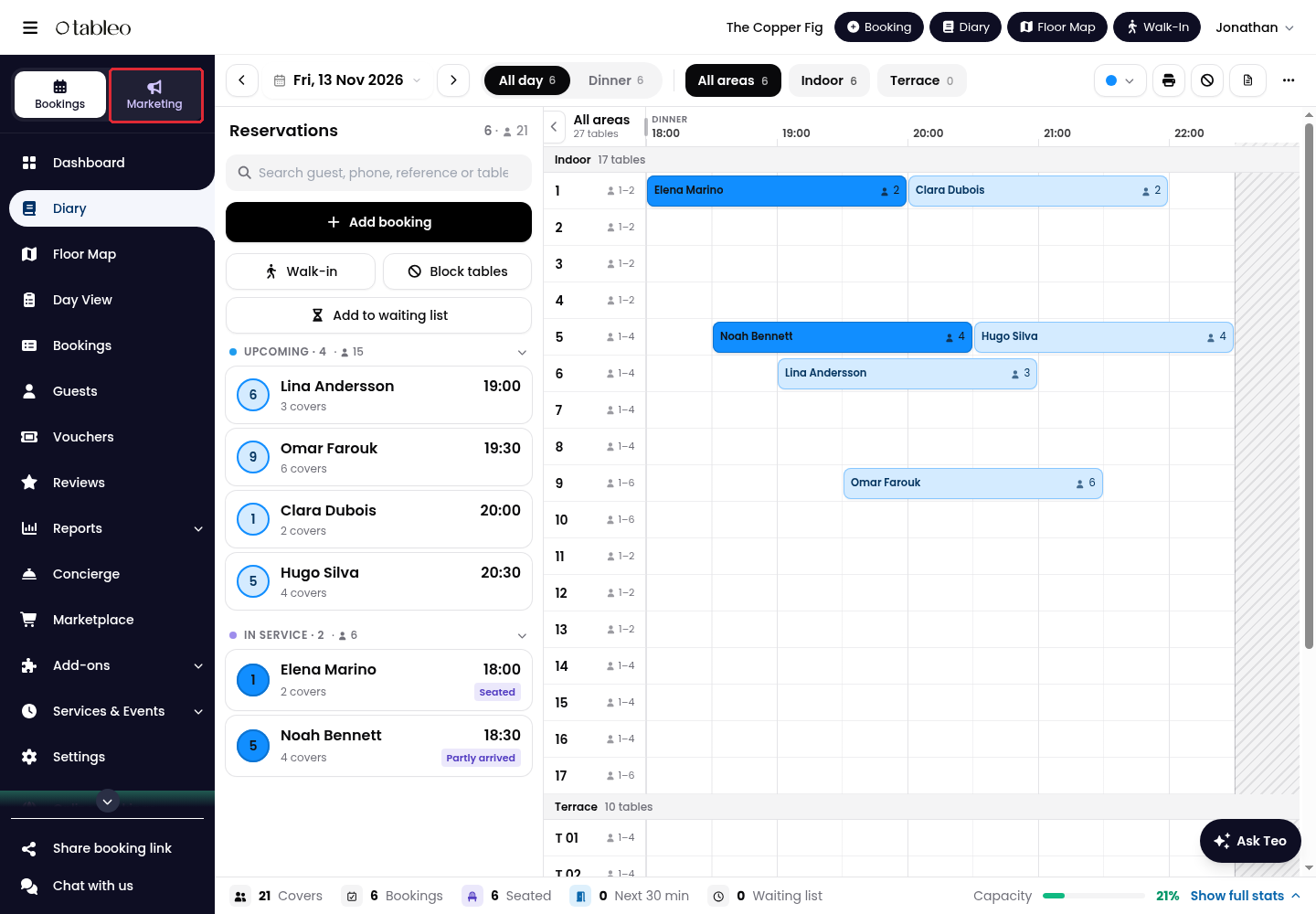
1. Click on Marketing in the side menu.
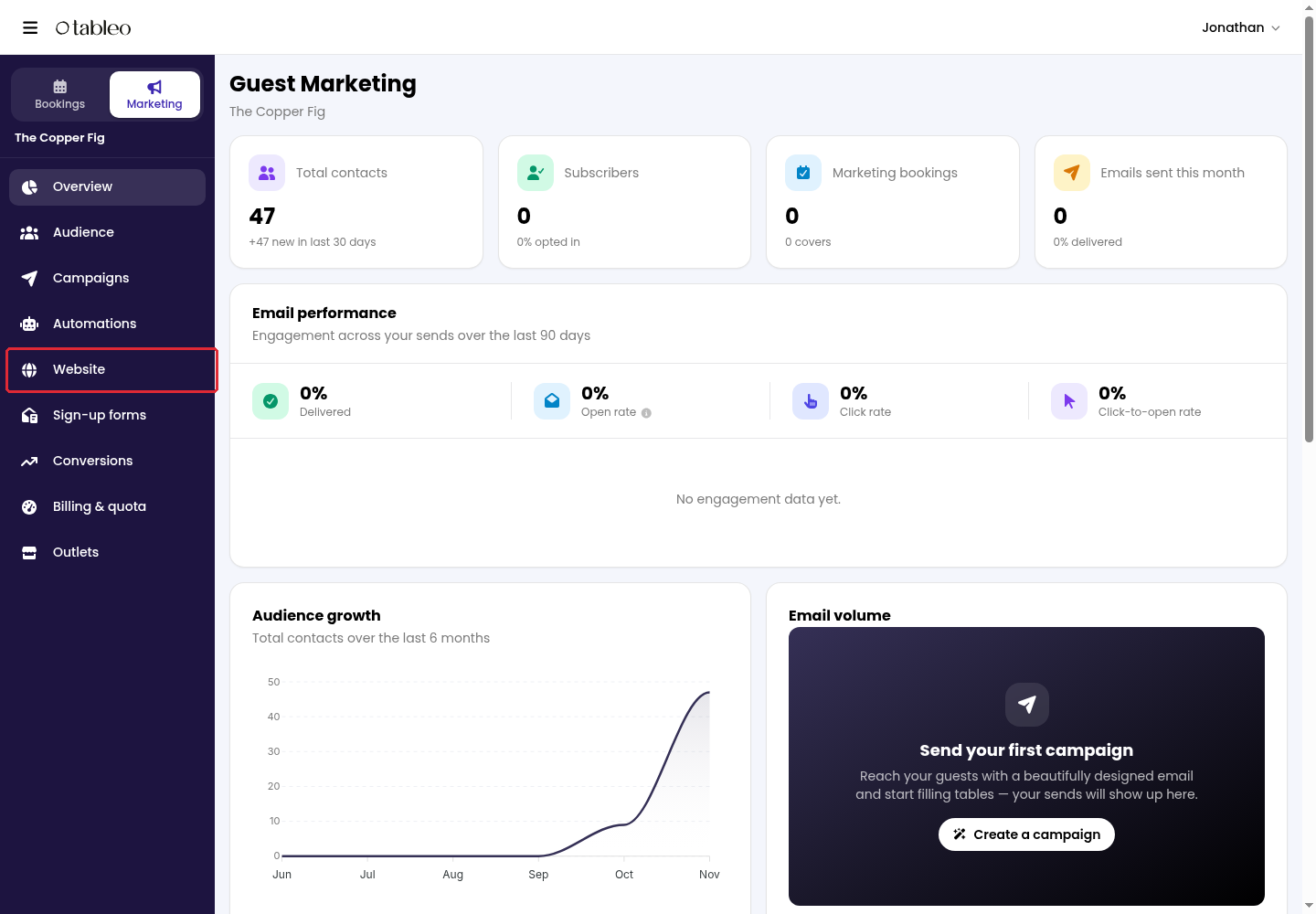
2. Click on Website in the marketing side menu.
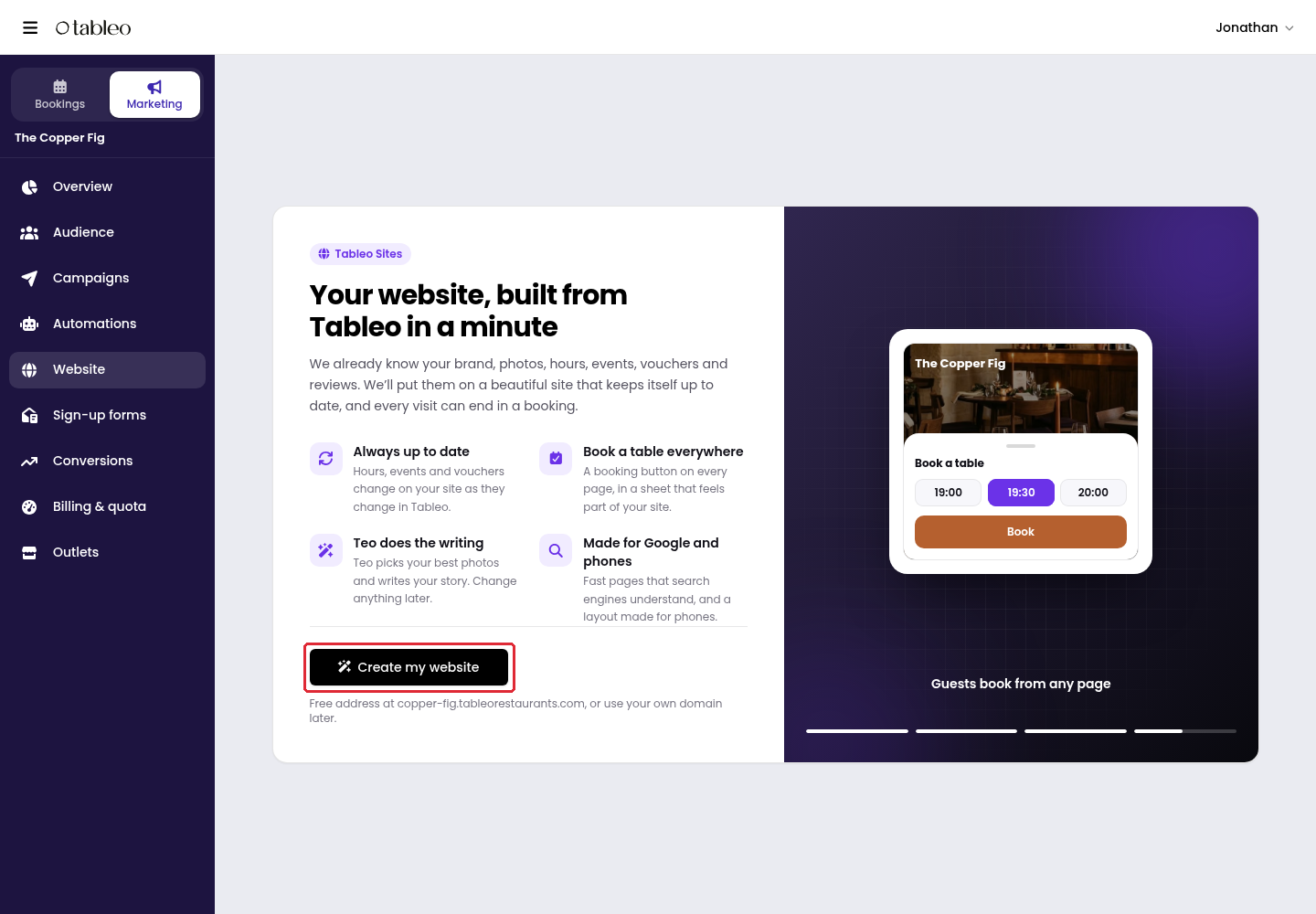
3. Click on Create my website. Tableo prepares a draft using your restaurant information, photos and branding.
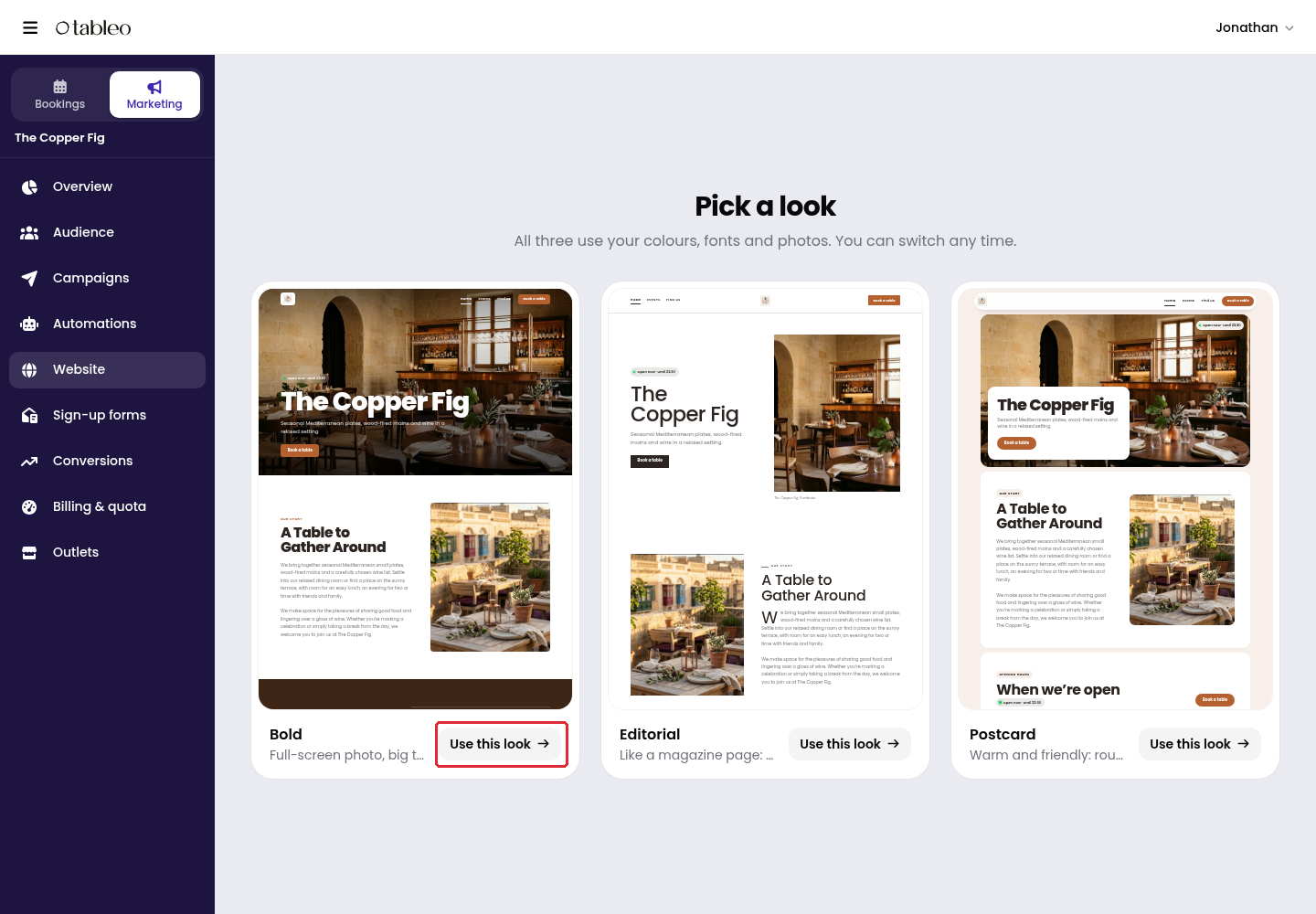
4. Under Pick a look, choose an available design and click on Use this look.
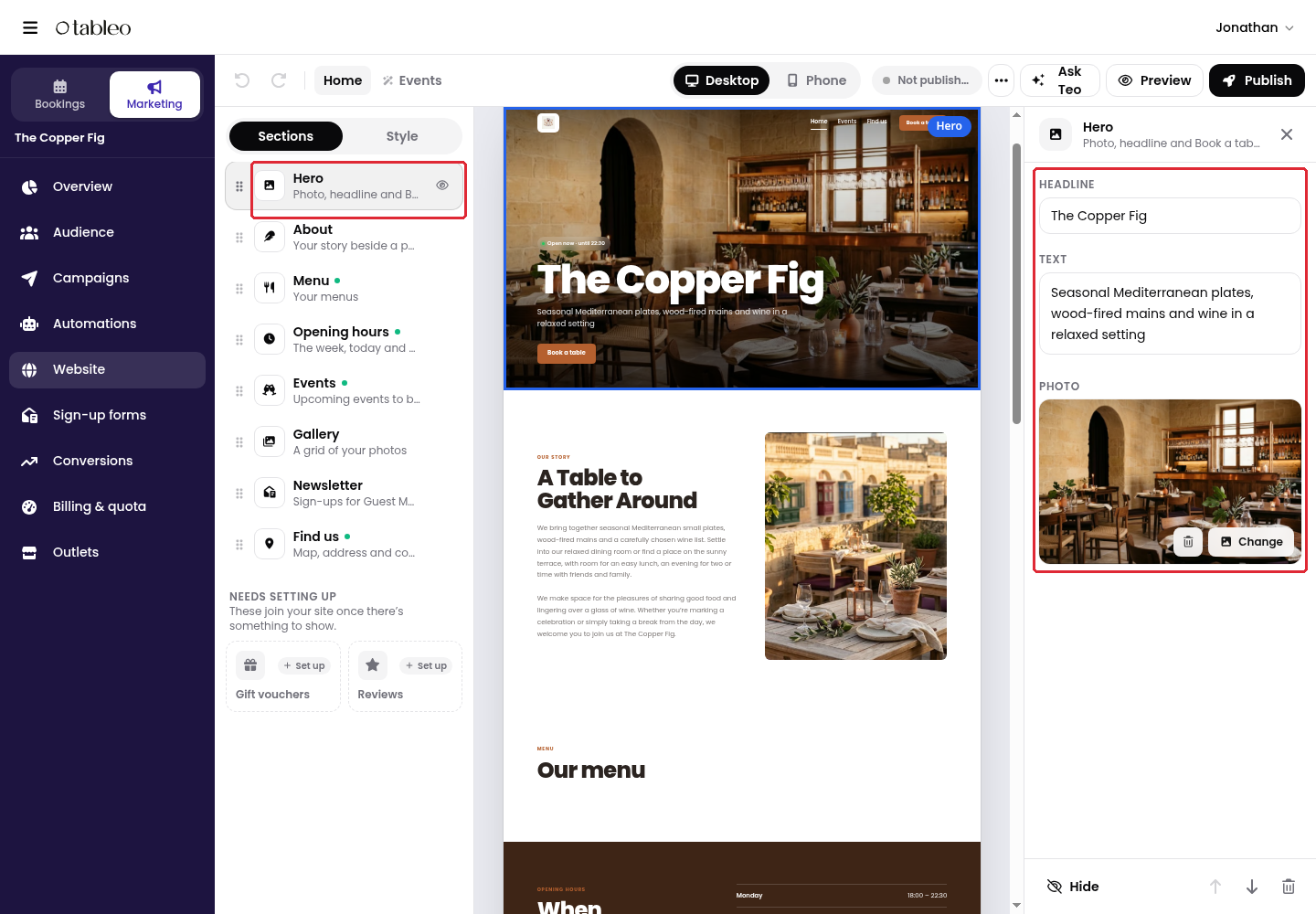
5. Under Sections, select the part you want to edit. For example, open Hero to update its Headline, Text or Photo. Click on Change to choose another image.
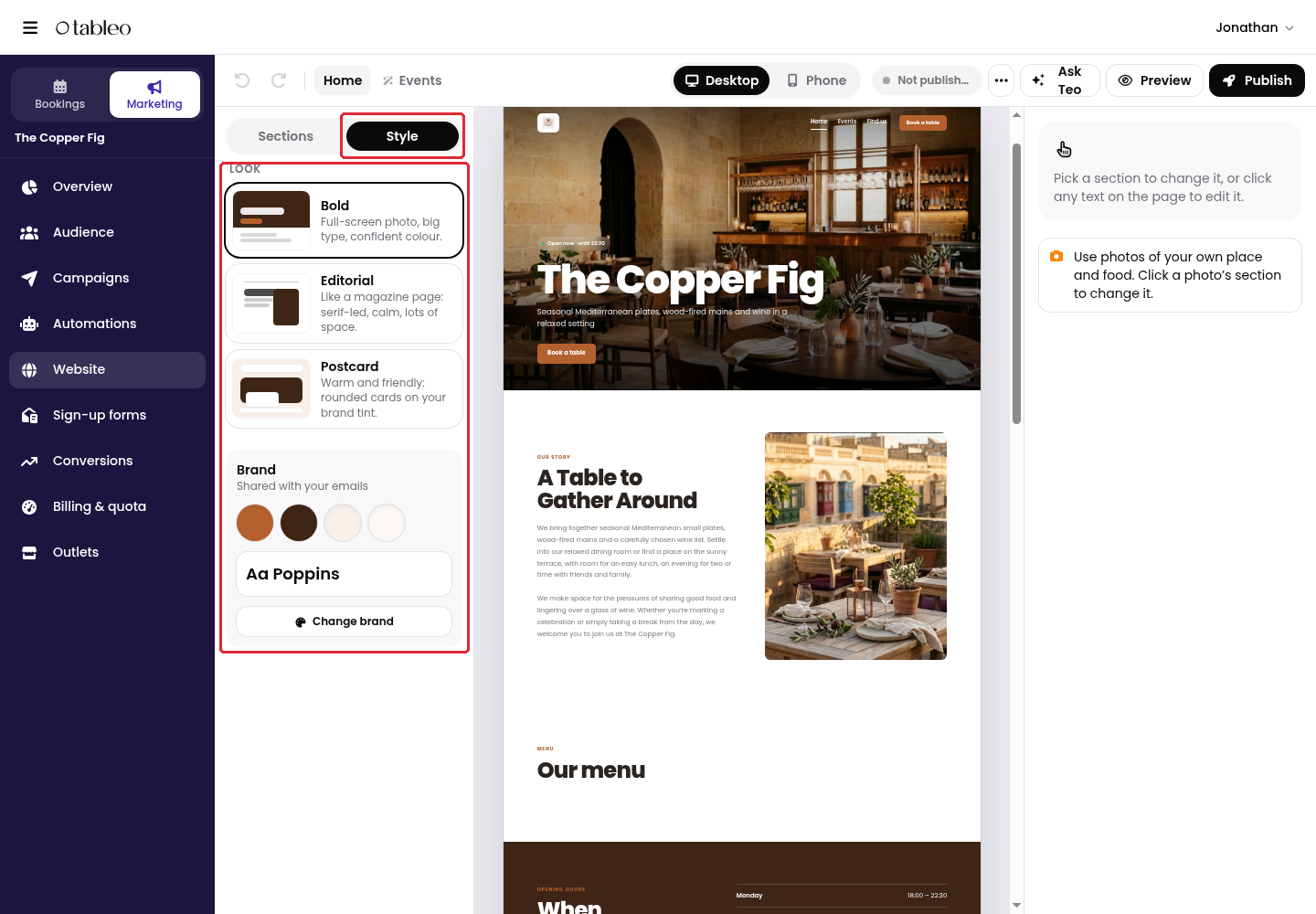
6. Open Style to change the look. Use Change brand to update colours and fonts; these branding settings are shared with your emails.
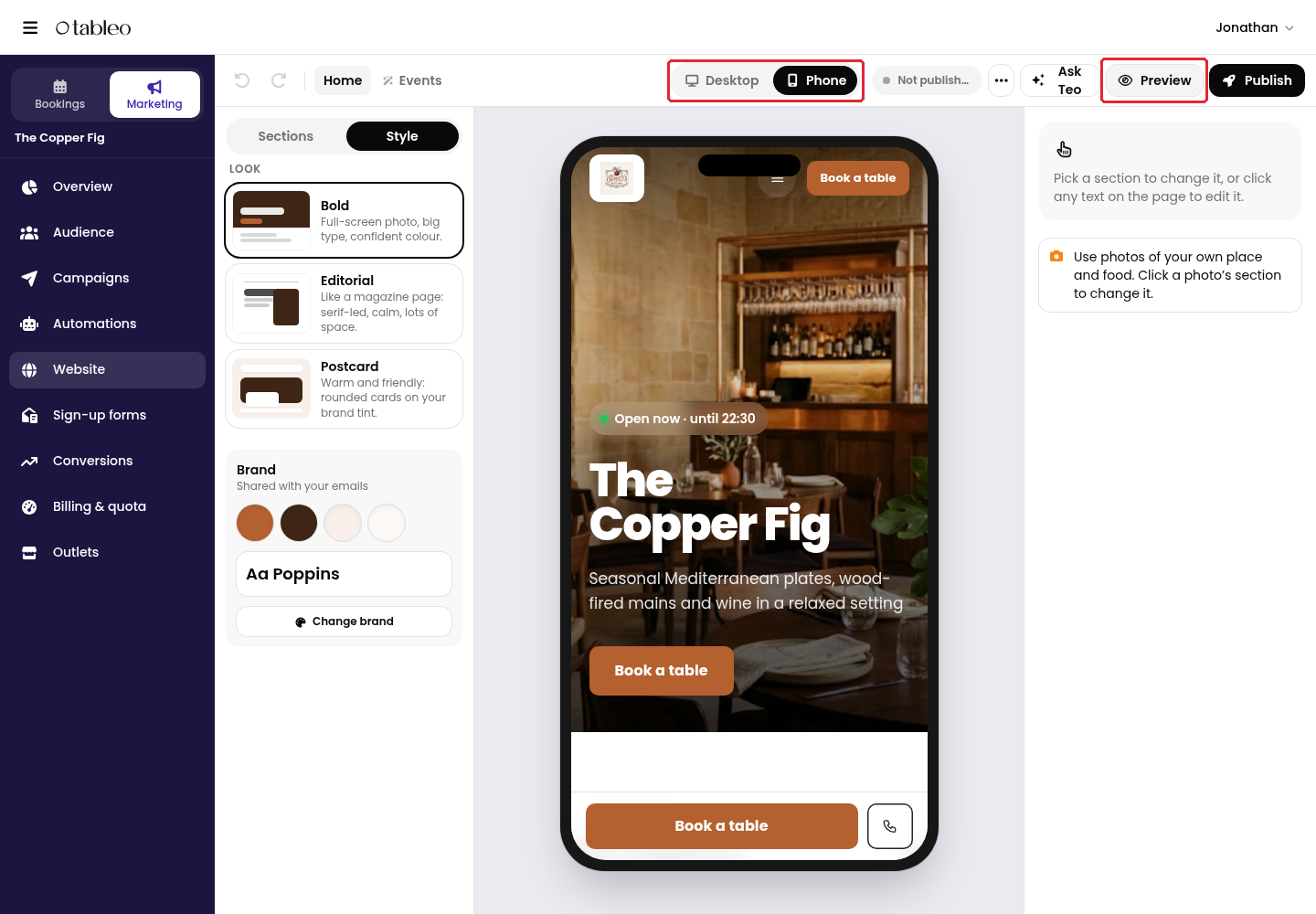
7. Check the layout using Desktop and Phone, then click on Preview. Choose Back to editing to return.
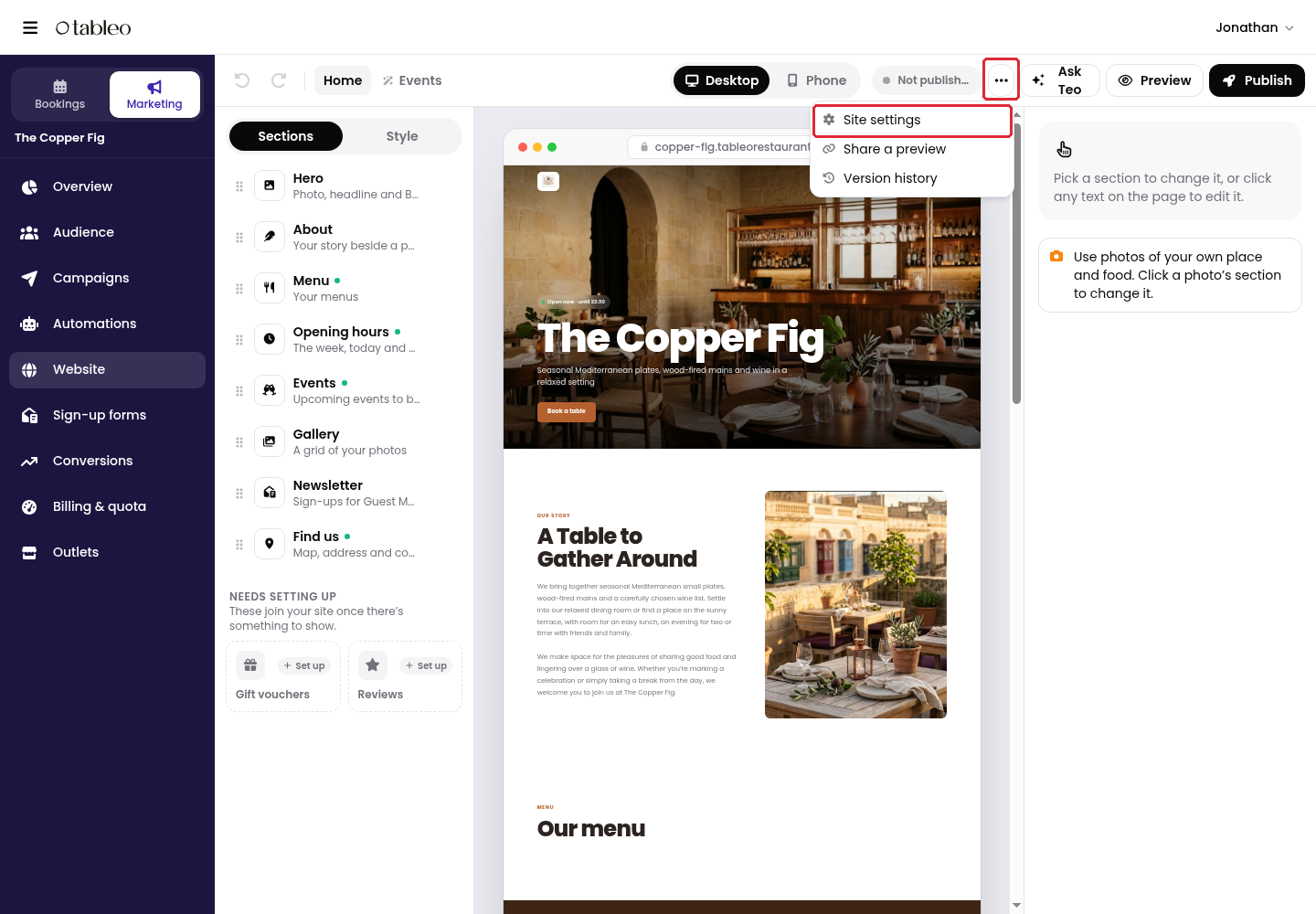
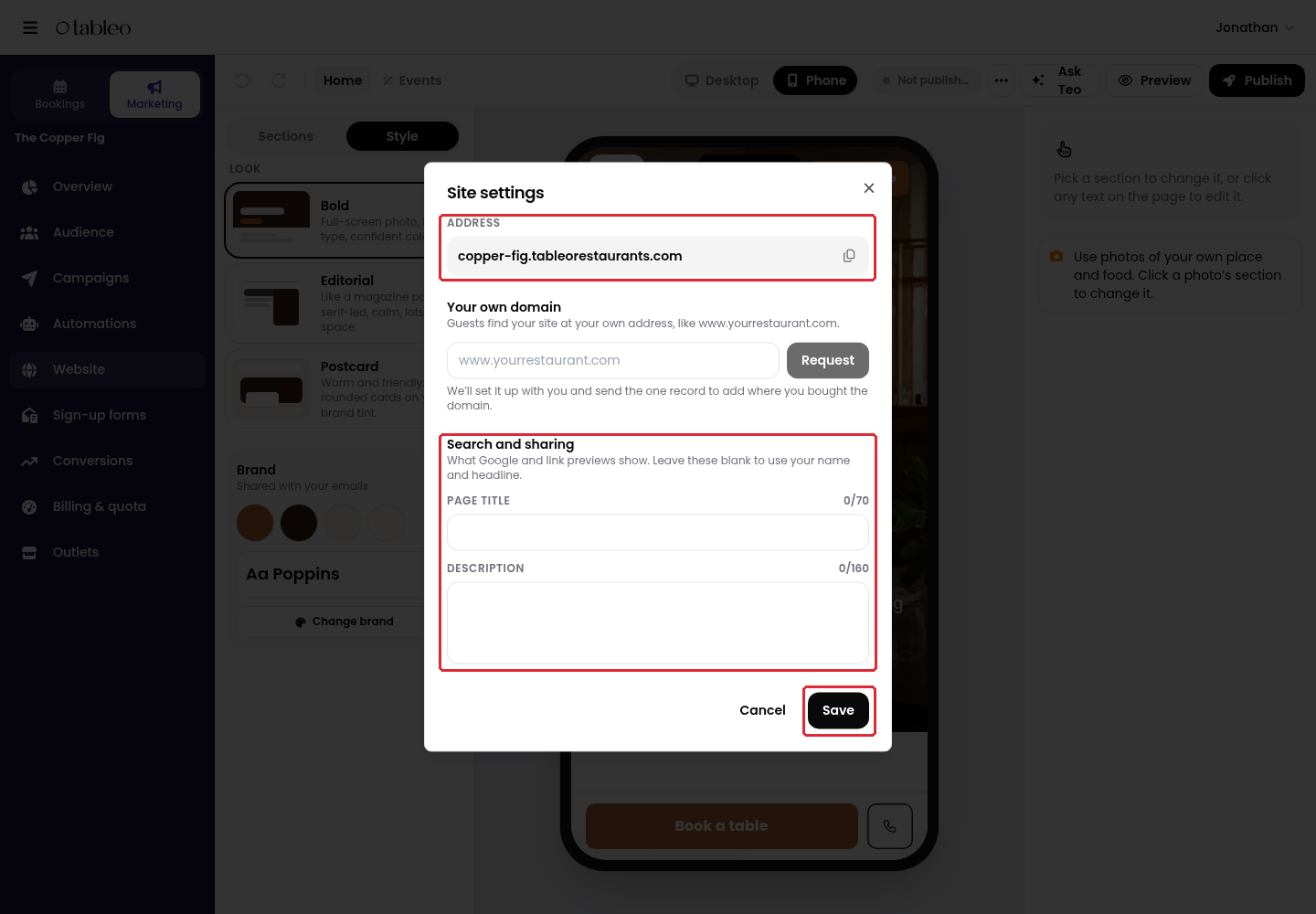
8. Open the three-dot menu, then Site settings to see your website address. You can also edit the Page title and Description used in search and link previews, then click on Save.
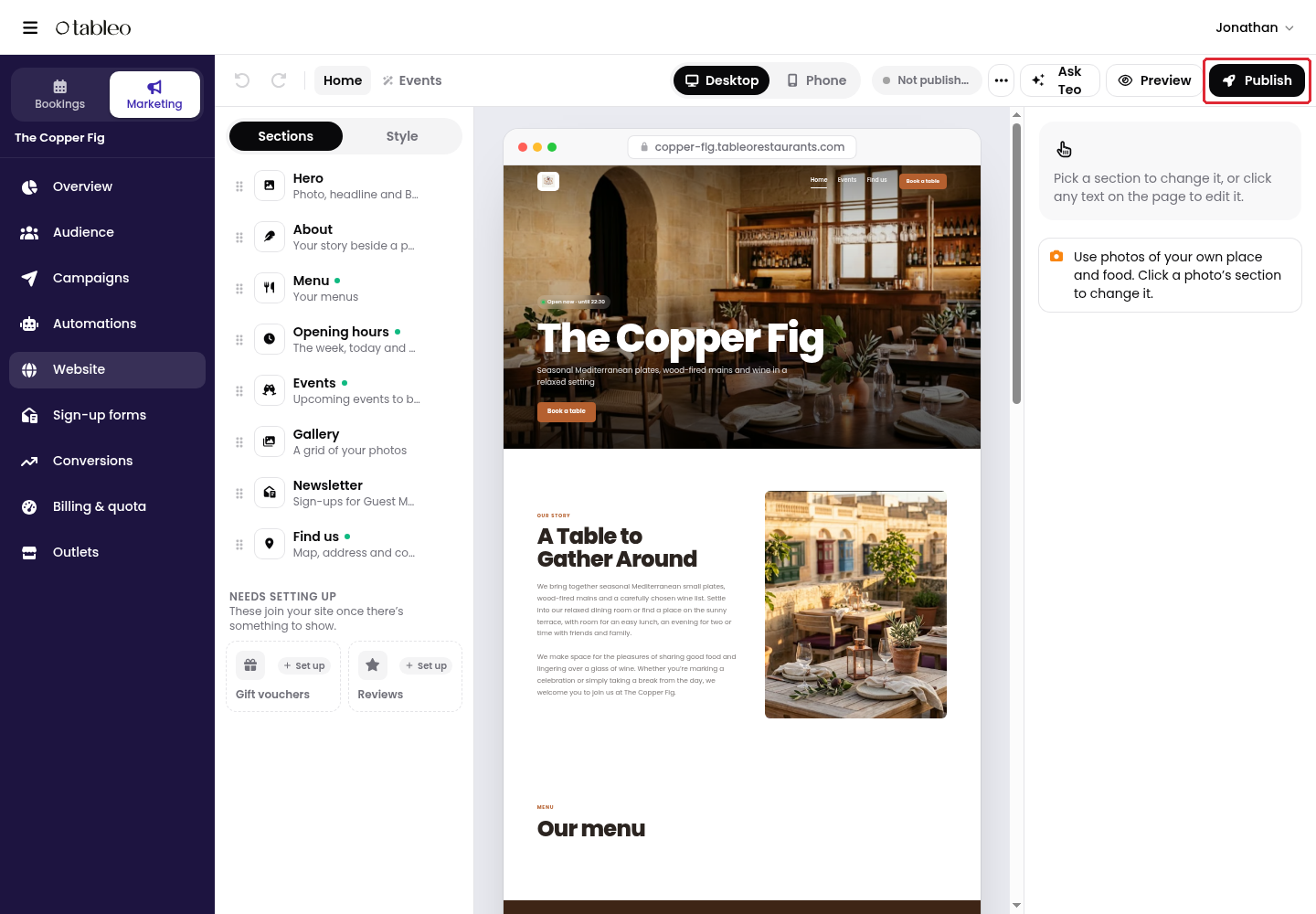
9. Check your text, photos, contact details and hours, then click on Publish when ready. To keep the website as a draft, leave without publishing. Editor changes save automatically.
While we strive to ensure the accuracy and currency of the information in our knowledge base, some articles may contain minor discrepancies due to the constant evolution of our services and products.
Was this article helpful?
That’s Great!
Thank you for your feedback
Sorry! We couldn't be helpful
Thank you for your feedback
Feedback sent
We appreciate your effort and will try to fix the article