Move a booking to another table or add an extra table for the same party.
1. Click Floor Map in the top bar, then choose the day, service and dining area.
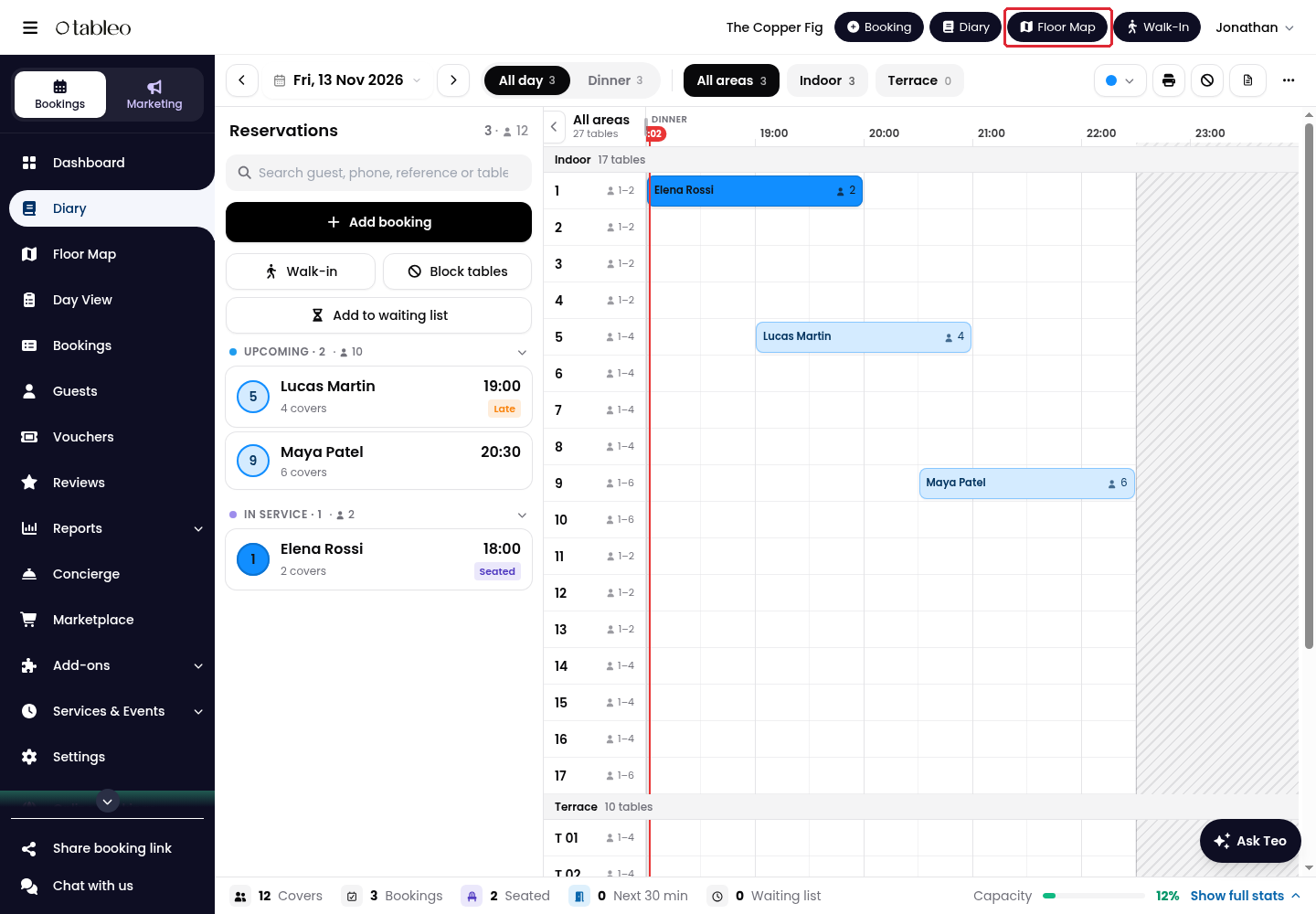
Move a booking
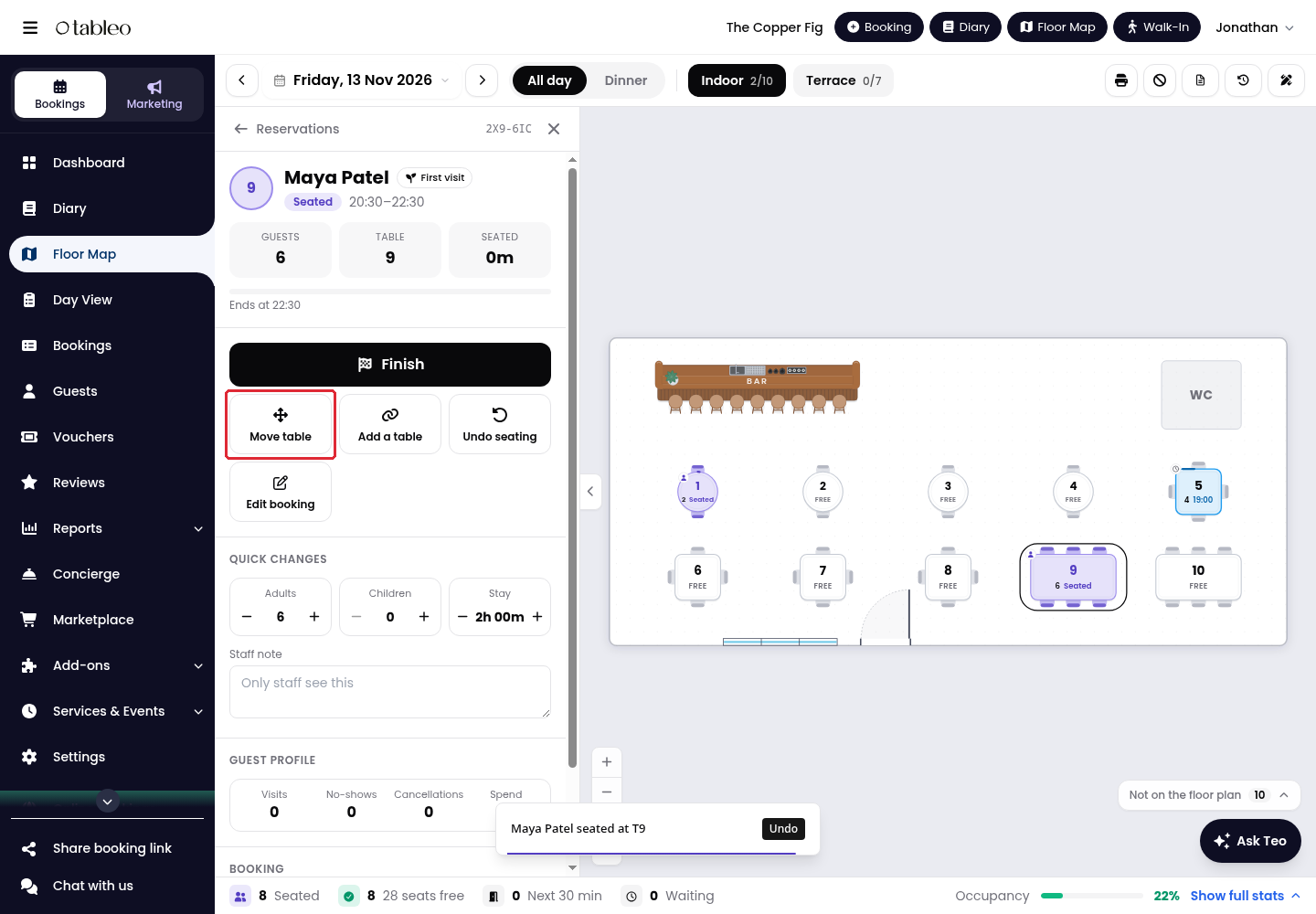
2. Open the booking and click Move table.
3. When the banner asks you to choose a table for the guest, click the destination table on the map. Green outlines indicate a suitable available table; orange outlines warn of a size or upcoming-booking conflict. Check the party size and upcoming bookings before selecting.
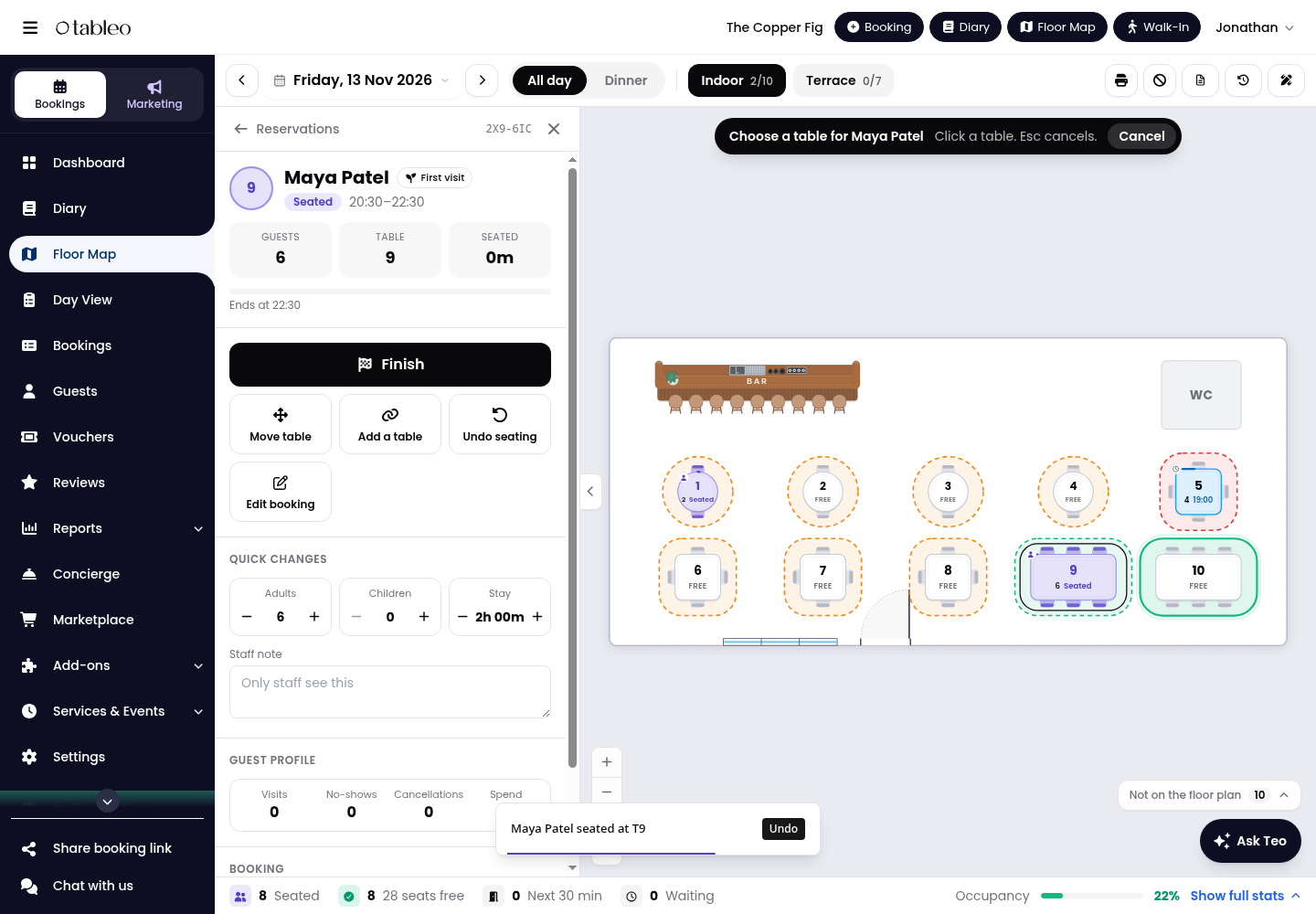
To leave table selection without moving the booking, press Esc or click Cancel.
Join tables for one booking
4. Open the booking, click Add a table, then click the extra table on the map. Joined tables are linked by a purple line and the booking card shows which tables are joined.
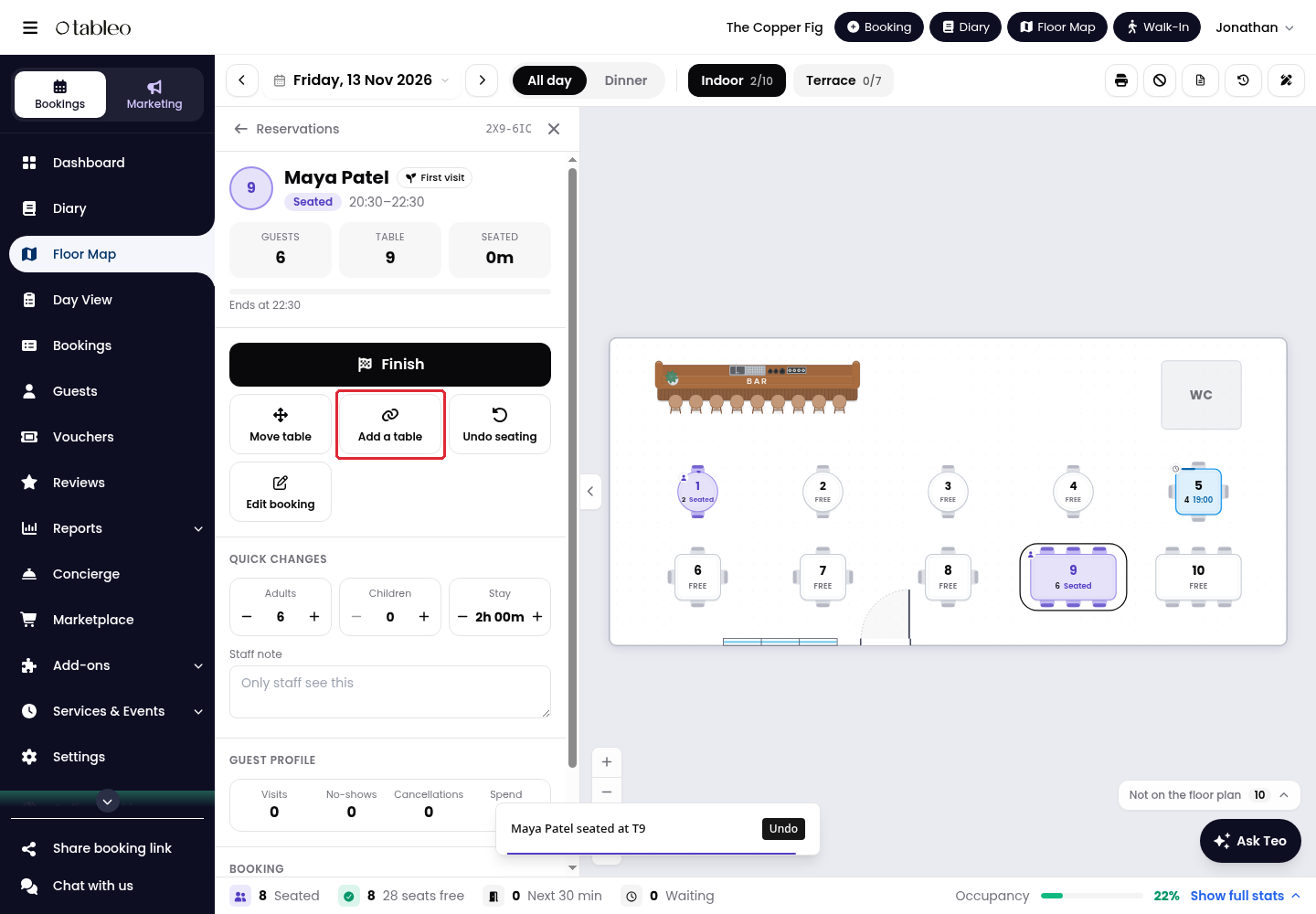
For an upcoming booking, Unassign table removes a table assignment. Check the booking afterwards to make sure the party still has the tables it needs.
While we strive to ensure the accuracy and currency of the information in our knowledge base, some articles may contain minor discrepancies due to the constant evolution of our services and products.
Was this article helpful?
That’s Great!
Thank you for your feedback
Sorry! We couldn't be helpful
Thank you for your feedback
Feedback sent
We appreciate your effort and will try to fix the article