Block a table when it must not take bookings. Choose a block until close or a specific time and duration.
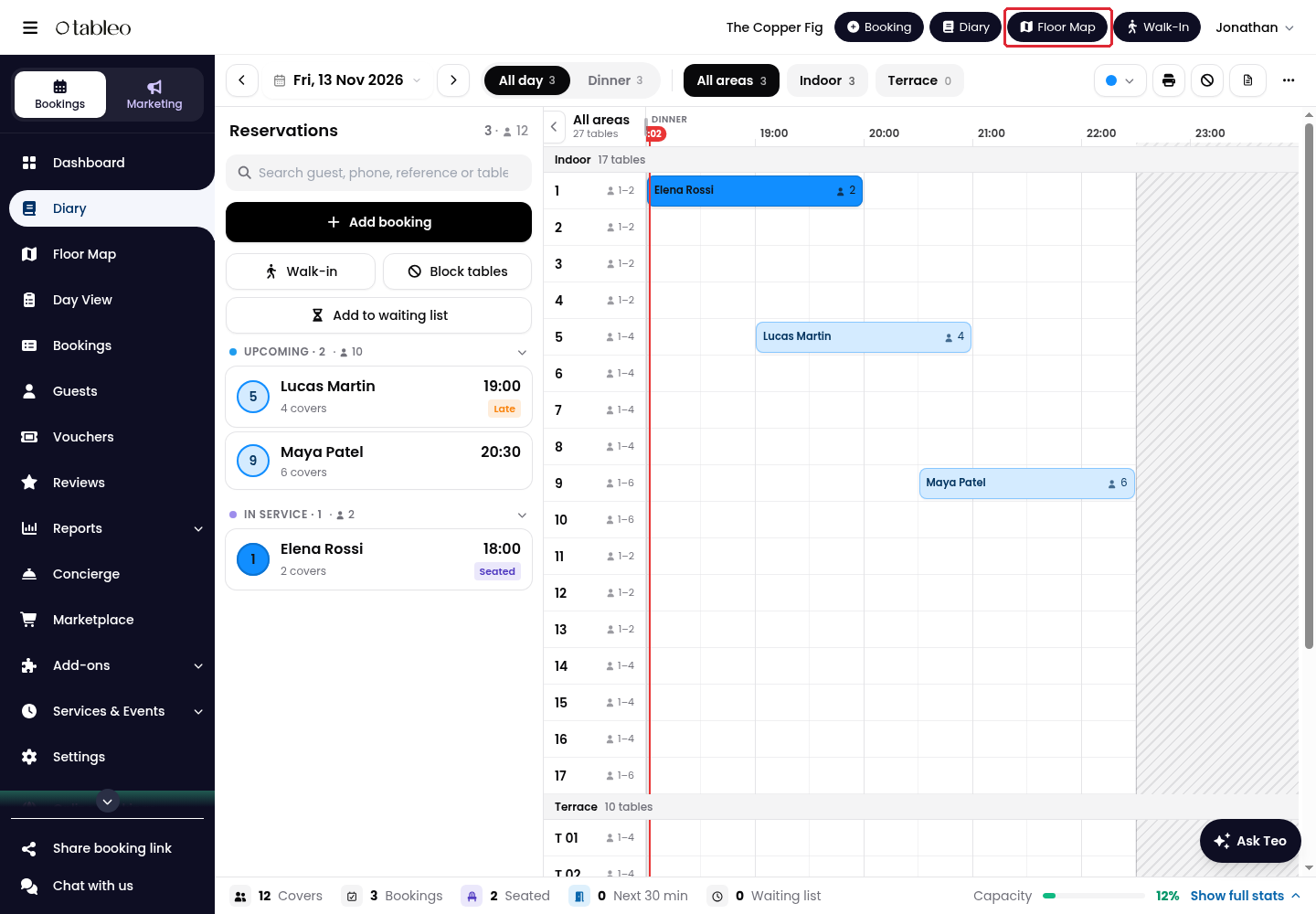
1. Click Floor Map in the top bar, then choose the day and dining area.
Block until close
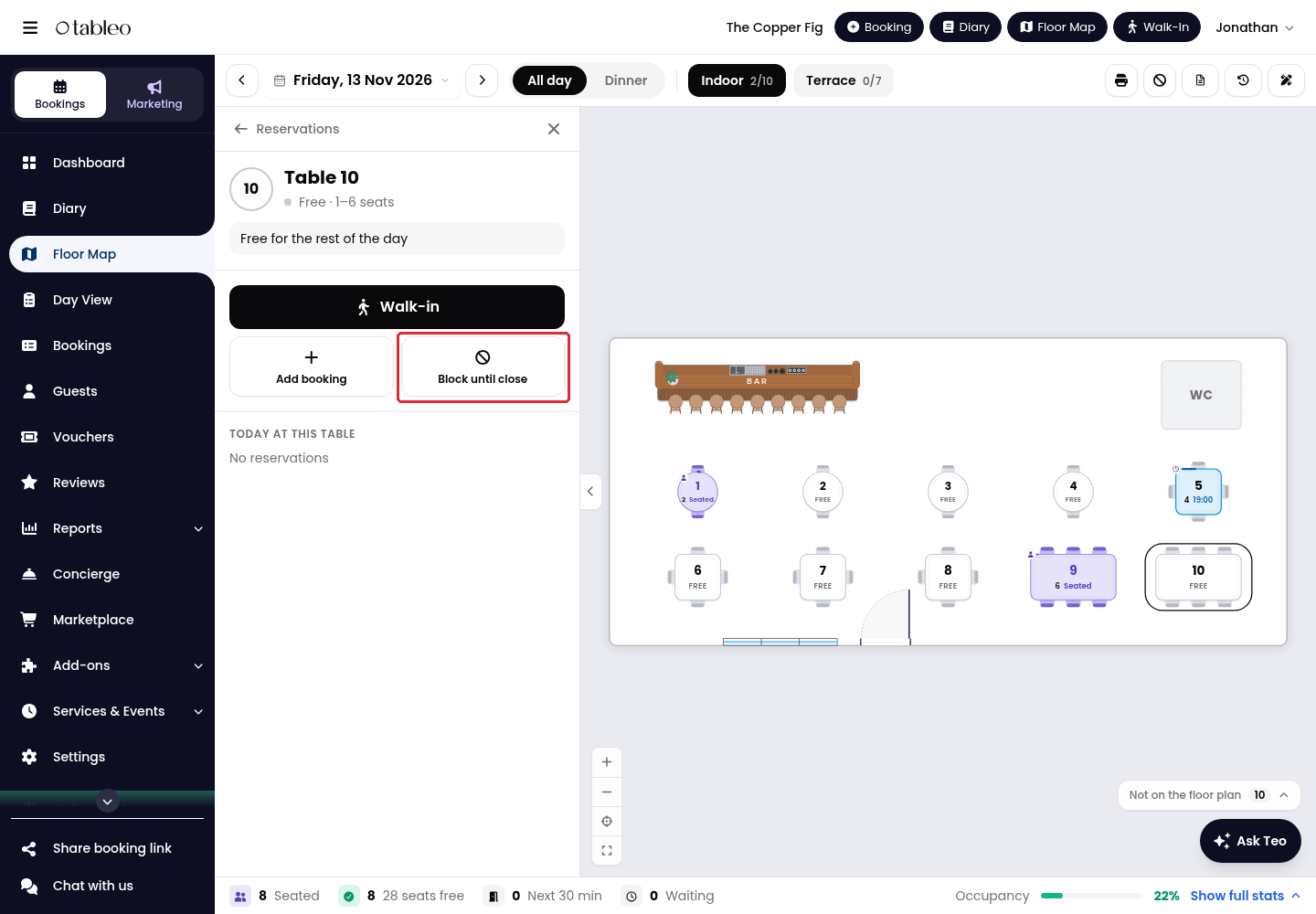
2. Click a table marked FREE, then click Block until close. The table shows that it is blocked until closing.
3. To remove this block, click the blocked table and choose Unblock.
Block a specific time
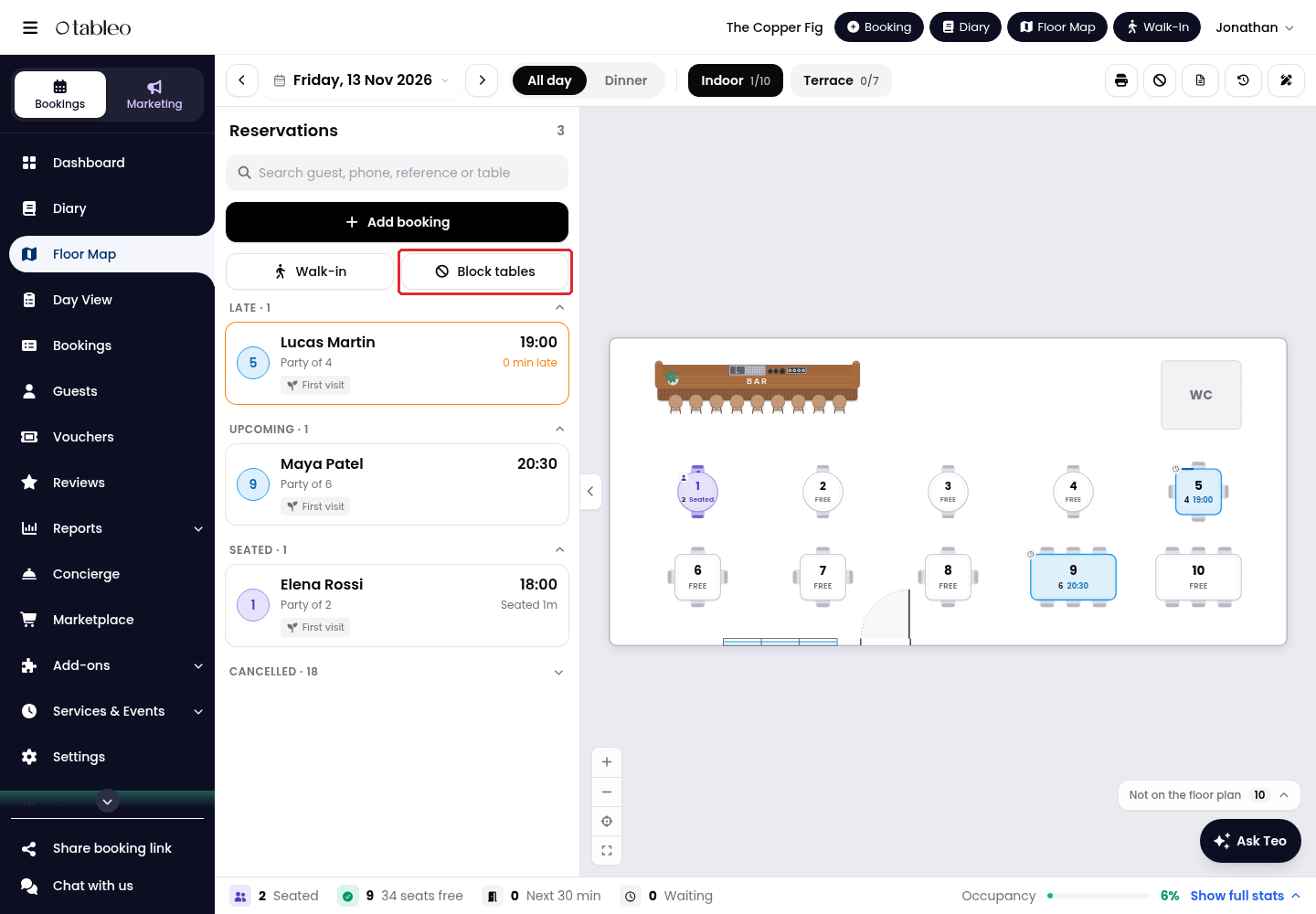
4. Return to Reservations and click Block tables.
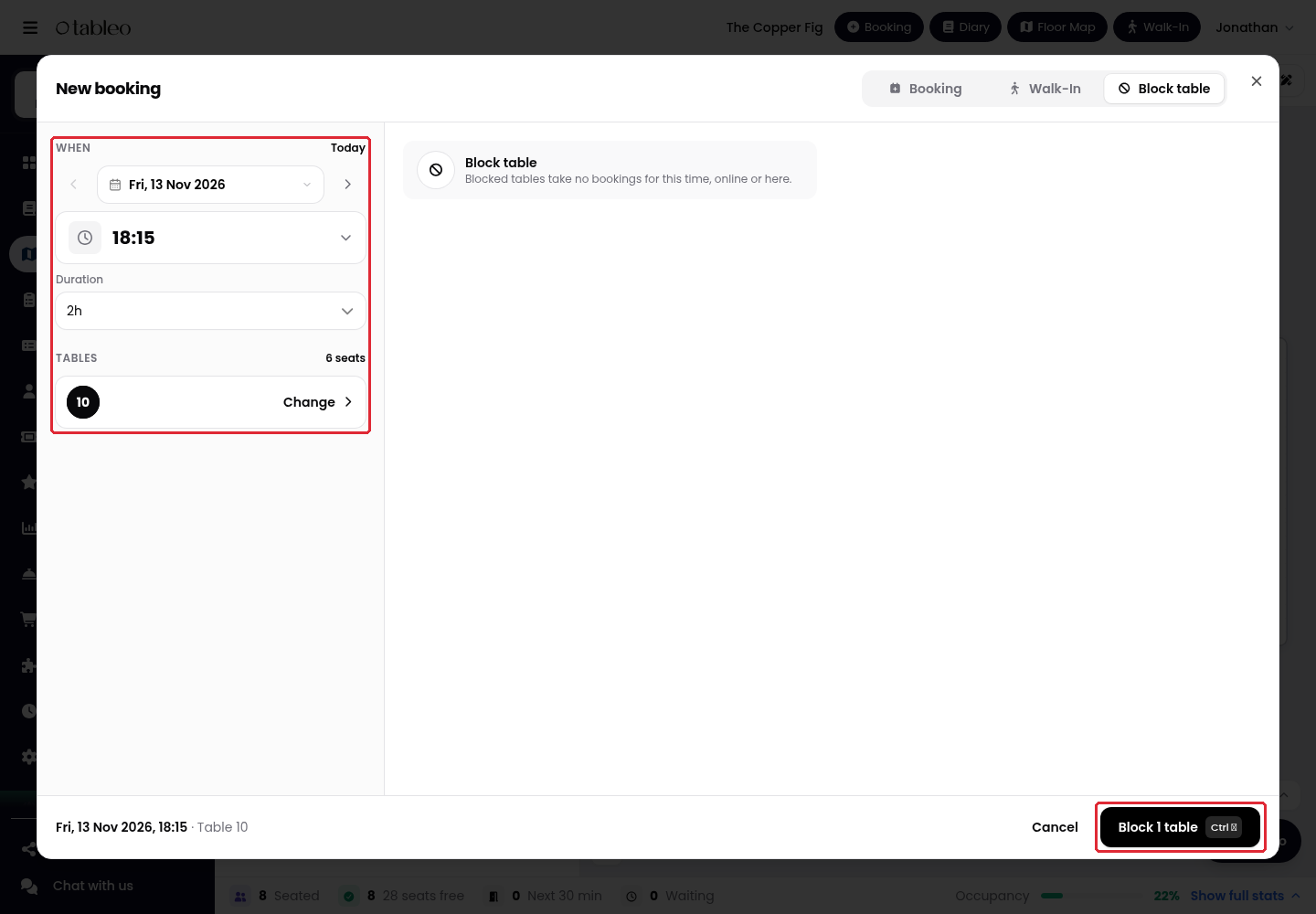
5. Set the date, start time and Duration. Under Tables, use Change to select the tables, then click the black block button at the bottom right, such as Block 1 table.
6. To find or remove a timed block, open the Diary on the same date. Find the Table Blocked entry, cancel the block and confirm. Timed blocks do not appear in the Floor Map reservation list or table panel.
Table blocks are different from Stop bookings, which closes dining areas or time slots to online bookings.
While we strive to ensure the accuracy and currency of the information in our knowledge base, some articles may contain minor discrepancies due to the constant evolution of our services and products.
Was this article helpful?
That’s Great!
Thank you for your feedback
Sorry! We couldn't be helpful
Thank you for your feedback
Feedback sent
We appreciate your effort and will try to fix the article