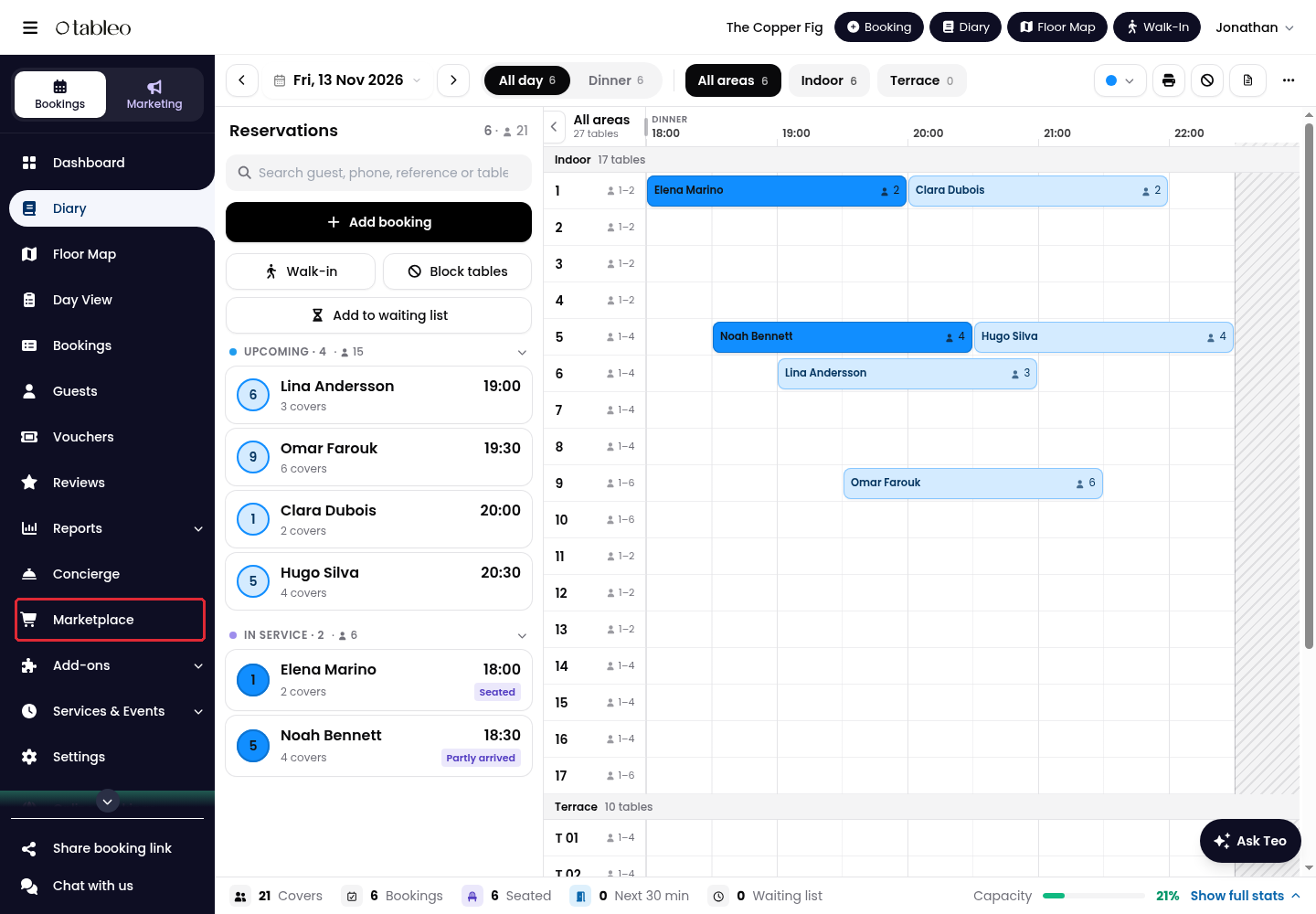
1. Click on Marketplace in the side menu.
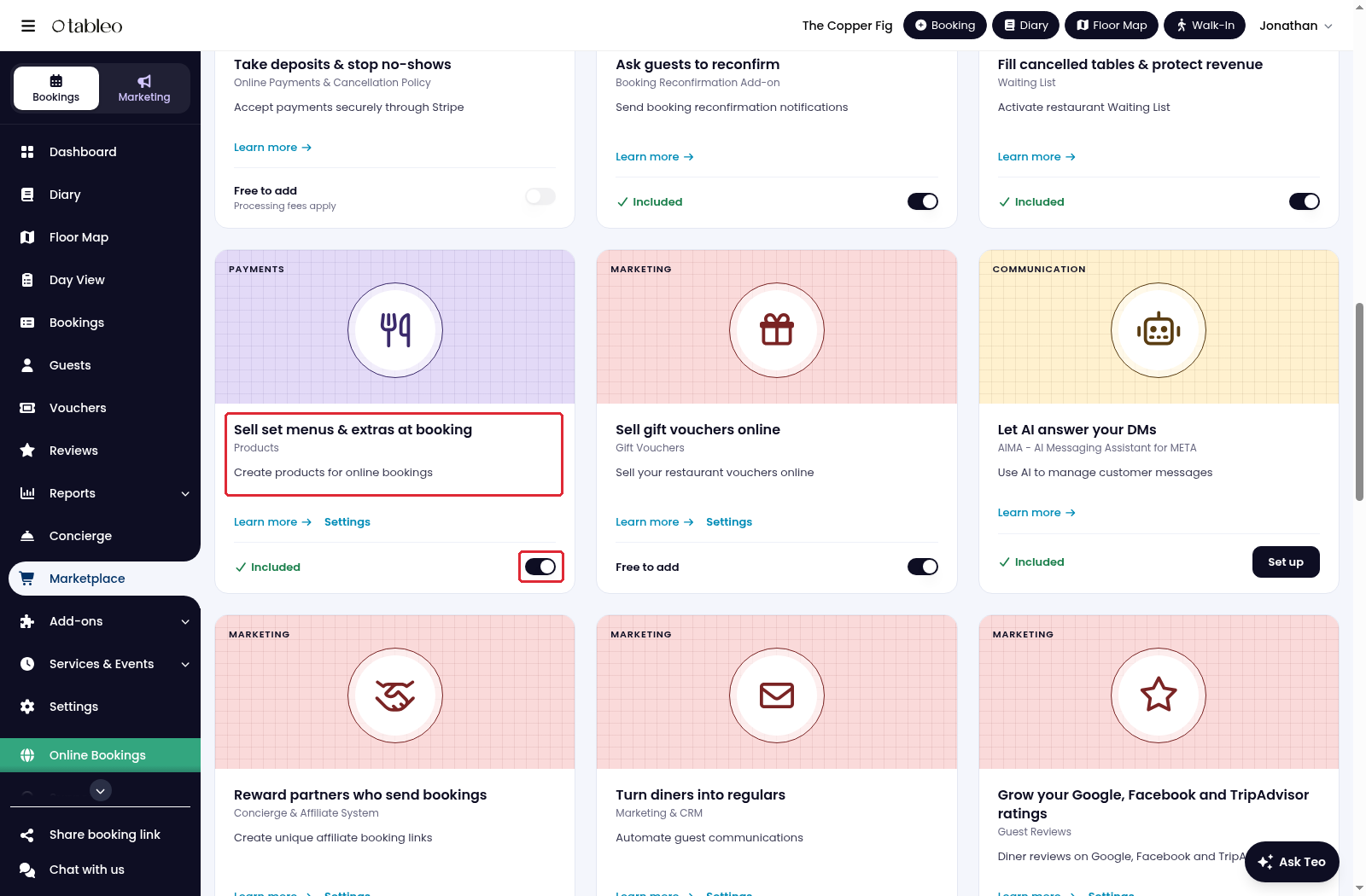
2. Find Products and activate its switch if it is not already active.
3. Expand Services & Events in the side menu, then click on Menus & Add-ons.
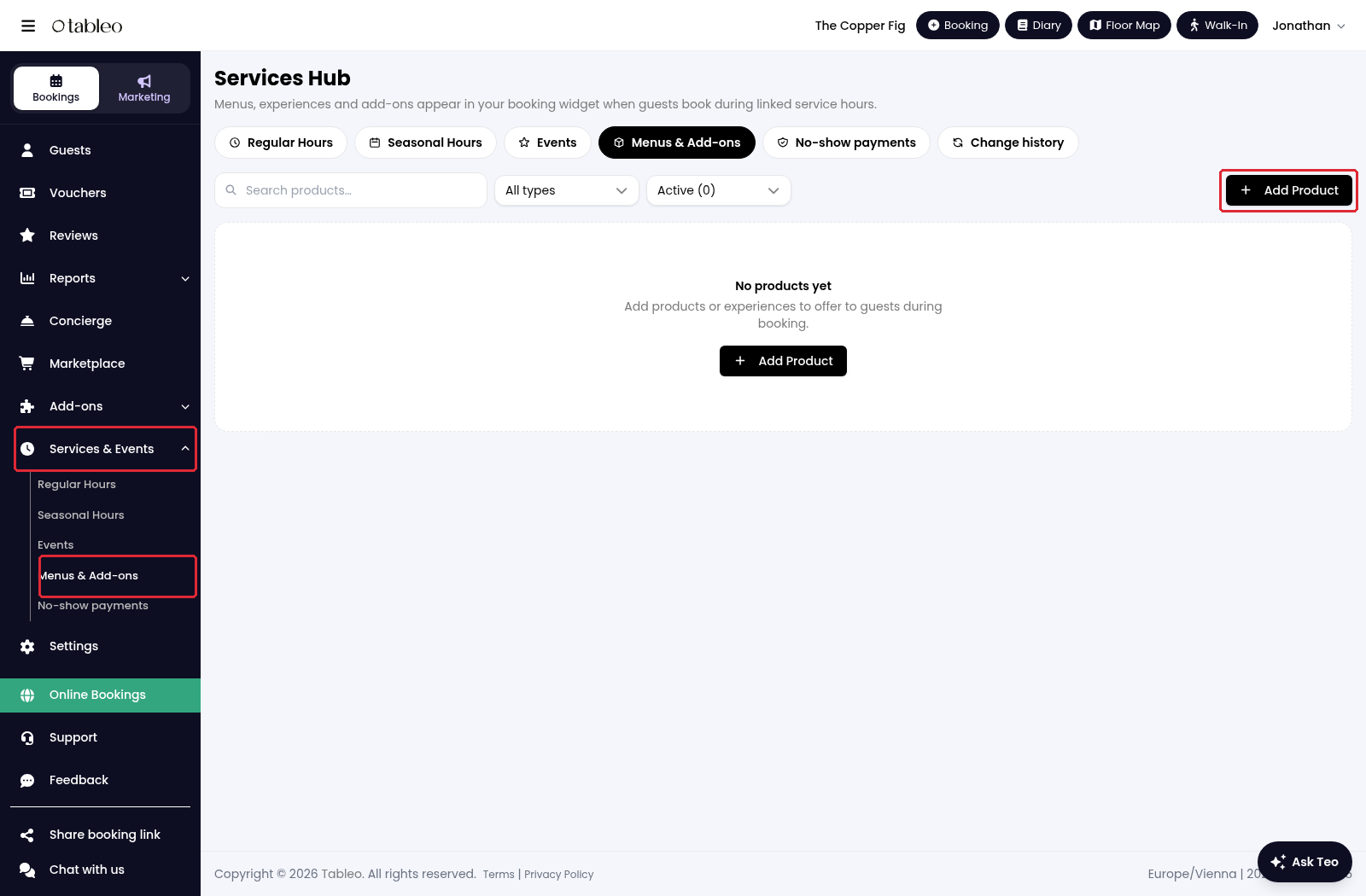
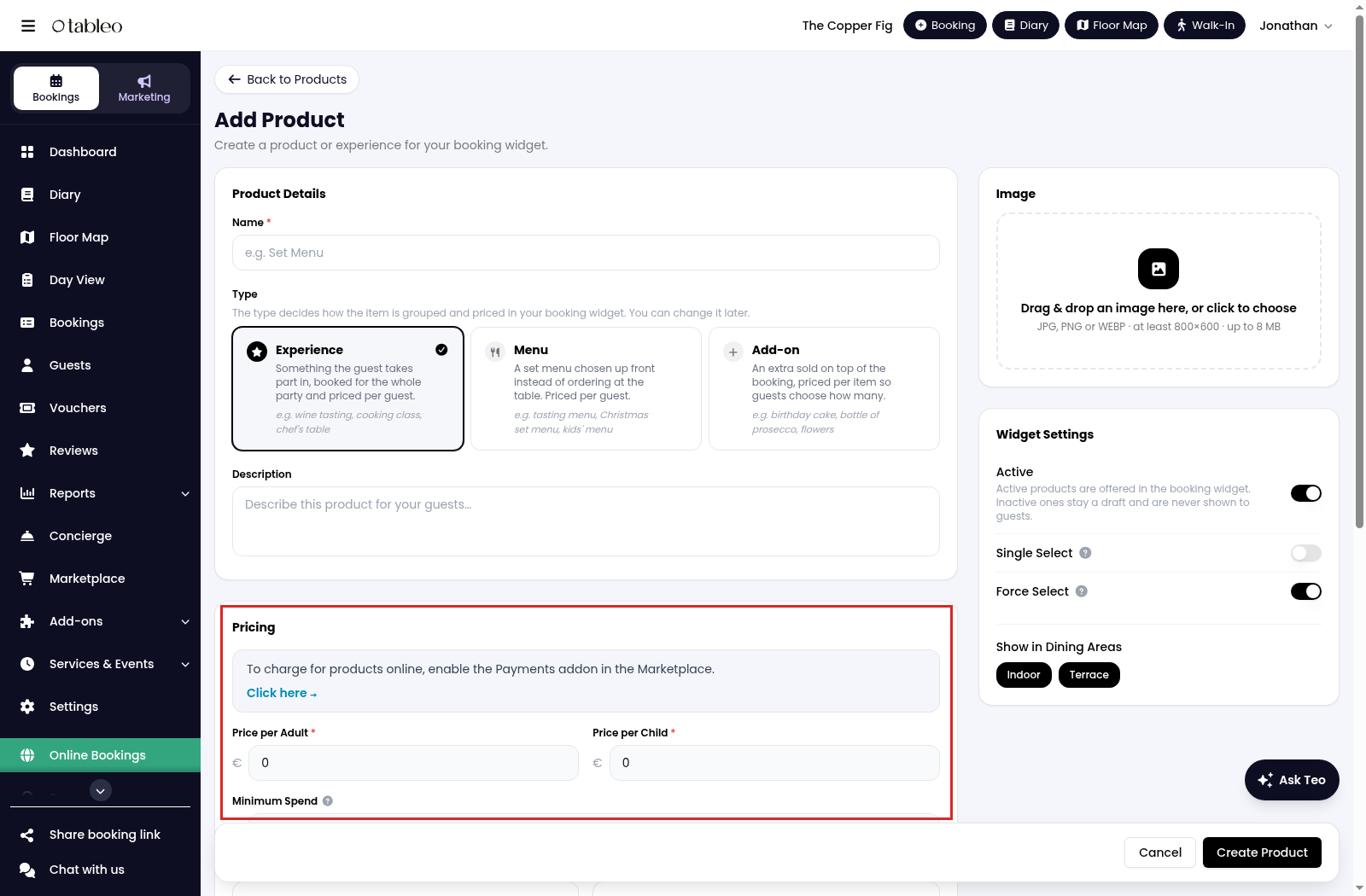
4. Click on Add Product. Enter its Name, choose its Type and add a Description.
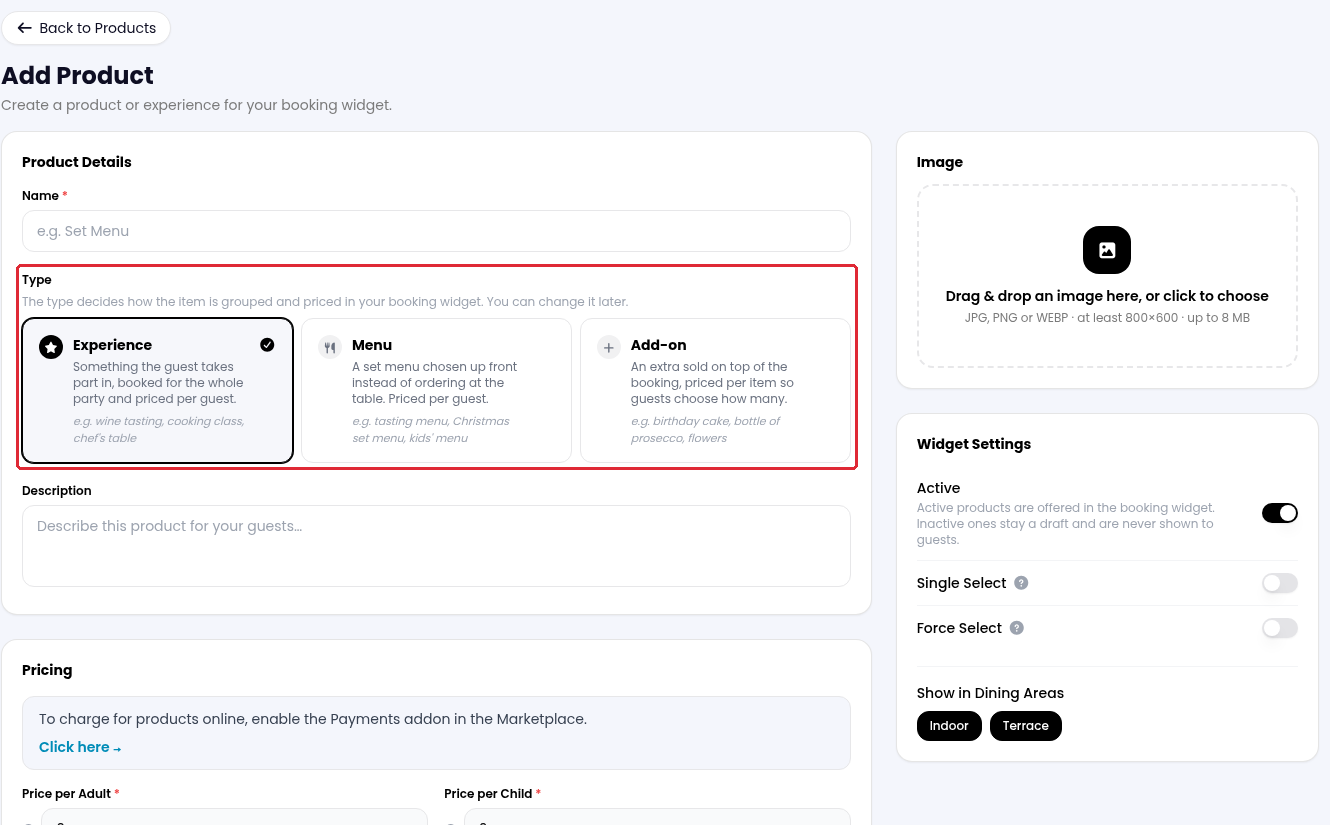
Experience is an activity booked for the party. Menu is a set menu chosen before arrival. Add-on is an extra guests can add to their booking.
5. Set the fields under Pricing. To charge online, activate Online Payments & Cancellation Policy in Marketplace and connect a payment provider first. See How to set up Stripe payments or How to set up ZruPay payments for the connection steps.
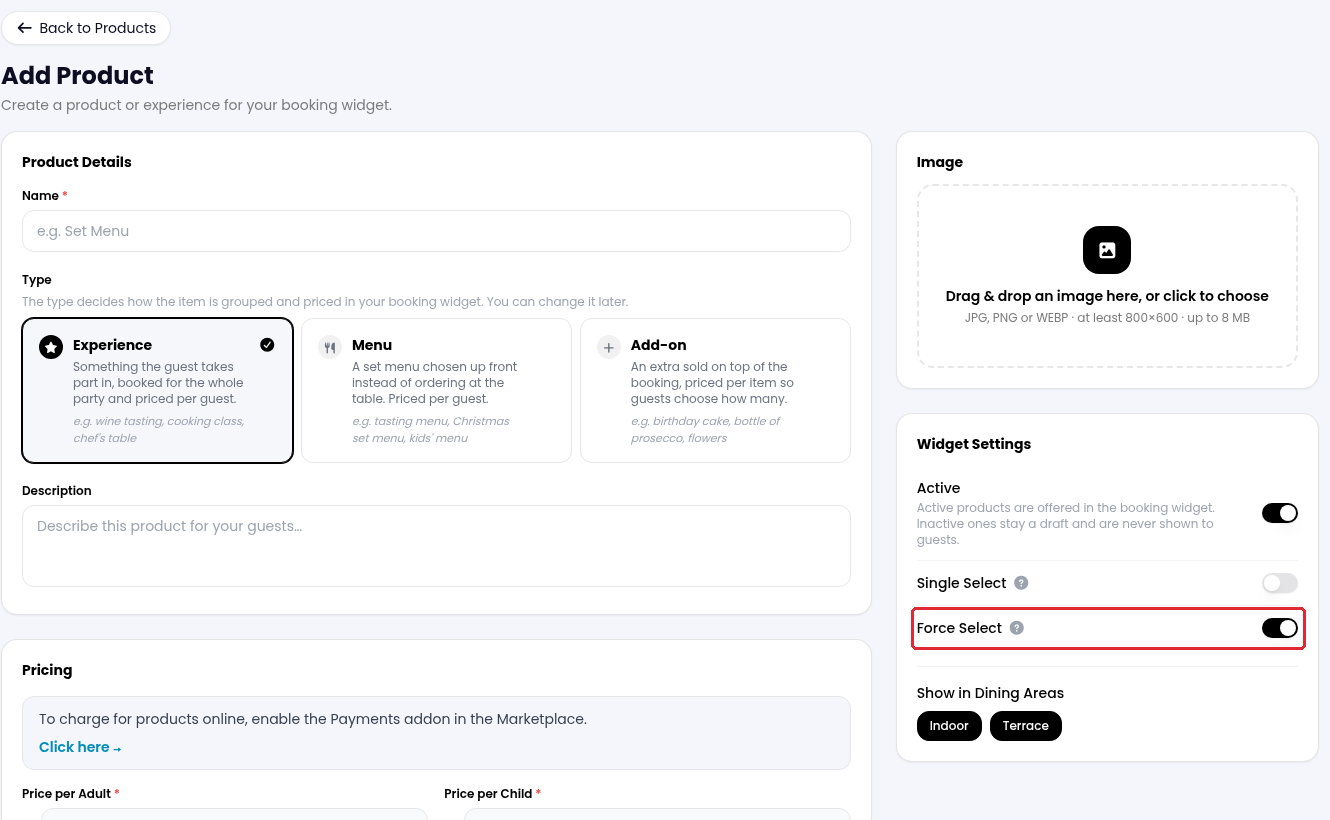
6. Under Widget Settings, choose the dining areas in Show in Dining Areas. For a menu or experience, use Force Select to prevent guests from deselecting it, and Single Select if everyone must choose the same product. Keep Active on when it should appear in the widget.
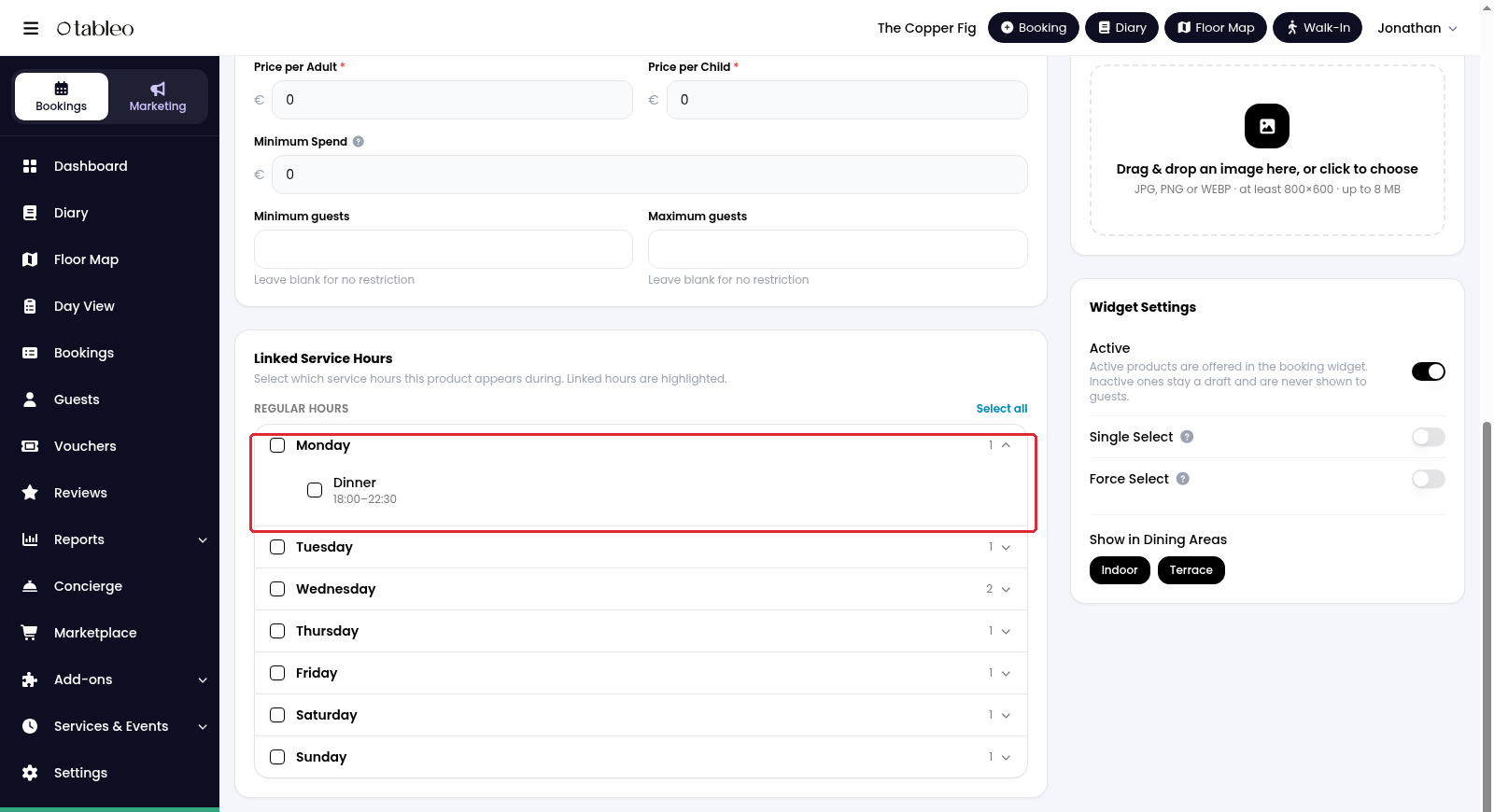
7. Under Linked Service Hours, expand a weekday and select the services during which the product should appear.
8. Add an image if required, then click on Create Product. You can later reopen the product to edit it or archive it from Menus & Add-ons.
While we strive to ensure the accuracy and currency of the information in our knowledge base, some articles may contain minor discrepancies due to the constant evolution of our services and products.
Was this article helpful?
That’s Great!
Thank you for your feedback
Sorry! We couldn't be helpful
Thank you for your feedback
Feedback sent
We appreciate your effort and will try to fix the article