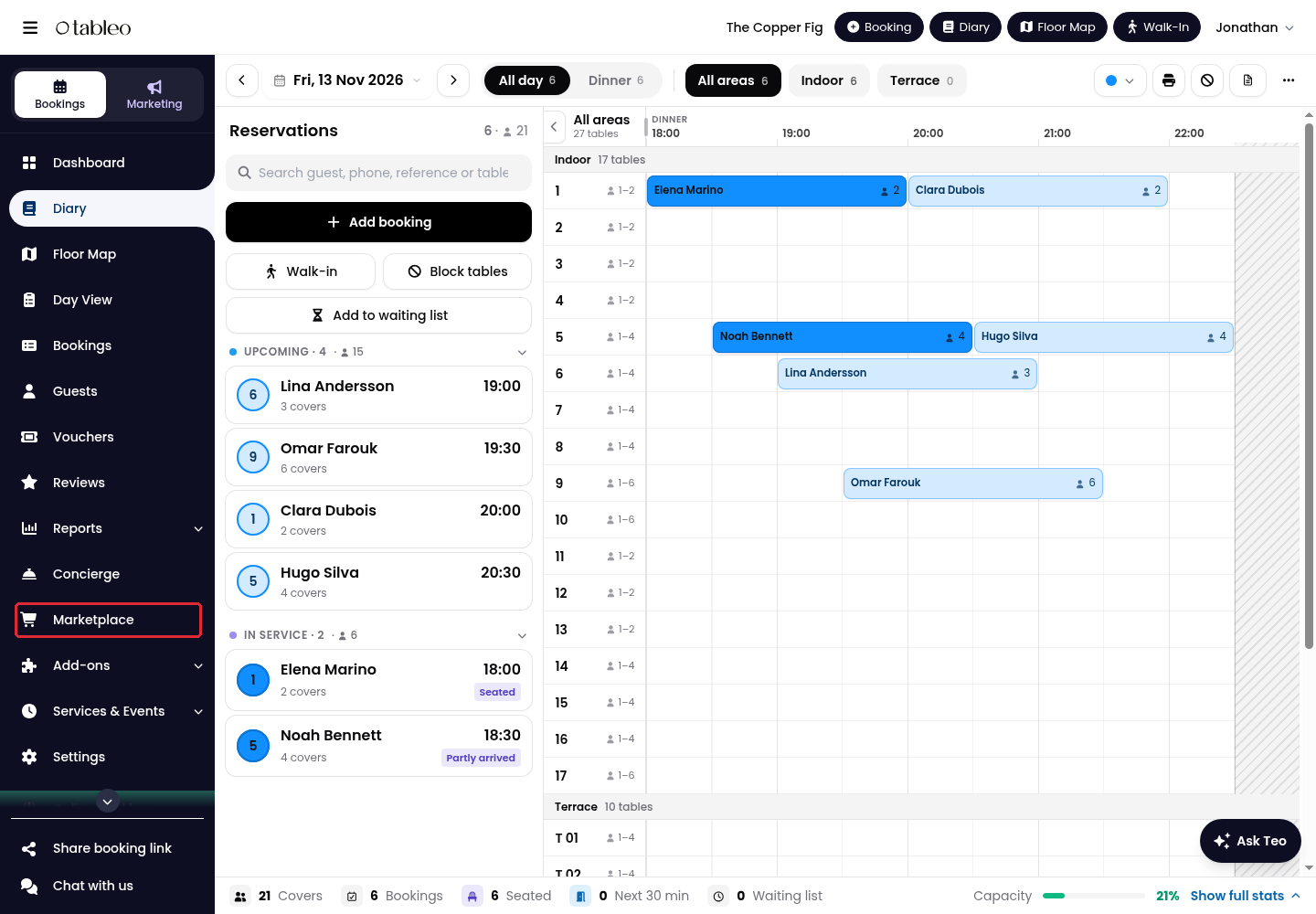
1. Click on Marketplace in the side menu.
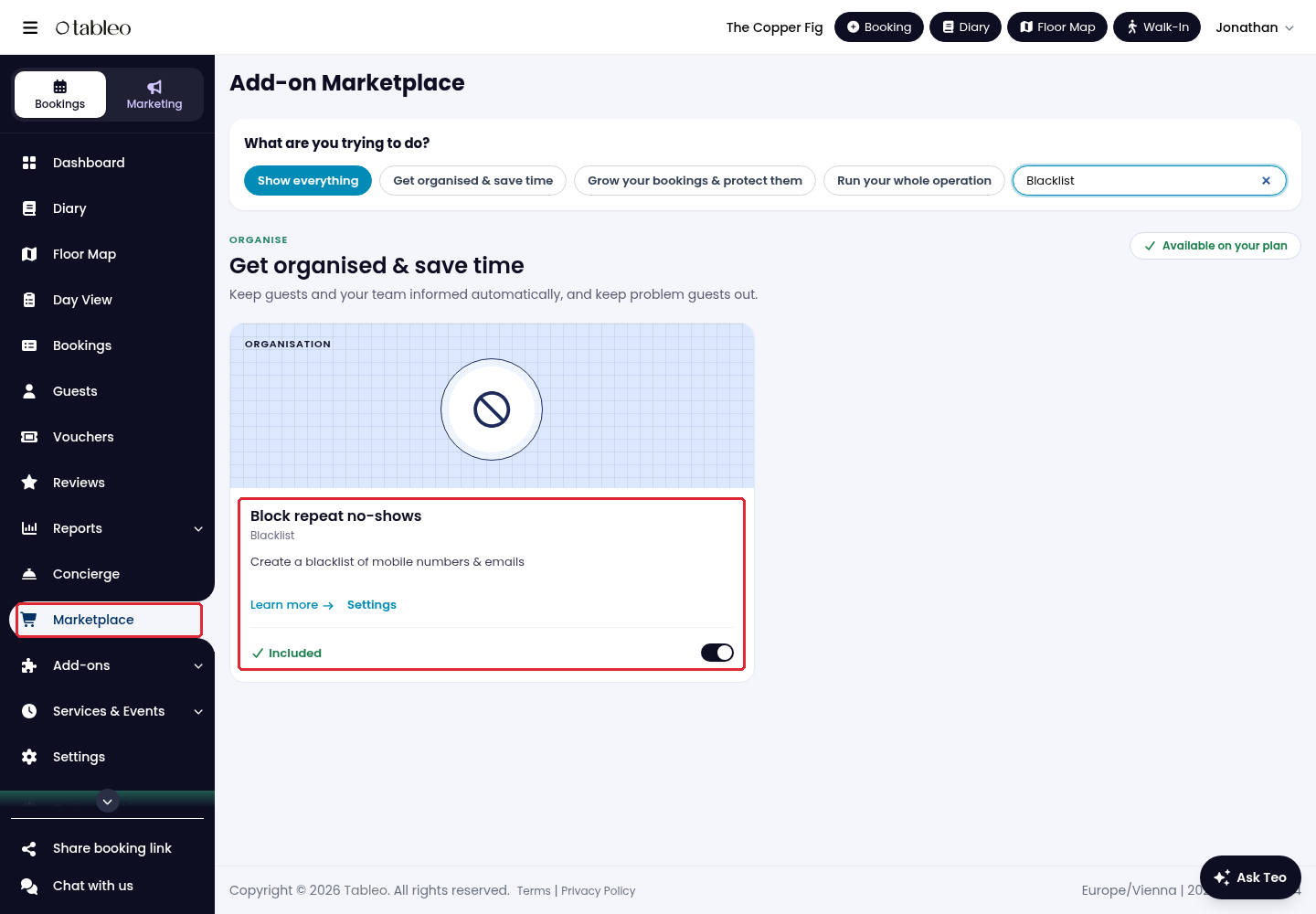
2. Find Blacklist and make sure the add-on is enabled before creating a rule. If it is already enabled, continue to the next step.
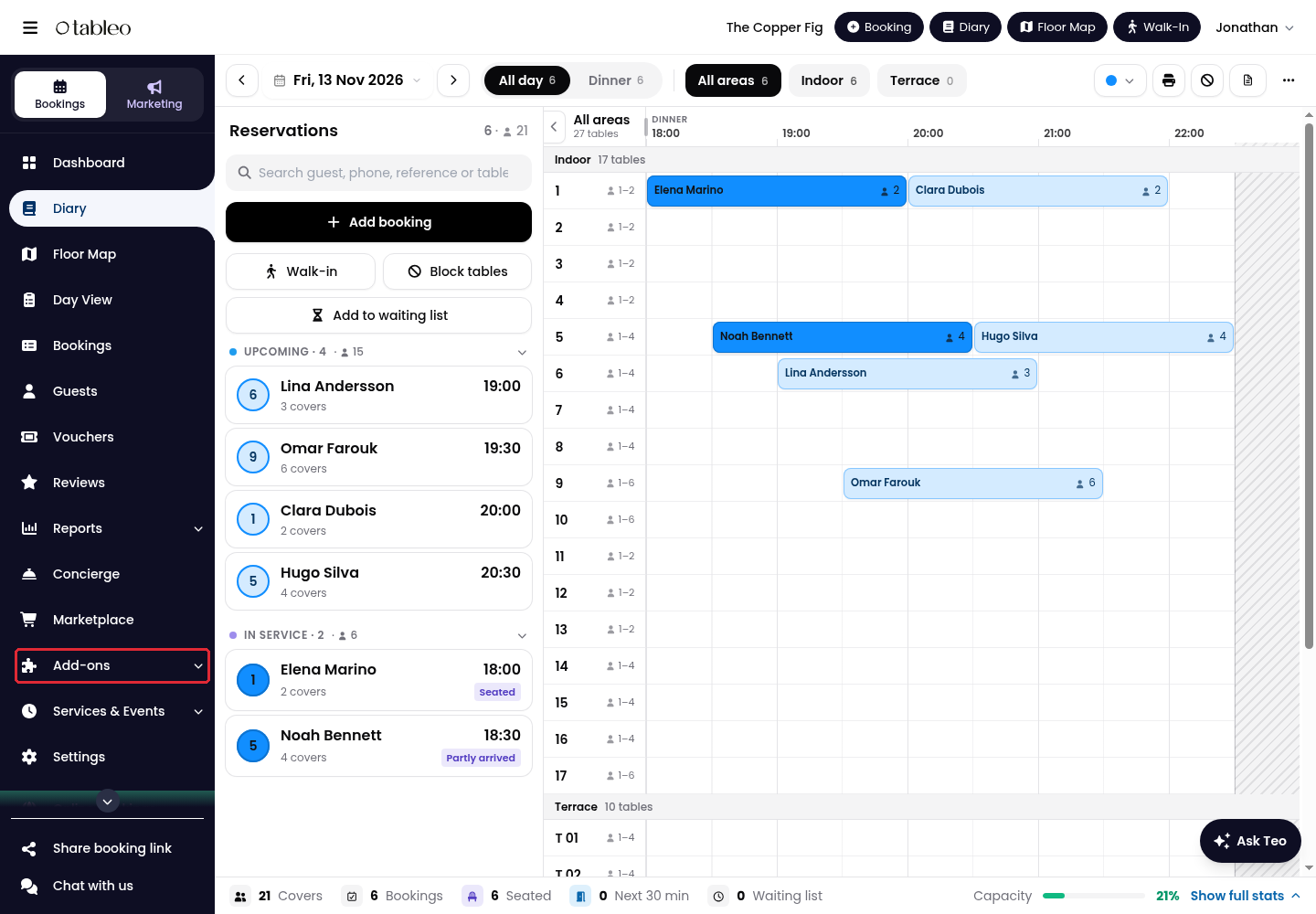
3. Expand Add-ons in the side menu.
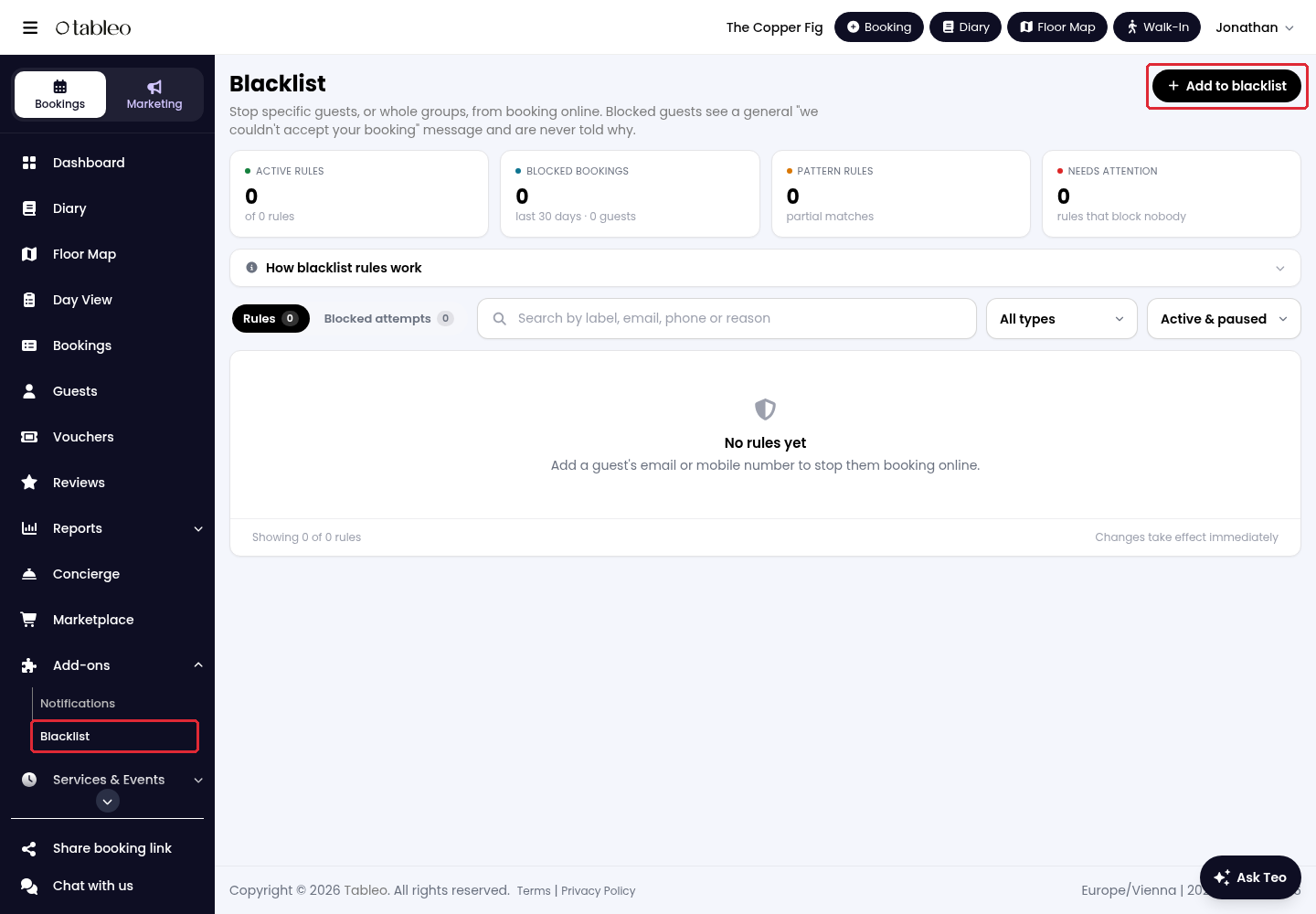
4. Open Blacklist and click on Add to blacklist.
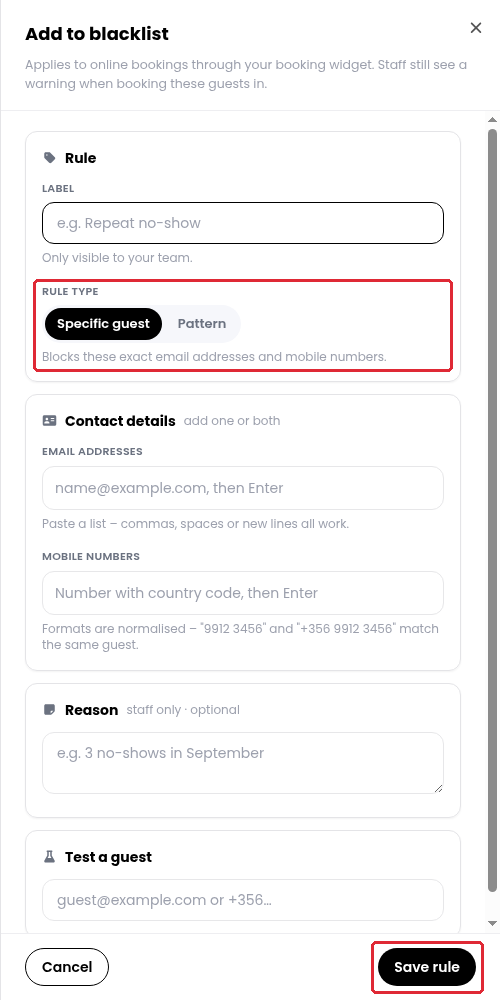
5. Enter a Label and choose Specific guest to block exact email addresses or mobile numbers. Under Contact details, add one or both contact types. You can add a staff-only Reason, then click on Save rule.
6. For a partial match instead, choose Pattern and enter the text to match in the relevant contact field.
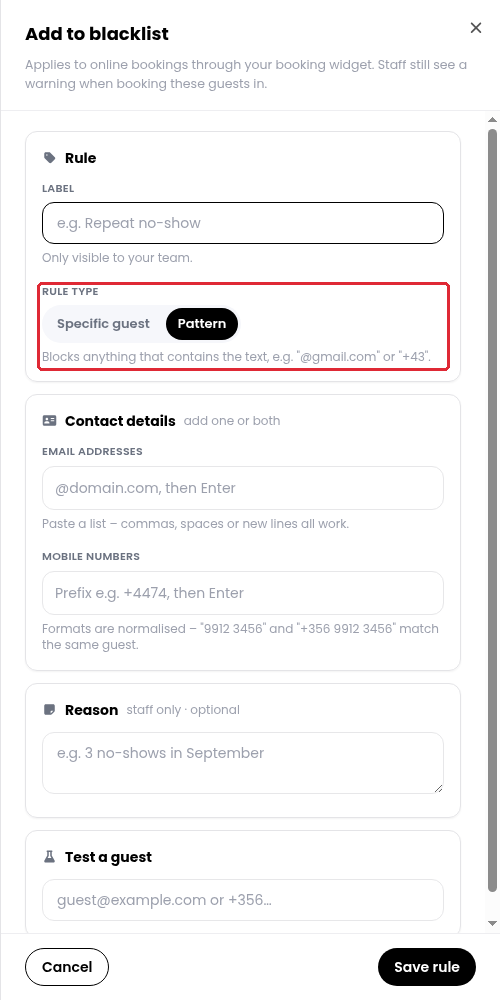
Patterns block anything containing the text. A domain such as @gmail.com or a phone prefix such as +43 can therefore block many guests. Review broad patterns carefully before clicking on Save rule.
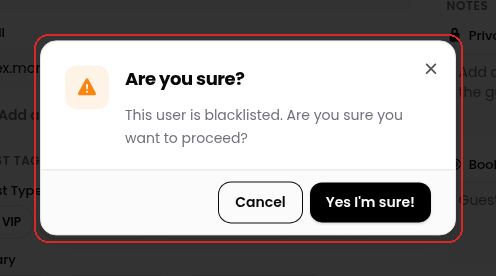
Blacklist rules apply to online bookings through the booking widget. Staff see a warning when booking these guests in. Blocked guests see a generic rejection, not your staff-only reason.
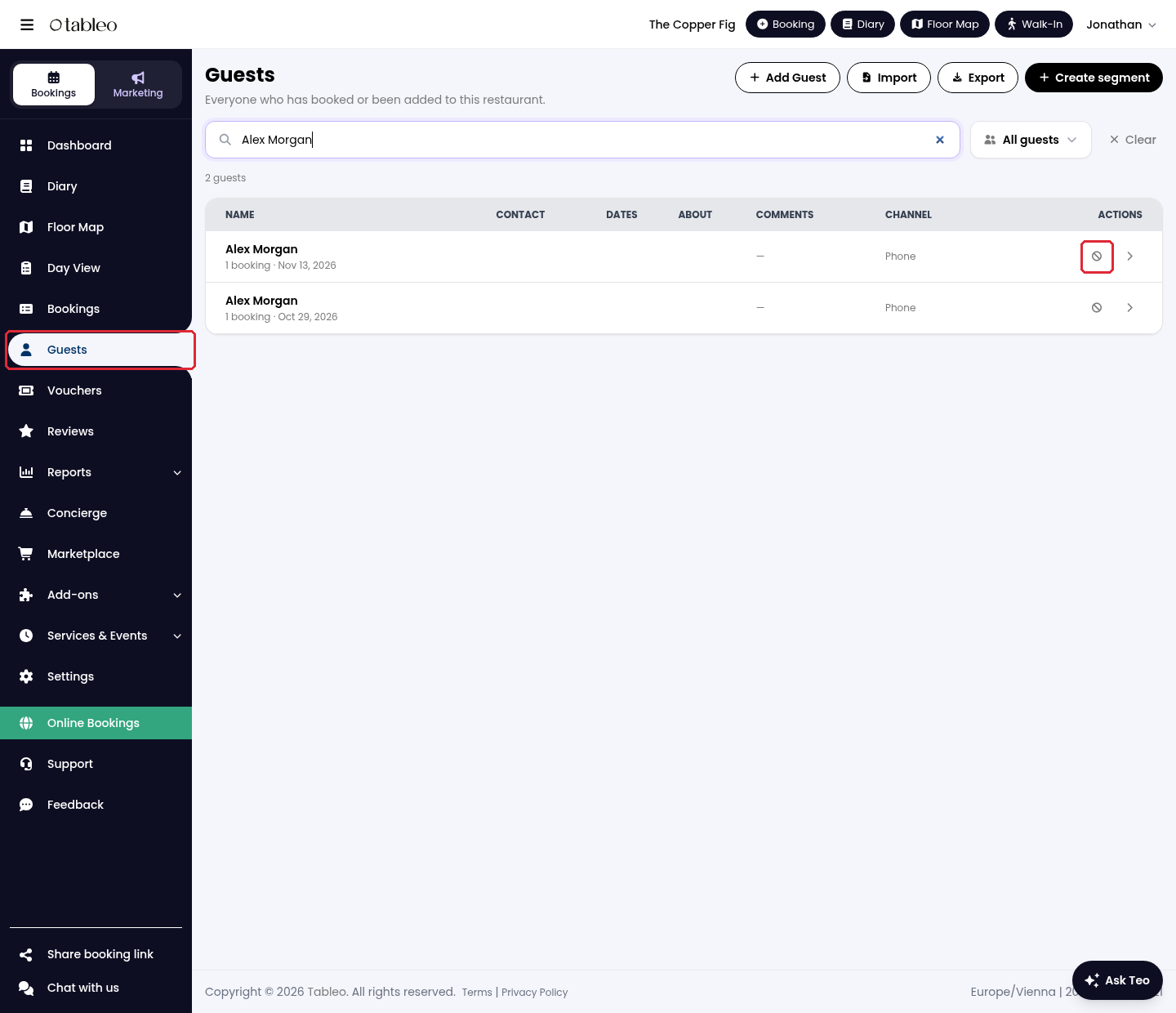
Blacklist a guest from Guests
1. Click on Guests in the side menu and search for the guest. In their row, click on the Blacklist icon under Actions.
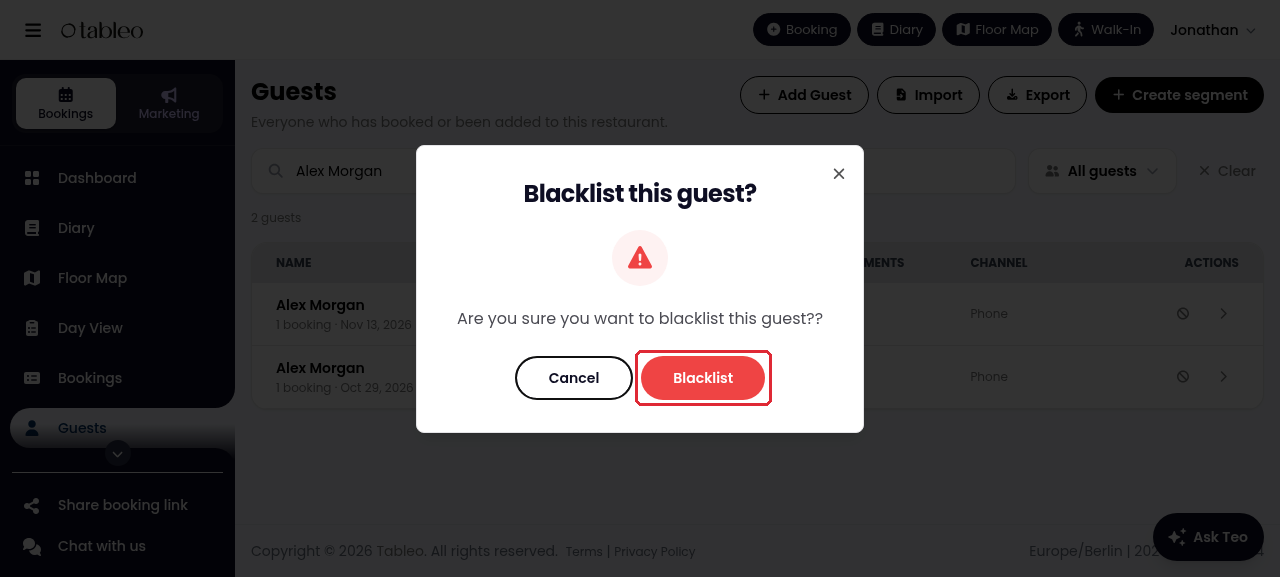
2. Click on Blacklist in the confirmation window.
Blacklist a guest from guest details
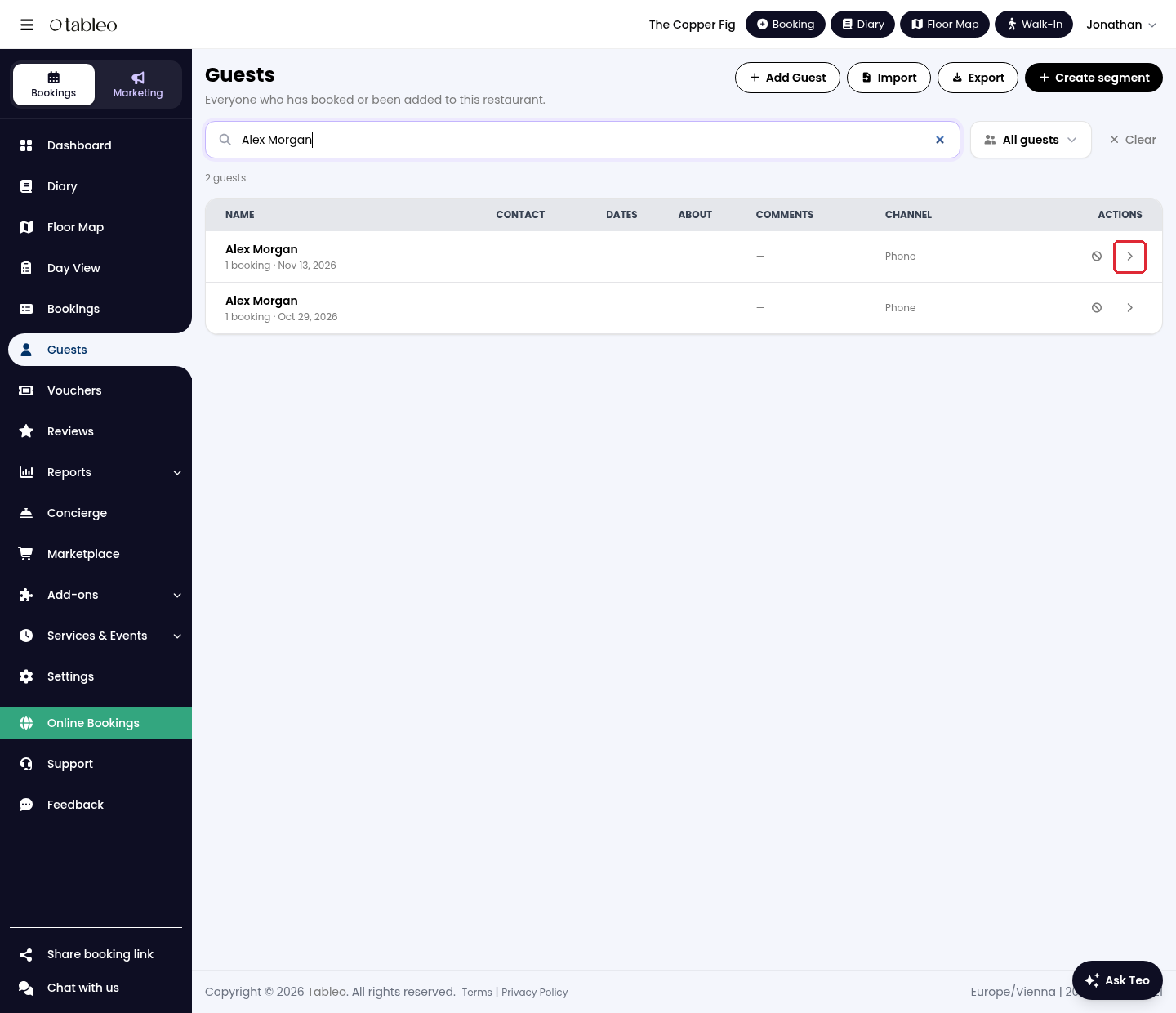
1. Click on Guests in the side menu and search for the guest. Click on the View arrow under Actions to open their details.
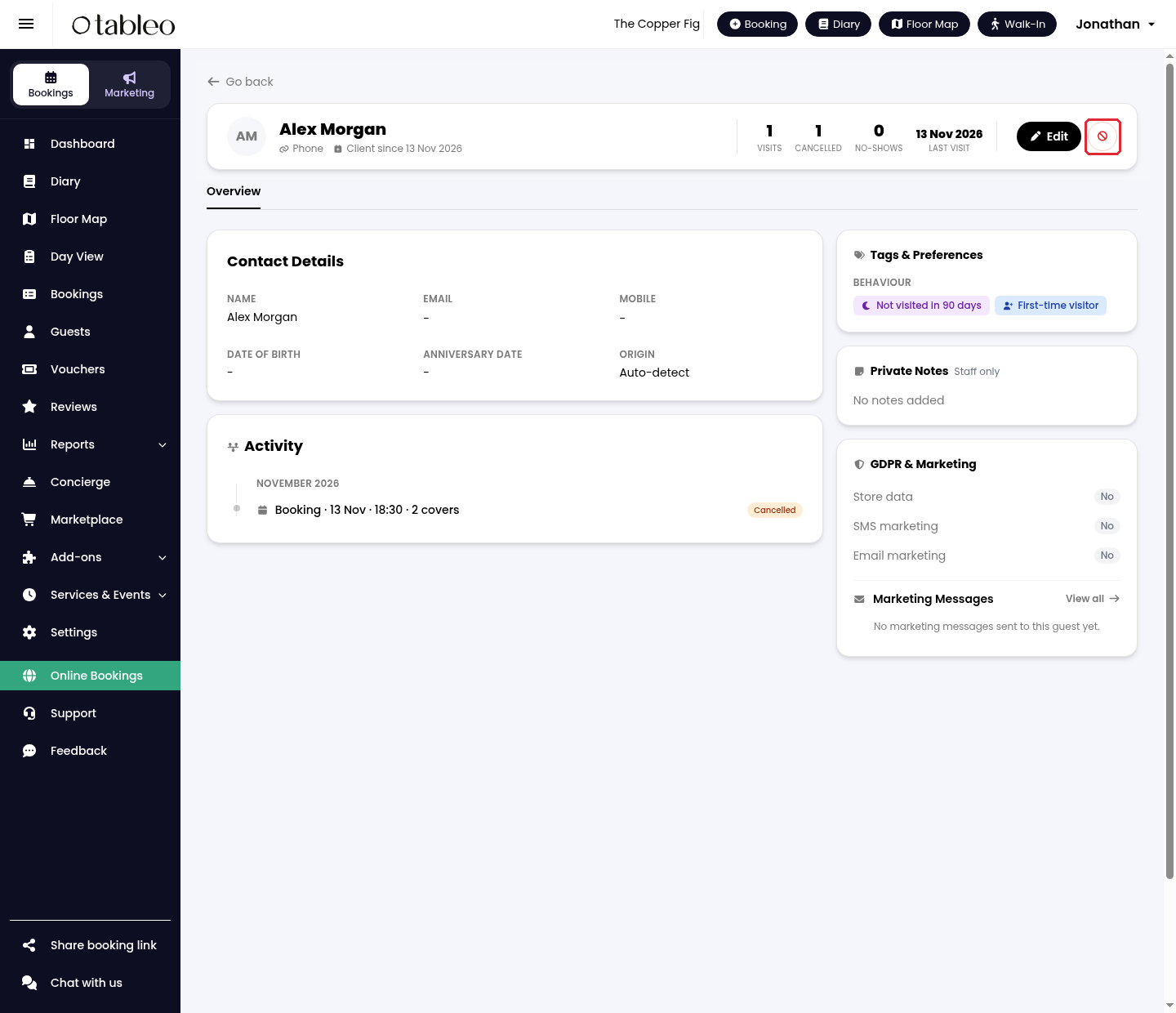
2. In the guest details, click on the Blacklist icon next to Edit and confirm when prompted.
While we strive to ensure the accuracy and currency of the information in our knowledge base, some articles may contain minor discrepancies due to the constant evolution of our services and products.
Was this article helpful?
That’s Great!
Thank you for your feedback
Sorry! We couldn't be helpful
Thank you for your feedback
Feedback sent
We appreciate your effort and will try to fix the article