Connect your Google Tag Manager container to Tableo before configuring and testing booking-conversion tracking with your developer or analytics specialist.
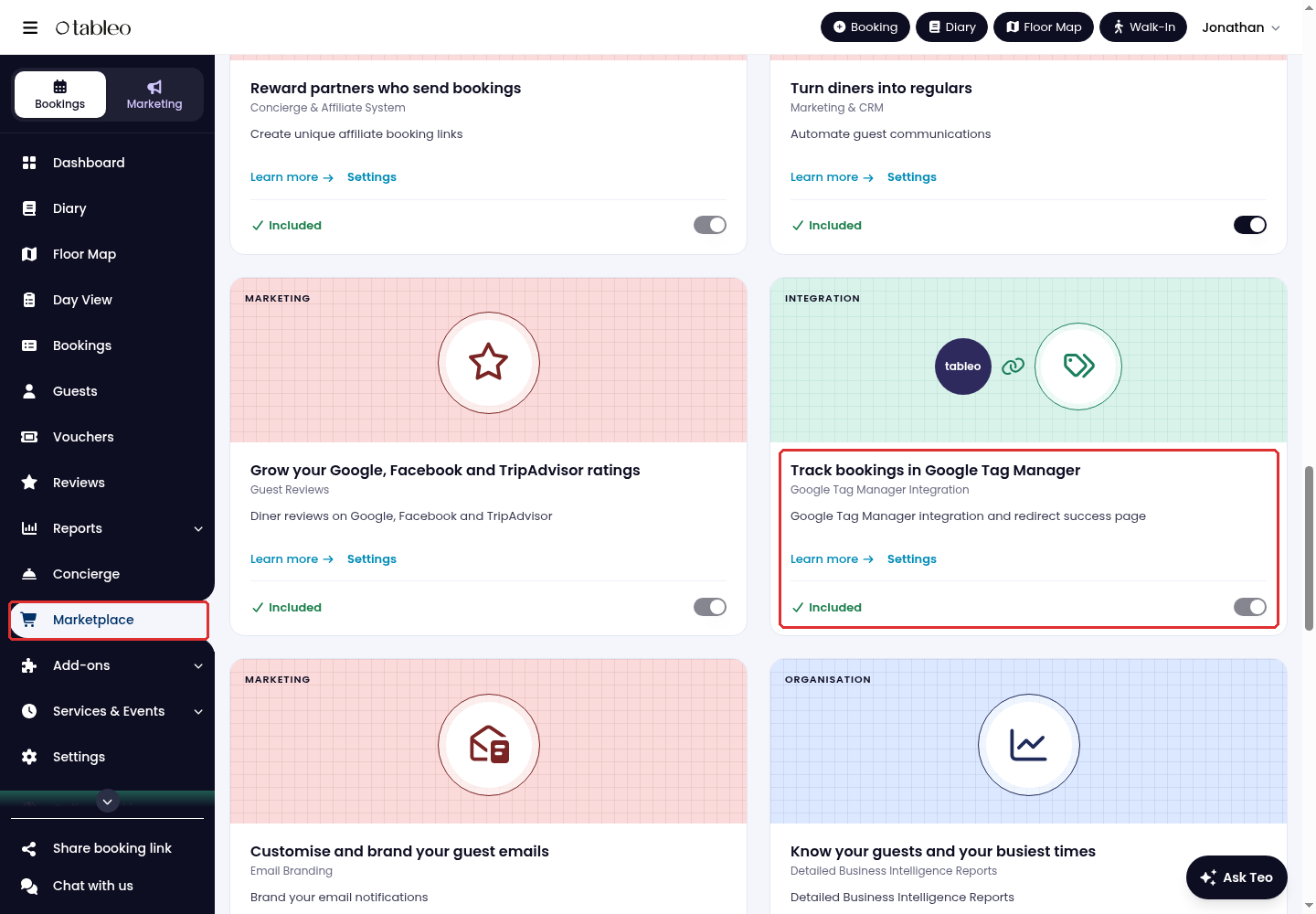
1. Click on Marketplace in the side menu, find Google Tag Manager Integration and turn on its switch. It is a paid add-on on Grow and included in Expand. Check any charge before confirming activation. If it is already active, continue to step 2.
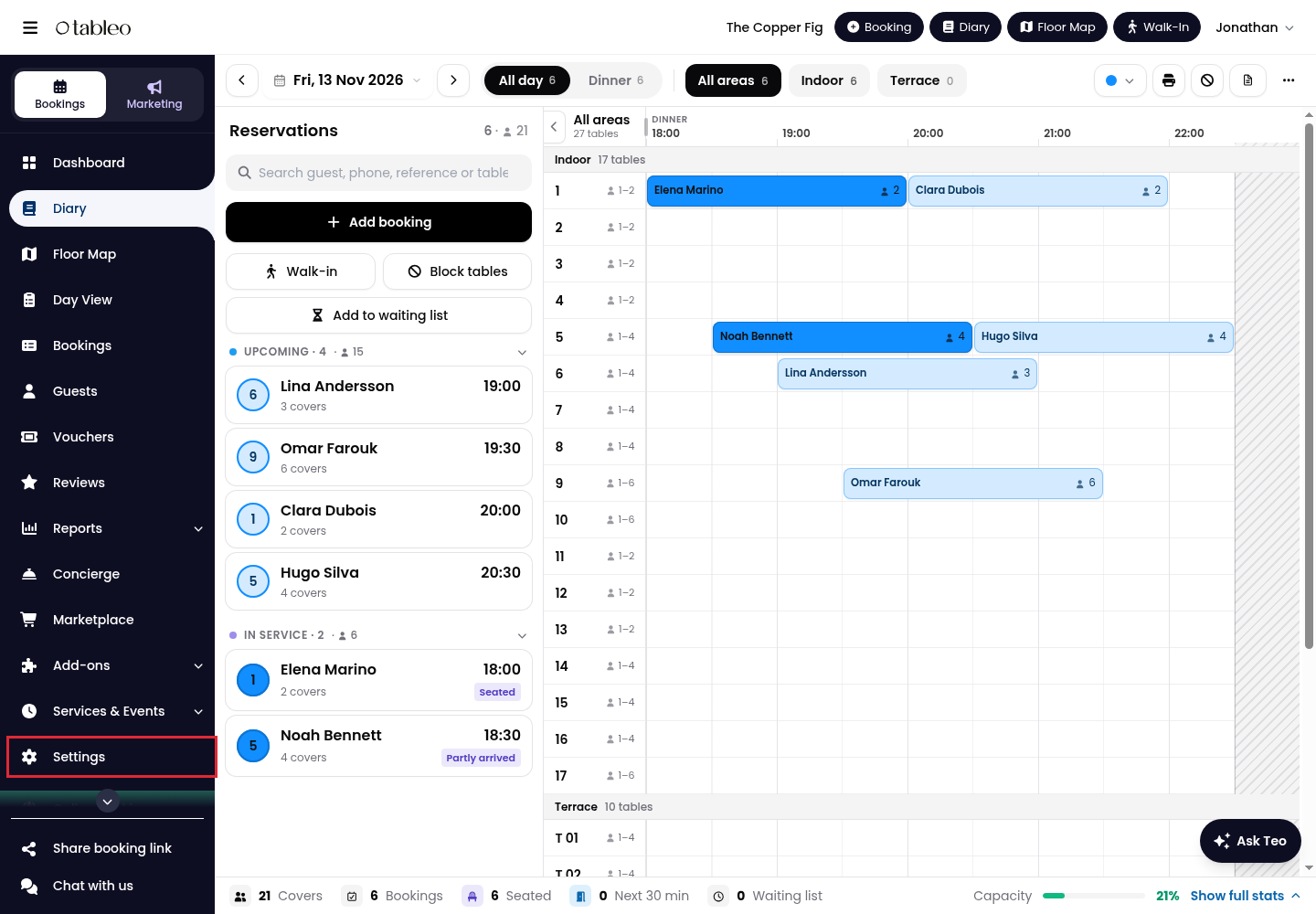
2. Click on Settings in the side menu.
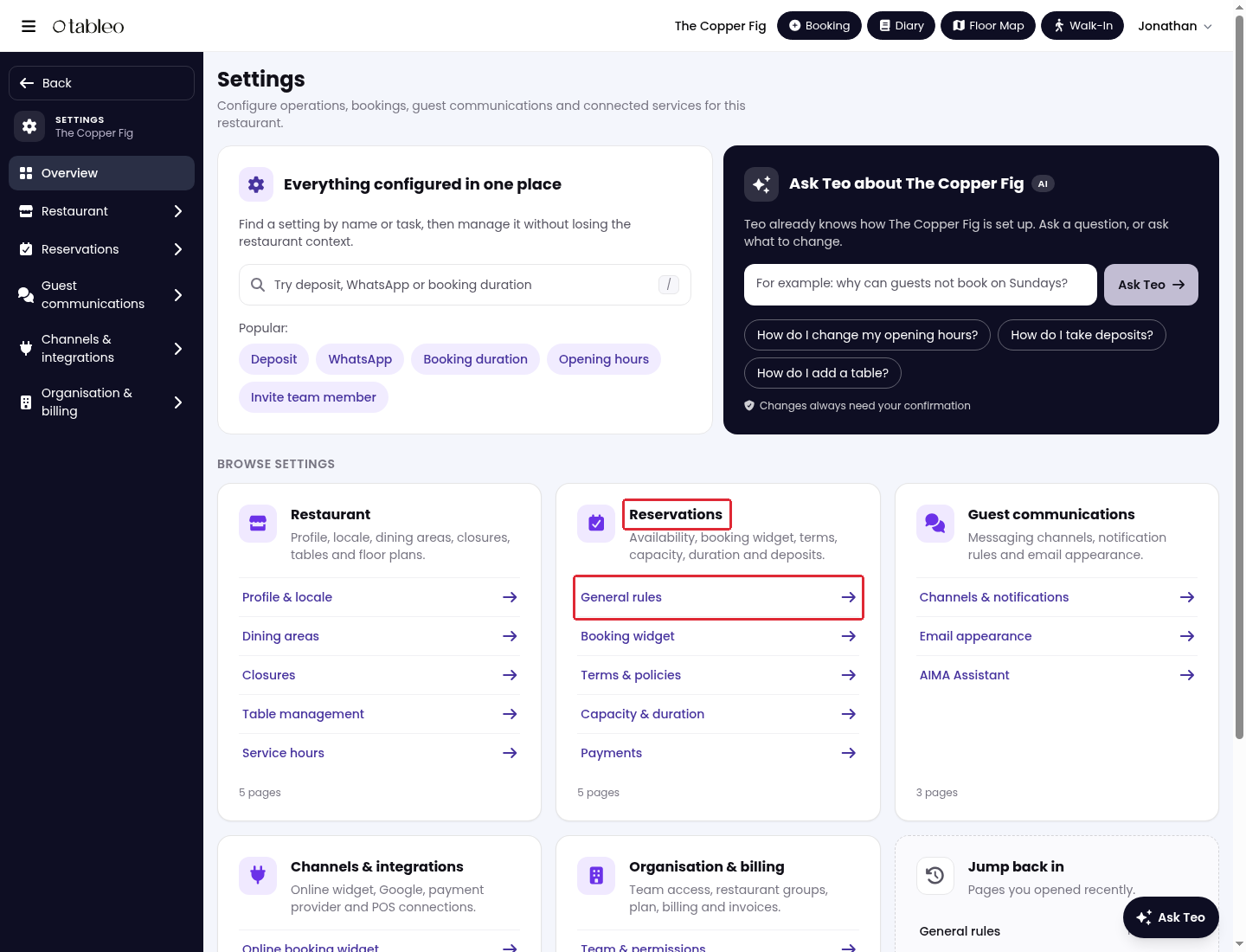
3. In Reservations, click on General rules.
4. Expand Advanced rules, then scroll to After booking.
5. Enter your container ID in Google Tag Manager ID, then click on Save changes. The ID begins with GTM-; do not paste the full installation script. Leaving this field empty turns tracking off.
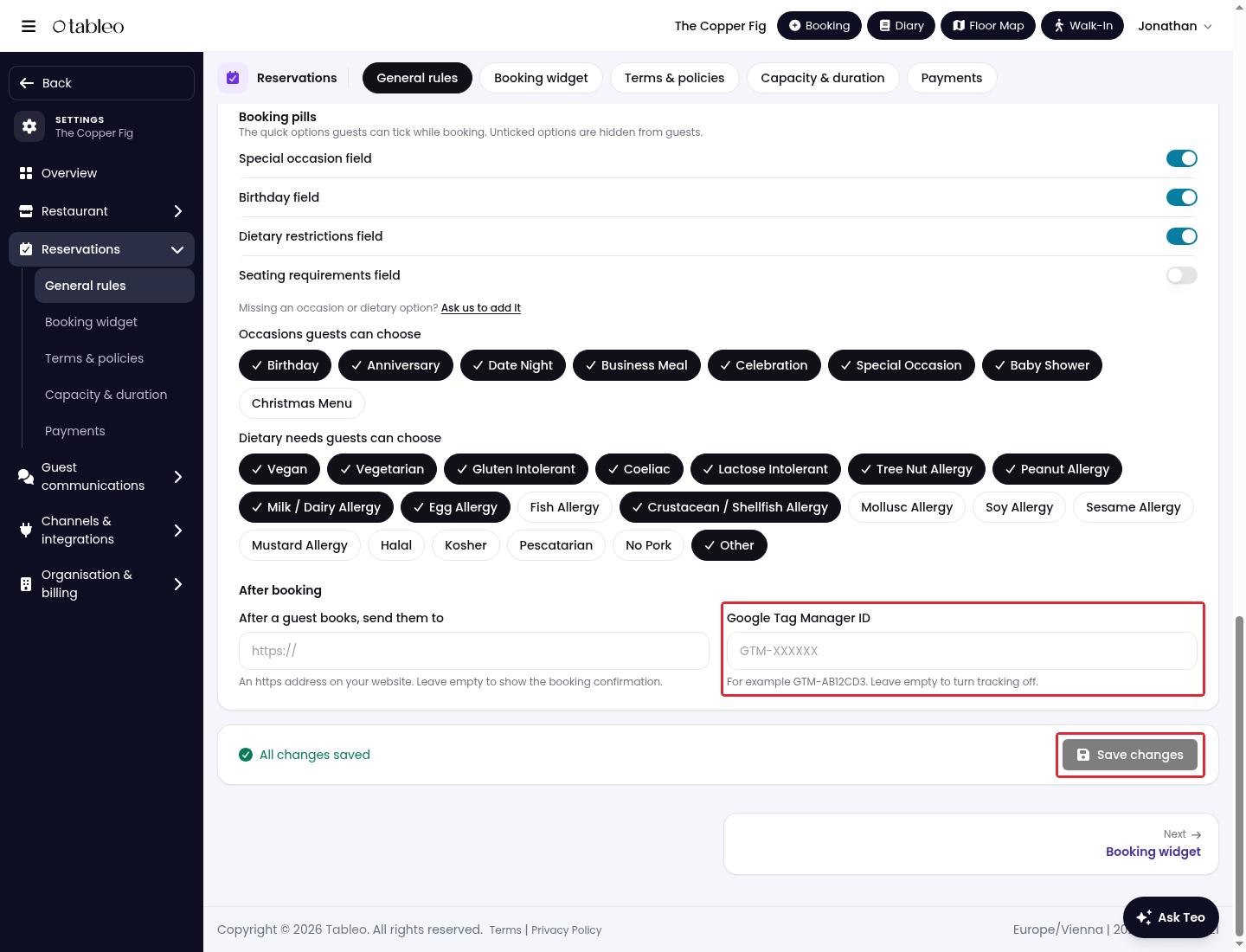
Find the container ID in your Google Tag Manager account. If you do not have a container yet, follow Google’s account and container setup guide.
Adding a container ID is not the same as configuring a conversion. Ask Tableo support to confirm the supported booking-completion event or success-page setup for your widget before choosing tags and triggers. Do not count a reservation-button click as a completed booking.
Use Google’s Preview and Tag Assistant instructions to test your configuration before publishing it in Google Tag Manager. Have your developer check that the conversion fires for a completed booking and not for an abandoned booking.
While we strive to ensure the accuracy and currency of the information in our knowledge base, some articles may contain minor discrepancies due to the constant evolution of our services and products.
Was this article helpful?
That’s Great!
Thank you for your feedback
Sorry! We couldn't be helpful
Thank you for your feedback
Feedback sent
We appreciate your effort and will try to fix the article