1. From the side menu, go to Settings > Table Management.
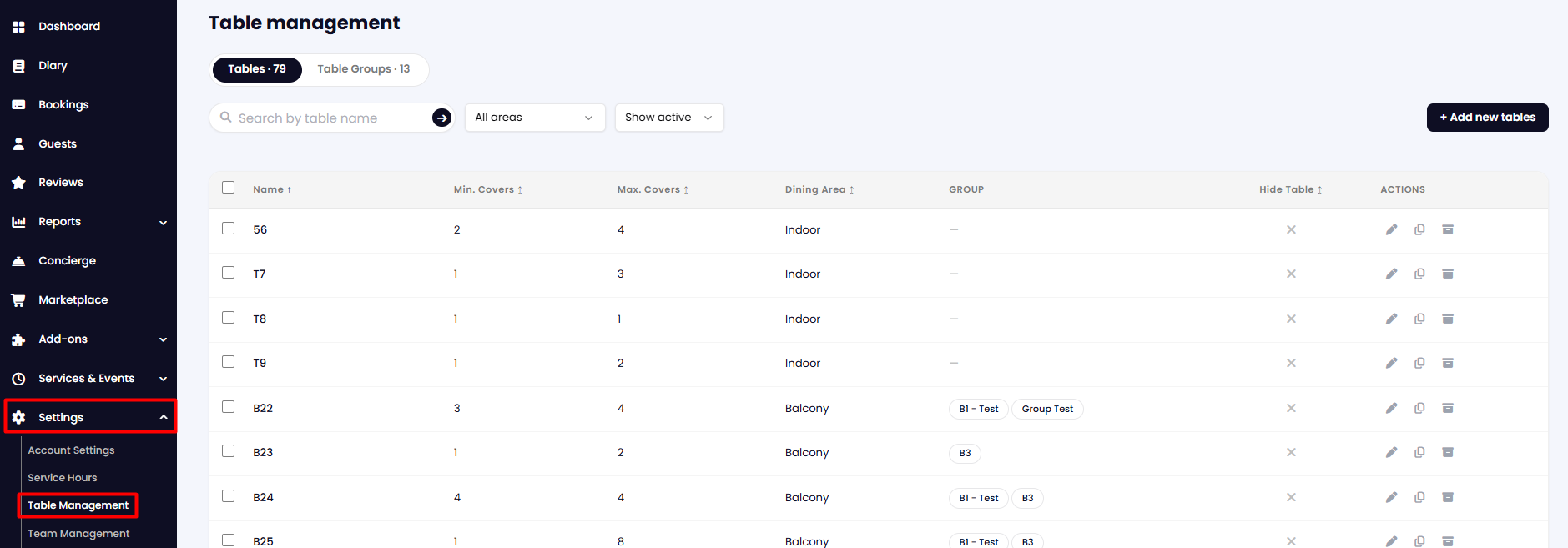
On the screen, in the Tables section, you will see all the tables you already created. You can filter by Dining Area and also by status (active, archived, all).
2. To add a new table, click the button at the top right of the screen + Add new tables.

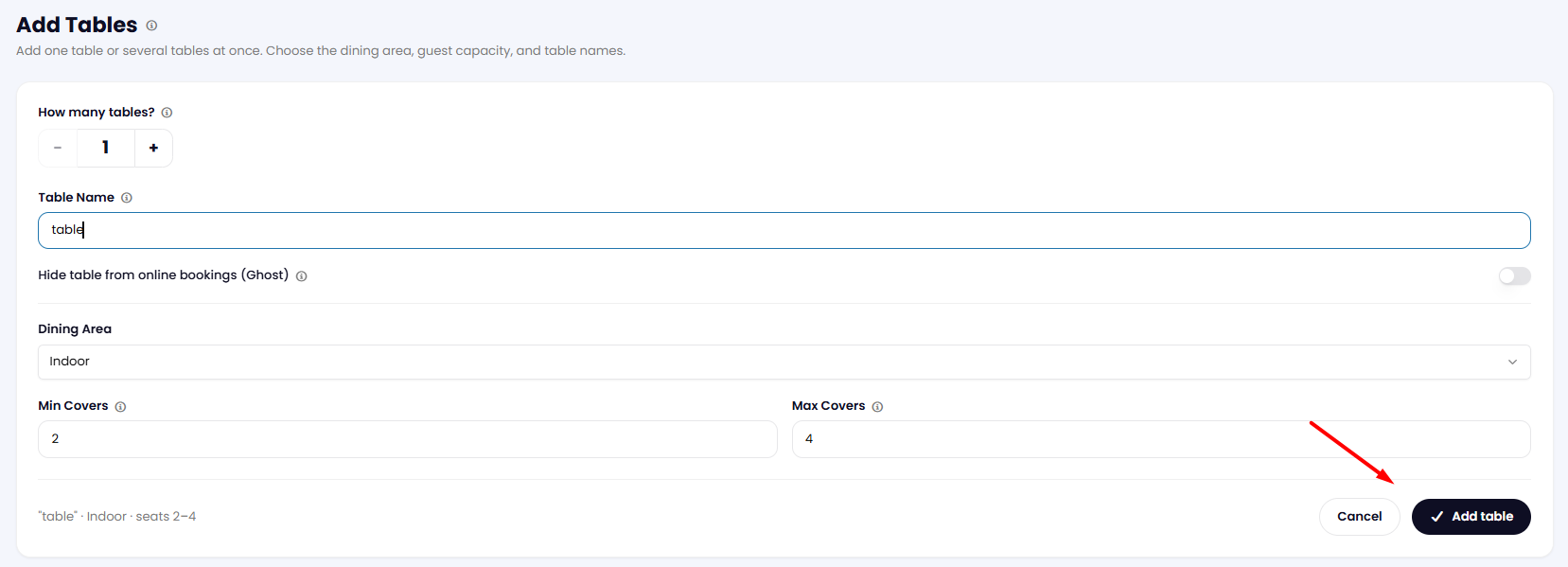
3. Fill in the table details and click Add Table.
4. To edit an existing table, simply click on the pencil icon in the Actions column in the selected table. In that same column, you can duplicate the table or archive it.

You can also choose to add it to a group or to hide your table at all times or based on a schedule.

Once you have made the changes, click the Save button on the right part of the screen.
While we strive to ensure the accuracy and currency of the information in our knowledgebase, some articles may contain minor discrepancies due to the constant evolution of our services and products.
Was this article helpful?
That’s Great!
Thank you for your feedback
Sorry! We couldn't be helpful
Thank you for your feedback
Feedback sent
We appreciate your effort and will try to fix the article