Are you a franchise owner with multiple restaurants? By adding your restaurants to the “Restaurant chain” feature, whenever one of your outlets is unavailable, you can guide your customers to explore other available venues through the online booking widget.
When unavailable, customers get three alternative options to choose from:
- Different available times at the same venue.
- Availability at a different venue for the requested time.
- Option to join the waiting list for their preferred time slot

Here’s how to add multiple restaurants to a chain:
Firstly, ensure each restaurant you want to add to the chain has already been set up with a Tableo account. Contact your Account Manager or Customer Service at cs@tableo.com if you would like to create a new restaurant and discuss available plans.
When all your restaurants have been set up with an account:
1. Log in to Tableo.
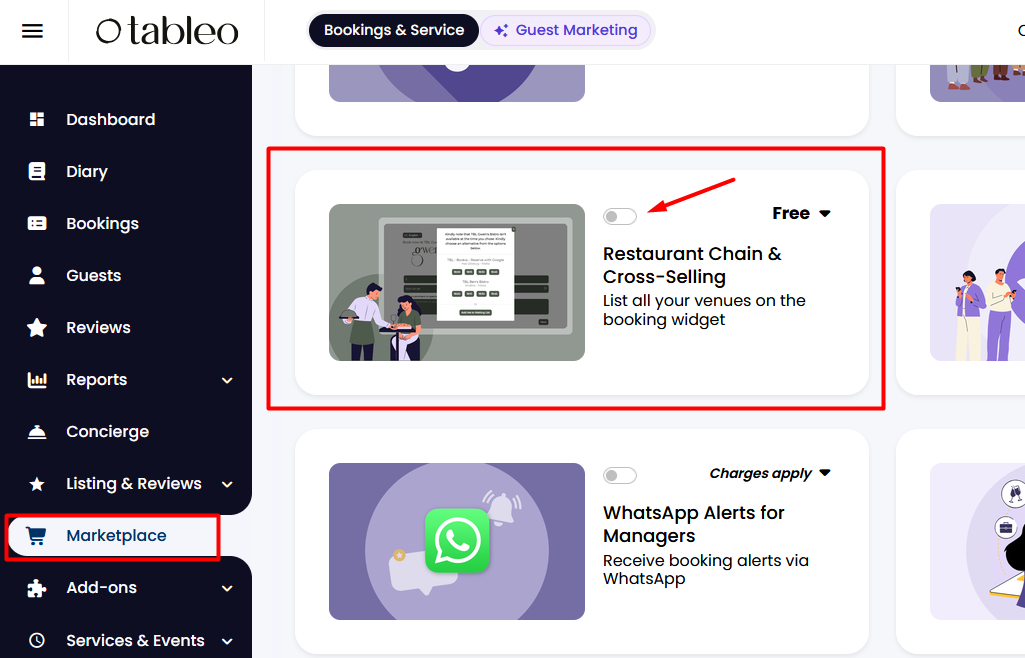
2. From the side menu, go to Marketplace.
3. Find Restaurant Chain & Cross-Selling and activate the toggle switch to ON.
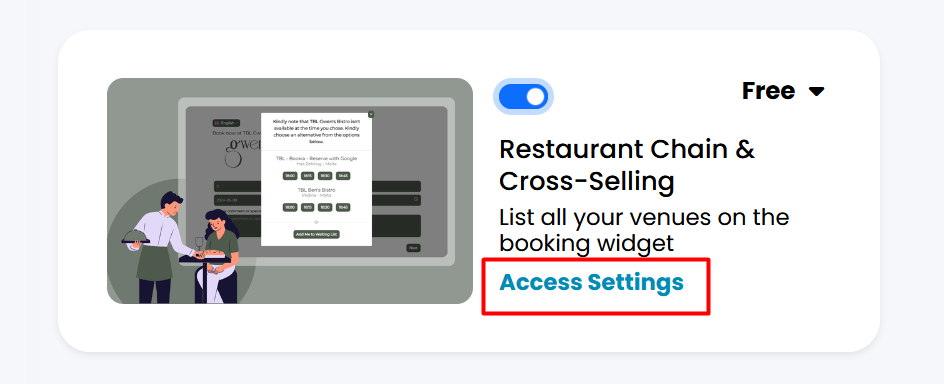
4. Once enabled, click on the Access Settings link that appears.
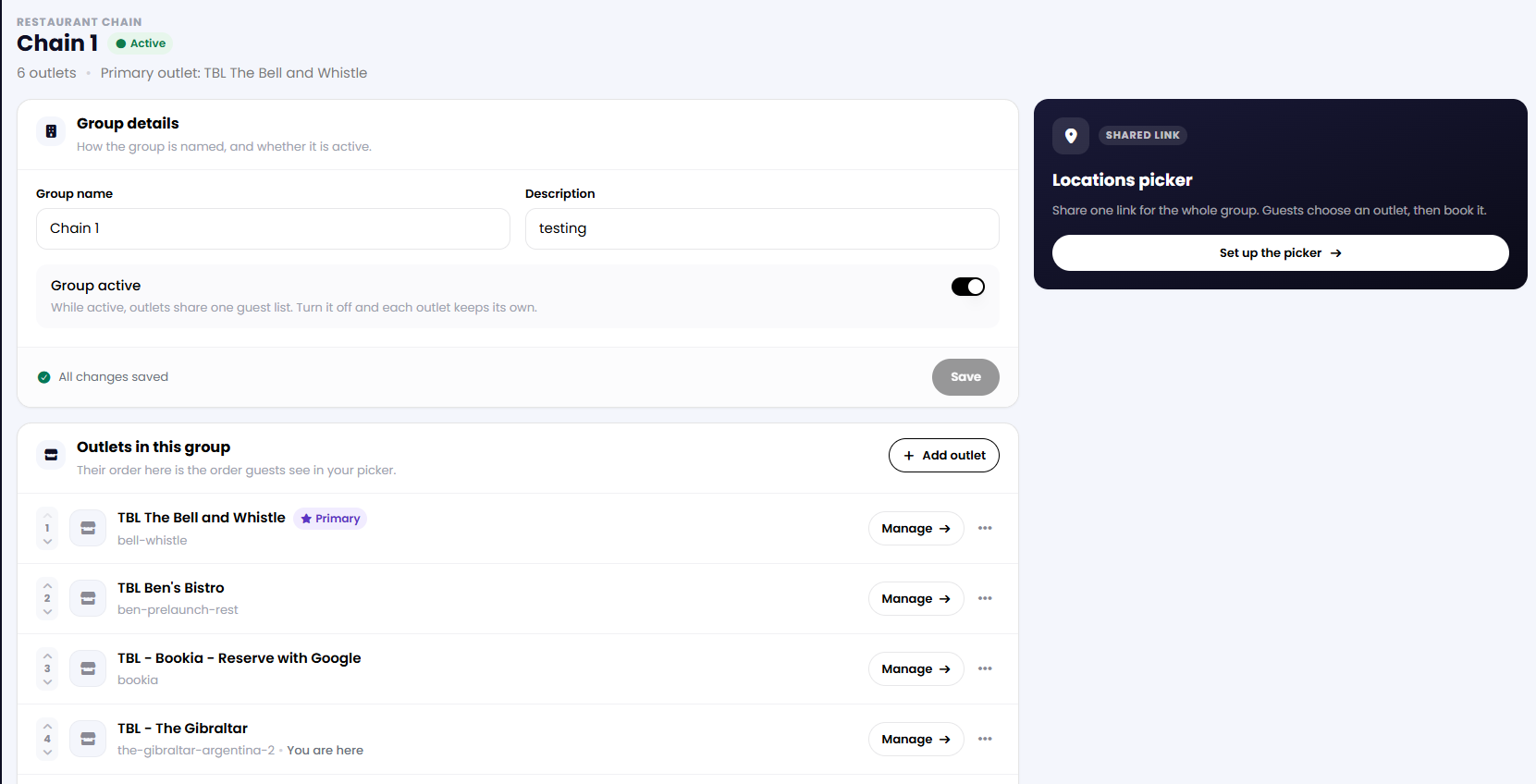
5. Click on Settings and complete the details:
- Add the name of the Chain under Group Name.
- Click on the toggle Group Active to enable the chain.
- Optional - Add a description of your chain.
- Click on + Add Outlet to search amongst all the restaurants your Tableo User has access to, click on them to add them to your chain.
6. Click Save.
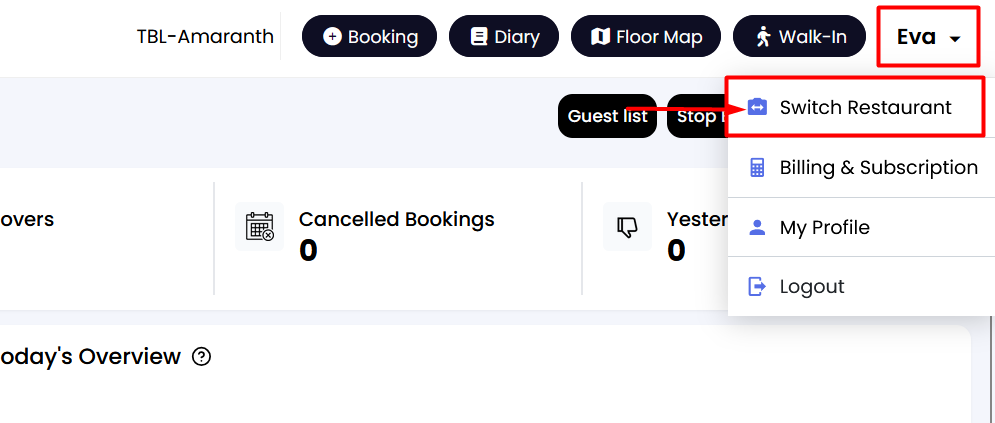
7. You will be able to see the restaurants you added to the chain by clicking on your name in the top right corner and selecting Switch restaurant.
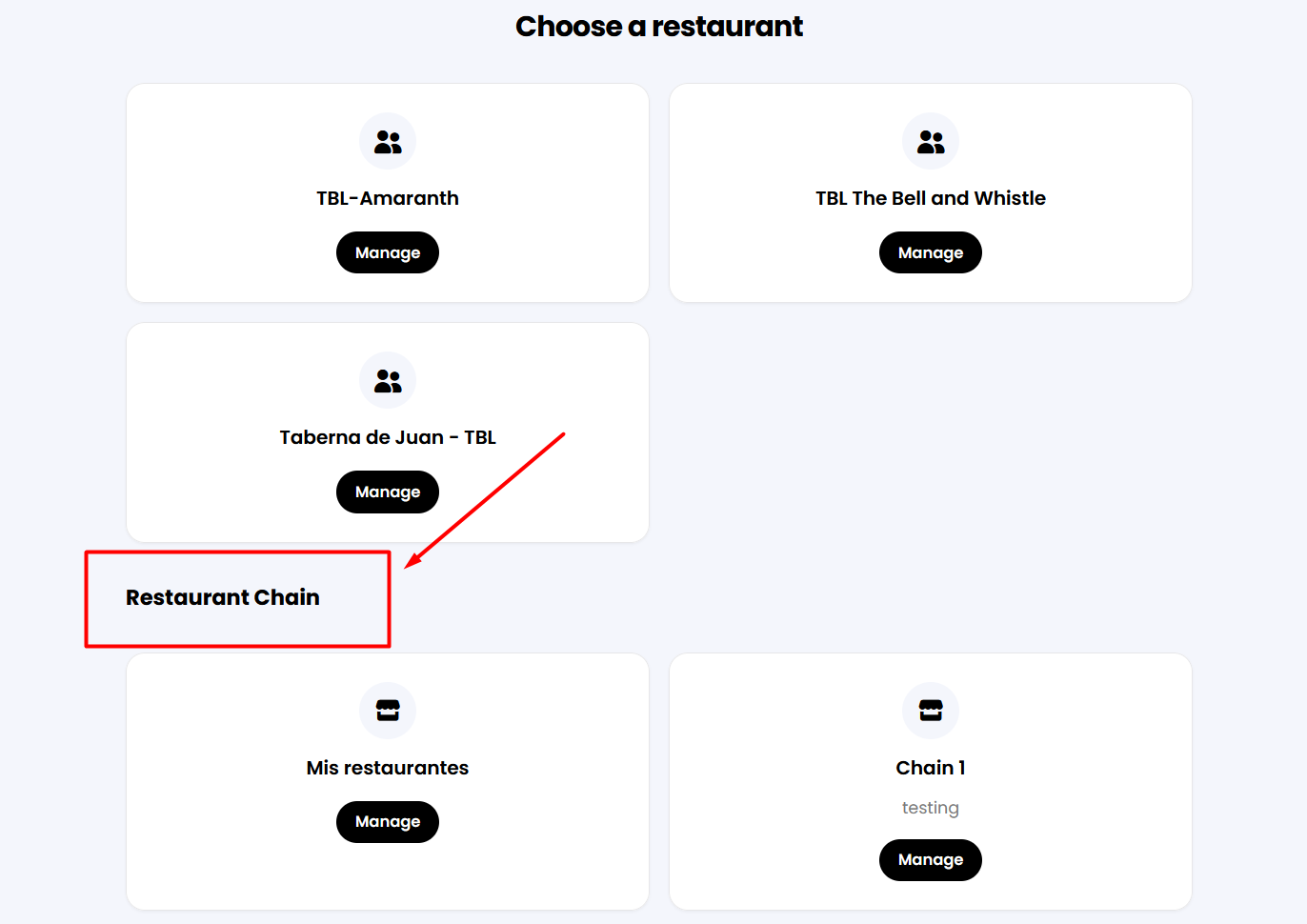
The restaurants that appear under the chain will now be shown as an alternative option whenever any of your other restaurants within the chain are full.
Was this article helpful?
That’s Great!
Thank you for your feedback
Sorry! We couldn't be helpful
Thank you for your feedback
Feedback sent
We appreciate your effort and will try to fix the article