Before starting, make sure you can manage your restaurant’s Google Business Profile with the Google account you will use. If someone else owns it, follow Google’s ownership-request instructions before connecting the listing. An ownership request does not guarantee that access will be granted.
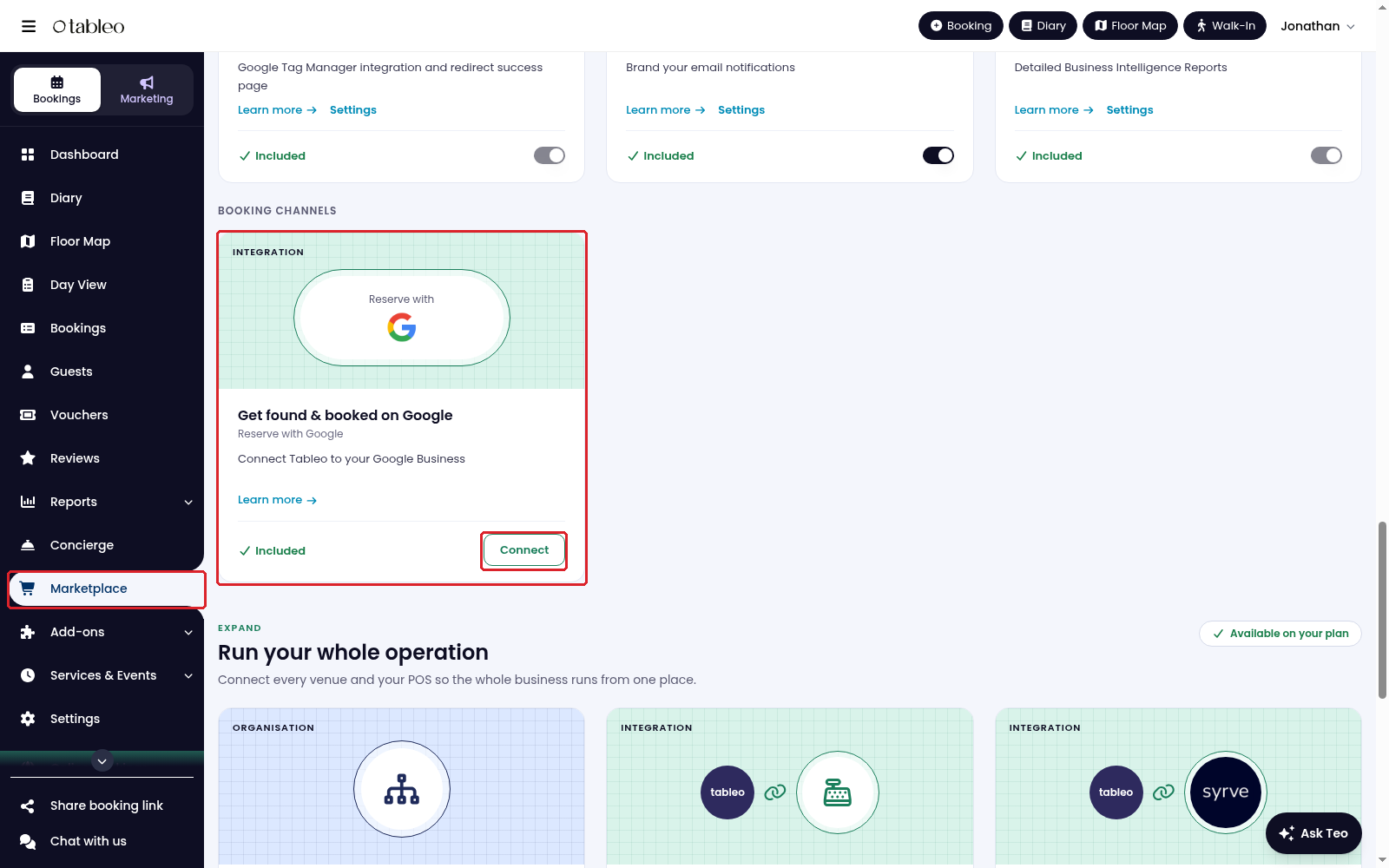
1. Click on Marketplace in the side menu, find Reserve with Google and activate the add-on before continuing with the connection setup.
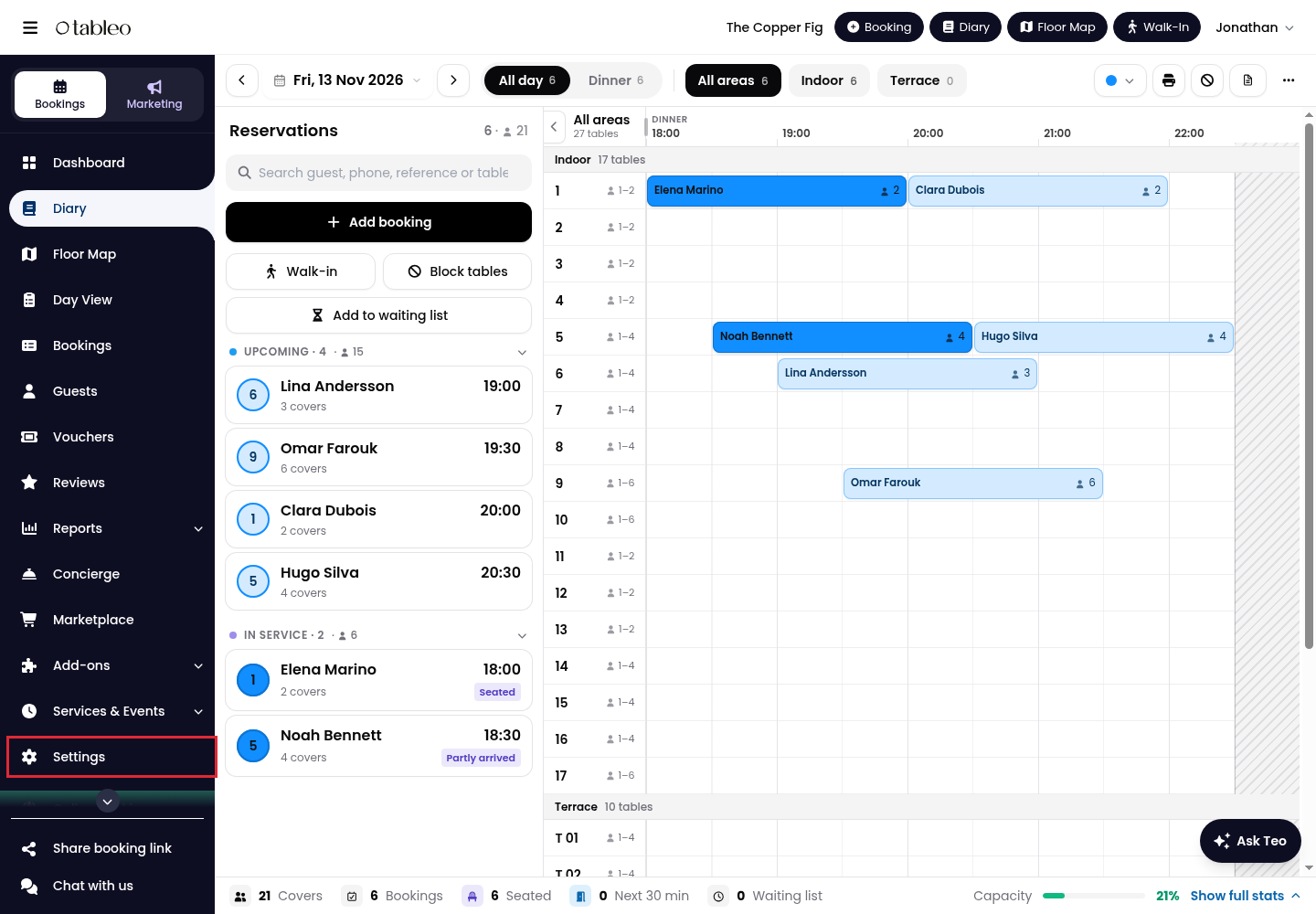
2. Click on Settings in the side menu.
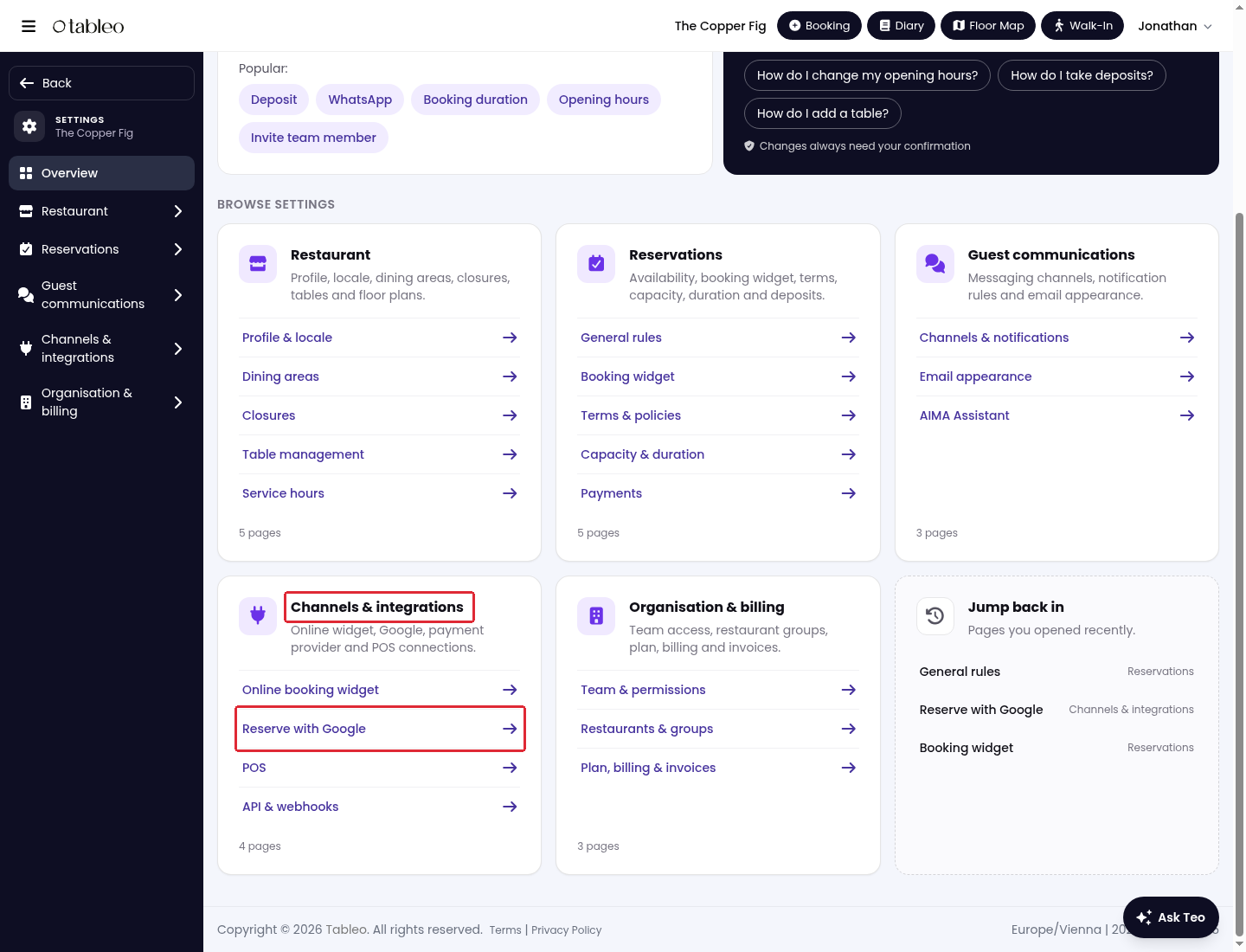
3. In Channels & integrations, click on Reserve with Google.
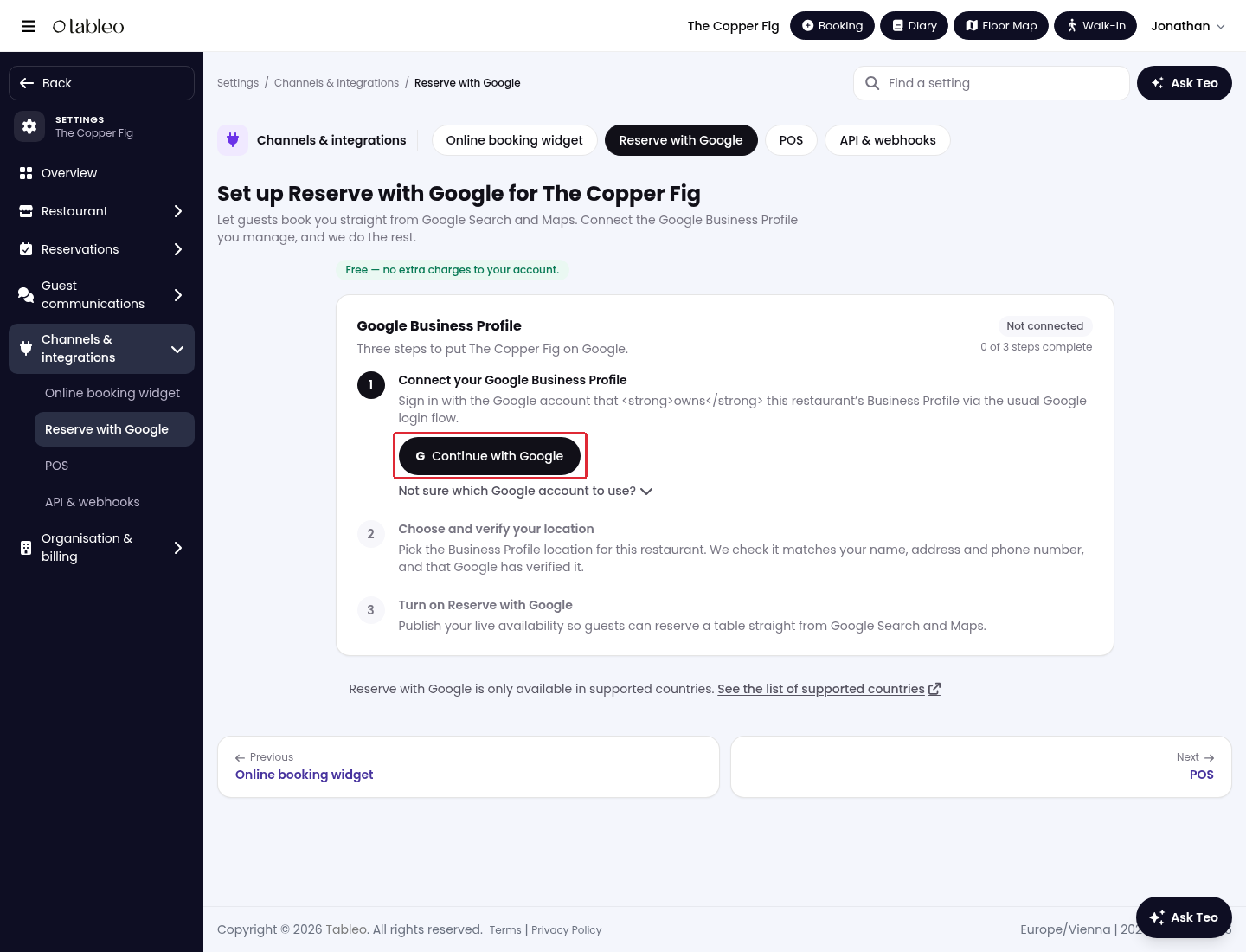
4. Click on Continue with Google and sign in with the Google account that manages the restaurant’s Business Profile. Review Google’s permission prompts before continuing.
5. Under Choose and verify your location, click on Choose the location that matches this restaurant. Select the correct restaurant from the dropdown, then click on Verify and continue.
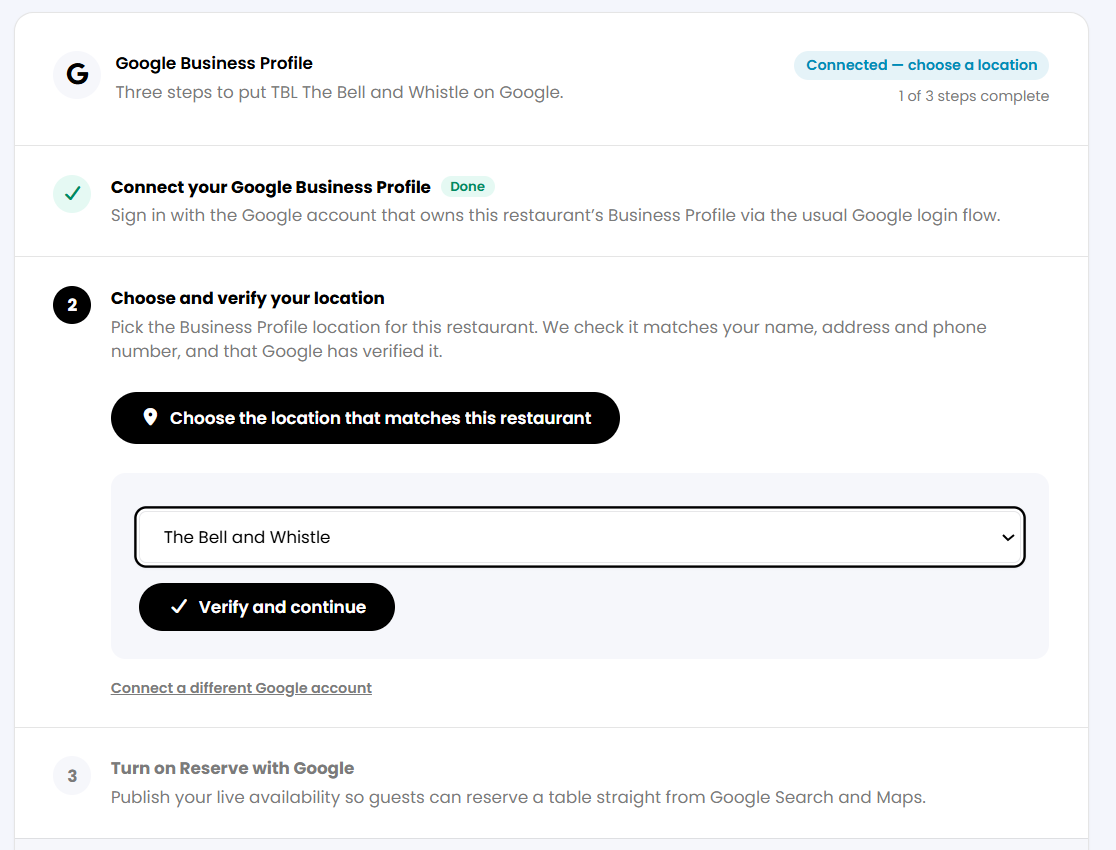
6. After the location is verified, follow Turn on Reserve with Google and select Activate Reserve with Google when you are ready to make the restaurant’s availability bookable on Google.
7. Check for Live on Google and 3 of 3 steps complete. Confirm the connected restaurant and its Verified status.
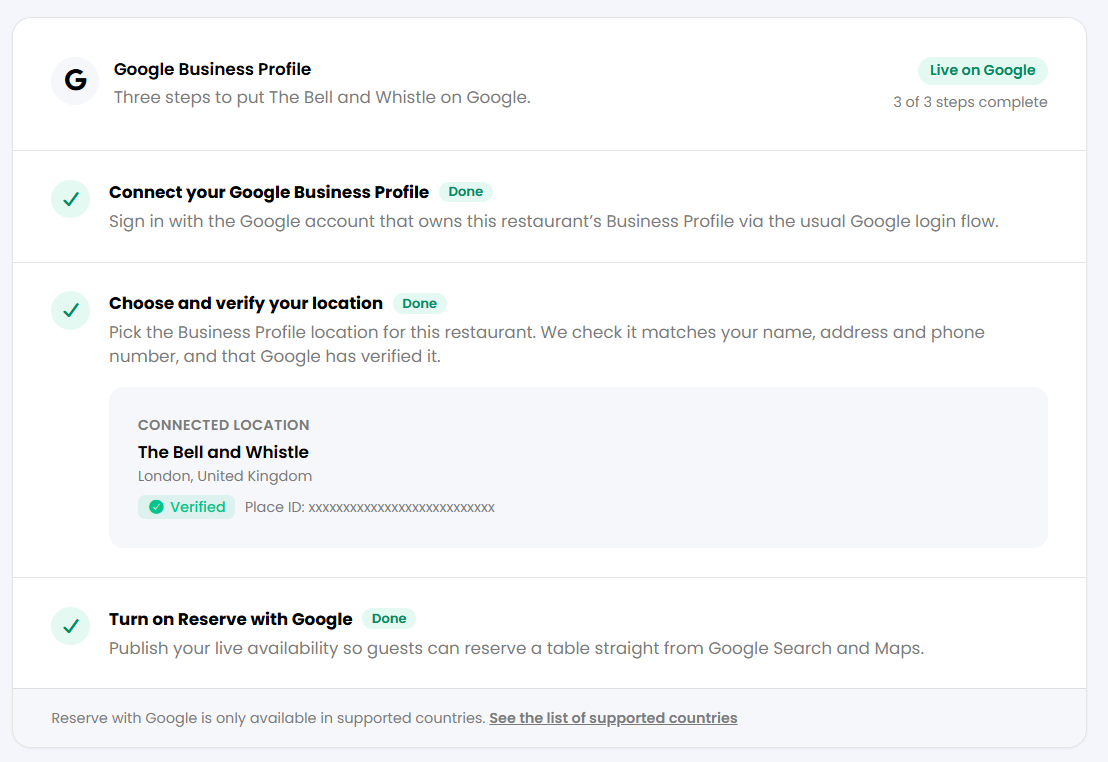
When connecting for the first time, it may take a couple of hours for Reserve a table to appear on Google Search or Maps. Check again after this time.
If your restaurant is missing from the location list or verification fails, check that the address and phone number in Tableo match those publicly listed on your Google Business Profile. If the issue persists, contact our Customer Service team.
Availability is limited to supported countries. Use See the list of supported countries at the bottom of the setup page and contact Tableo support if your restaurant’s eligibility is unclear.
While we strive to ensure the accuracy and currency of the information in our knowledge base, some articles may contain minor discrepancies due to the constant evolution of our services and products.
Was this article helpful?
That’s Great!
Thank you for your feedback
Sorry! We couldn't be helpful
Thank you for your feedback
Feedback sent
We appreciate your effort and will try to fix the article