BEFORE YOU START: DO YOU HAVE ACCESS TO YOUR GOOGLE BUSINESS PROFILE?
Reserve with Google links your restaurant's Google Business Profile, the listing guests see on Google Search and Maps, to your Tableo account. To connect it, you'll sign in with a Google account that's an owner or manager on that profile, so make sure you have one before moving on.
If you already manage the profile:
Sign in to the Google account you use for the business, search your restaurant's name on Google or Google Maps, then open Business Profile settings (or the three-dot menu on your management panel) and select People and access. That list shows every current owner and manager — confirm your account is on it.
If you're not sure who manages it:
Go to Google Business Profile (google.com/business) and search your restaurant's name and address. If you see a message that someone else may manage the profile, select Request access and fill out the short form. Google will show you a masked hint of the current owner's email (like g***@gmail.com) and notify them directly. They have three days to respond — if they don't, Google may offer you the option to verify and claim the profile yourself.
If the masked email doesn't look familiar — a past marketing agency or a manager who's since left, for example — you'll need to sort out access with them (or with Google support) before this listing can connect to Tableo.
STEP 1: OPEN THE RESERVE WITH GOOGLE SETUP PAGE
In Tableo:
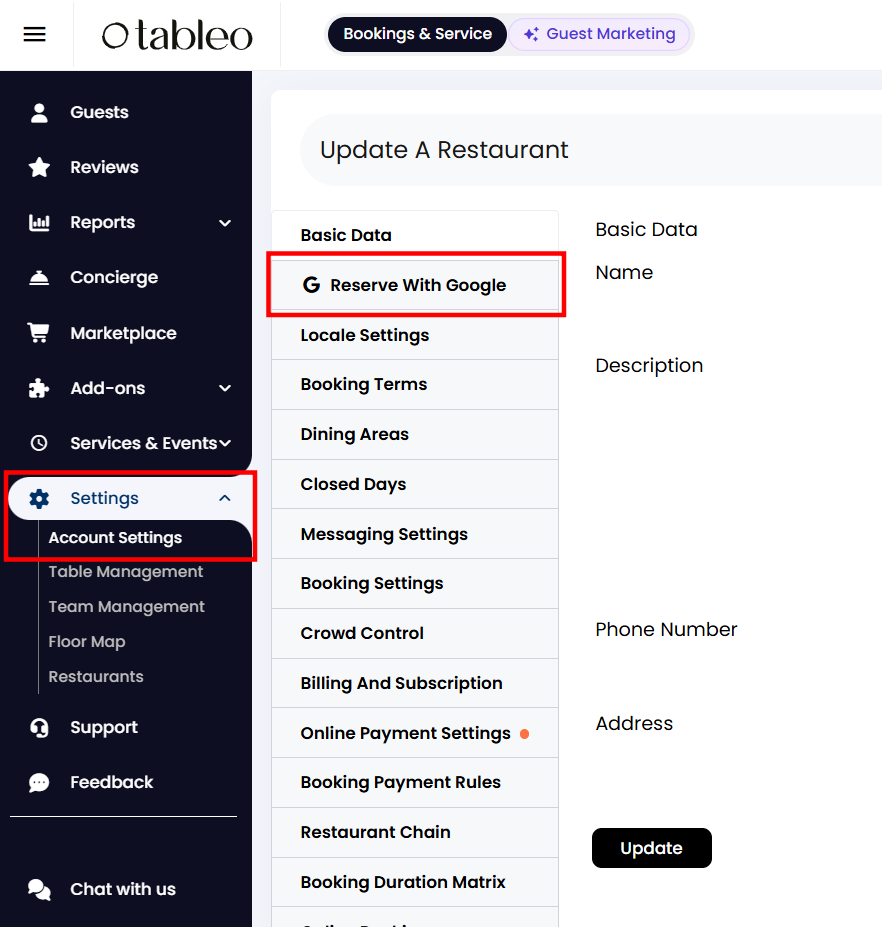
1. Click on Settings in the left-hand menu.
2. Then click on Account Settings.
3. In the sidebar that appears, click the Reserve With Google tab.
STEP 2: CONNECT YOUR GOOGLE ACCOUNT
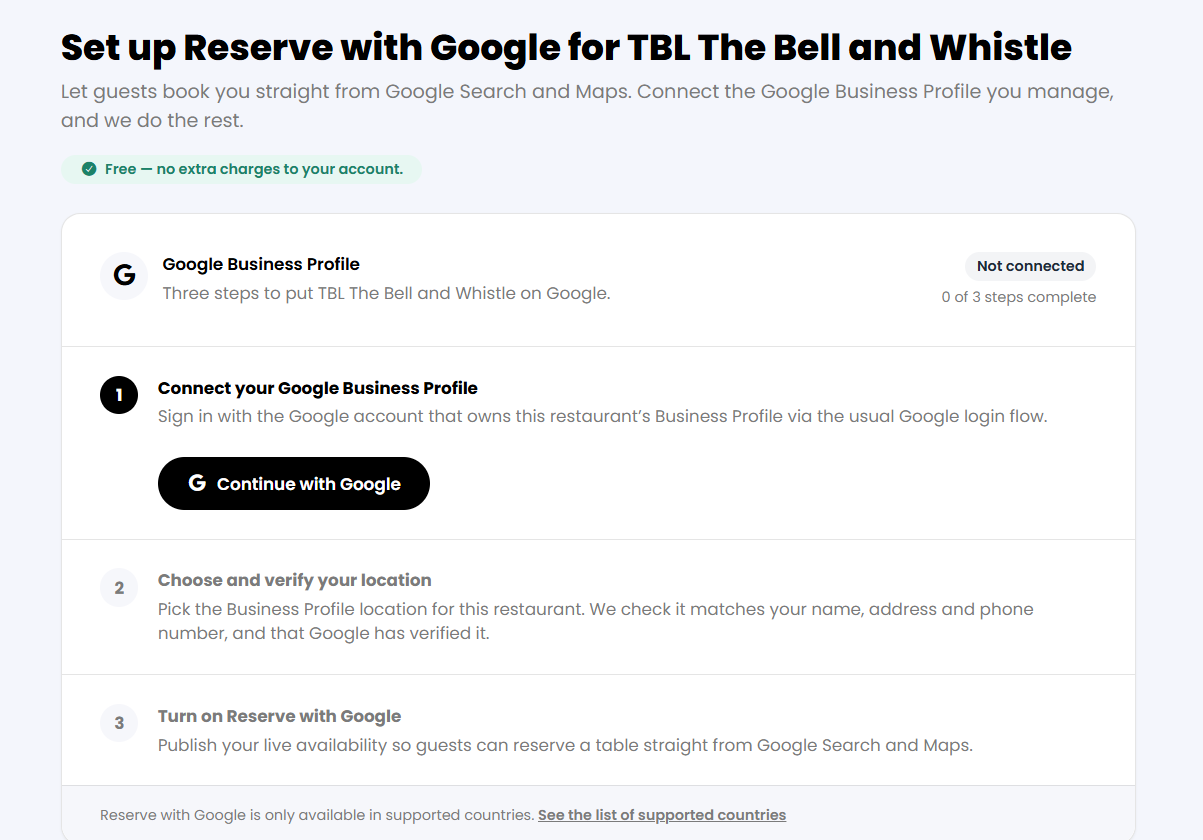
1. Click Continue with Google.
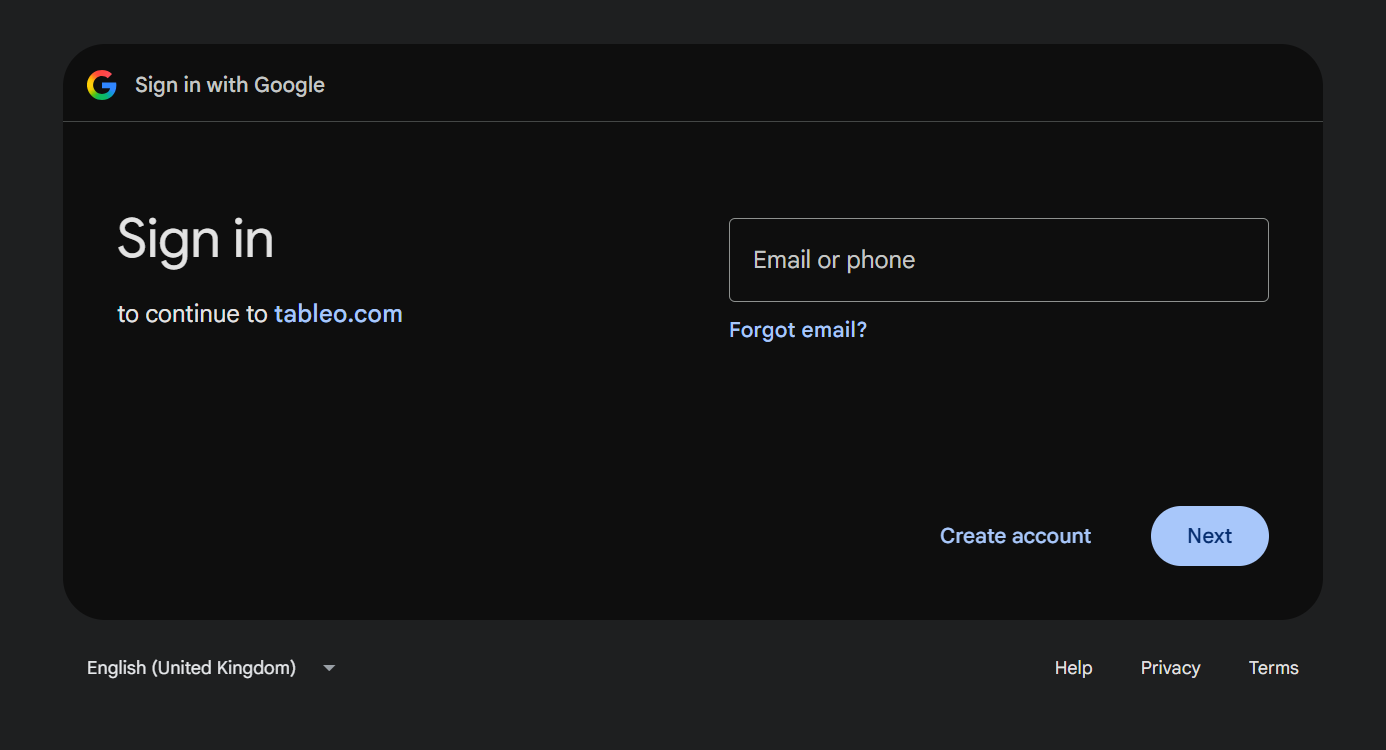
2. Sign in with the Google account that has access to the Google Business Profile
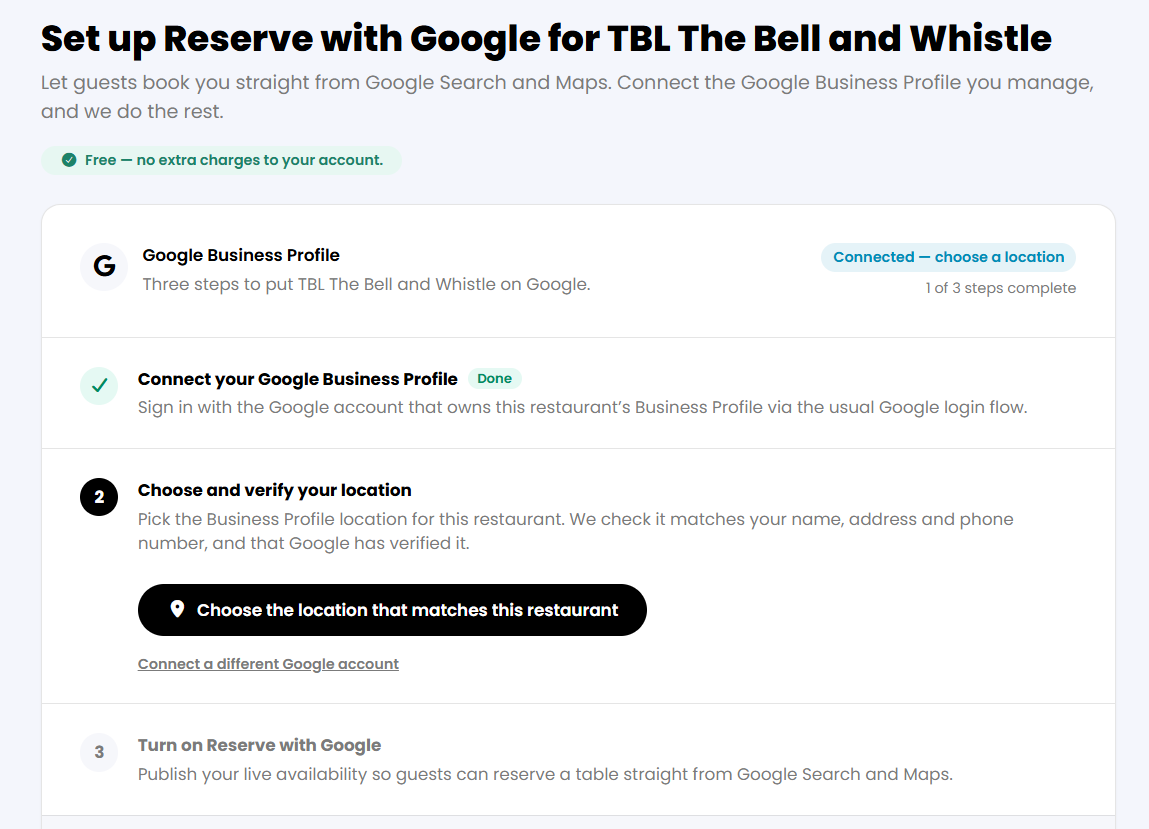
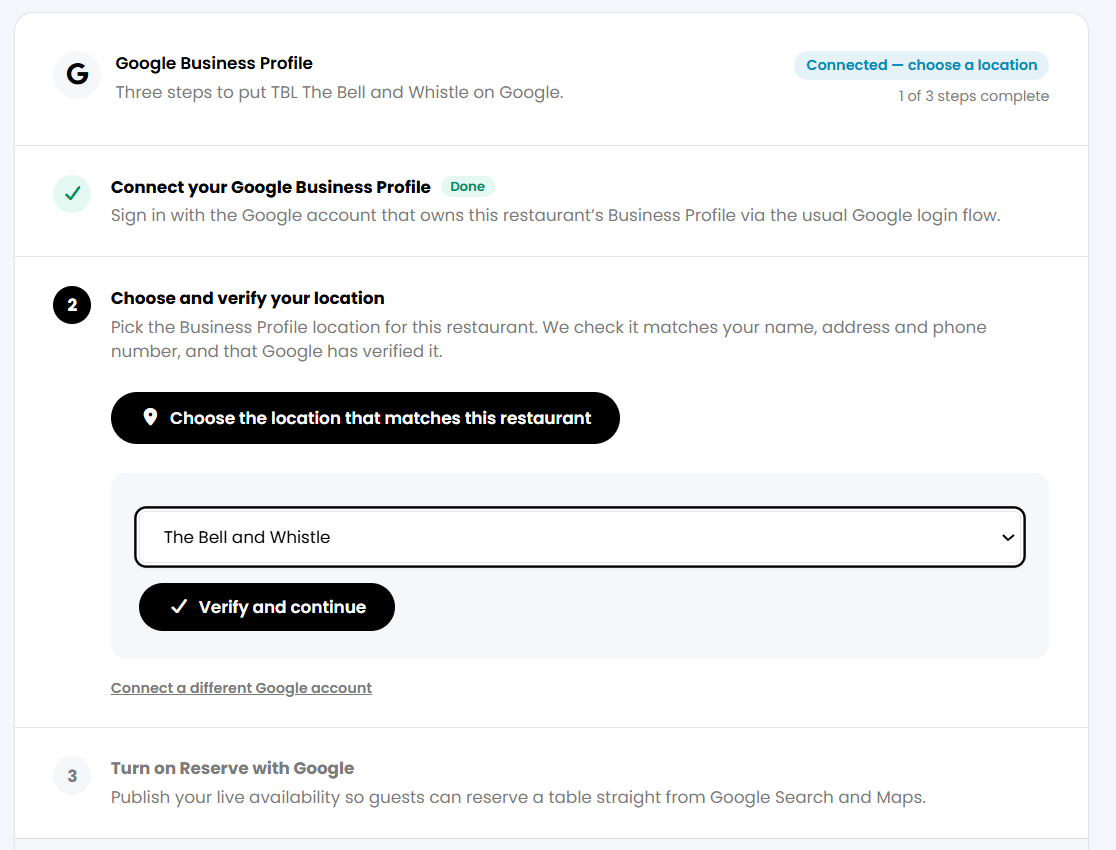
Once you're signed in, the page updates to "Connected, choose a location," and step 1 is marked Done.
STEP 3: CHOOSE AND VERIFY YOUR LOCATION
1. Click "Choose the location that matches this restaurant," then select your restaurant from the dropdown.
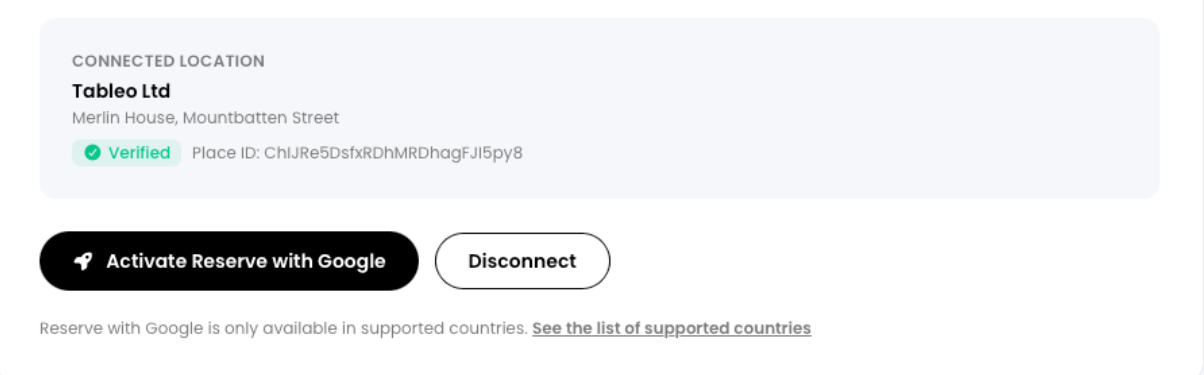
2. Once verified, click on Activate Reserve with Google.
CONFIRM IT WORKED
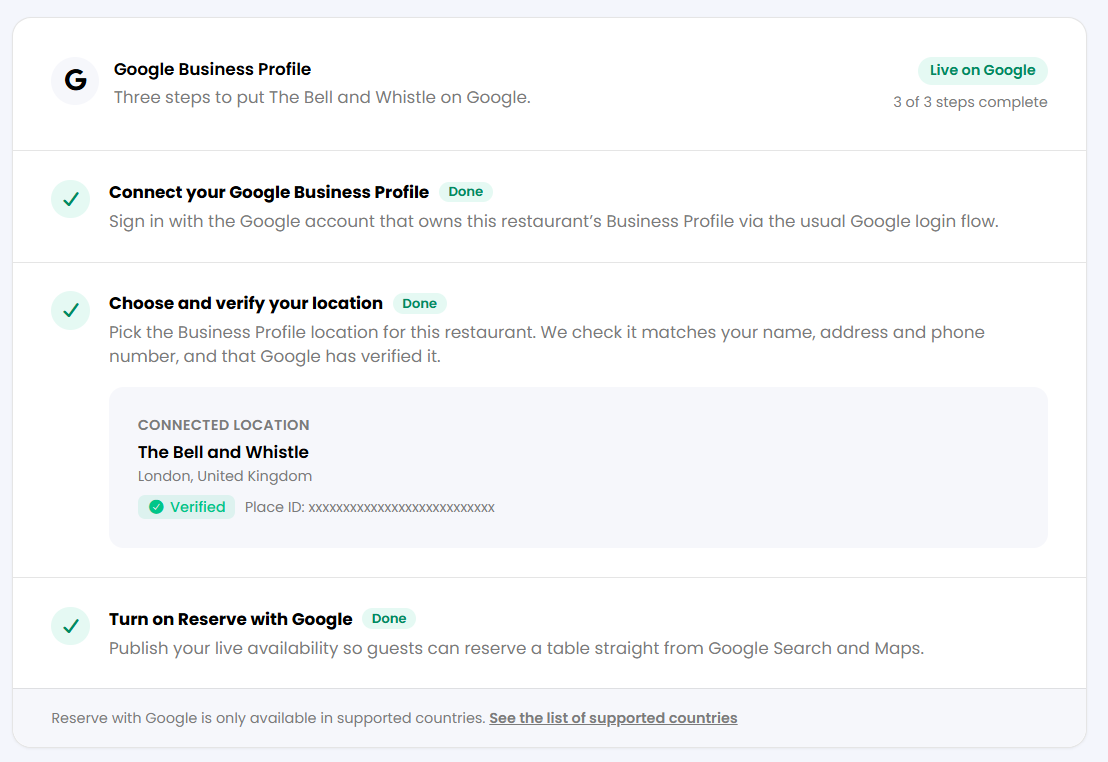
The Reserve With Google tab shows "Live on Google" with 3 of 3 steps complete. Your connected location is listed with a Verified badge and a Place ID.
Search your restaurant's name on Google. A "Reserve a table" button should appear on Search and Maps.
Give it a moment: it can take Google a little while to show the Reserve a table button after you connect, so don't worry if it isn't there instantly.
IF SOMETHING LOOKS OFF
If your restaurant doesn't show up in the location dropdown, you've signed in with a Google account that isn't an owner or manager on the listing. Go back to the "Before you start" section above and request access, or sign in with the correct account instead.
Reserve with Google isn't available for my restaurant:
The feature is limited to supported countries; check the list linked from the bottom of the setup page. If your country is missing, reach out to Tableo support to confirm.
Was this article helpful?
That’s Great!
Thank you for your feedback
Sorry! We couldn't be helpful
Thank you for your feedback
Feedback sent
We appreciate your effort and will try to fix the article