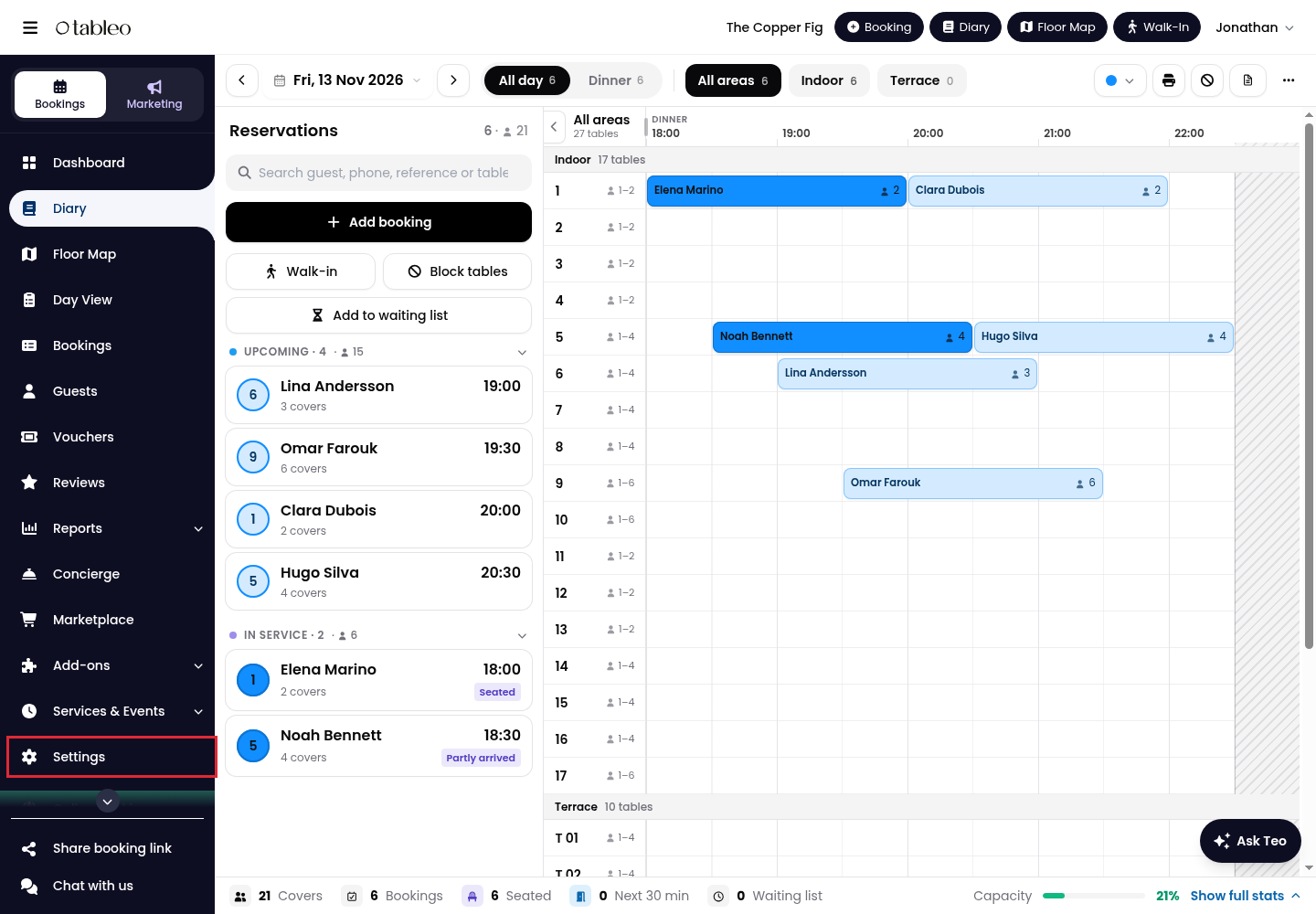
1. Click on Settings in the side menu.
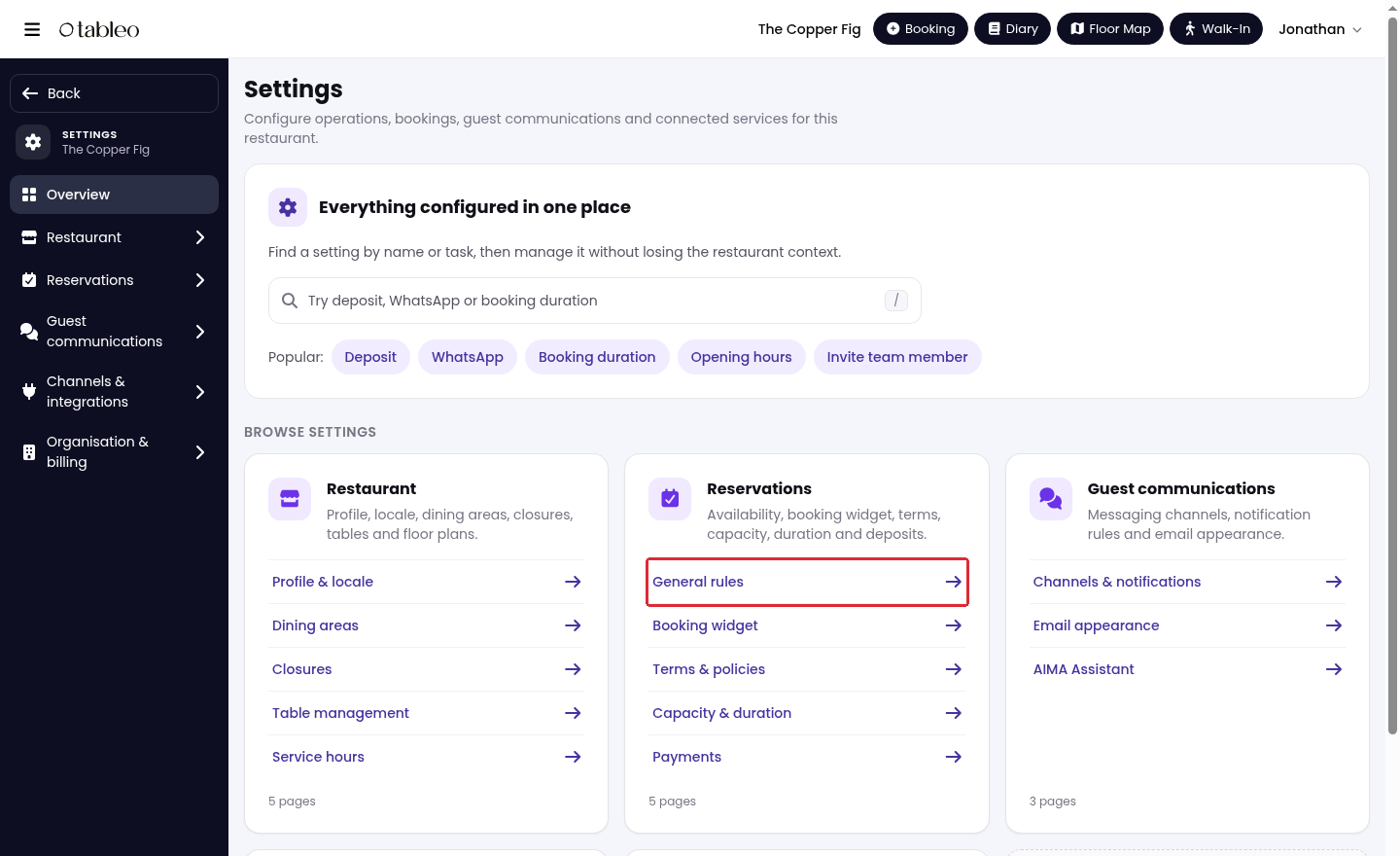
2. Open Reservations → General rules.
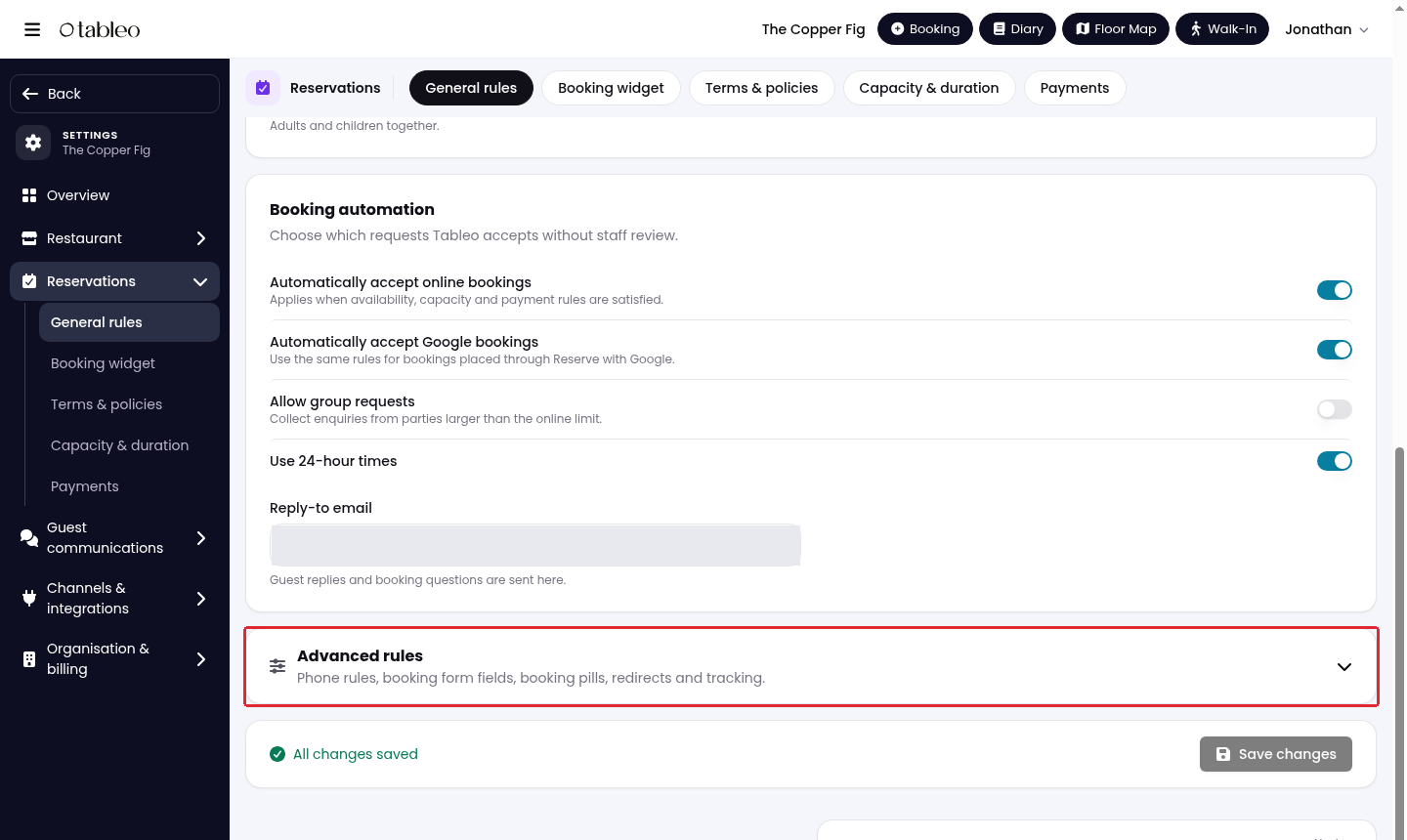
3. Scroll down and expand Advanced rules.
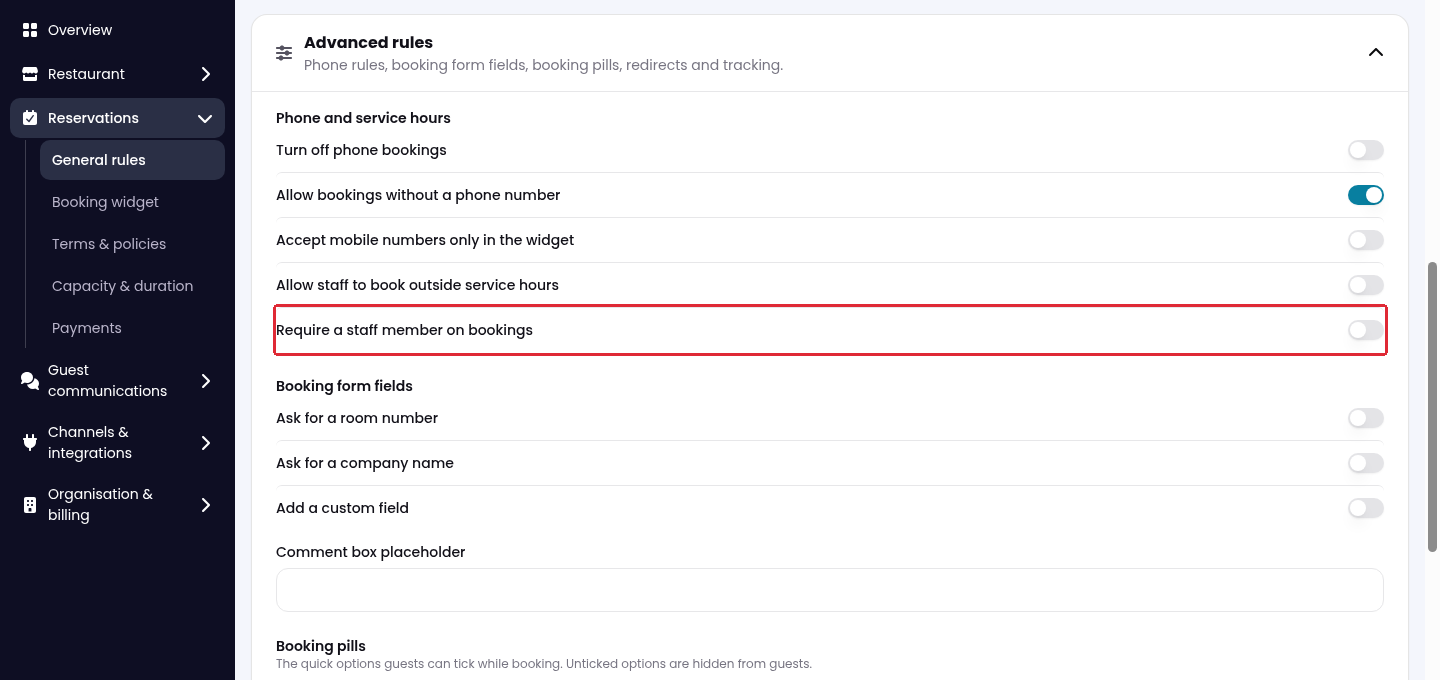
4. Turn on Require a staff member on bookings.
5. Scroll to the bottom and click Save changes.
Staff will need to select their name when creating or editing a booking.
Add staff names to a shared login
If several people share a login, add their names to that team member. Staff names identify who made a booking; they do not create separate login accounts.
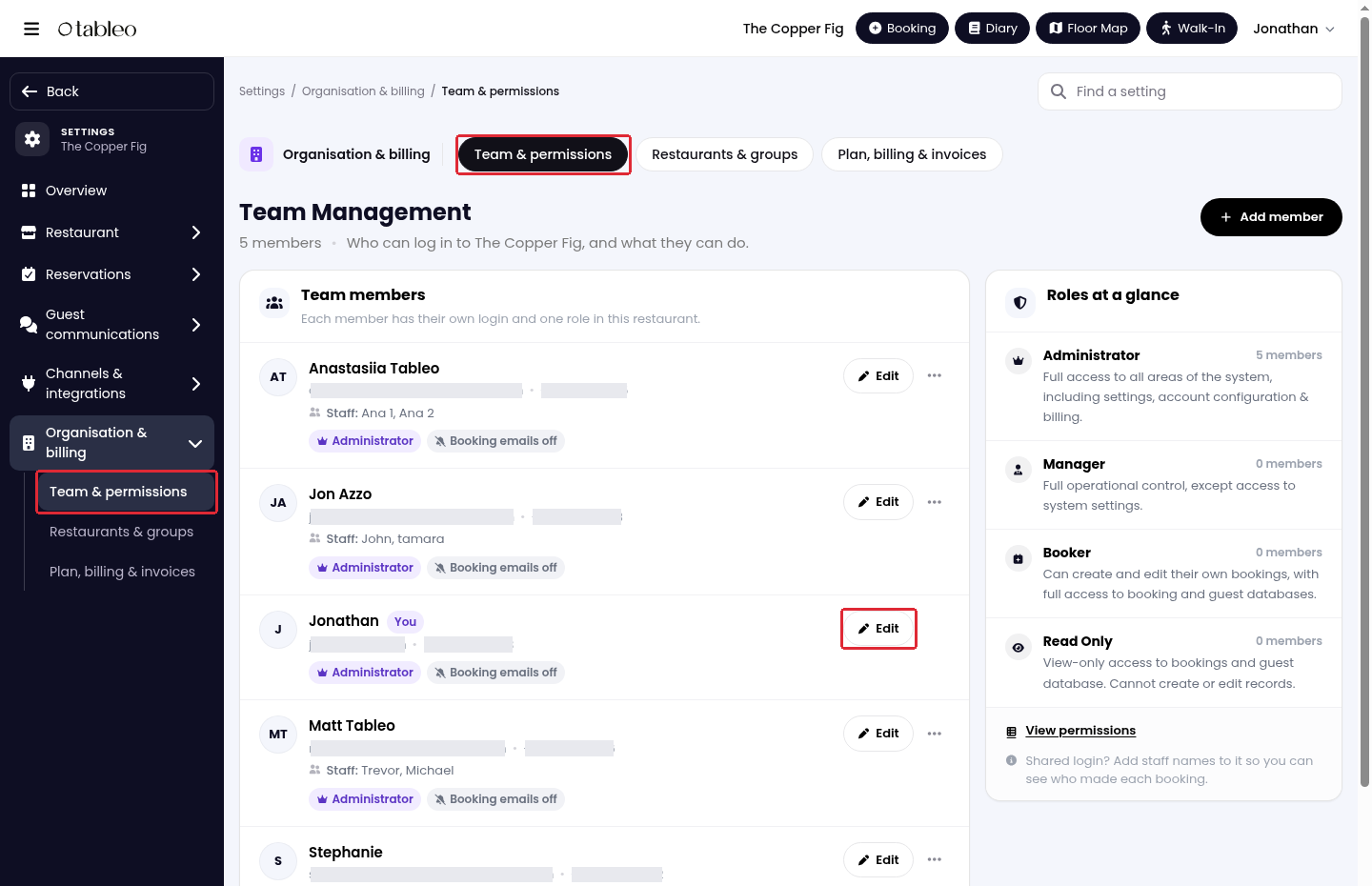
1. In Settings, open Organisation & billing → Team & permissions.
2. Click Edit beside the team member whose login is shared.
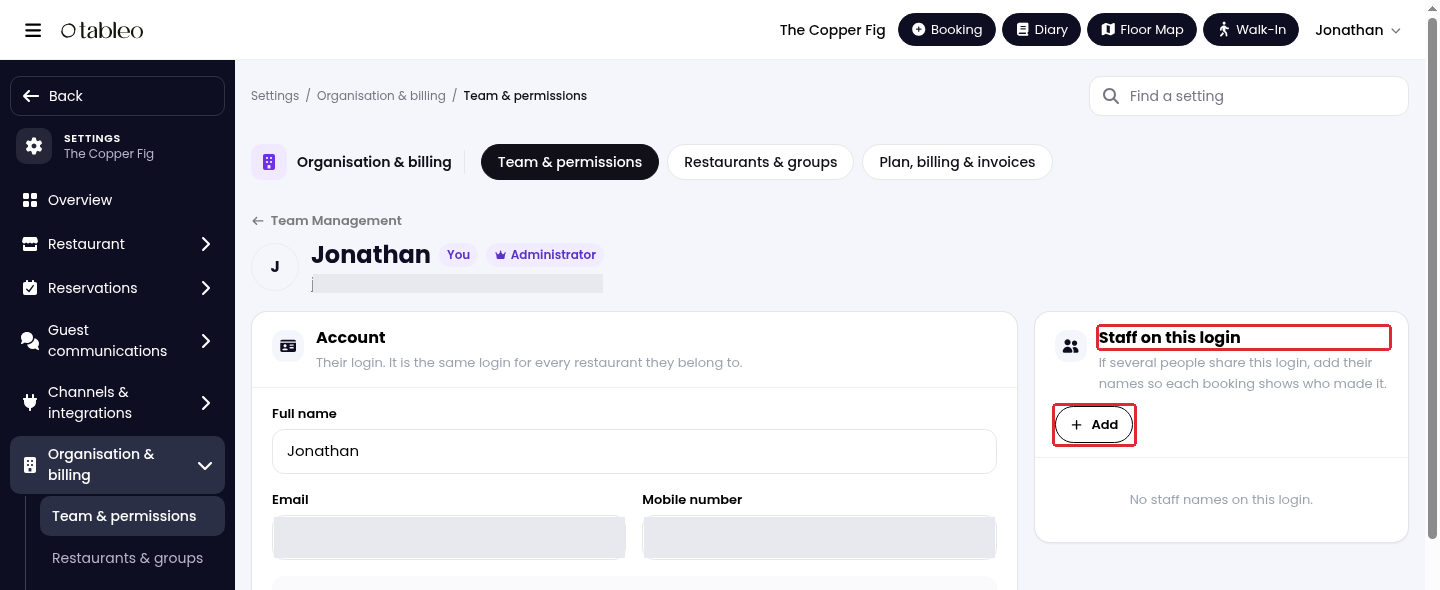
3. Under Staff on this login, click Add.
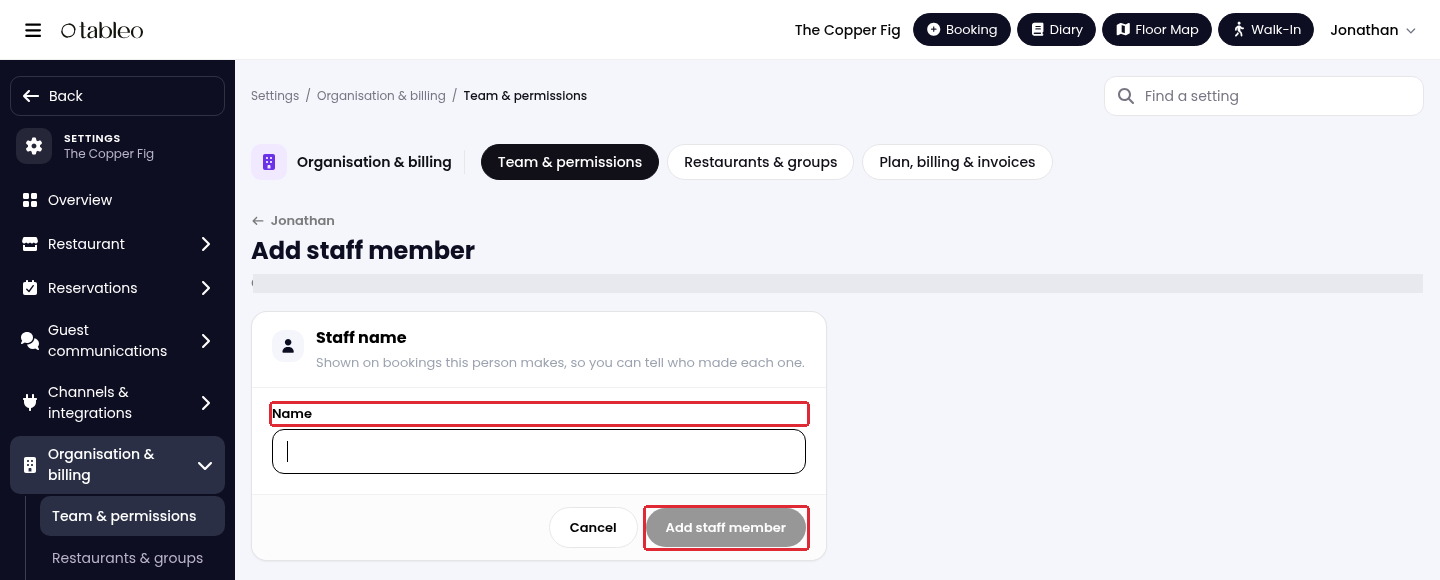
4. Enter the staff member’s name in Name, then click Add staff member.
For separate team logins and plan requirements, see How to add, edit or remove a manager.
While we strive to ensure the accuracy and currency of the information in our knowledge base, some articles may contain minor discrepancies due to the constant evolution of our services and products.
Was this article helpful?
That’s Great!
Thank you for your feedback
Sorry! We couldn't be helpful
Thank you for your feedback
Feedback sent
We appreciate your effort and will try to fix the article