1. Click Diary in the top menu, select the booking date, then click Add booking.
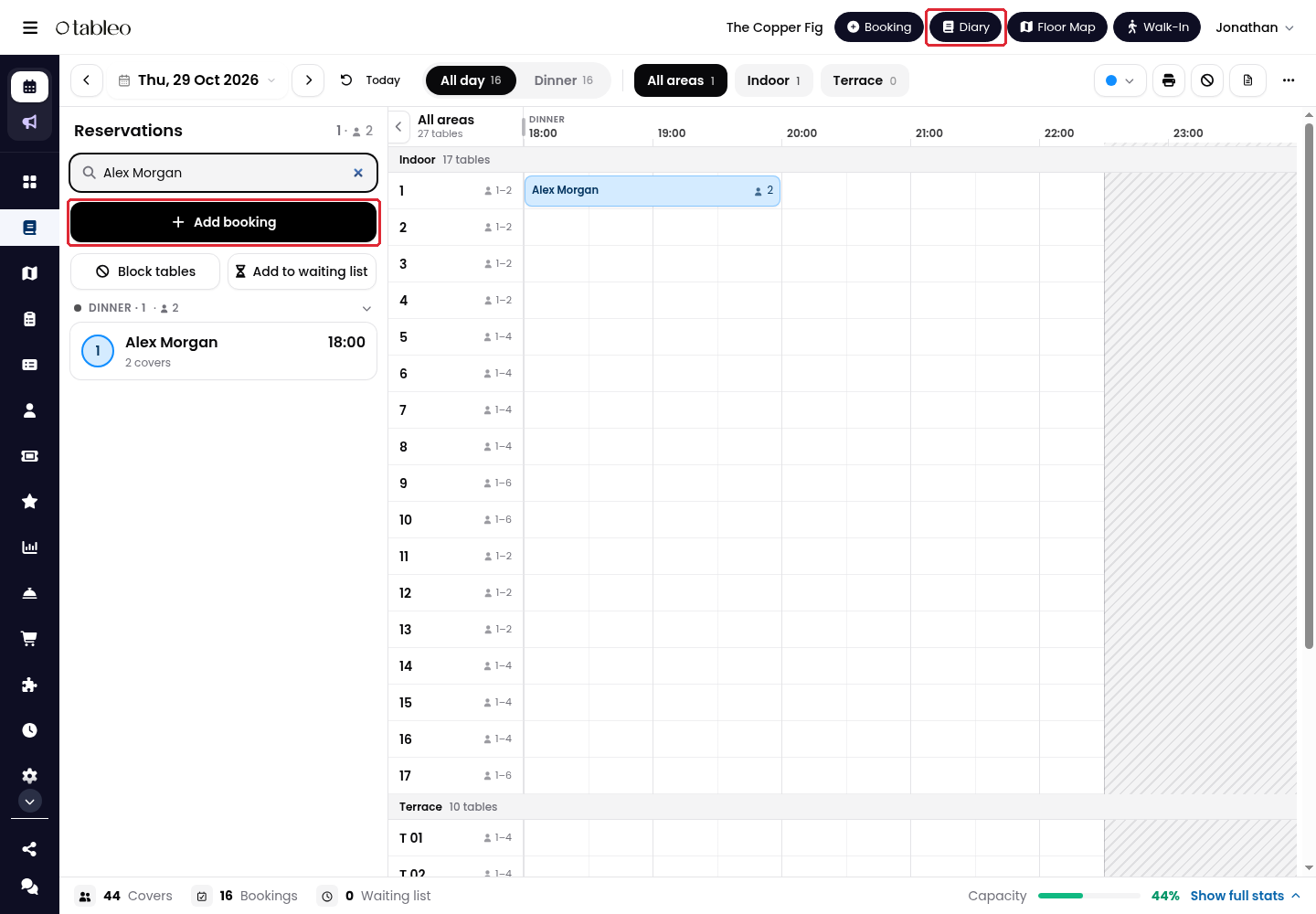
You can also click an available slot in the Diary to preselect a table and arrival time.
2. Choose the arrival time and Duration, then set the number of Adults. Click Add children if needed.

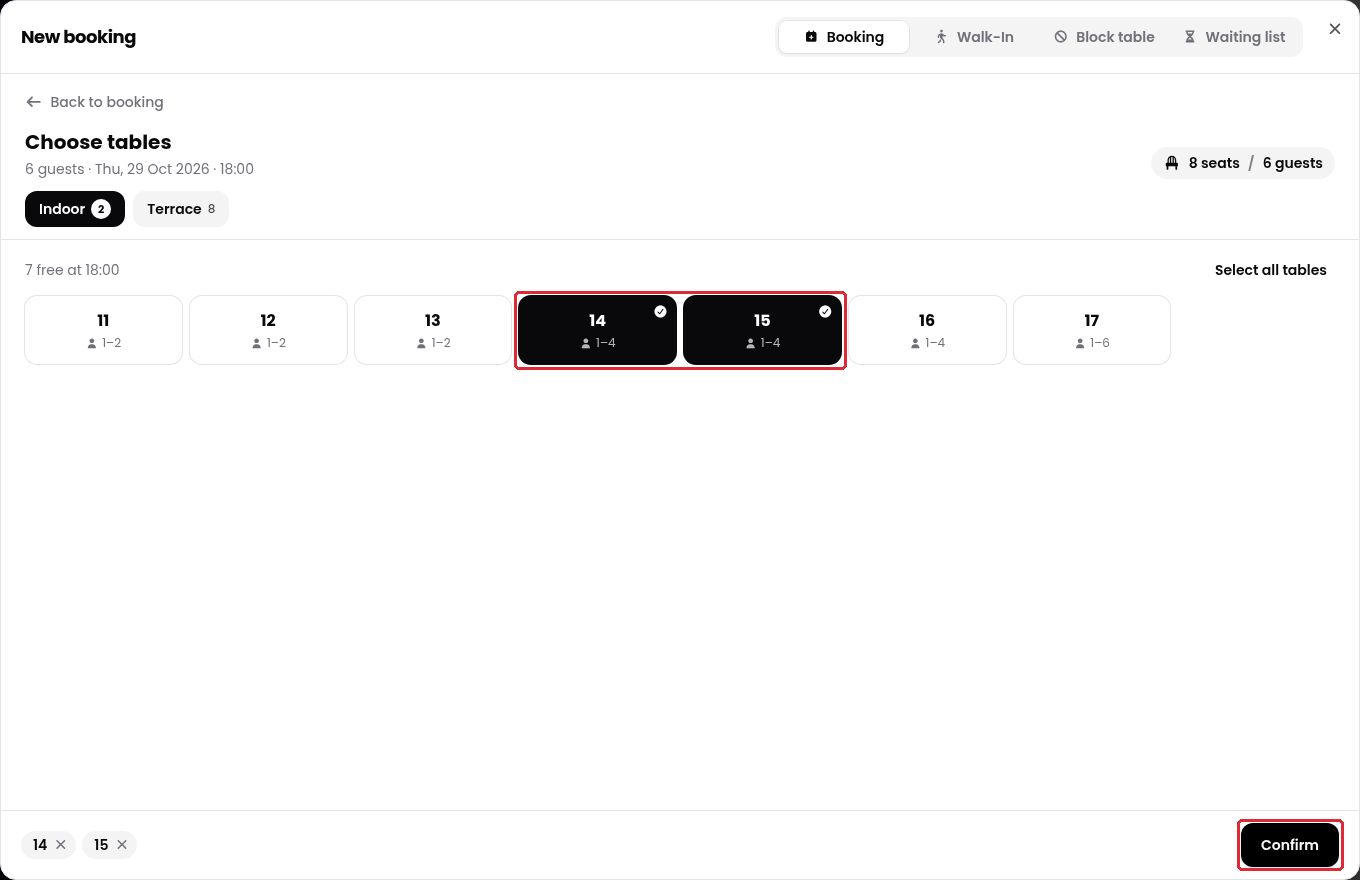
3. Check the selected Tables. To change them, click Change, choose the dining area and available table or tables, then click Confirm.
For a larger party, select enough tables to accommodate all guests.
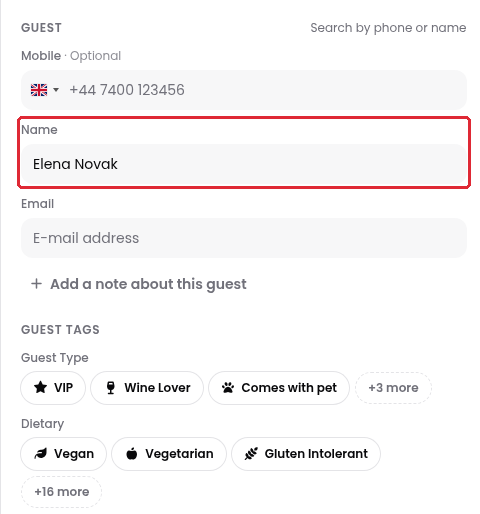
4. Enter the guest’s Name and contact details. Complete any required fields; Mobile can be left blank when marked Optional.
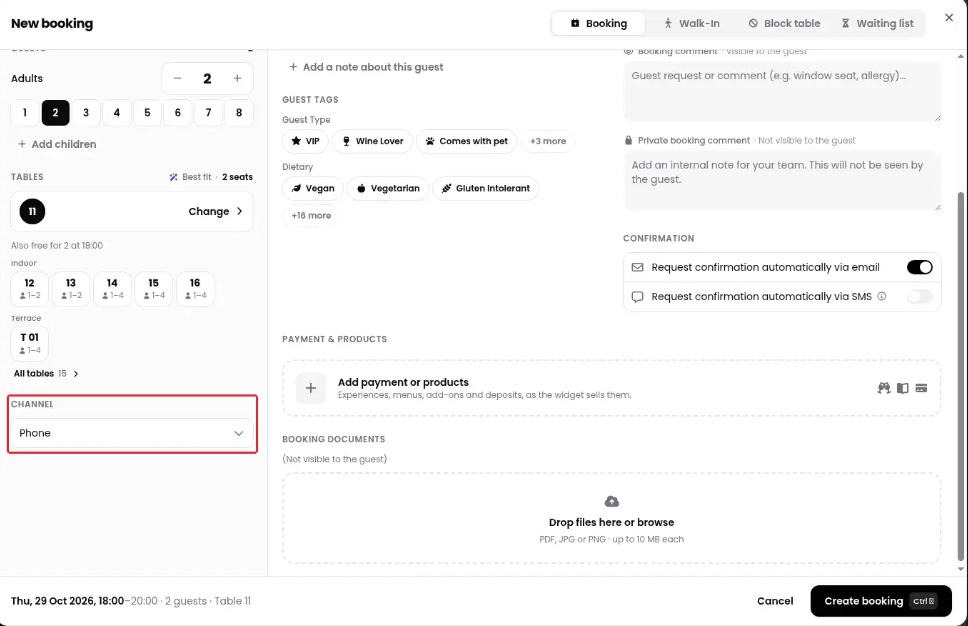
5. Scroll down in the booking form to find Channel below Tables, then select how the booking was received. Add guest tags, an occasion, or seating requirements if needed.
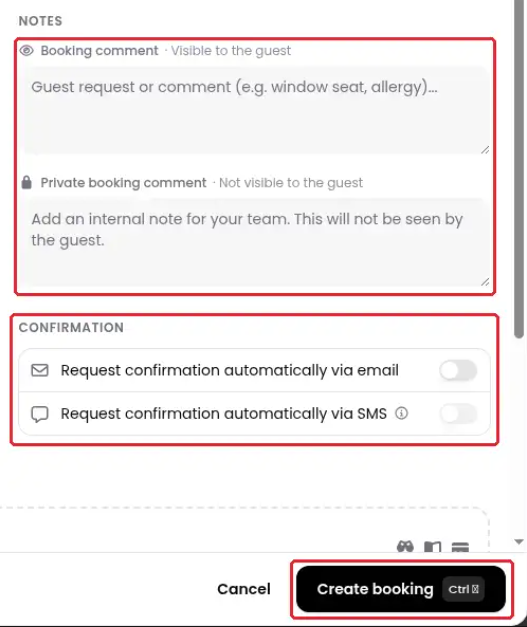
6. Add a Booking comment for information visible to the guest, or a Private booking comment for staff only. Under Confirmation, choose whether to request confirmation automatically by email or SMS, using the guest’s relevant contact details.
7. Check the booking details, then click Create booking.
Add a walk-in
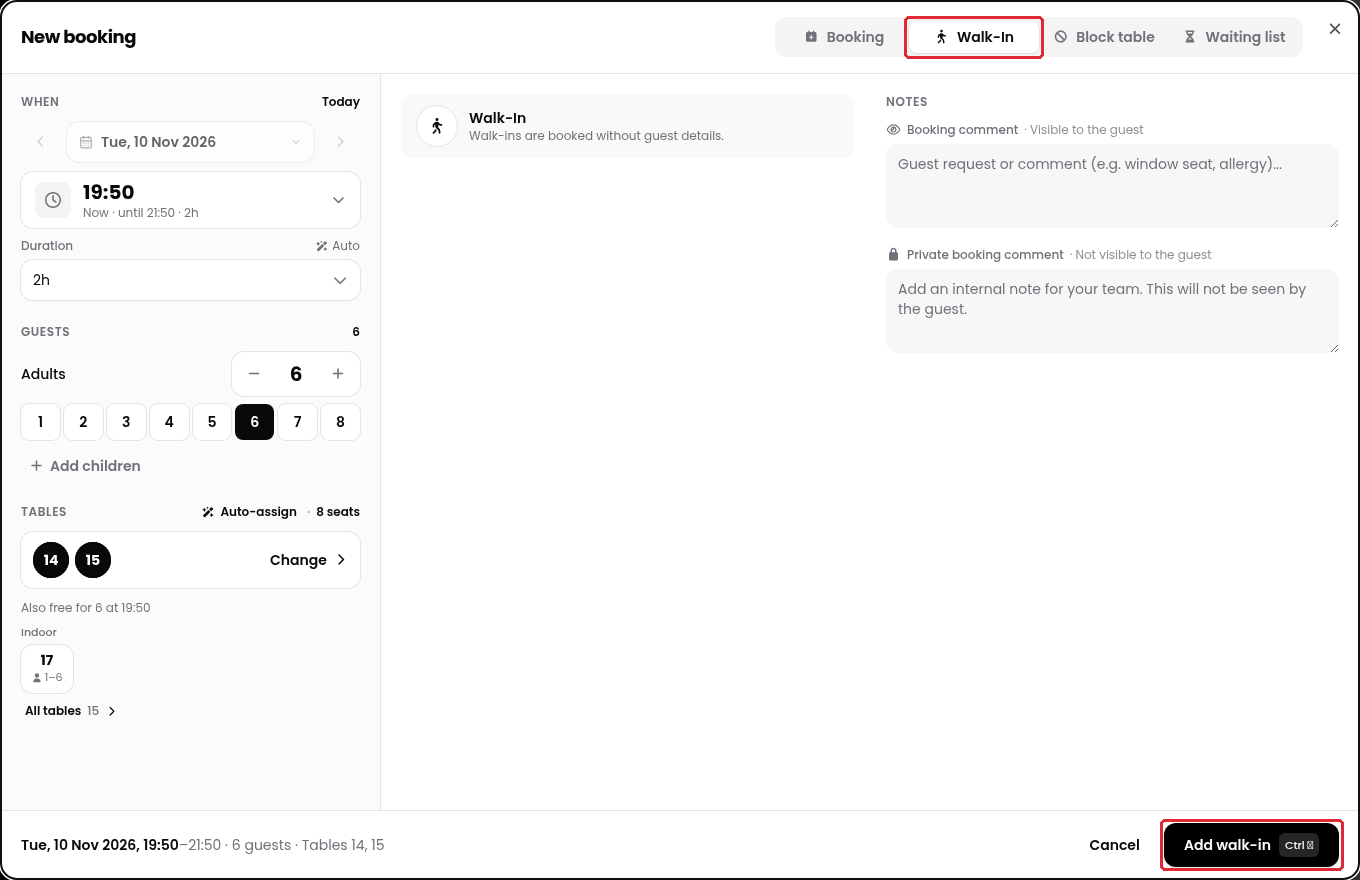
1. In the New booking window, select Walk-In.
2. Check the arrival time, Duration, number of Adults and selected Tables. Walk-ins do not require guest details.
3. Click Add walk-in.
Add a booking to the waiting list
Use the waiting list when you cannot yet accommodate a guest. The booking stays on the waiting list until you can offer a table.
1. In the New booking window, select Waiting list.
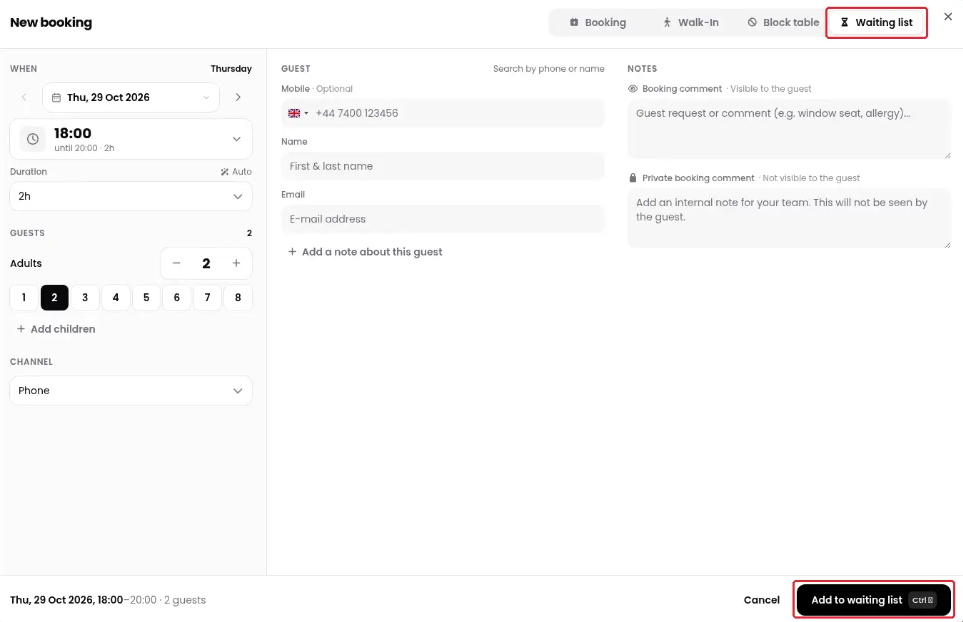
2. Check the date, arrival time, Duration and number of Adults, then enter the guest’s details.
3. Click Add to waiting list.
When a table becomes available, contact the guest to confirm before seating the booking.
For more information, see How to add a customer to the Waiting List.
Was this article helpful?
That’s Great!
Thank you for your feedback
Sorry! We couldn't be helpful
Thank you for your feedback
Feedback sent
We appreciate your effort and will try to fix the article