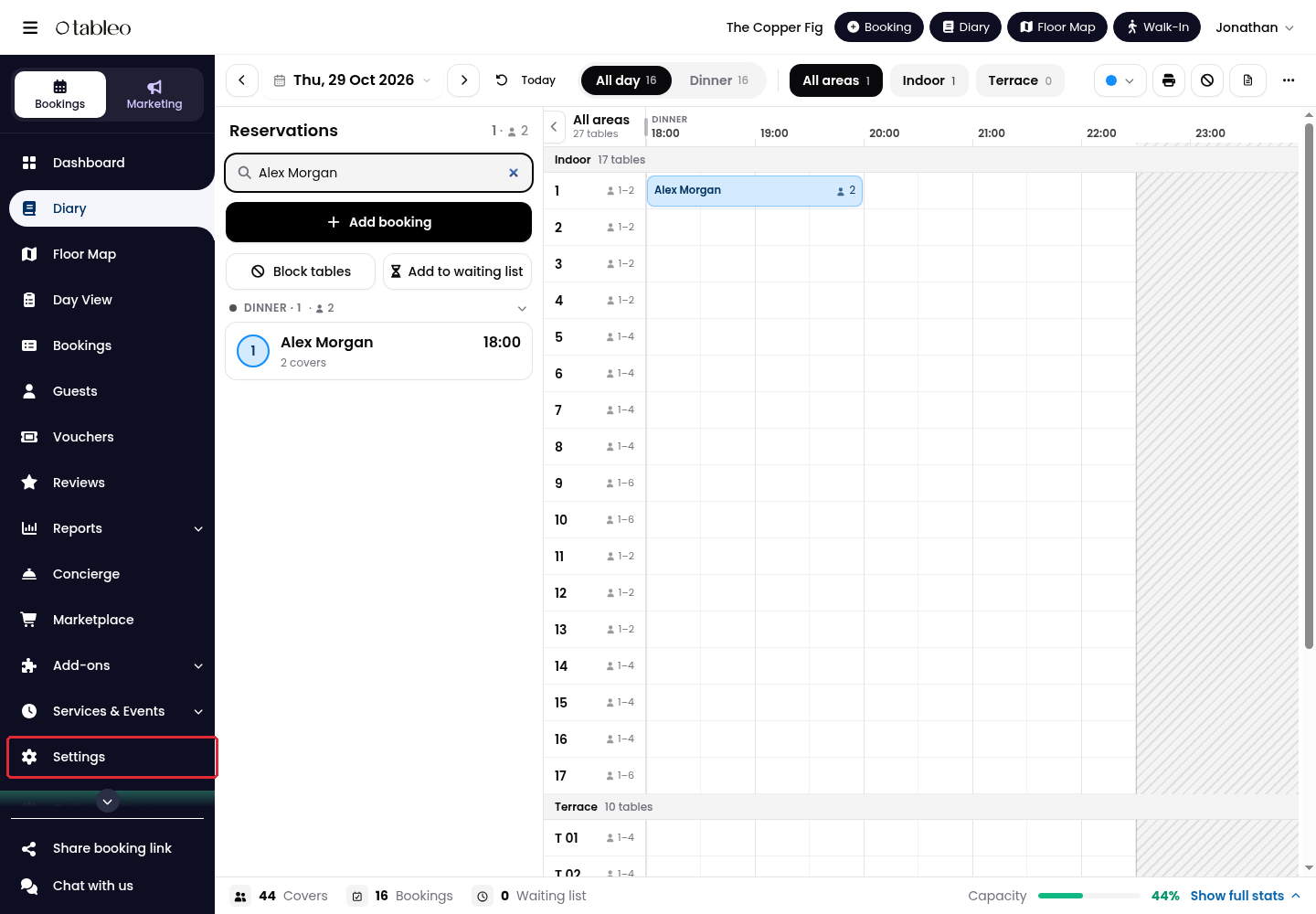
1. Click on Settings in the side menu.
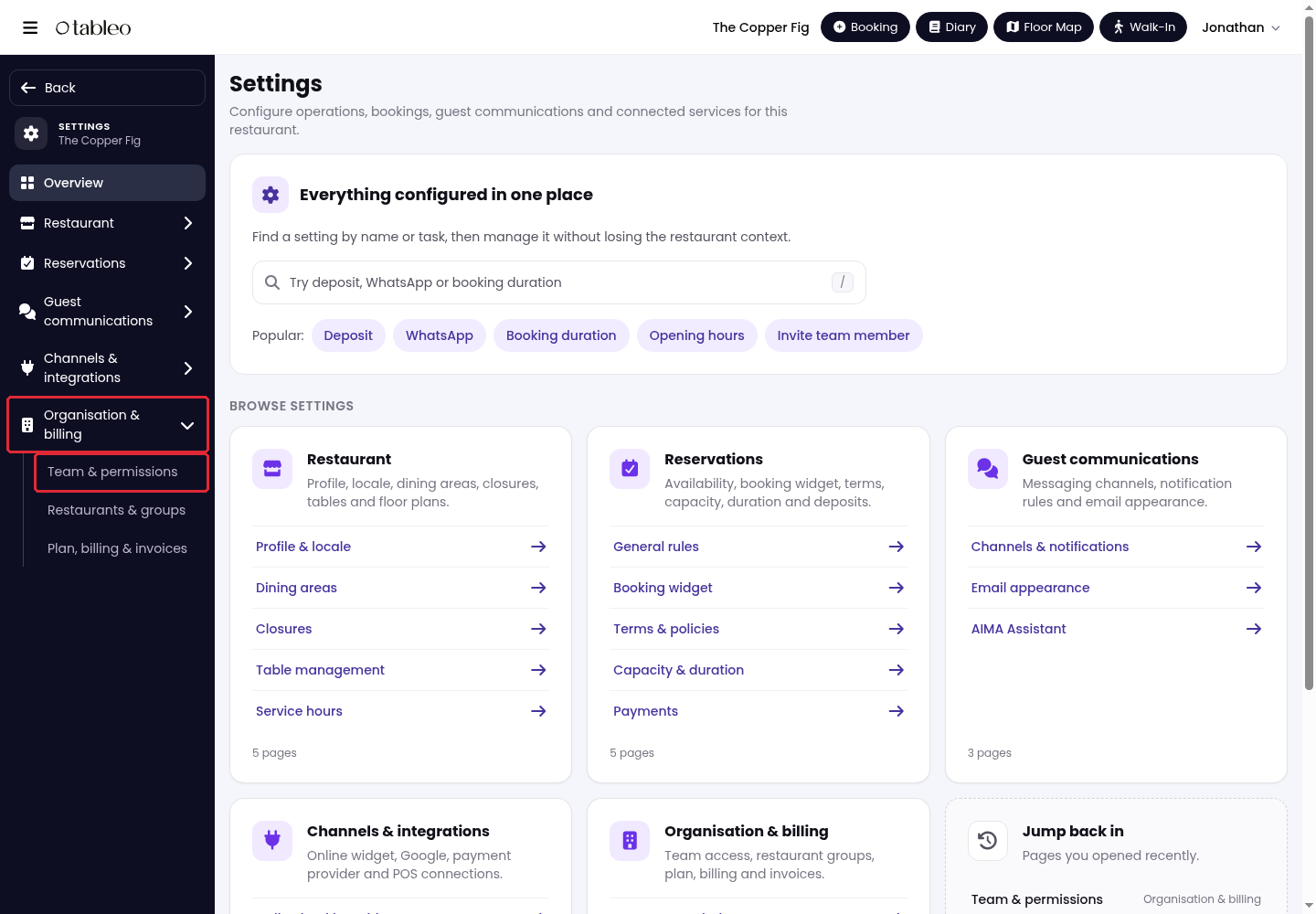
2. Open Organisation & billing → Team & permissions.
Add a team member
1. Click Add member.

2. Enter their Full name, Email and Mobile number, then choose a role under Role and access.
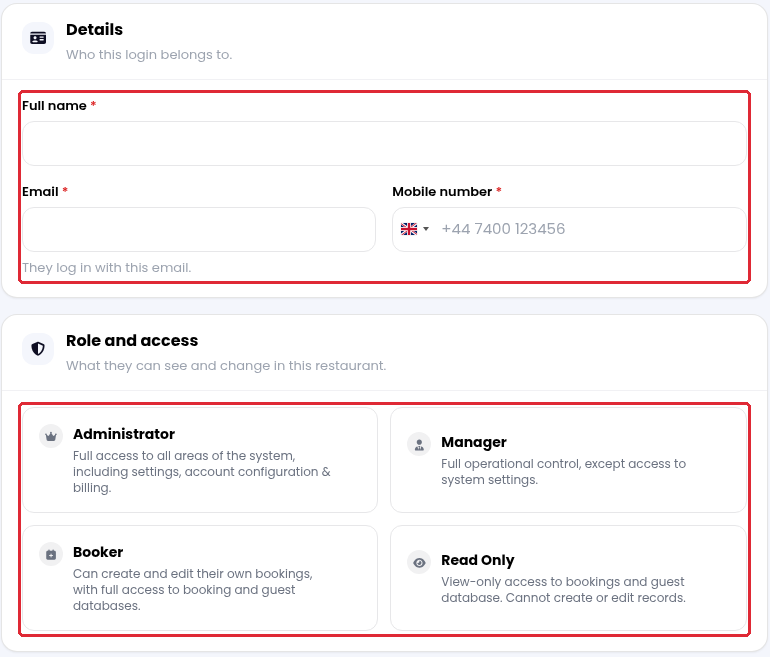
- Administrator: Full access, including settings, account configuration, and billing.
- Manager: Operational access, without access to system settings.
- Booker: Can create and edit their own bookings, with access to the booking and guest databases.
- Read Only: Can view bookings and the guest database, but cannot create or edit records.
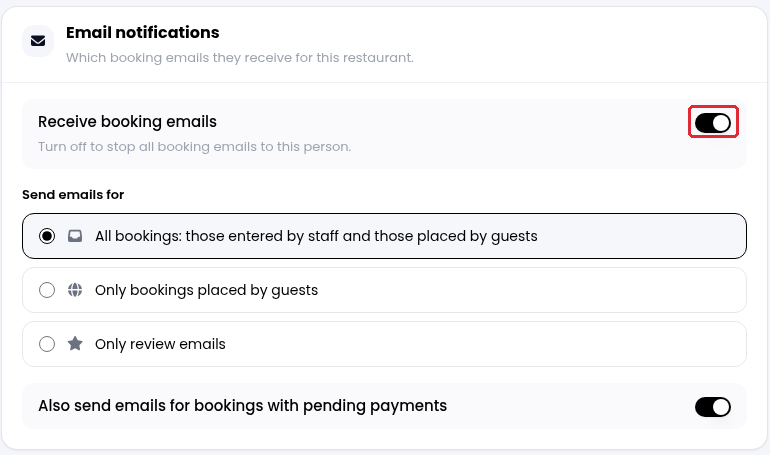
3. Under Email notifications, choose whether to Receive booking emails and which emails to receive. You can also include bookings with pending payments.
4. Set a Password and enter it again in Confirm password, then click Add member.
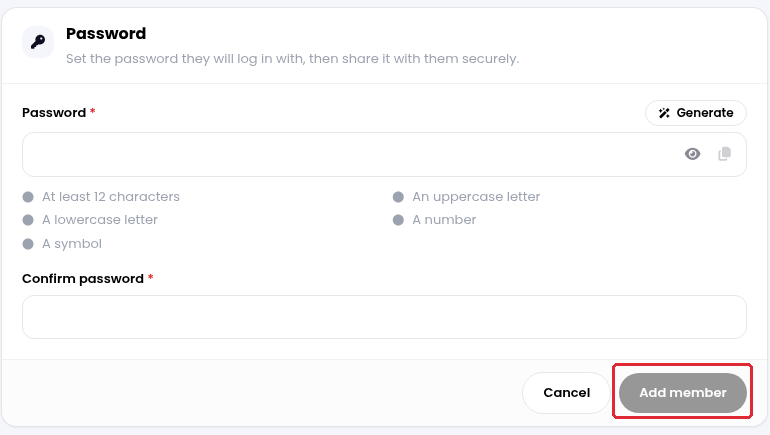
The new member receives an email, but it does not include the password. Share it securely, or they can choose their own using the email link.
If the email already belongs to a Tableo account, that account is added to this restaurant and keeps its current name and password.
The free plan allows one administrator account only. Additional manager accounts require a paid plan.
Edit a team member
1. In Team & permissions, click Edit next to the member.
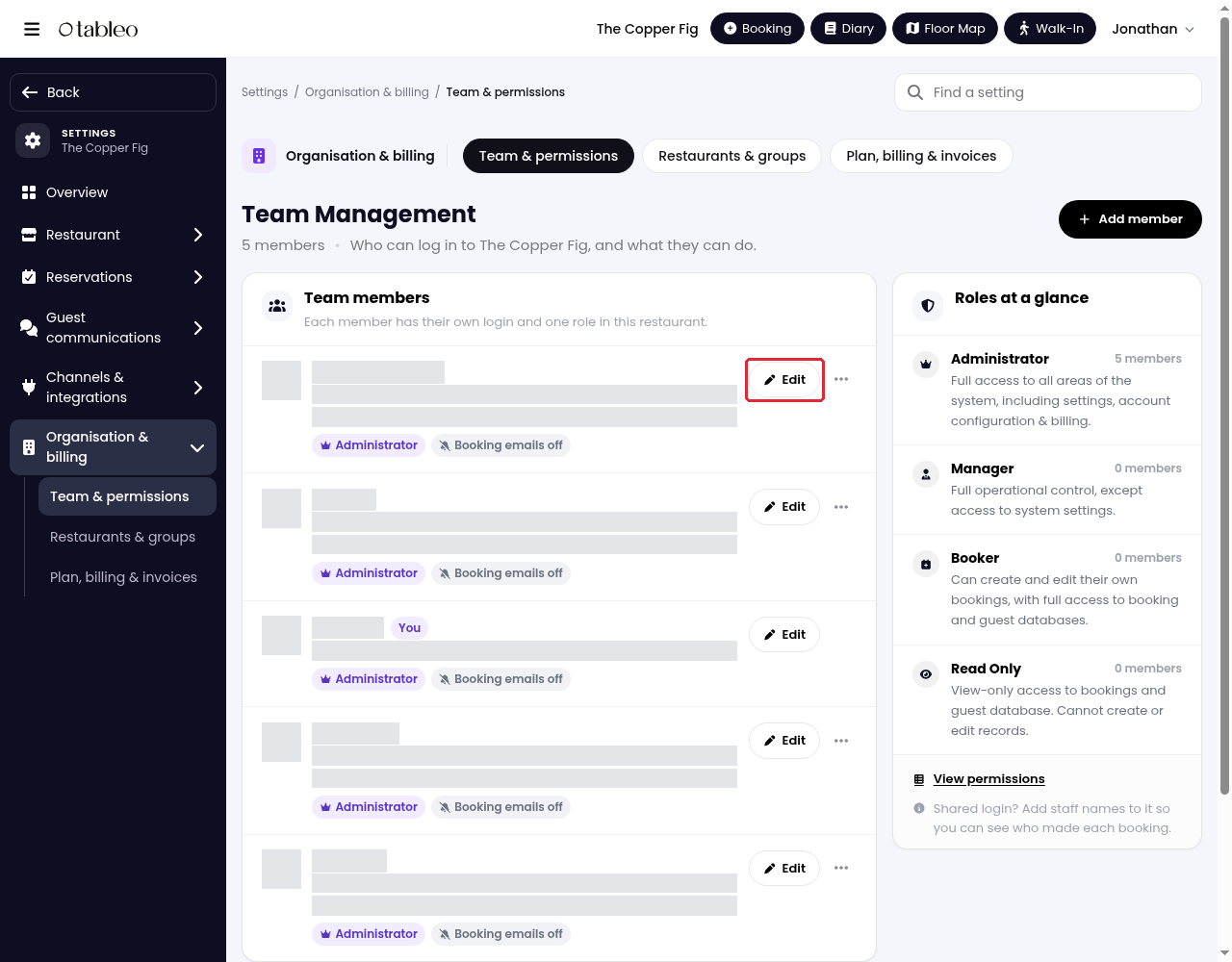
2. Update their role or booking-email preferences, then click Save changes.
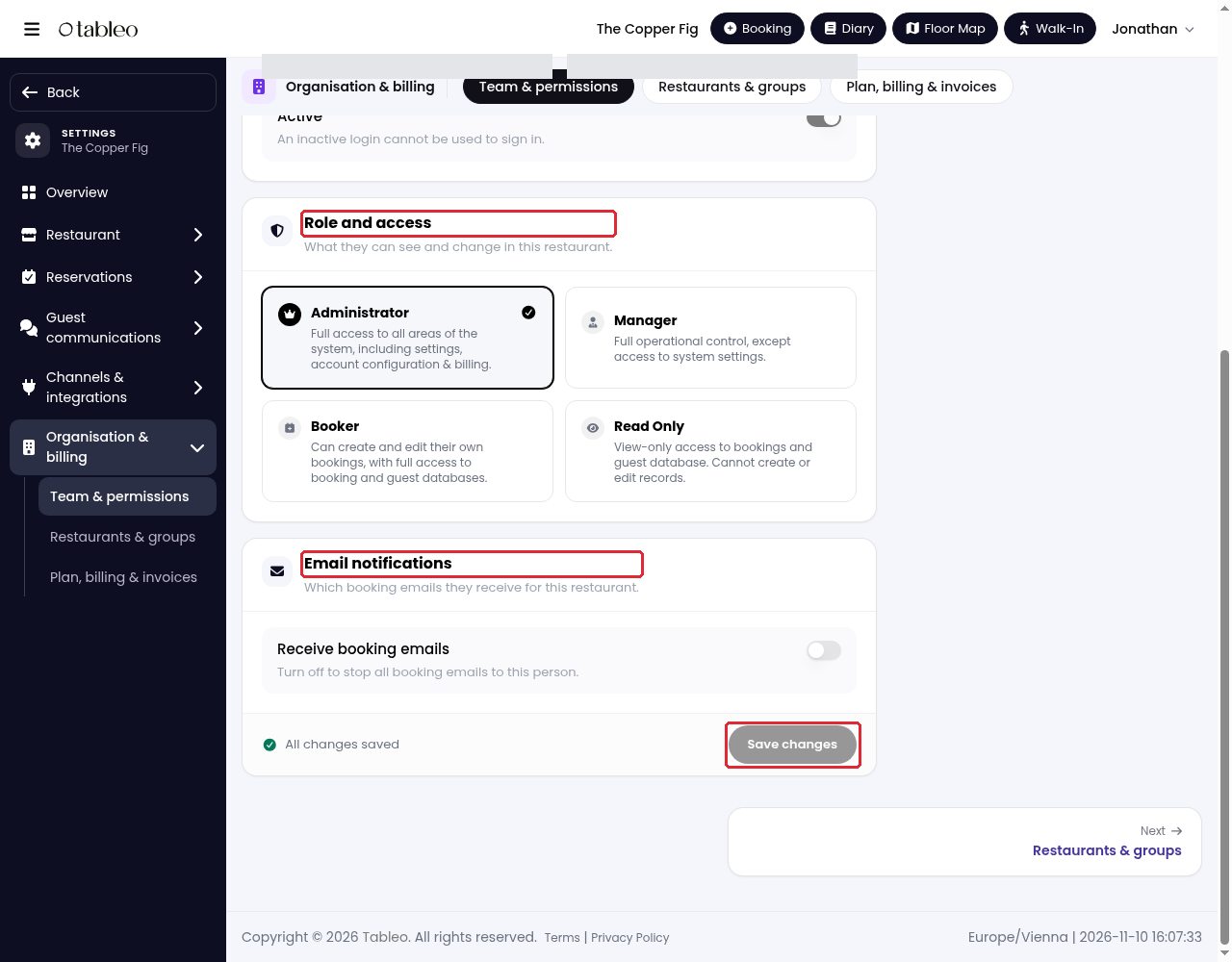
Only the account holder can change their email, mobile number, password and active status, as the same login may be used for other restaurants.
For a shared login, use Staff on this login to add staff names so you can identify who entered each booking.
For staff selection when entering bookings, see the related FAQ.
Remove a team member
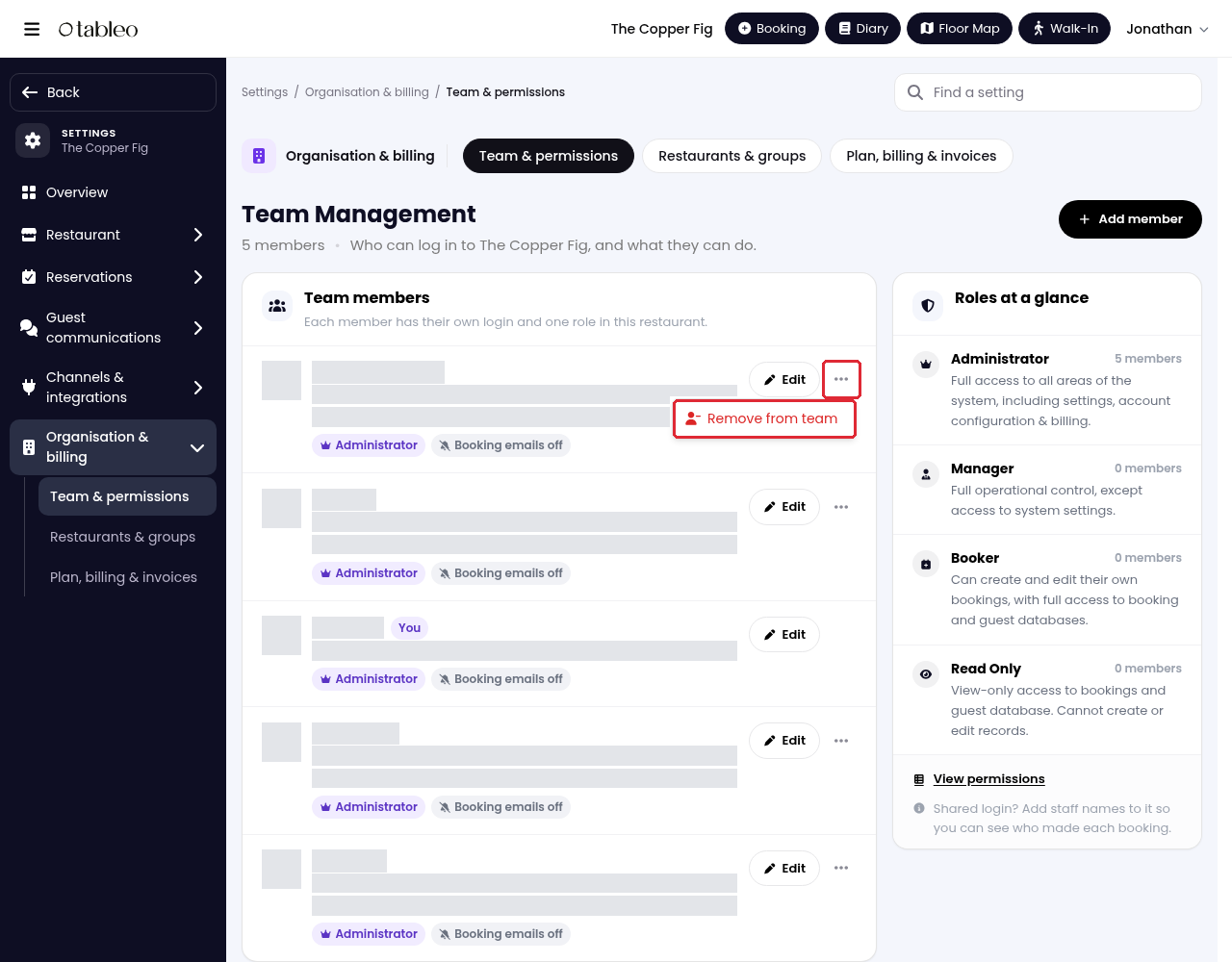
In Team & permissions, open the three-dot menu next to the member and select Remove from team to remove their access to this restaurant. Check that you have selected the correct person before proceeding.
While we strive to ensure the accuracy and currency of the information in our knowledge base, some articles may contain minor discrepancies due to the constant evolution of our services and products.
Was this article helpful?
That’s Great!
Thank you for your feedback
Sorry! We couldn't be helpful
Thank you for your feedback
Feedback sent
We appreciate your effort and will try to fix the article