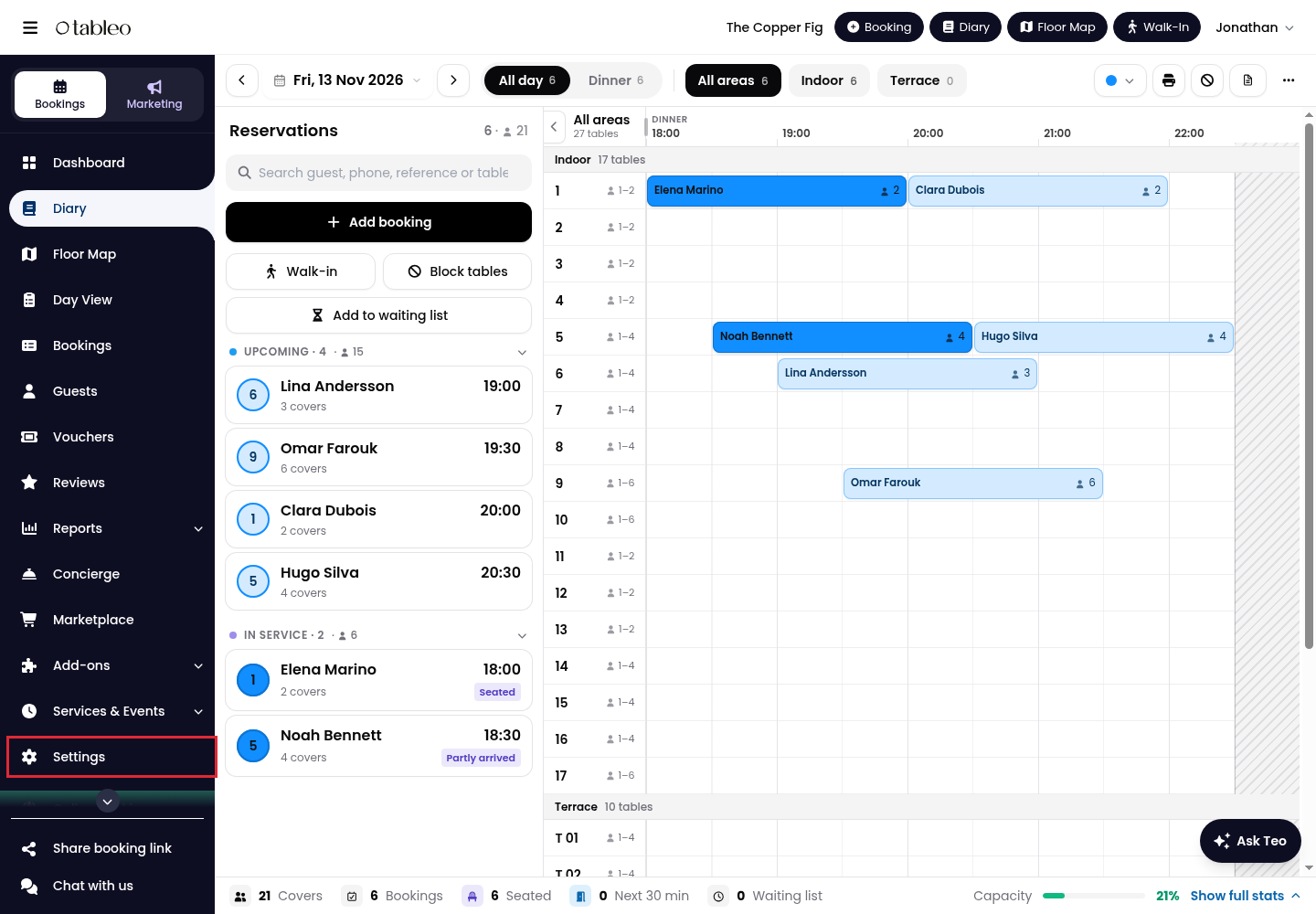
1. Click on Settings in the side menu.
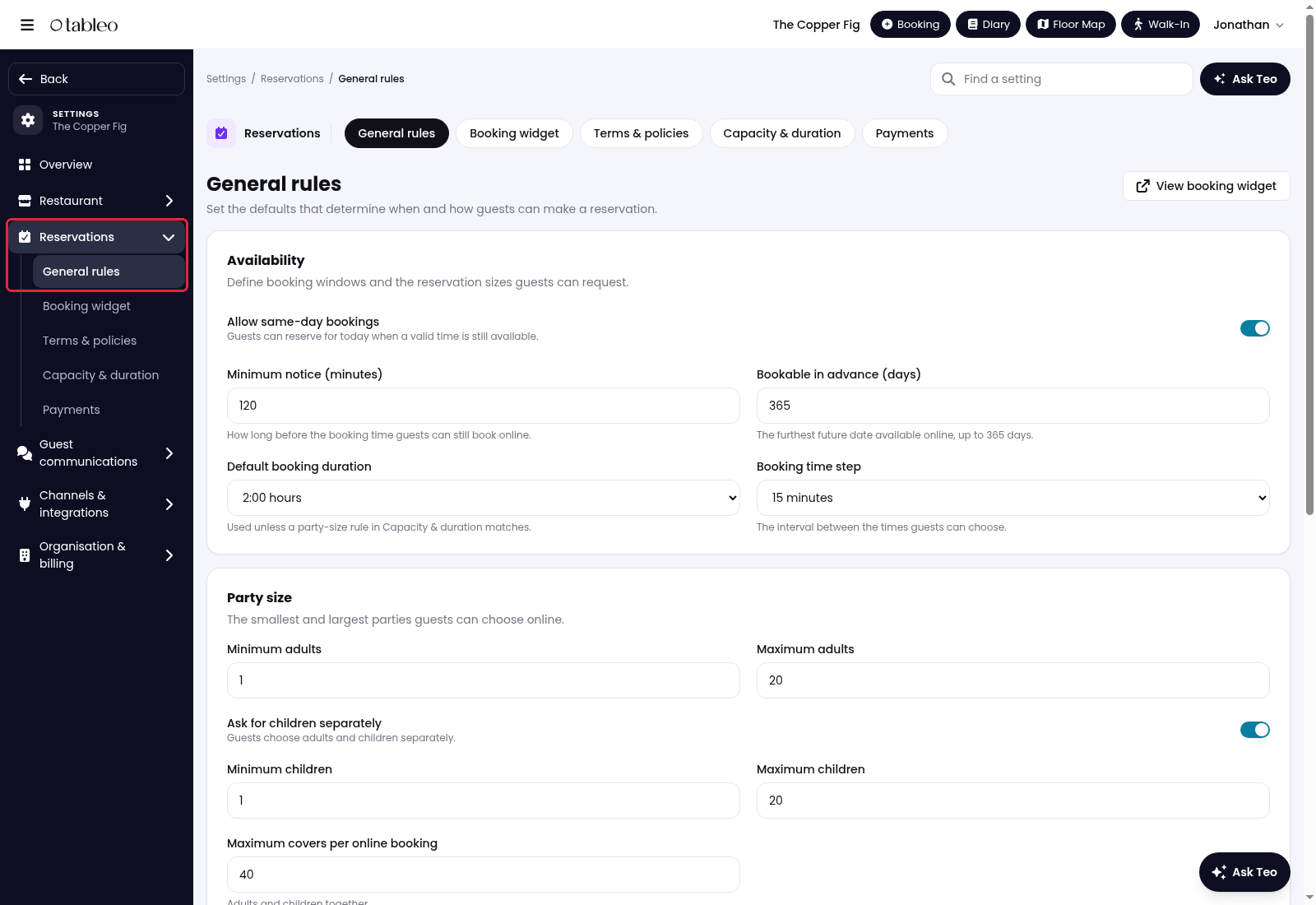
2. Open Reservations > General rules.
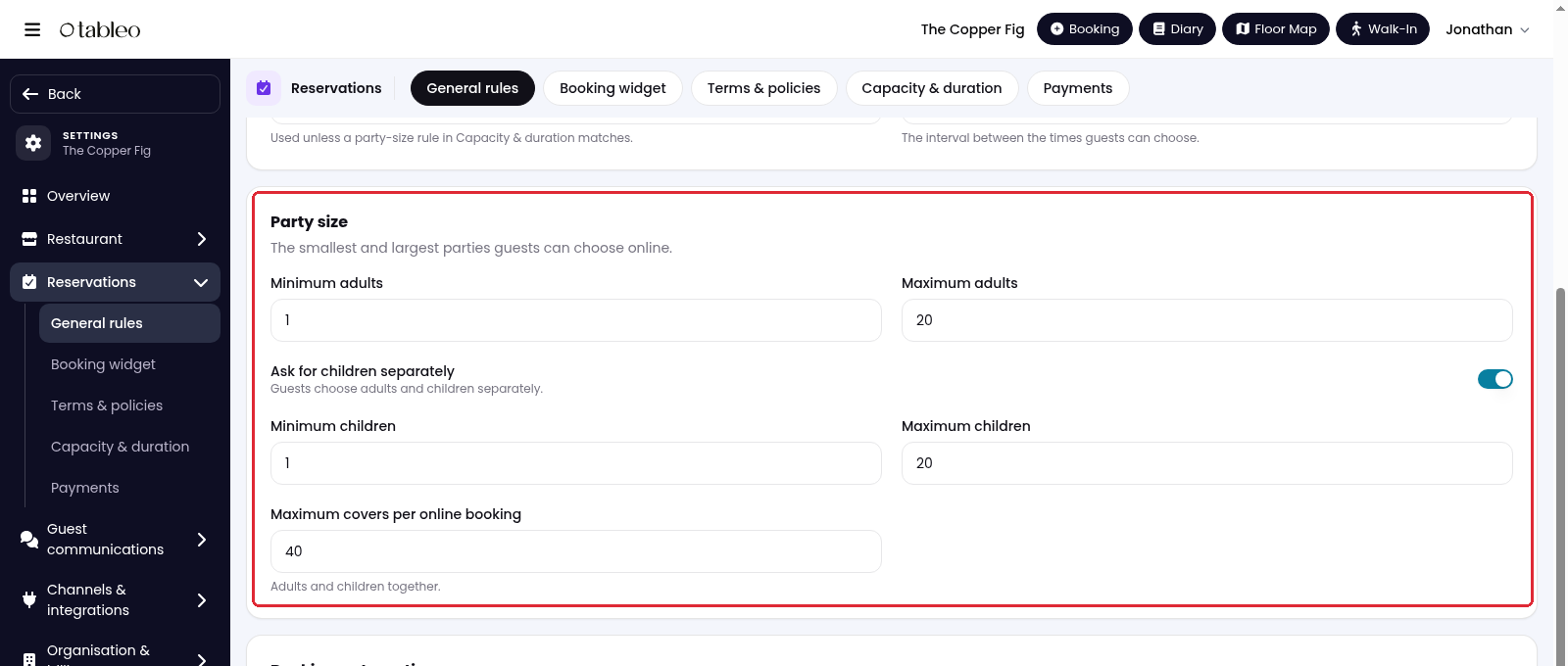
3. Scroll down to Party size.
4. Set Minimum adults, Maximum adults, and Maximum covers per online booking.
Maximum adults and Maximum children set the highest numbers guests can select in the booking widget. The children selector is shown when Ask for children separately is enabled.
Maximum covers per online booking sets the maximum total party size allowed to complete an online booking through the widget.
For example, with Maximum adults set to 8, Maximum children to 4 and Maximum covers per online booking to 10, guests can select 8 adults and 4 children. The widget will then display a message asking them to call the restaurant to book for that party size.
Use Ask for children separately to let guests choose adults and children separately. Set Minimum children and Maximum children when shown.
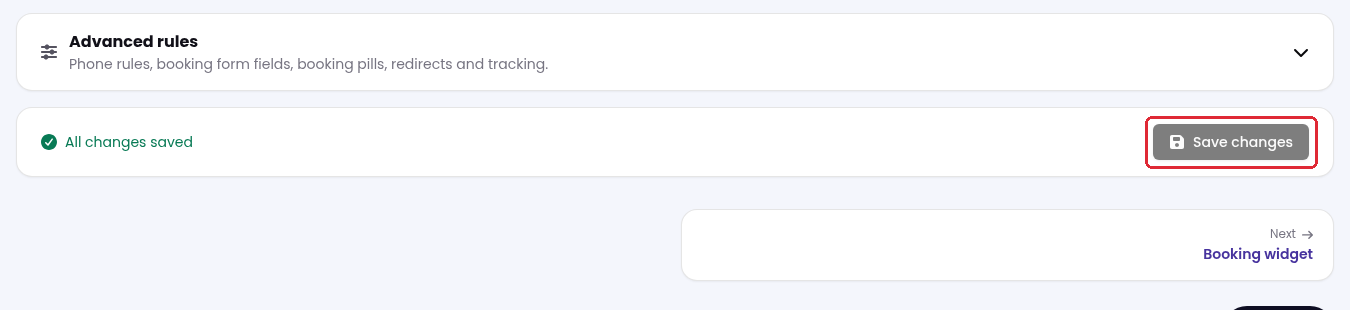
5. Scroll to the bottom and click on Save changes.
While we strive to ensure the accuracy and currency of the information in our knowledge base, some articles may contain minor discrepancies due to the constant evolution of our services and products.
Was this article helpful?
That’s Great!
Thank you for your feedback
Sorry! We couldn't be helpful
Thank you for your feedback
Feedback sent
We appreciate your effort and will try to fix the article