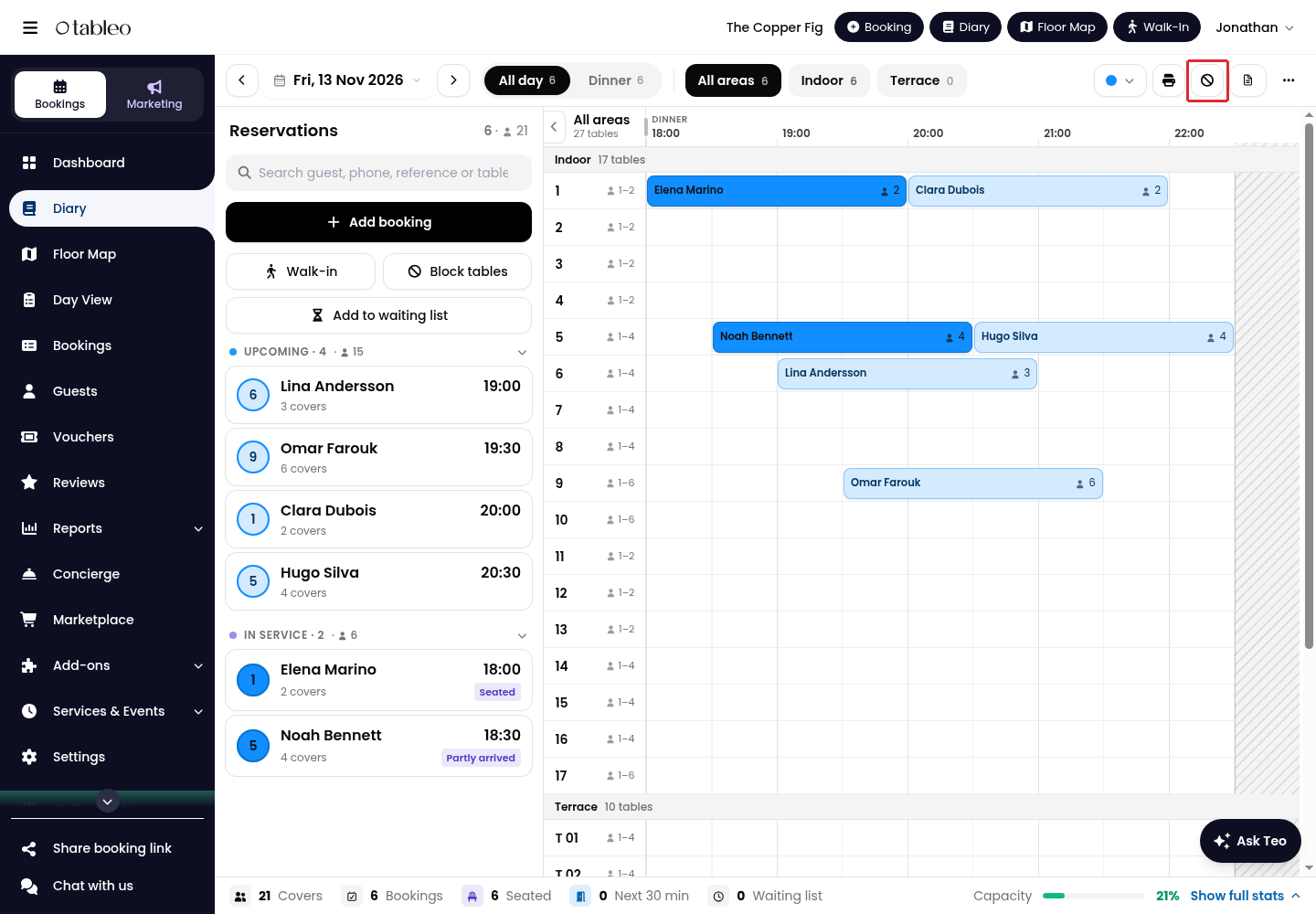
1. Click on Diary in the side menu.
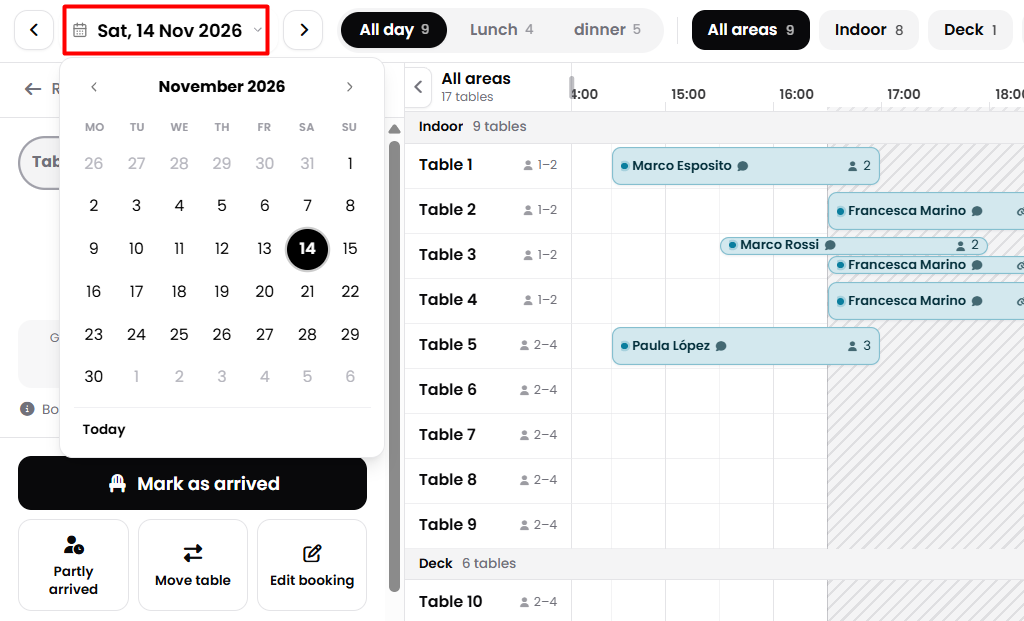
2. Click on the date at the top left and select the day you want to restrict.
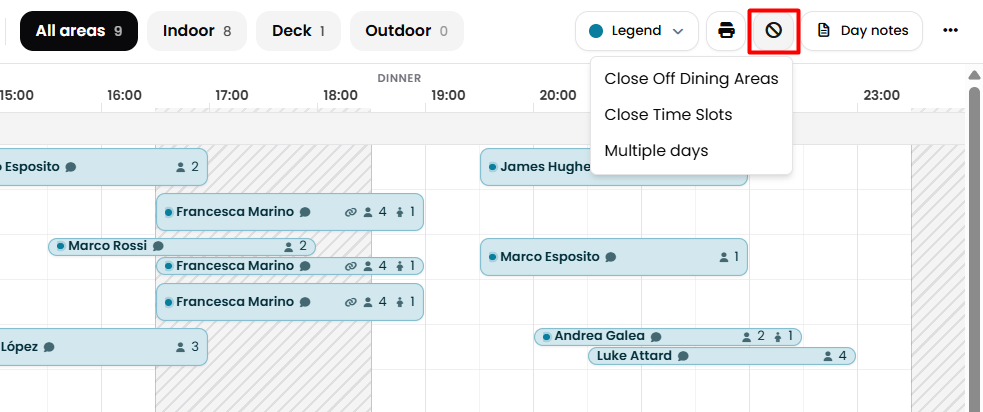
3. Click on Stop bookings in the top toolbar and choose the type of restriction.
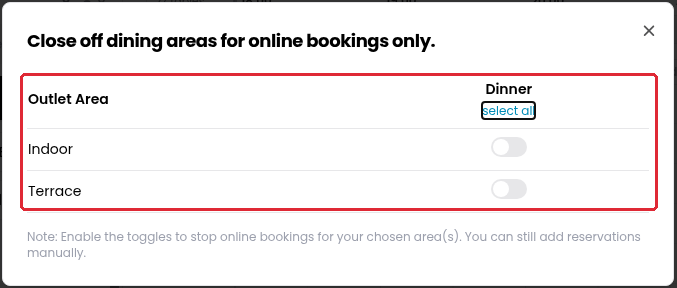
- Close Off Dining Areas: Choose Close Off Dining Areas. Turn on the switch for each dining area and service you want to close to online bookings.
These switches stop online bookings only. You can still add reservations manually. Turn a switch off to reopen that area and service. The changes take effect immediately; there is no separate save button.
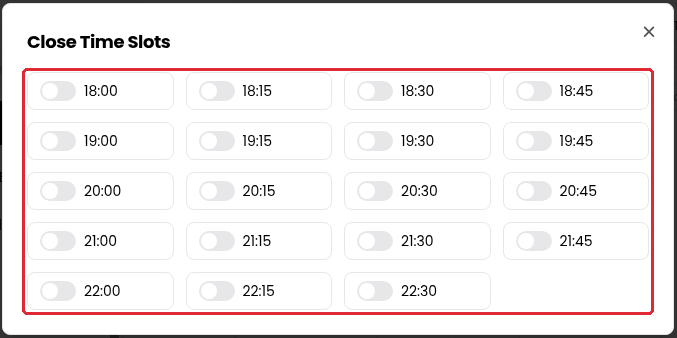
- Close Time Slots: Choose Close Time Slots. Turn on the switch for each arrival time you want to stop offering online on the selected day. Turn a switch off to make that time available again, subject to your other availability rules.
The changes take effect immediately; there is no separate save button.
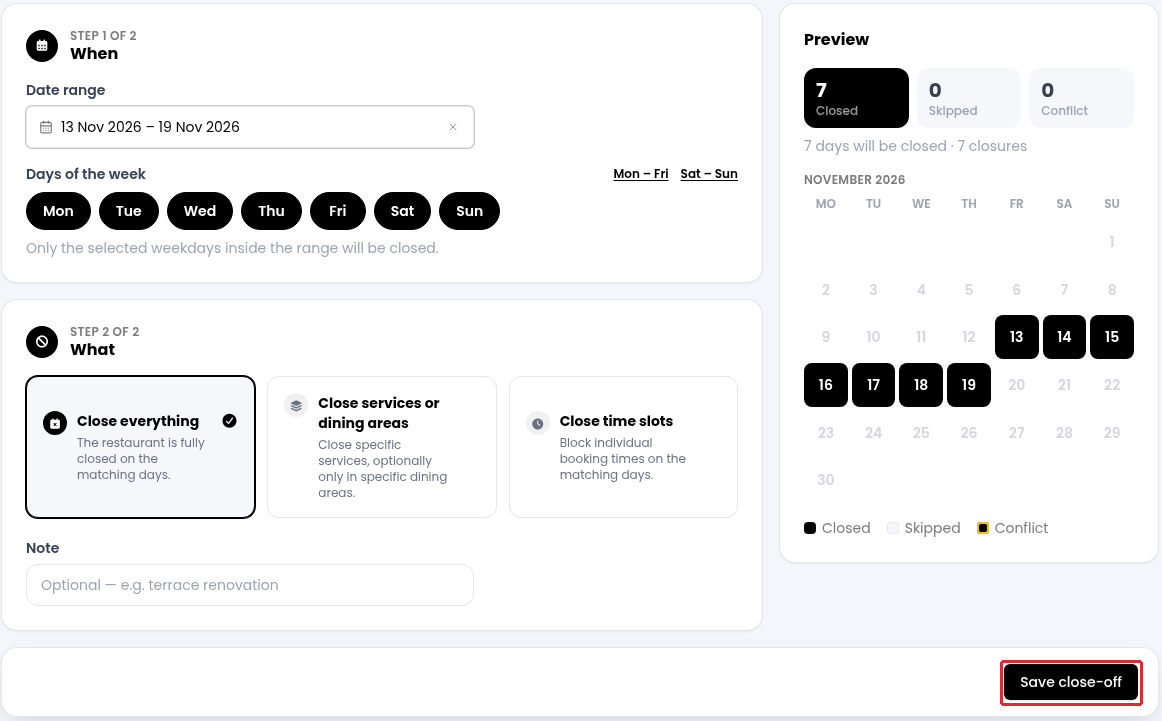
- Multiple days: Choose Multiple days to apply a restriction across a date range.
Under When, choose the Date range and the Days of the week to include. Under What, choose Close everything, Close services or dining areas, or Close time slots. For a partial closure, select the services, areas or times to close.
4. Check the Preview, then click on Save close-off.
While we strive to ensure the accuracy and currency of the information in our knowledge base, some articles may contain minor discrepancies due to the constant evolution of our services and products.
Was this article helpful?
That’s Great!
Thank you for your feedback
Sorry! We couldn't be helpful
Thank you for your feedback
Feedback sent
We appreciate your effort and will try to fix the article