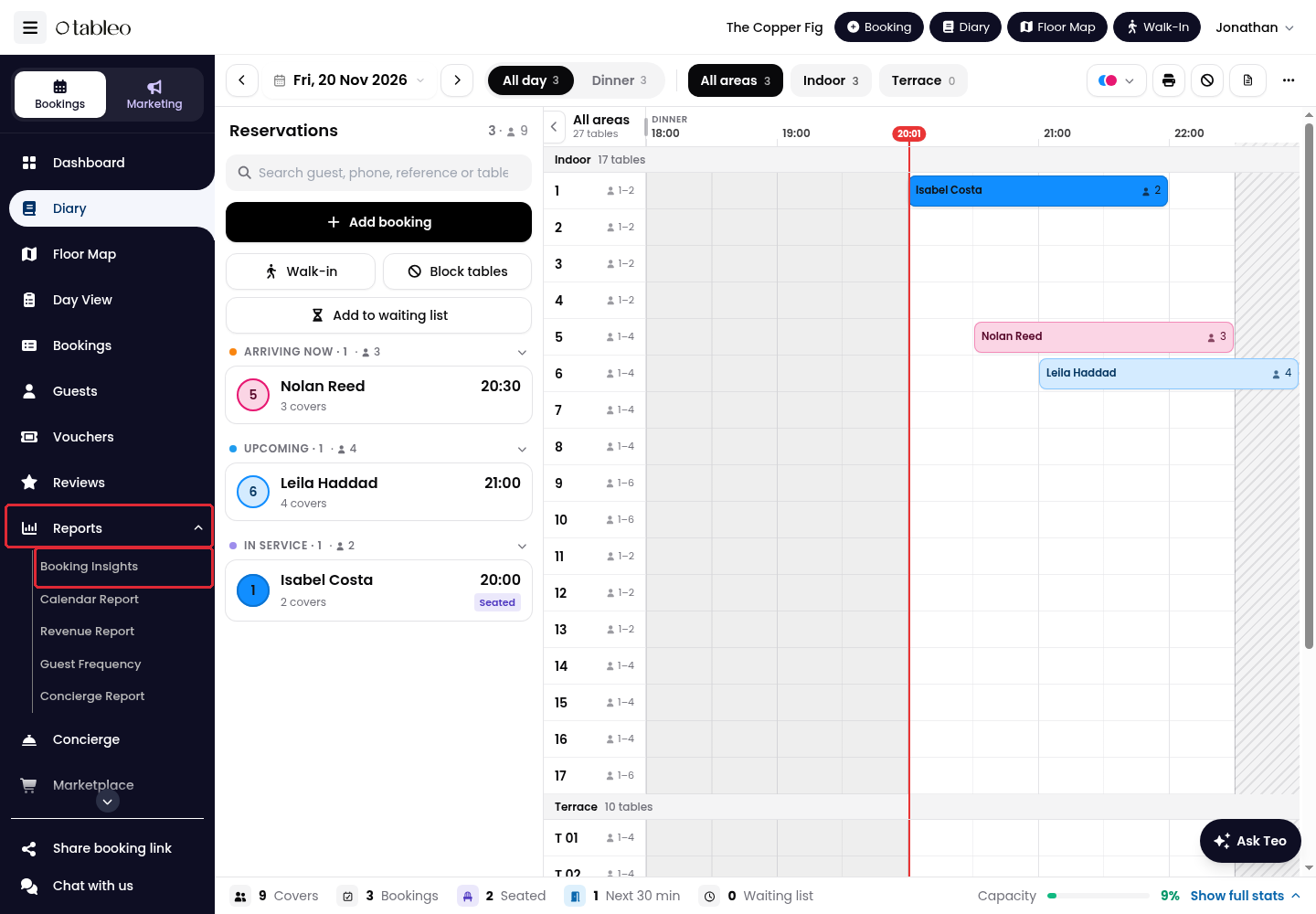
1. Expand Reports in the side menu and click on Booking Insights.
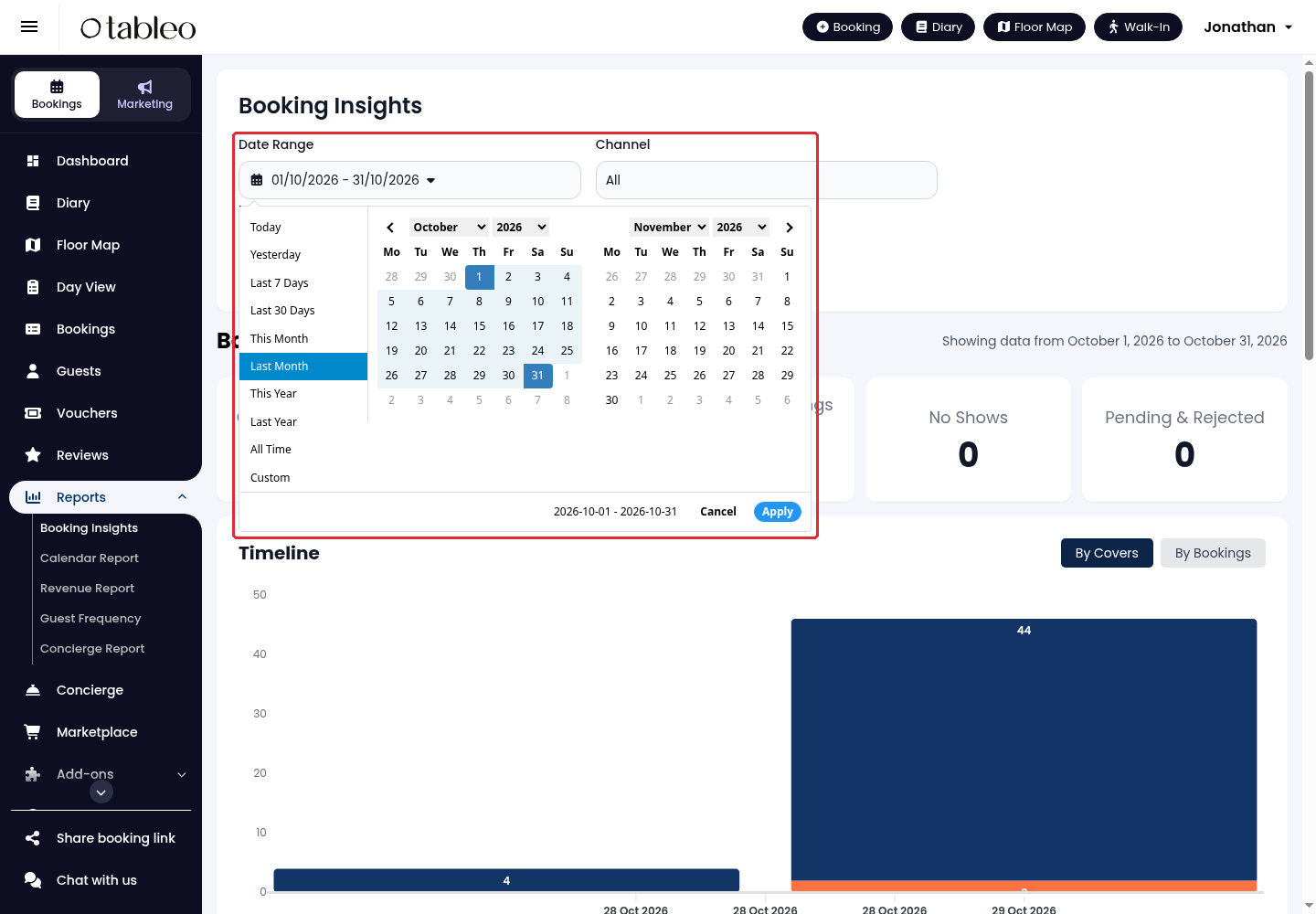
2. Open Date Range and select a preset period. For specific dates, choose Custom, select the start and end dates, then click on Apply.
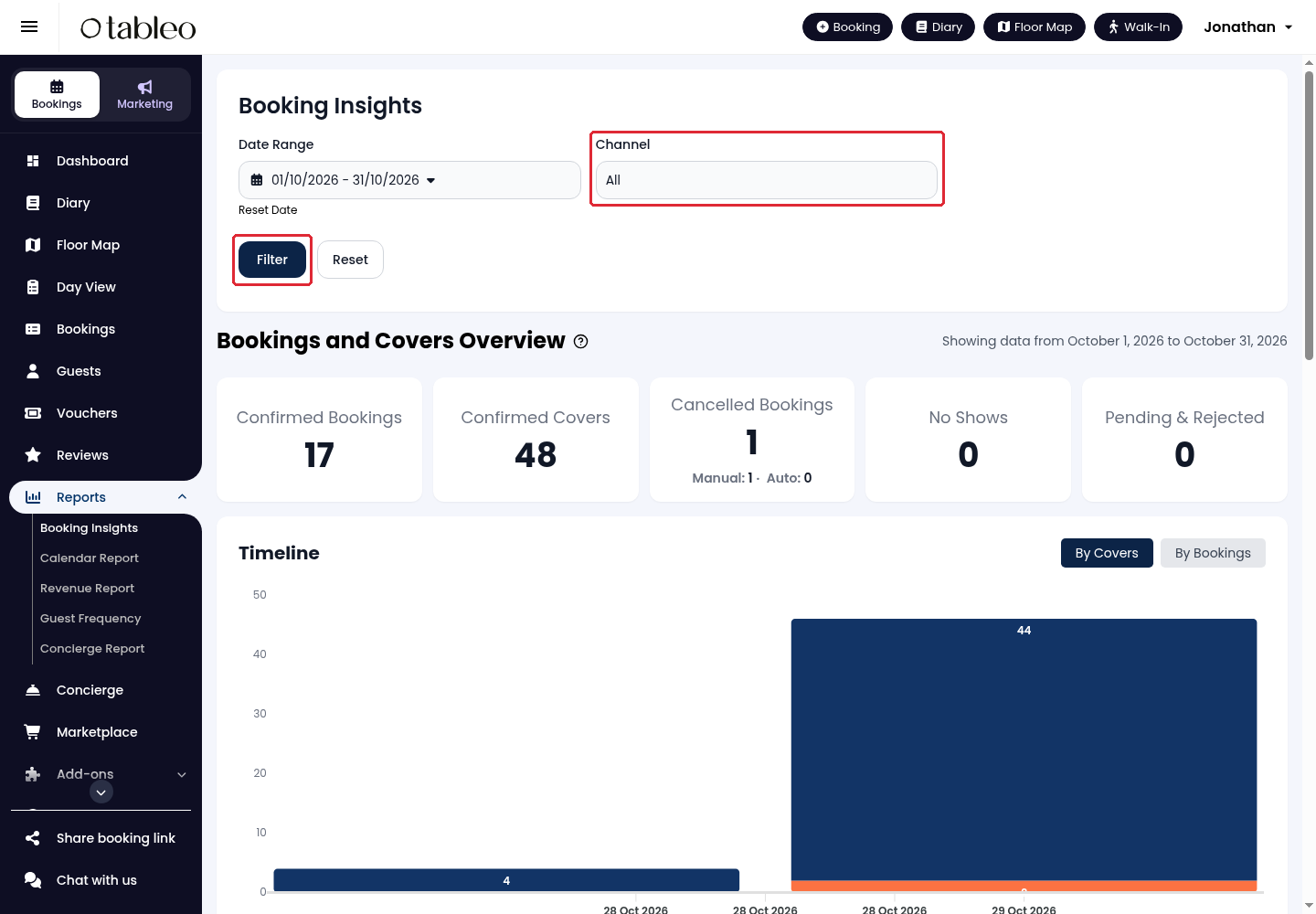
3. Select a Channel, or leave All selected to include every channel. Click on Filter. Use Reset to clear the filters.
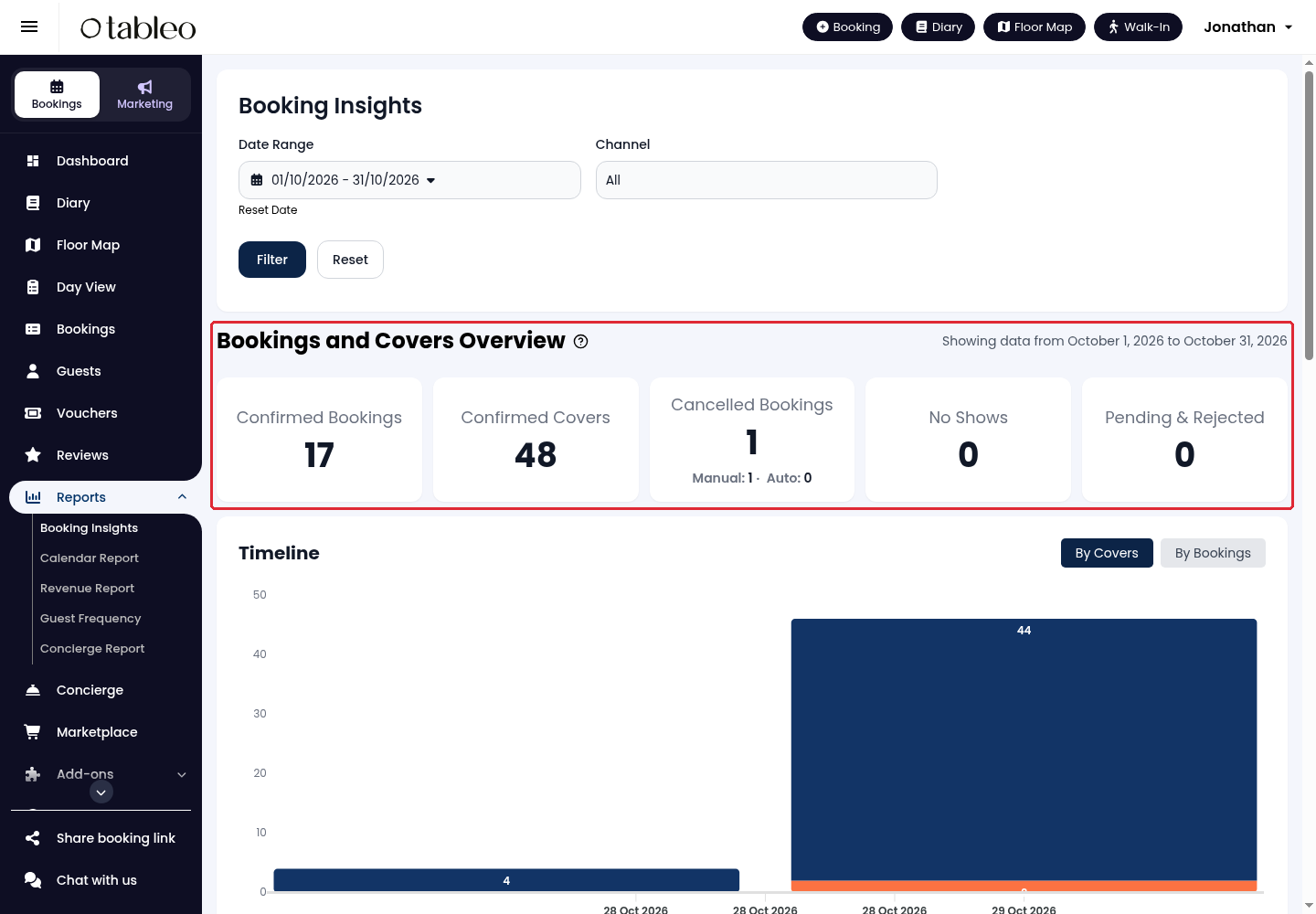
4. Review Bookings and Covers Overview for confirmed bookings and covers, cancellations, no-shows, and pending or rejected bookings.
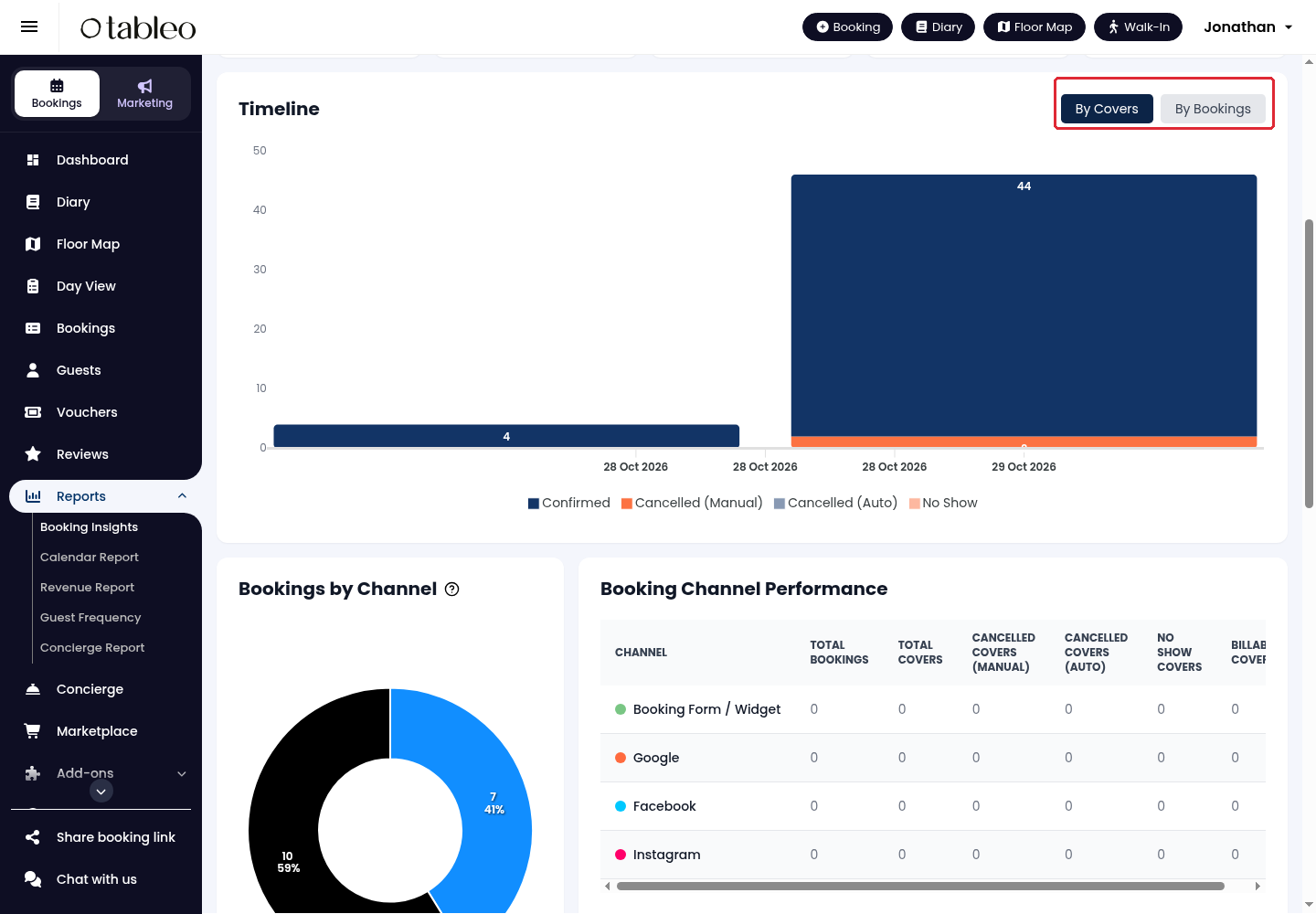
5. In Timeline, switch between By Covers and By Bookings to compare guest numbers with reservation counts over the selected period.
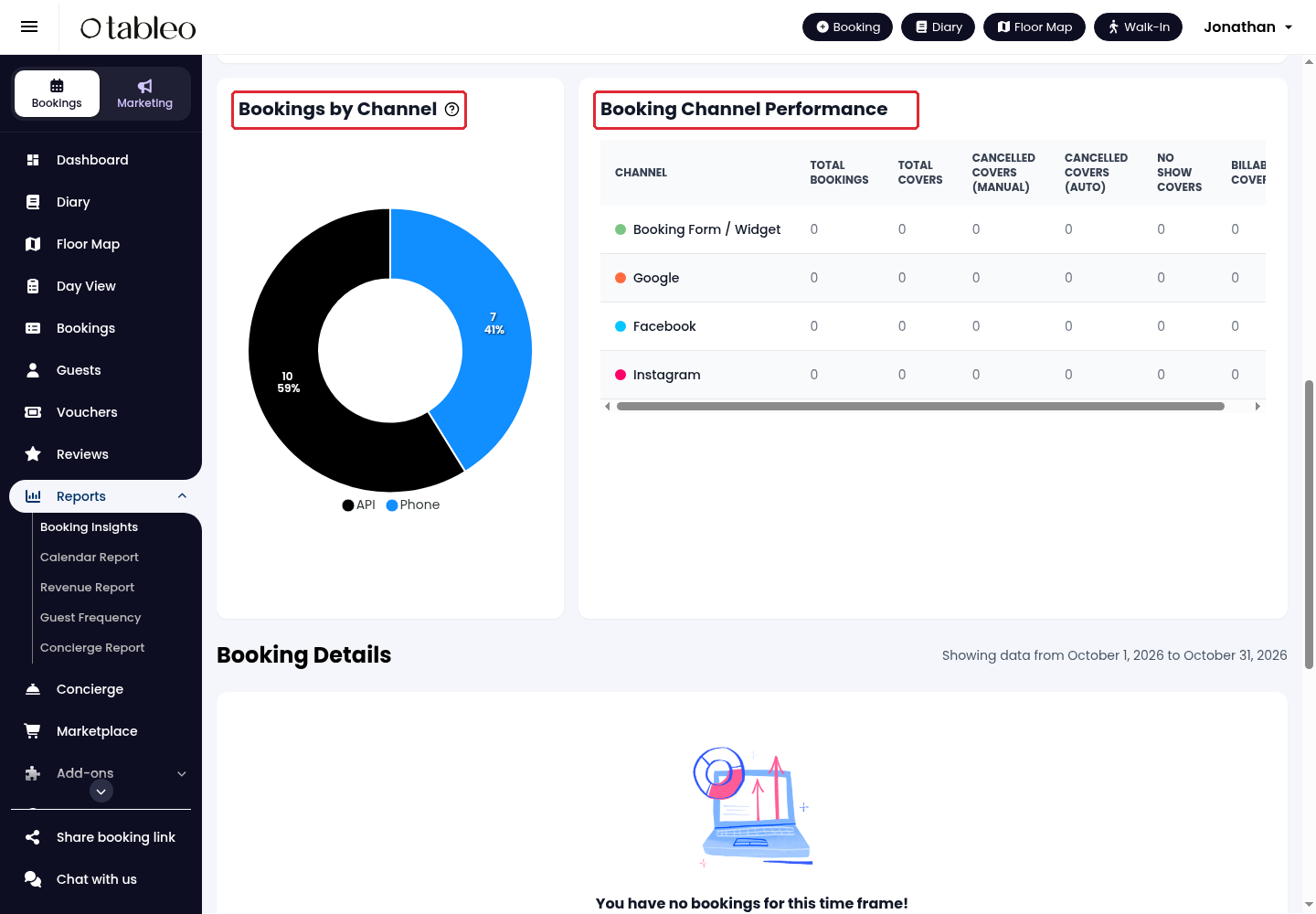
6. Scroll to Bookings by Channel and Booking Channel Performance to review where bookings came from and the displayed channel totals.
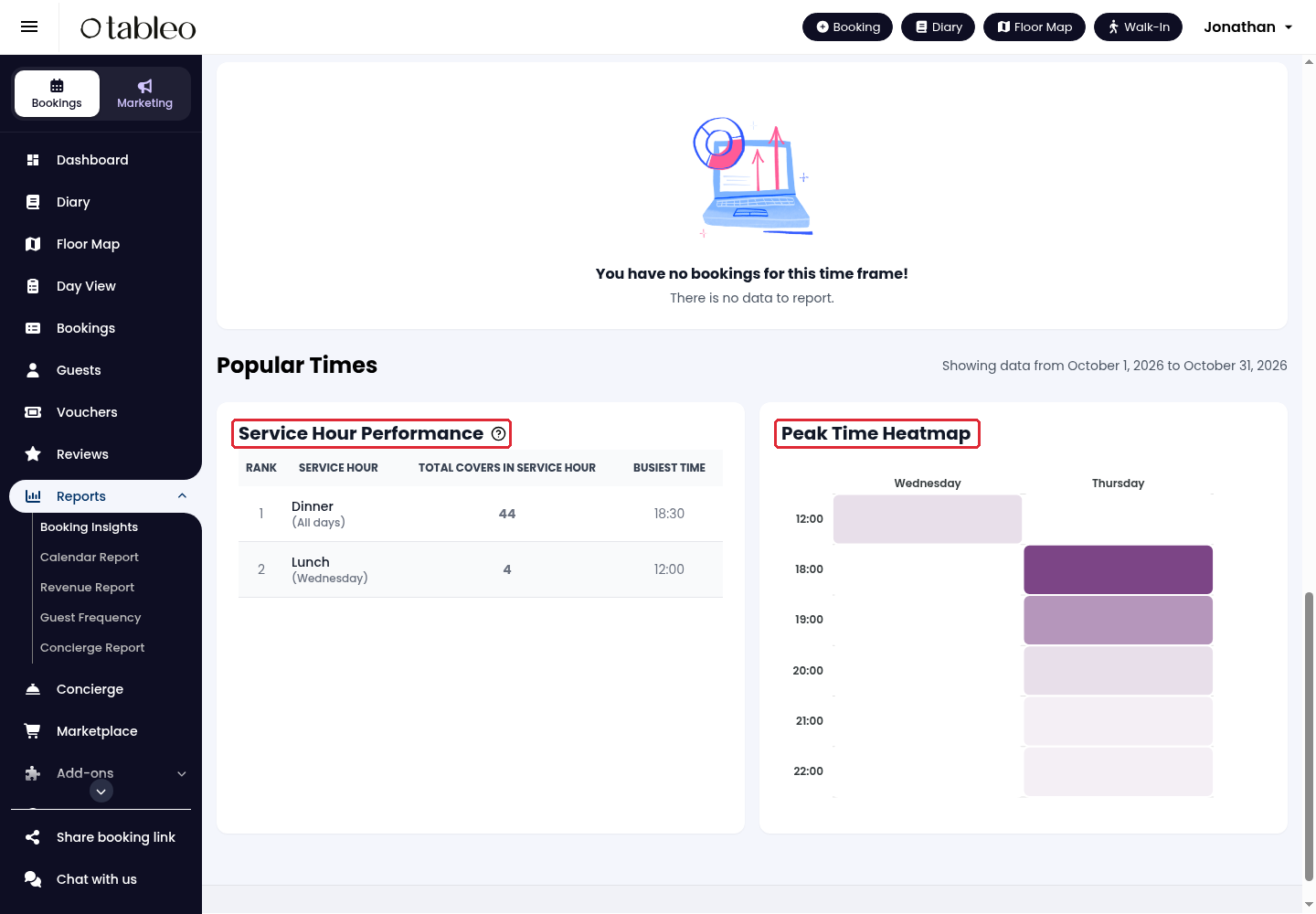
7. Under Popular Times, review Service Hour Performance and Peak Time Heatmap for the busiest services and times.
While we strive to ensure the accuracy and currency of the information in our knowledge base, some articles may contain minor discrepancies due to the constant evolution of our services and products.
Was this article helpful?
That’s Great!
Thank you for your feedback
Sorry! We couldn't be helpful
Thank you for your feedback
Feedback sent
We appreciate your effort and will try to fix the article