Set a minimum spend for a product, and choose the service hours and dining areas where it is offered.
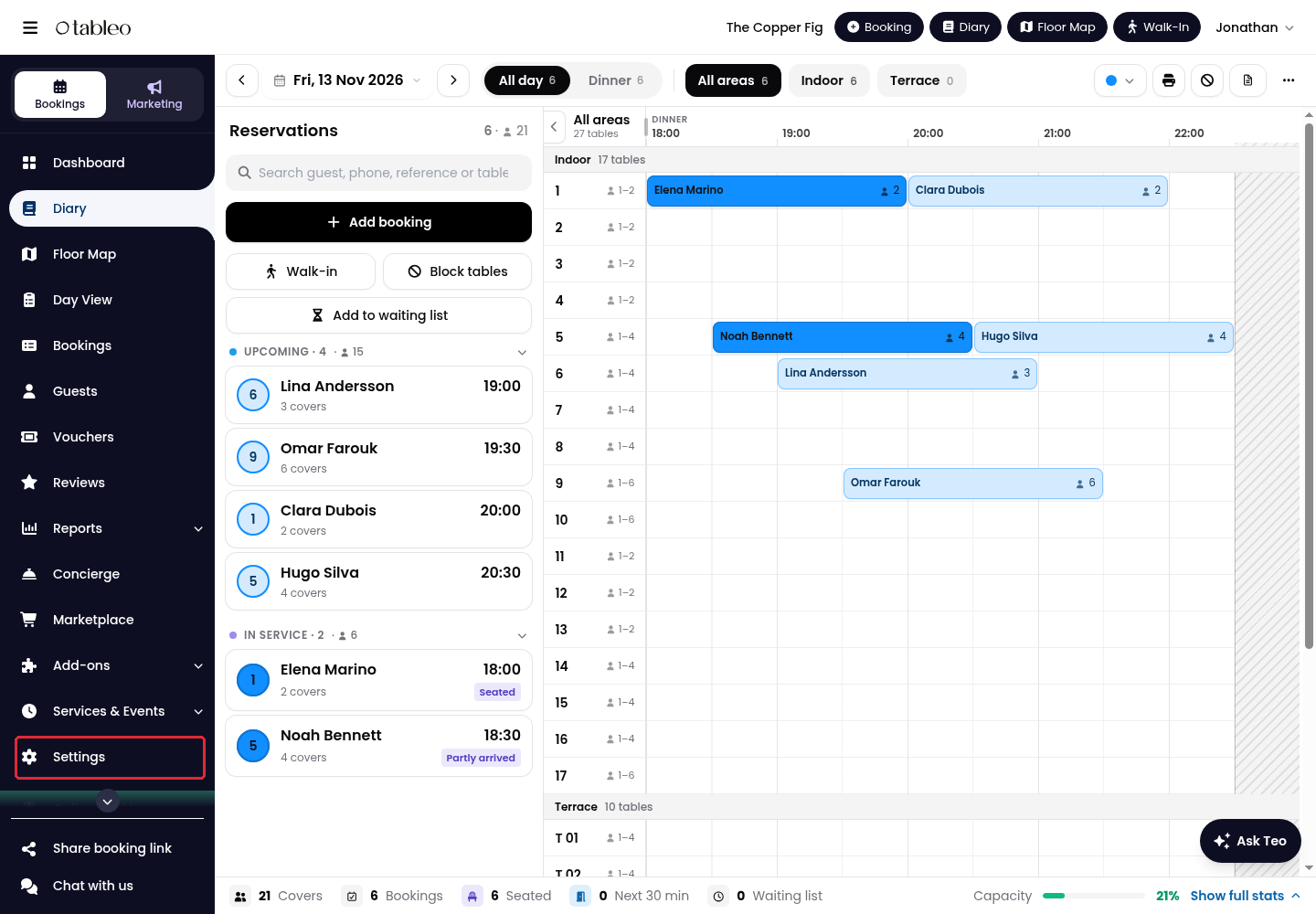
1. Click on Settings in the side menu.
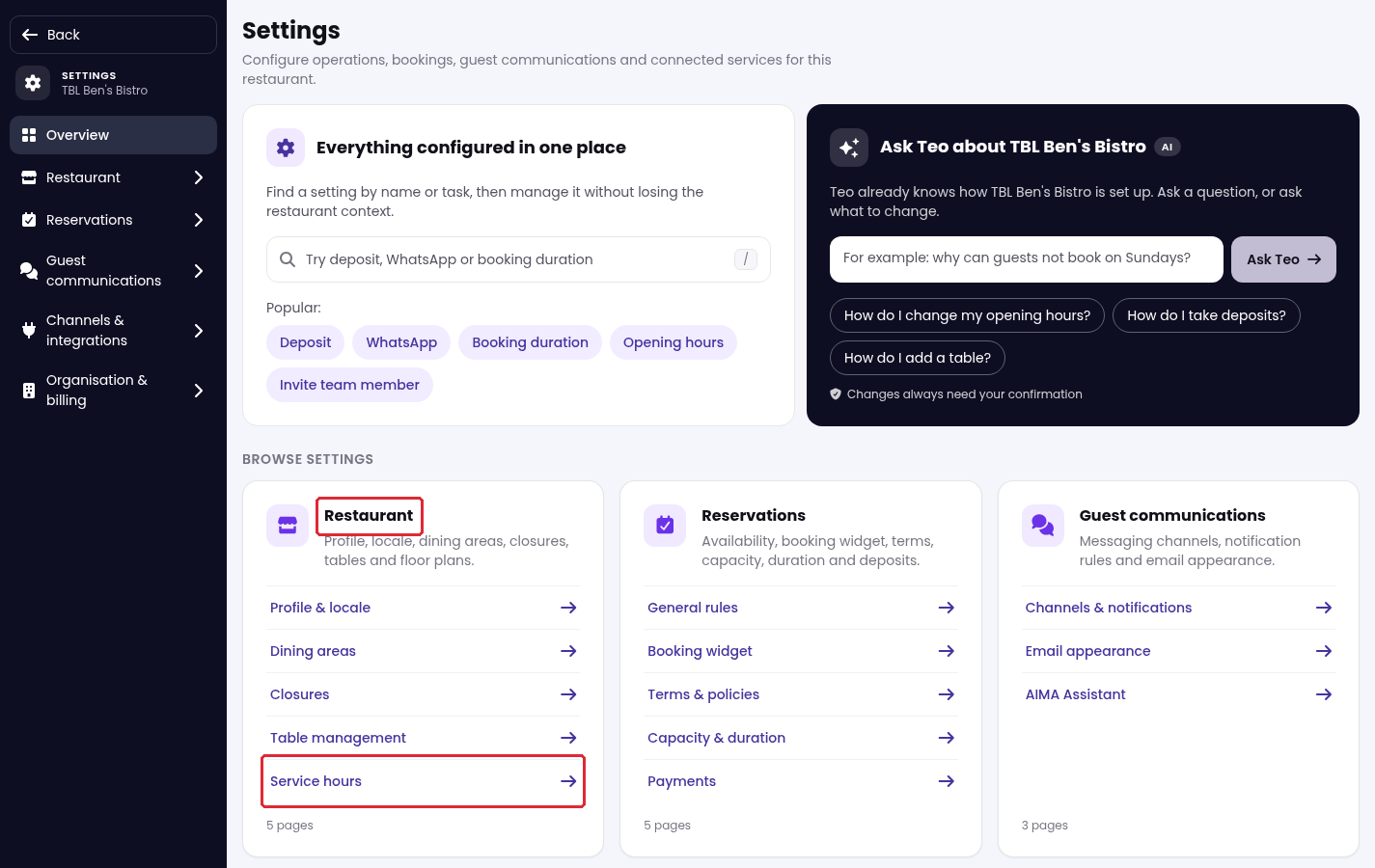
2. Under Restaurant, click on Service hours.
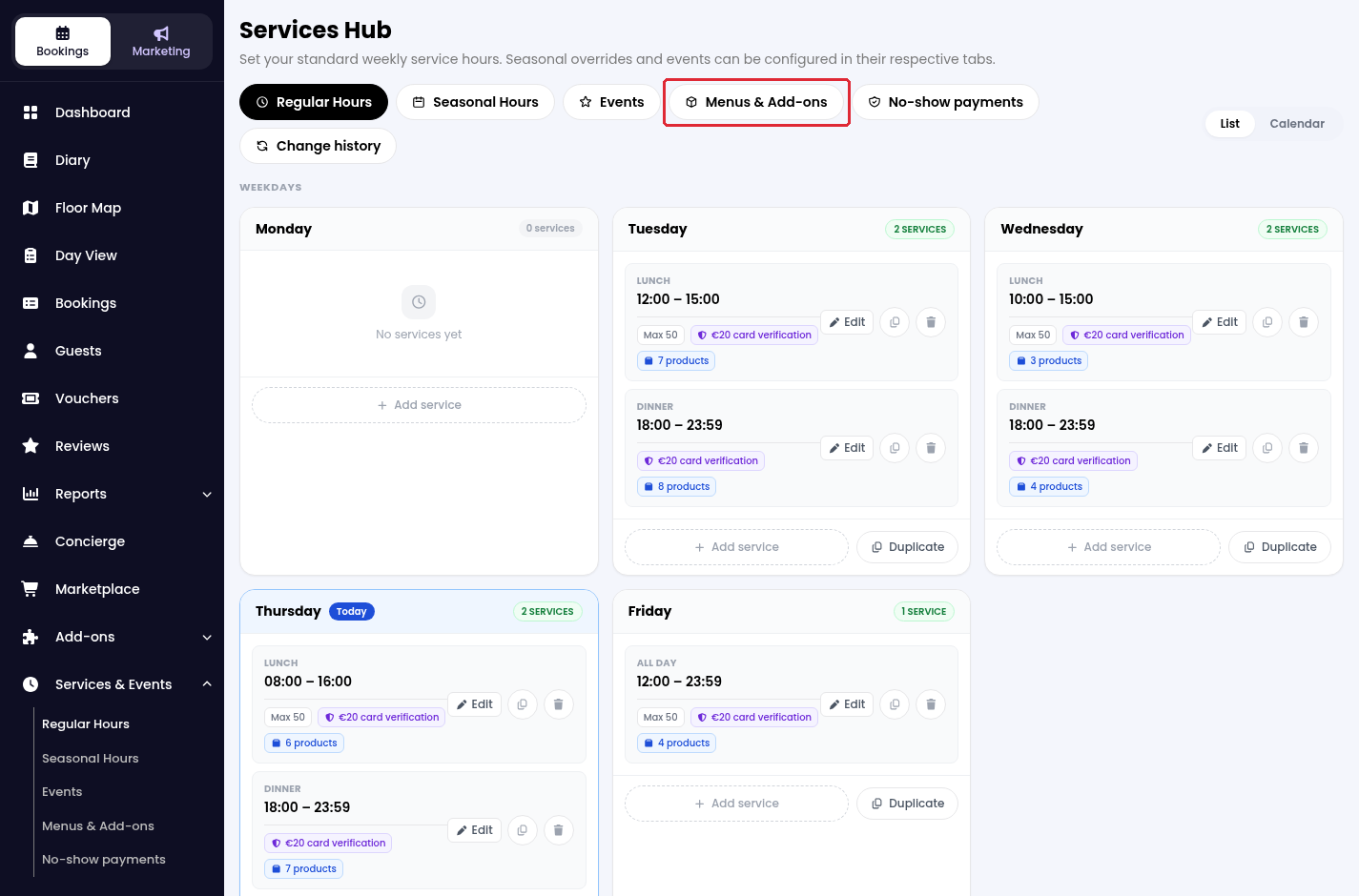
3. Open the Menus & Add-ons tab.
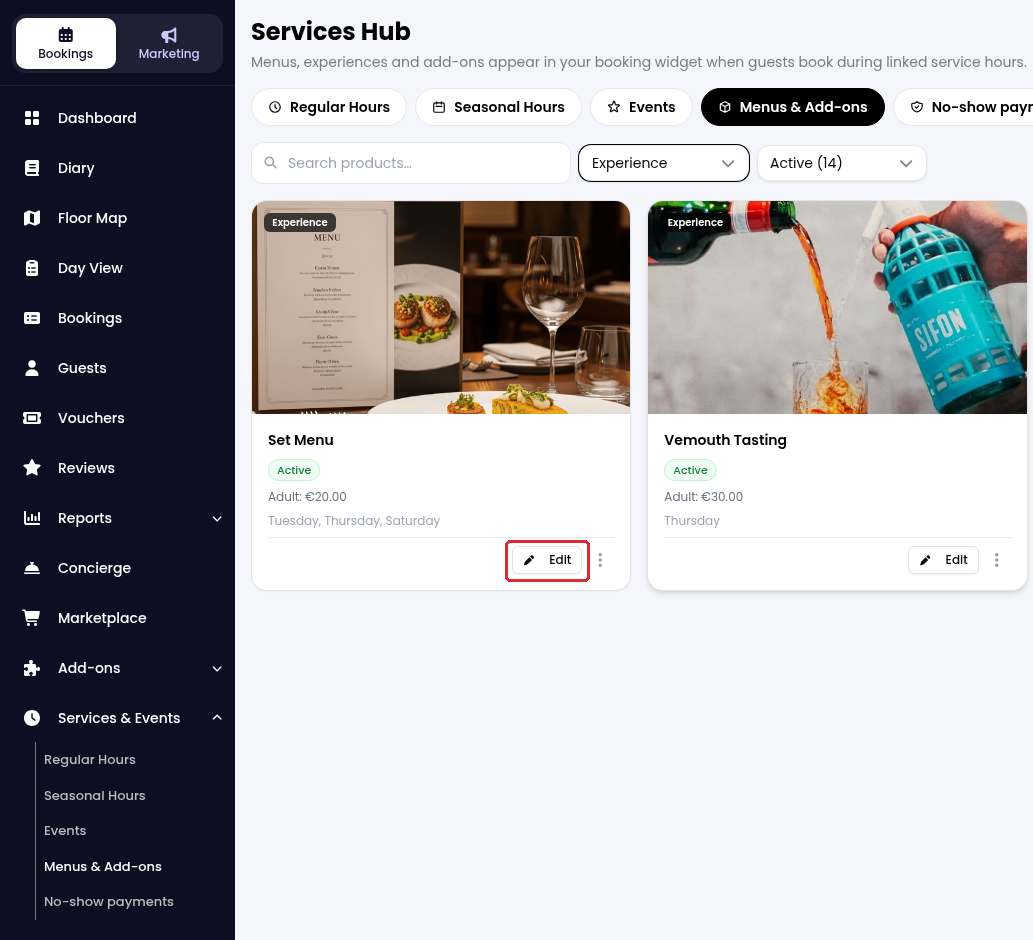
4. Find the product and click on Edit.
You need an existing product. See How to create a Product if you have not created one yet.
5. Scroll to Pricing and enter the amount in Minimum Spend.
The minimum applies unless the total calculated from Price per Adult and Price per Child is higher, in which case the higher total applies.
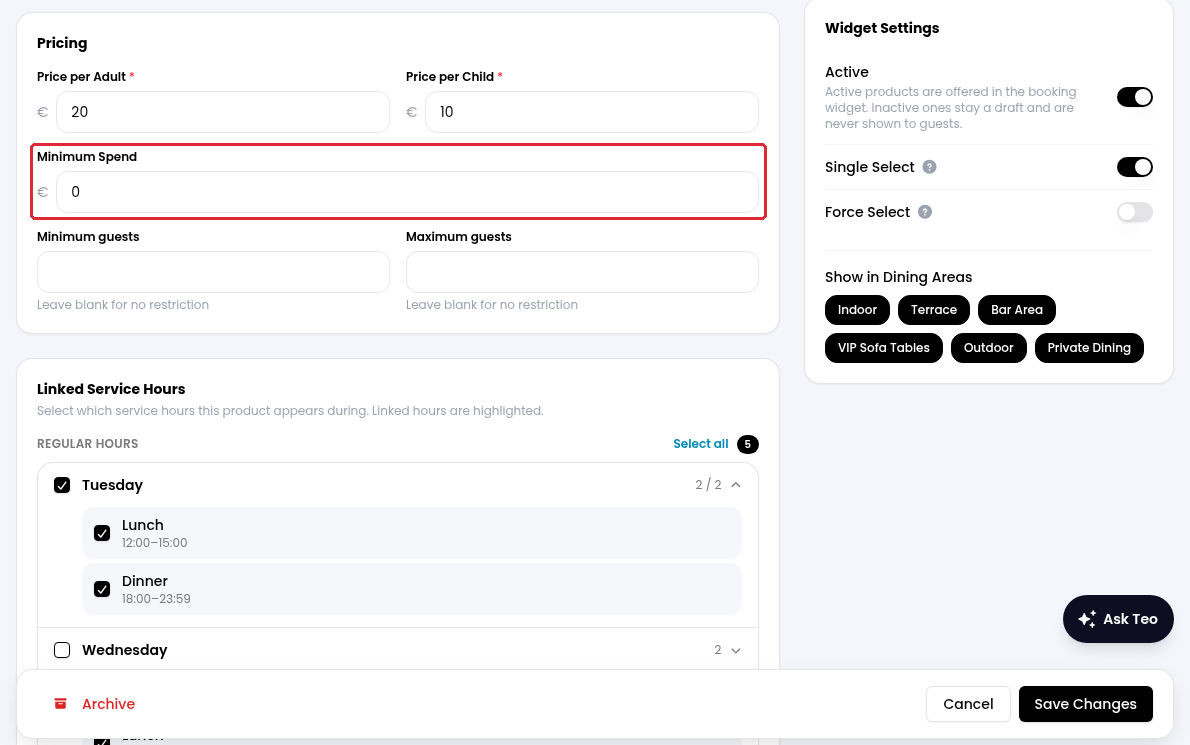
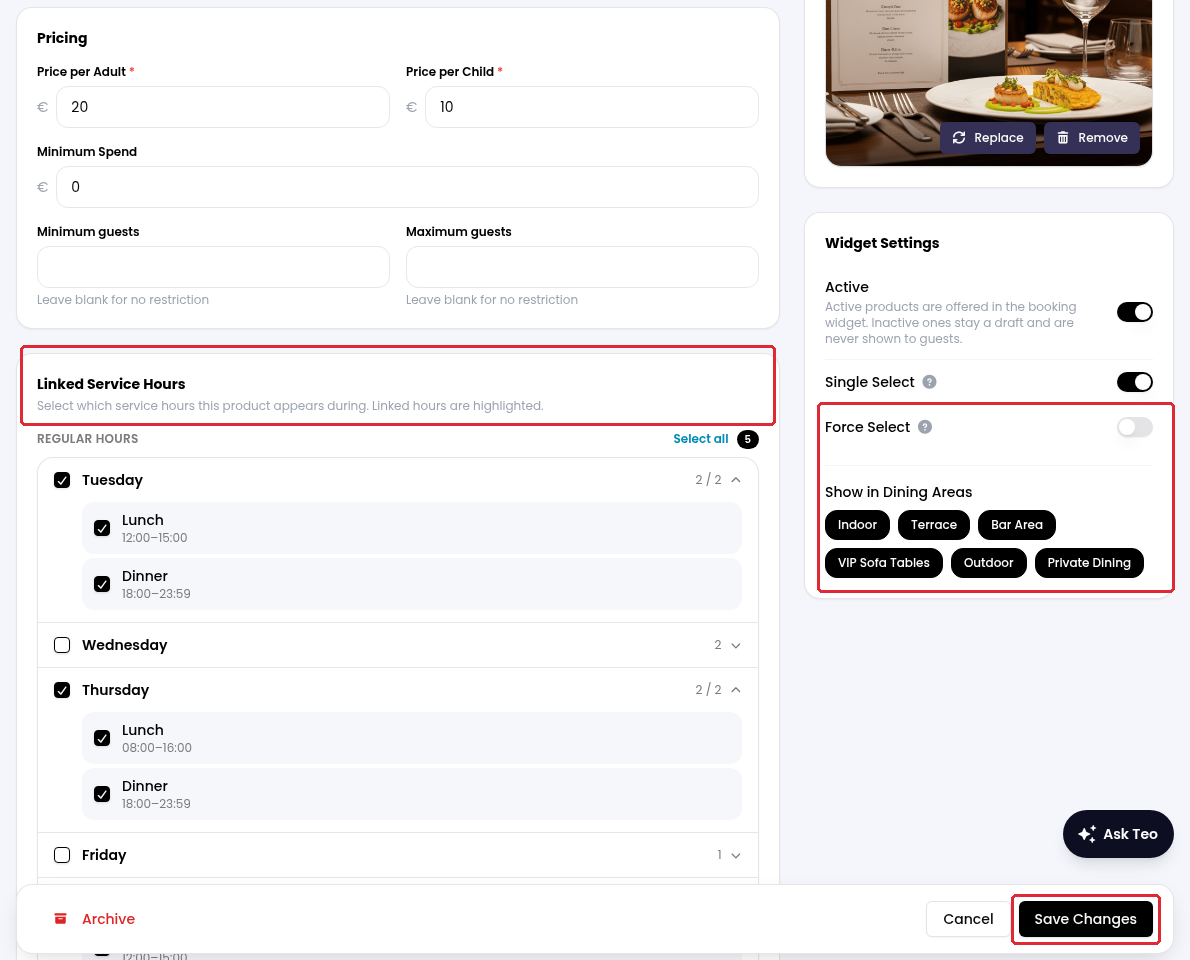
6. Review Linked Service Hours and Show in Dining Areas so the product is offered for the intended bookings. Under Widget Settings, check that Active is on, then click on Save Changes.
To make the product mandatory, turn on Force Select before saving. The product is then selected automatically and guests cannot deselect it in the widget.
While we strive to ensure the accuracy and currency of the information in our knowledge base, some articles may contain minor discrepancies due to the constant evolution of our services and products.
Was this article helpful?
That’s Great!
Thank you for your feedback
Sorry! We couldn't be helpful
Thank you for your feedback
Feedback sent
We appreciate your effort and will try to fix the article