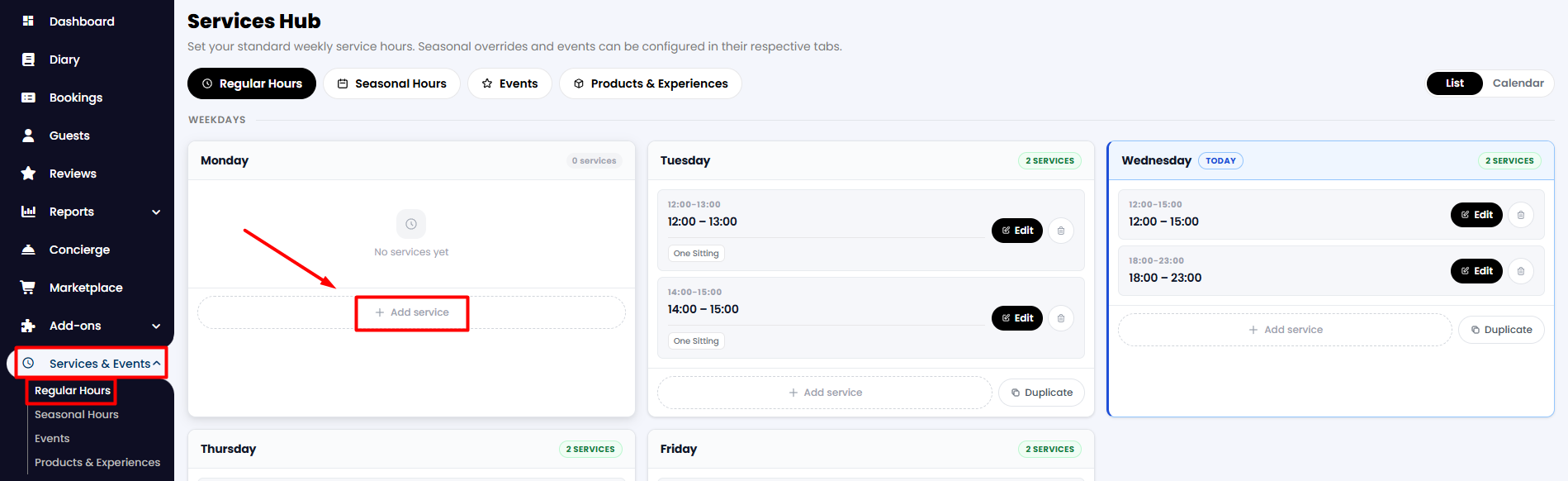
1. From your side menu, go to Service & Events > Regular Hours.
2. On the screen, you can see a quick view of the services you have set daily. To create a new one, click on the + Add service option on the desired day.
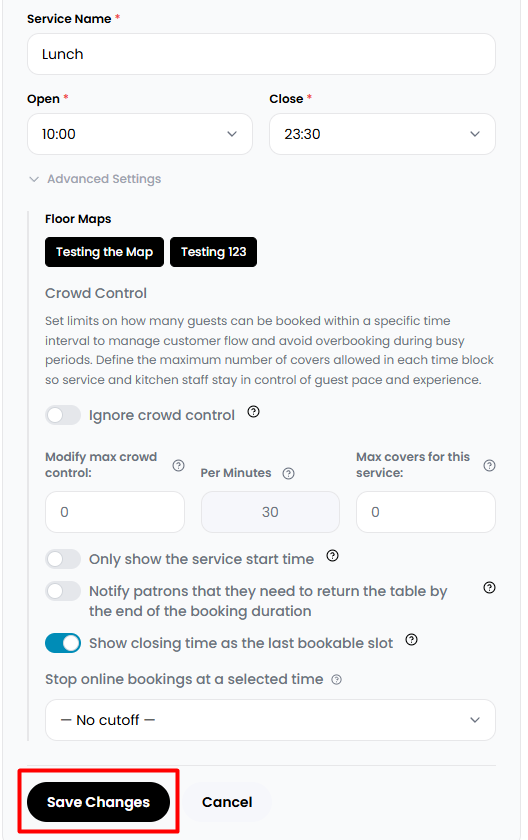
3. Indicate the service name and its opening and closing hours. Also, by clicking on the Advanced Settings option, a larger menu will appear where you can set some specific features for that service only, which will override the general booking settings. When finished, click on the Save Changes button below.
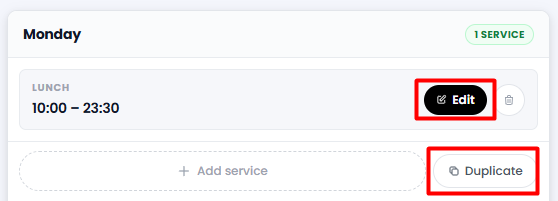
4. Once saved, your new service will appear as follows. From there, you can make modifications by clicking on the Edit button on the right, duplicate the same service for other days, or continue adding other services for the same day.
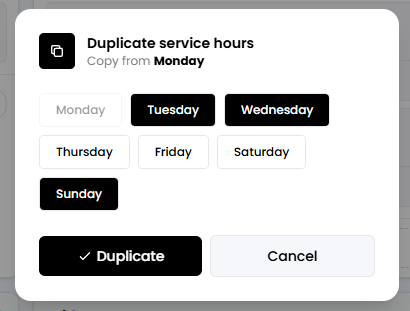
5. By clicking on Duplicate, a new tab will appear where you can select which days you would like this service to be replicated as well. When finished, click on ✓Duplicate.
While we strive to ensure the accuracy and currency of the information in our knowledgebase, some articles may contain minor discrepancies due to the constant evolution of our services and products.
Was this article helpful?
That’s Great!
Thank you for your feedback
Sorry! We couldn't be helpful
Thank you for your feedback
Feedback sent
We appreciate your effort and will try to fix the article