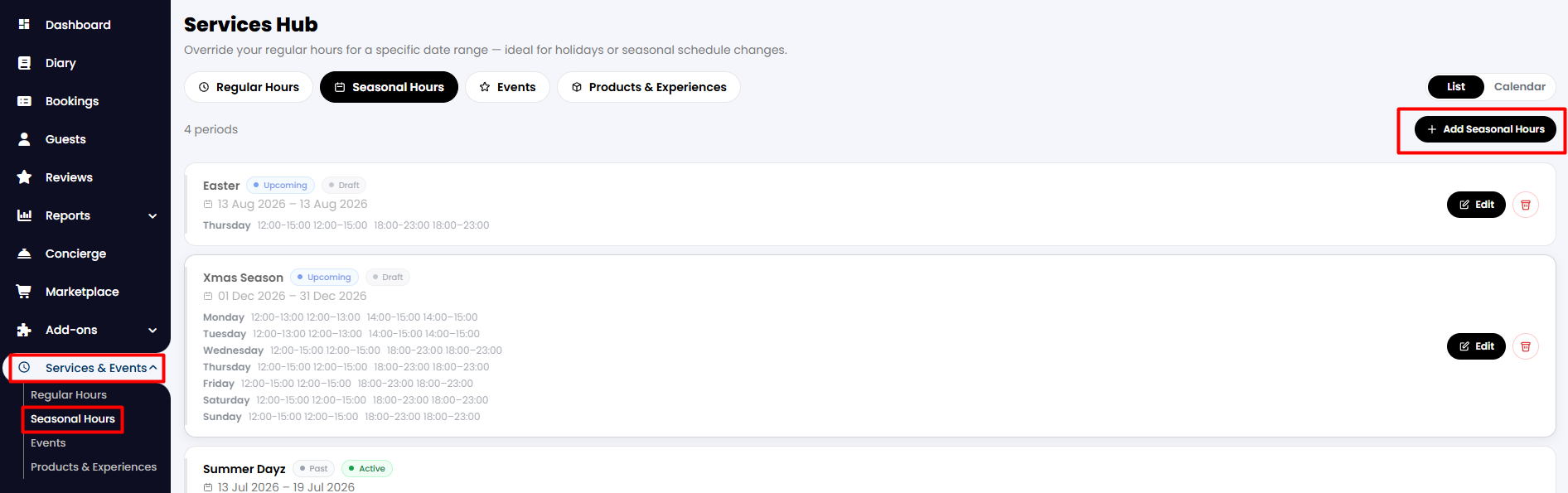
1. From your side menu, go to Service & Events > Seasonal Hours.
2. Then click the button at the top right of the screen, + Add Seasonal Hours.
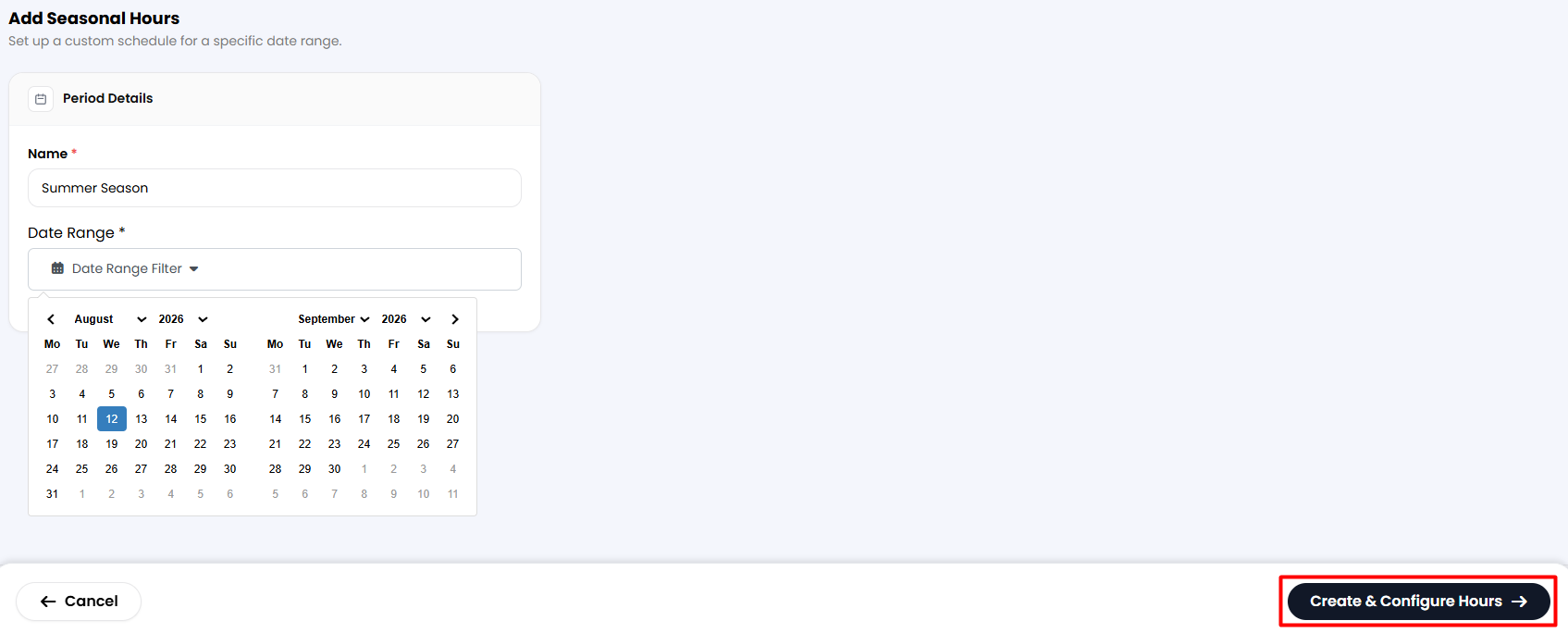
3. From here, insert the name and date range for your Seasonal Hours and click Create & Configure Hours to save.
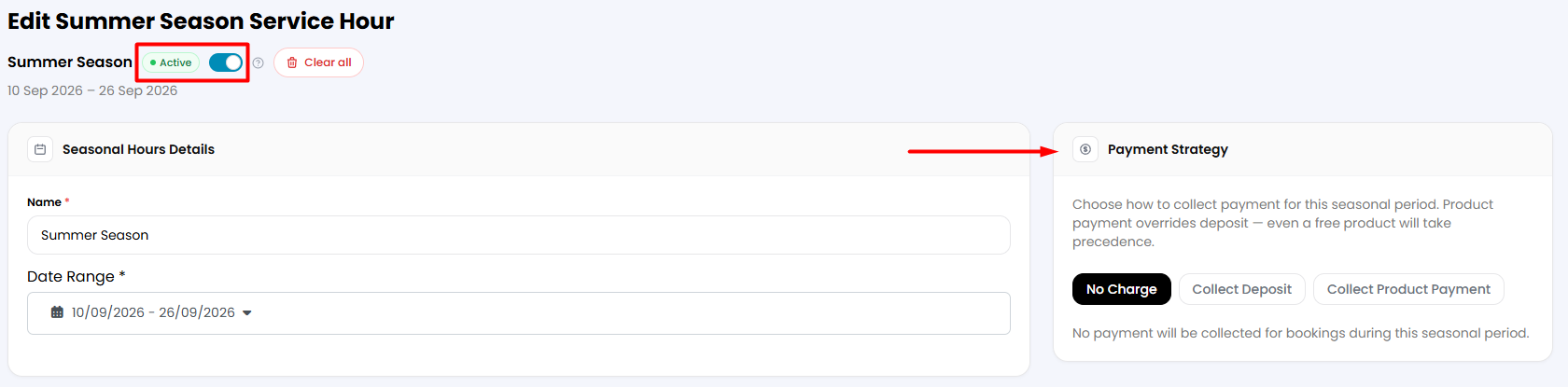
4. At the top, you can activate the Seasonal Hours so they will be updated in the widget by enabling the toggle. Note that if you set your Seasonal Hours correctly but do not activate them, Regular Hours will continue to appear.
5. On the right part of the screen, you can set your Payment Strategy to charge guests for deposits or to collect product payments.
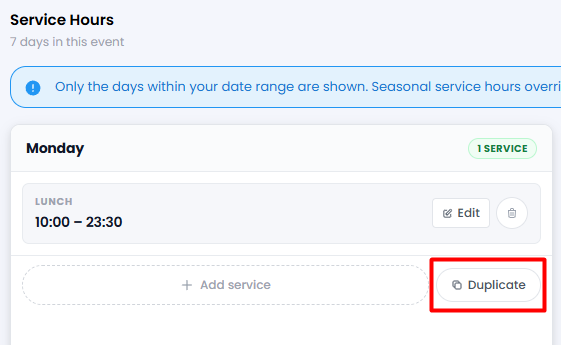
6. Scroll down and add the service hours that you are offering for this Seasonal Hours.
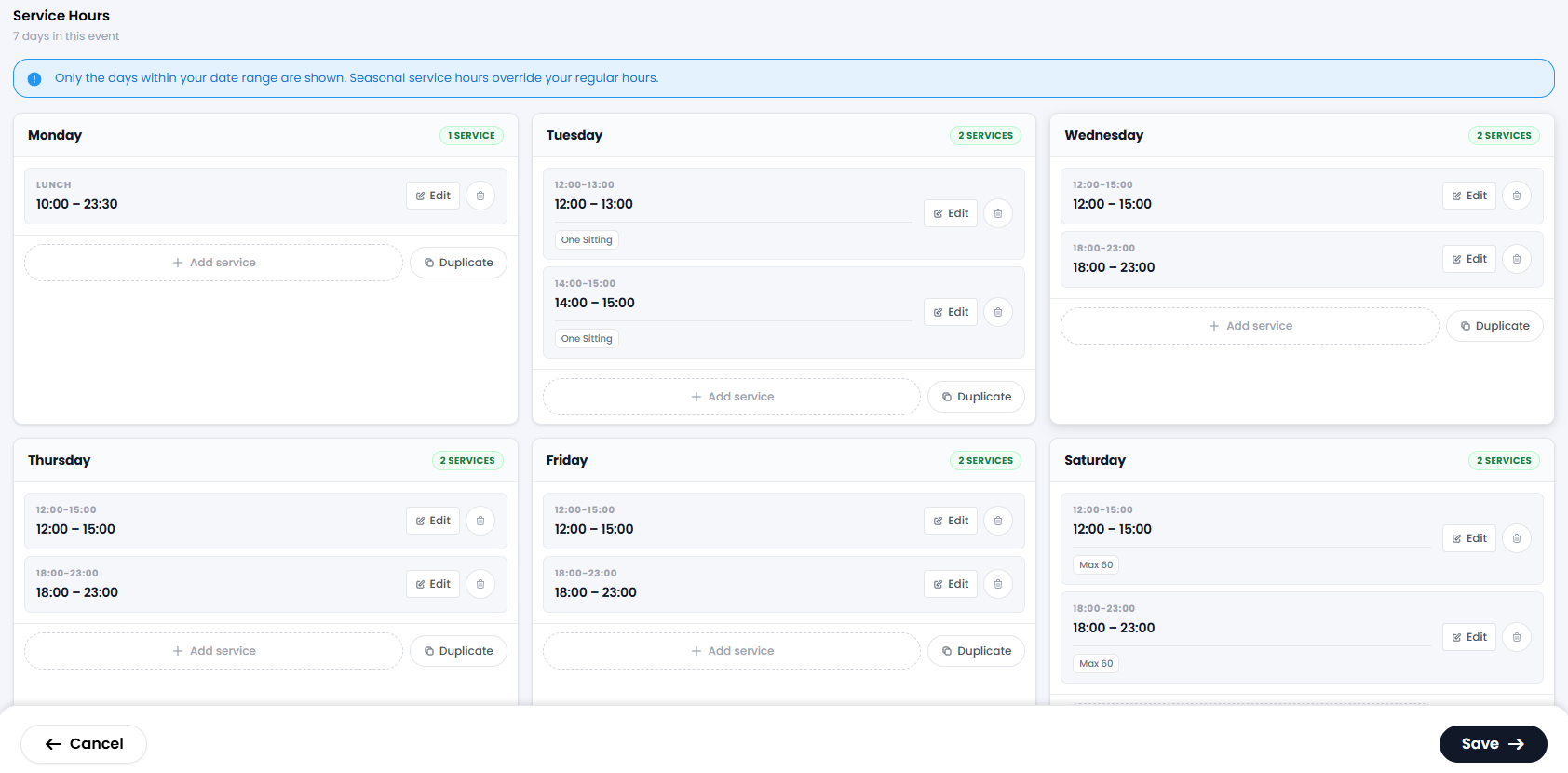
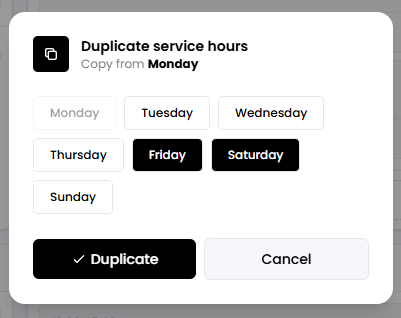
If you set the services at the same time on different days, you can easily click the Duplicate button to replicate them on other days as well.
7. Click on Save at the bottom of the page.
Was this article helpful?
That’s Great!
Thank you for your feedback
Sorry! We couldn't be helpful
Thank you for your feedback
Feedback sent
We appreciate your effort and will try to fix the article