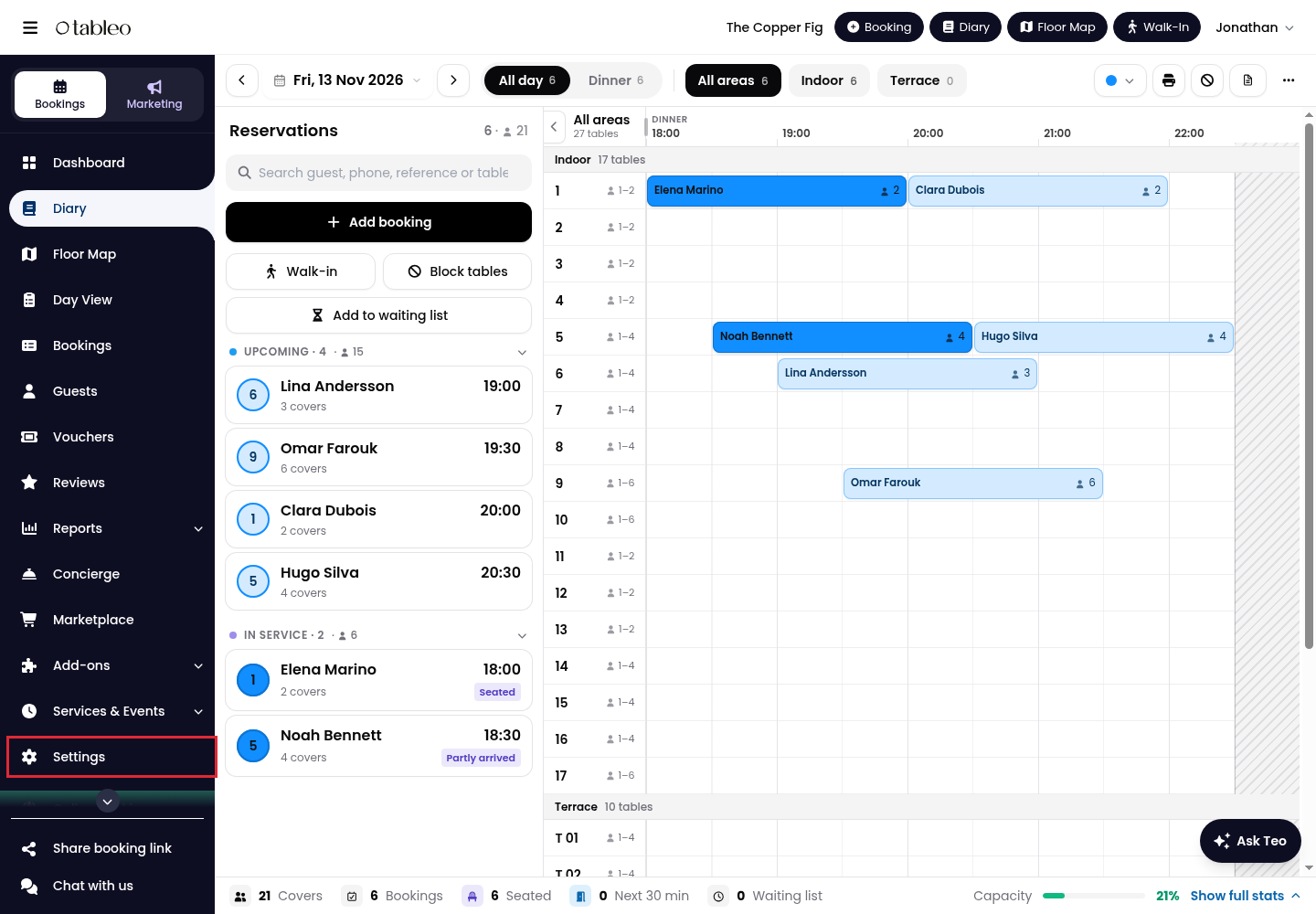
1. Click on Settings in the side menu.
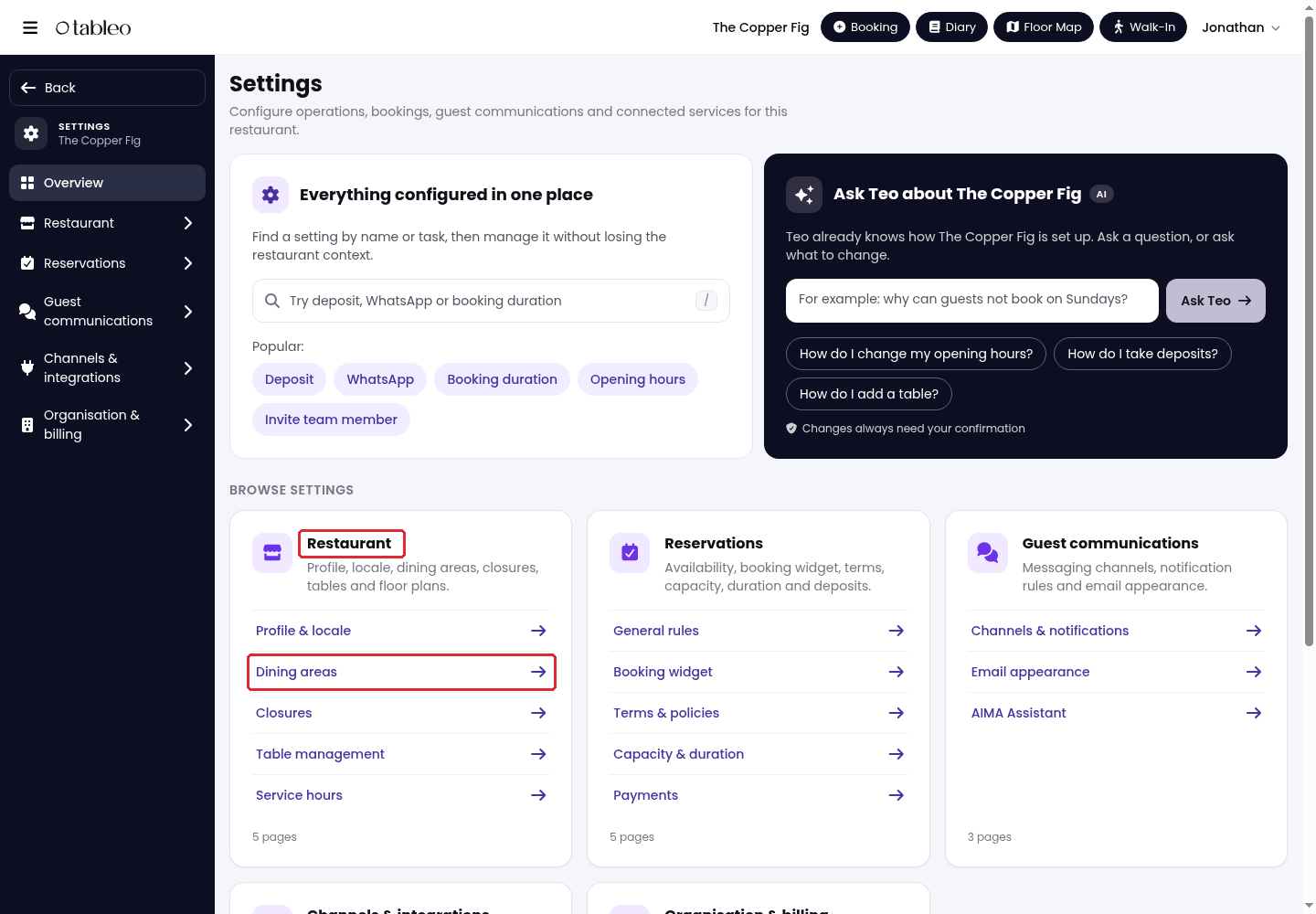
2. Go to Restaurant > Dining areas.
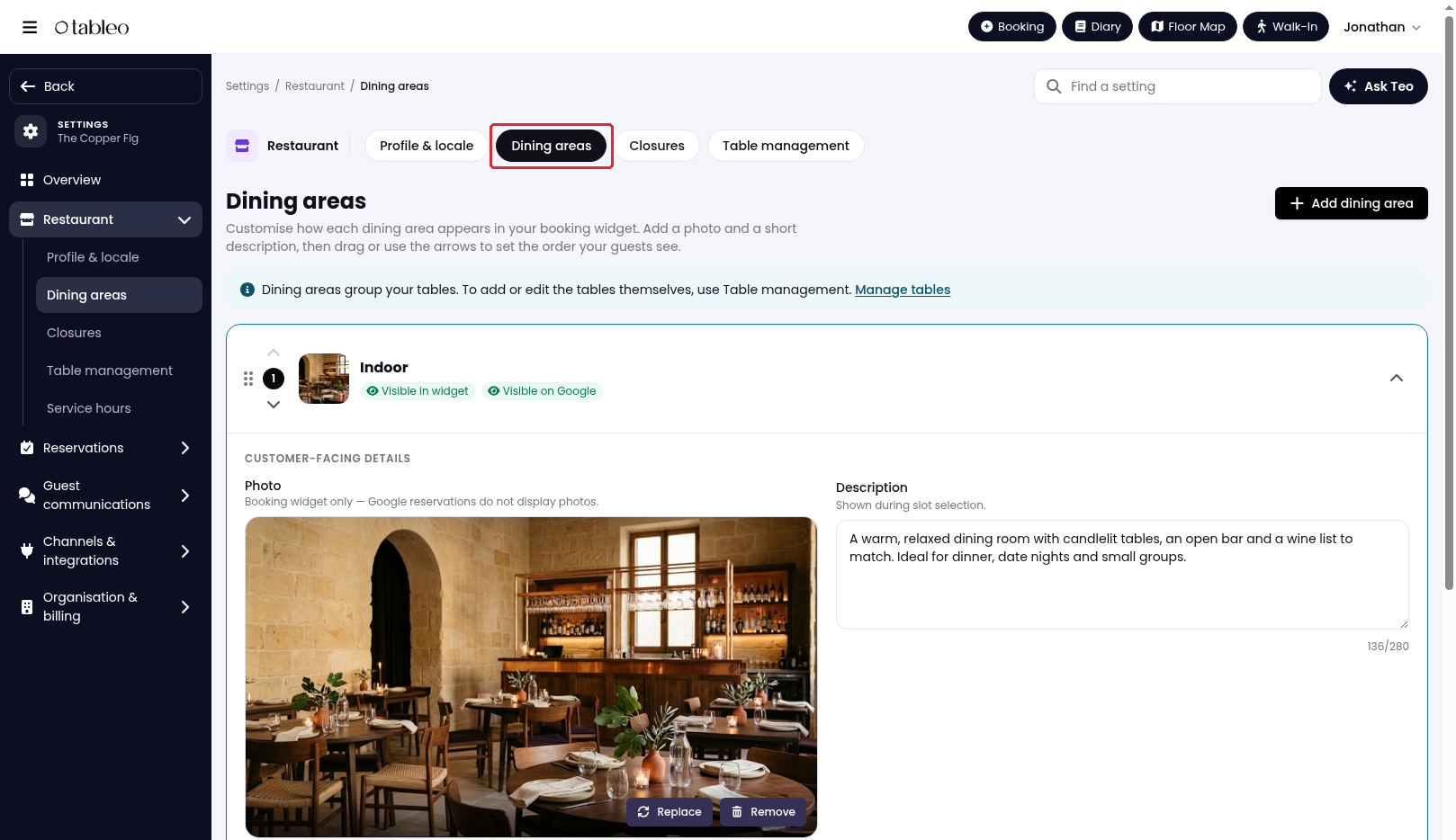
3. Click on the arrow on the right of a dining-area card to expand its details.
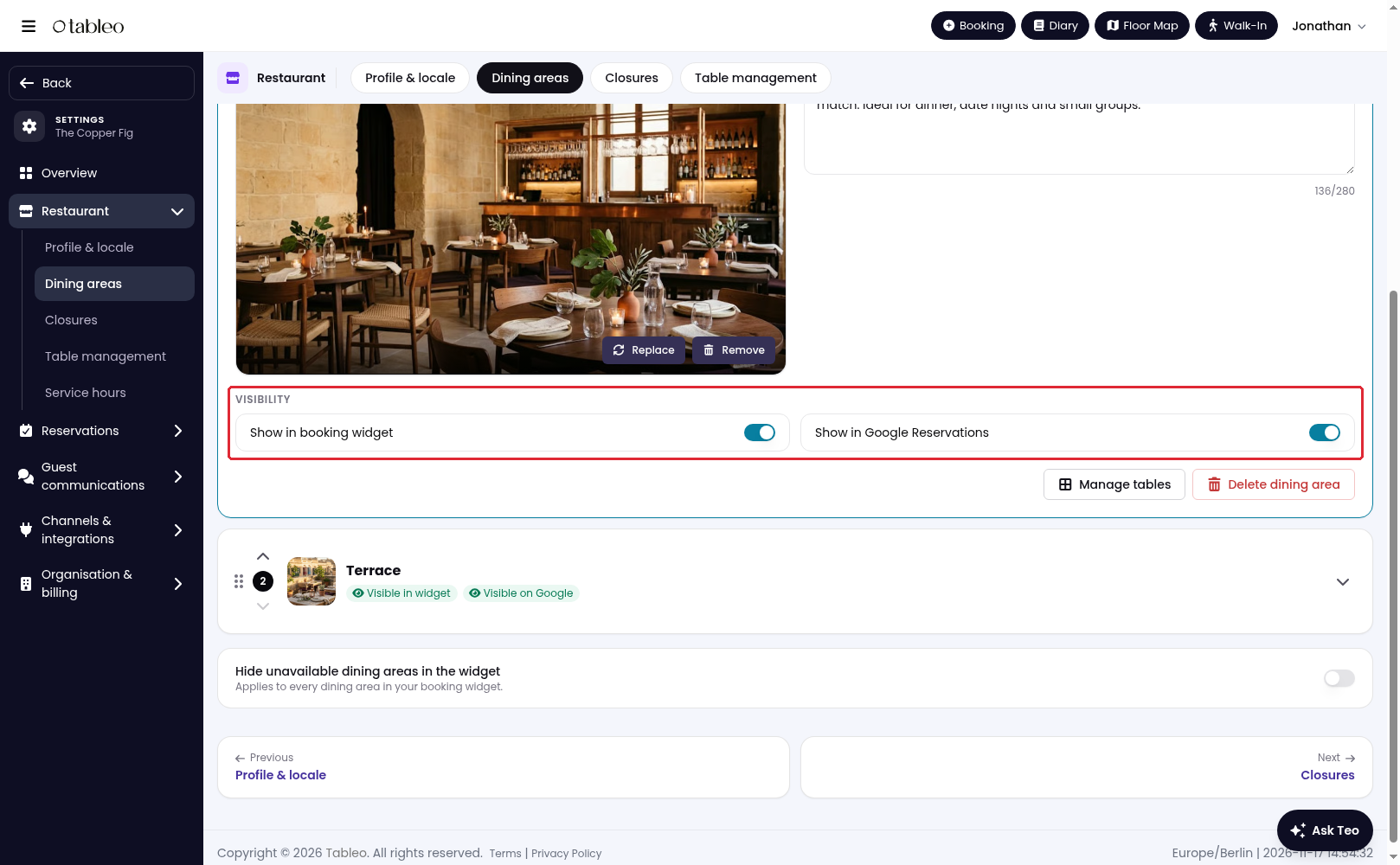
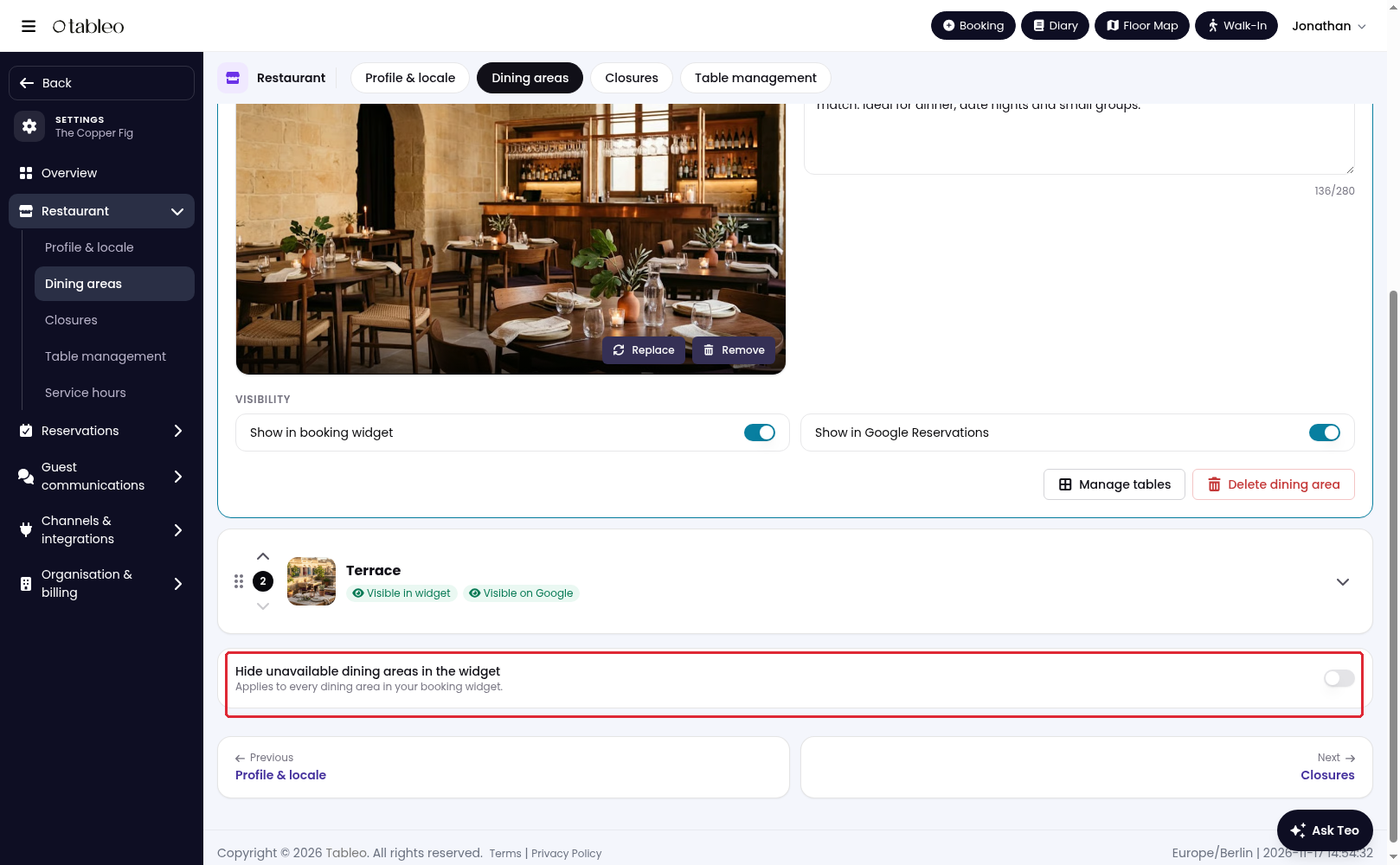
4. Scroll down within the expanded card to Visibility. Turn Show in booking widget on to show this area in the widget, or off to hide it. Show in Google Reservations controls Google visibility separately.
5. To hide fully booked or unavailable areas automatically, turn on Hide unavailable dining areas in the widget at the bottom of the page. This setting applies to every dining area, not just the expanded card.
While we strive to ensure the accuracy and currency of the information in our knowledge base, some articles may contain minor discrepancies due to the constant evolution of our services and products.
Was this article helpful?
That’s Great!
Thank you for your feedback
Sorry! We couldn't be helpful
Thank you for your feedback
Feedback sent
We appreciate your effort and will try to fix the article