Use the Calendar Report to review services and booking and cover counts across a month.
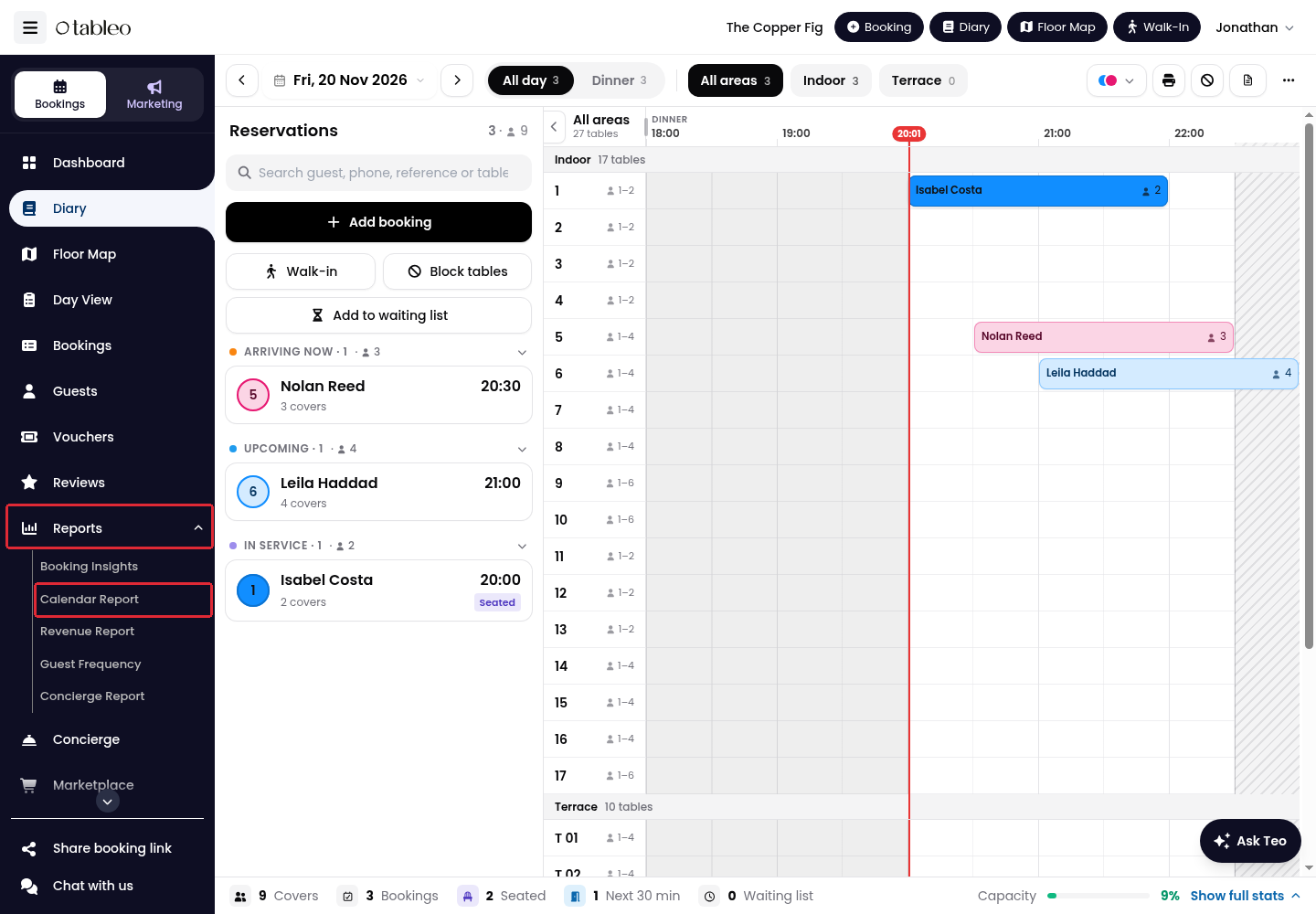
1. Expand Reports in the side menu and click on Calendar Report.
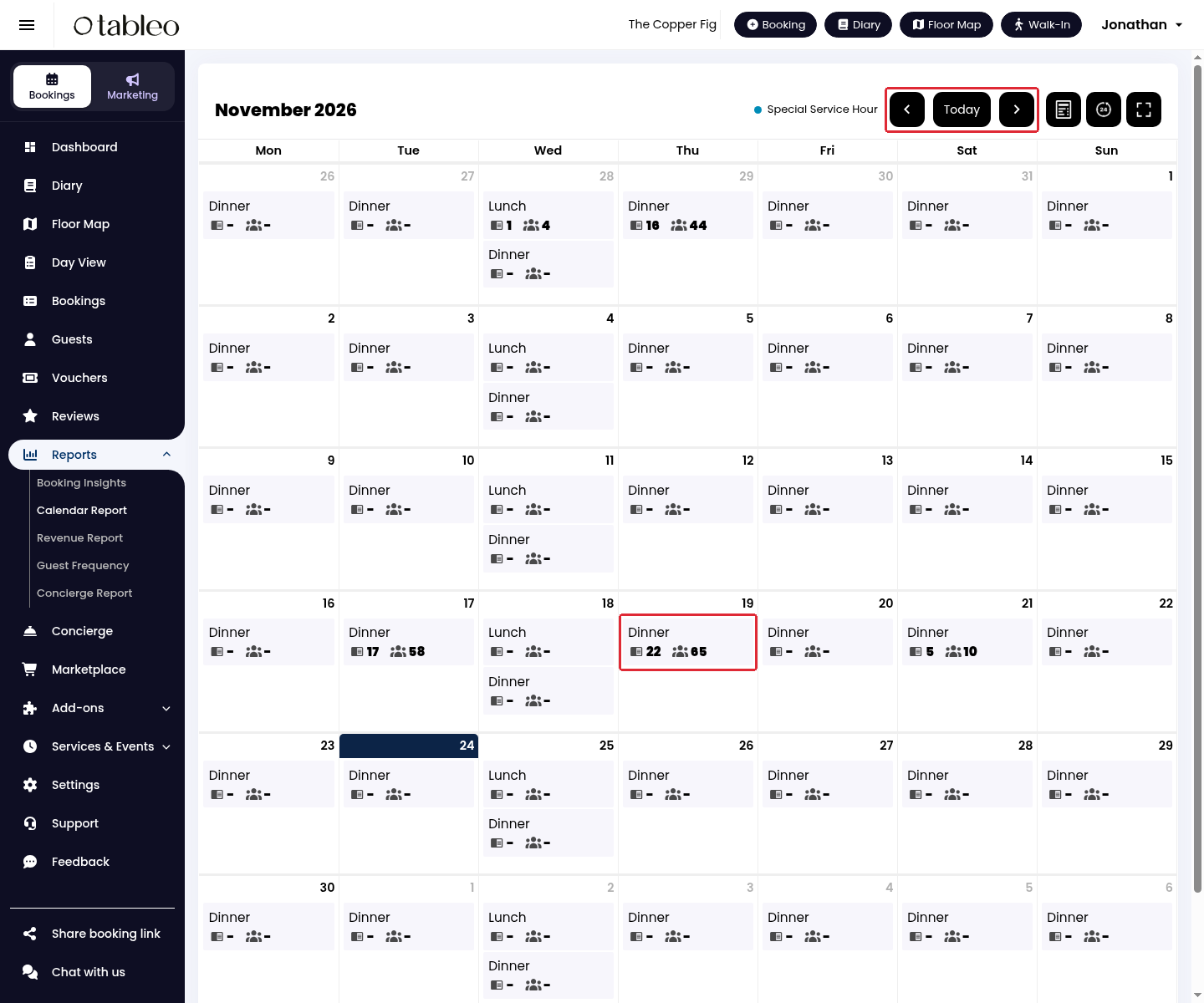
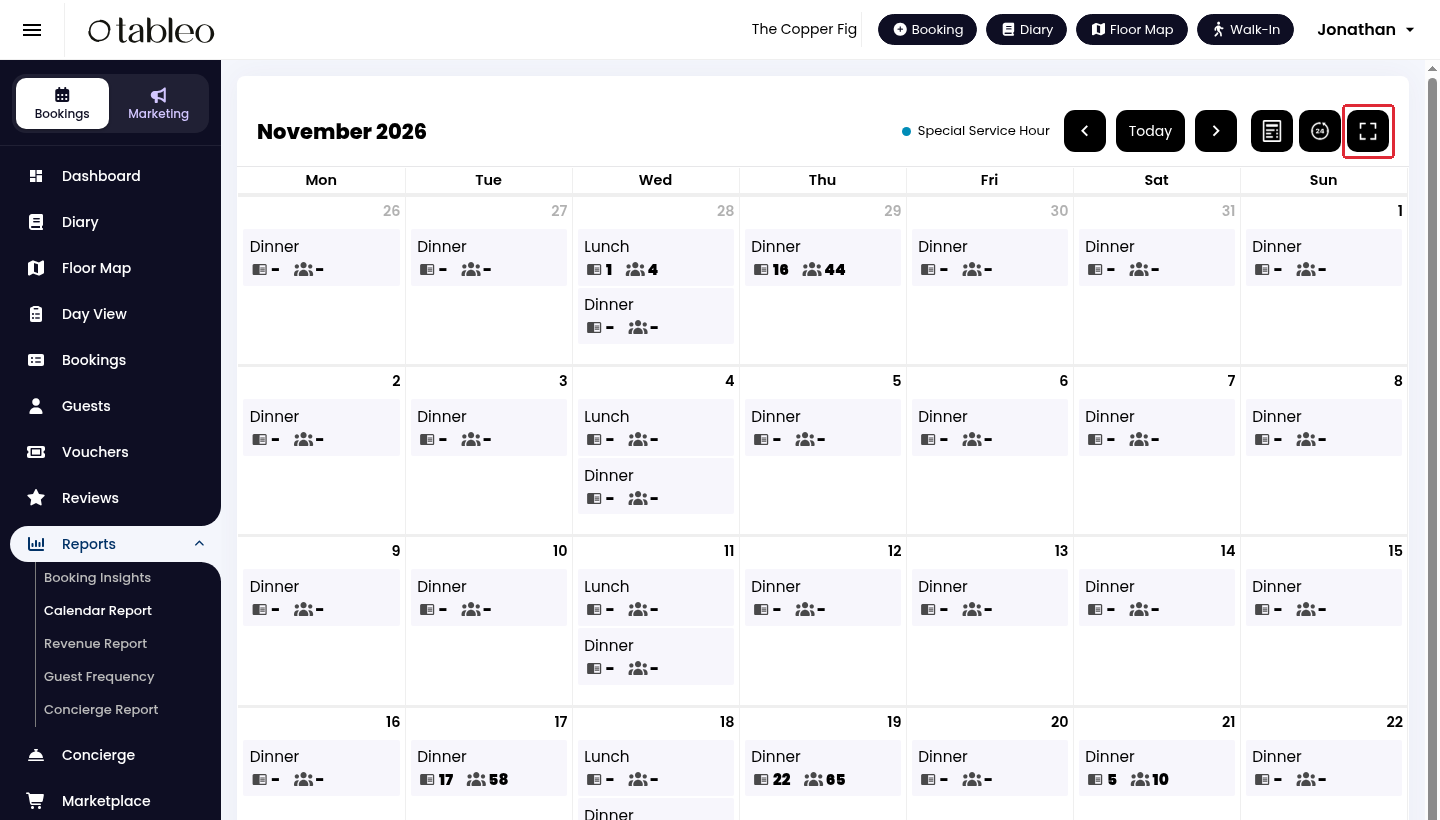
2. Use the previous and next arrows to change the month. Click on Today to return to the current month. Each day lists its services, with the booking count beside the book icon and the cover count beside the guests icon.
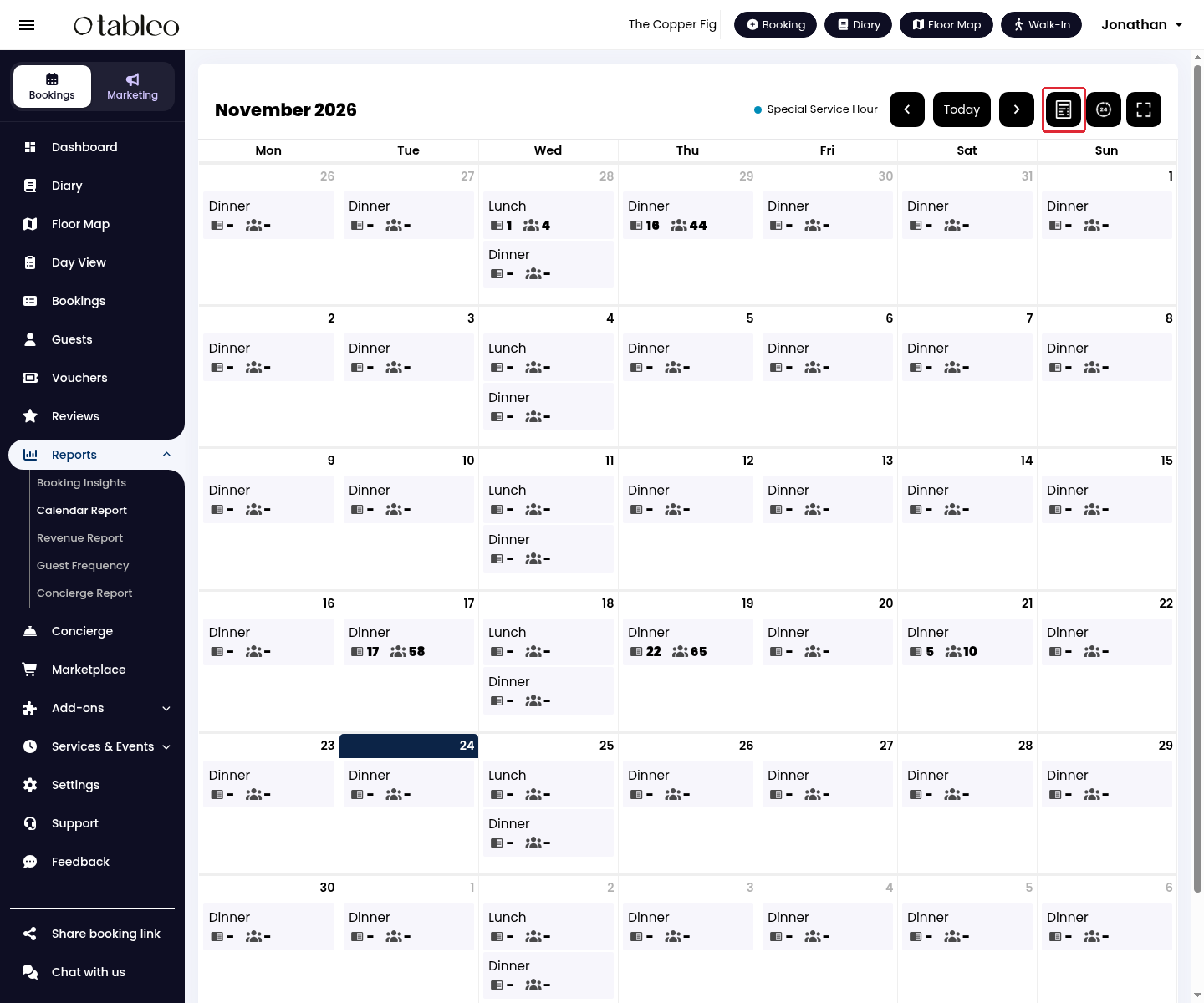
3. Click on the Day view icon at the top right to open the daily booking list. For managing bookings there, see How to use Day View during service.
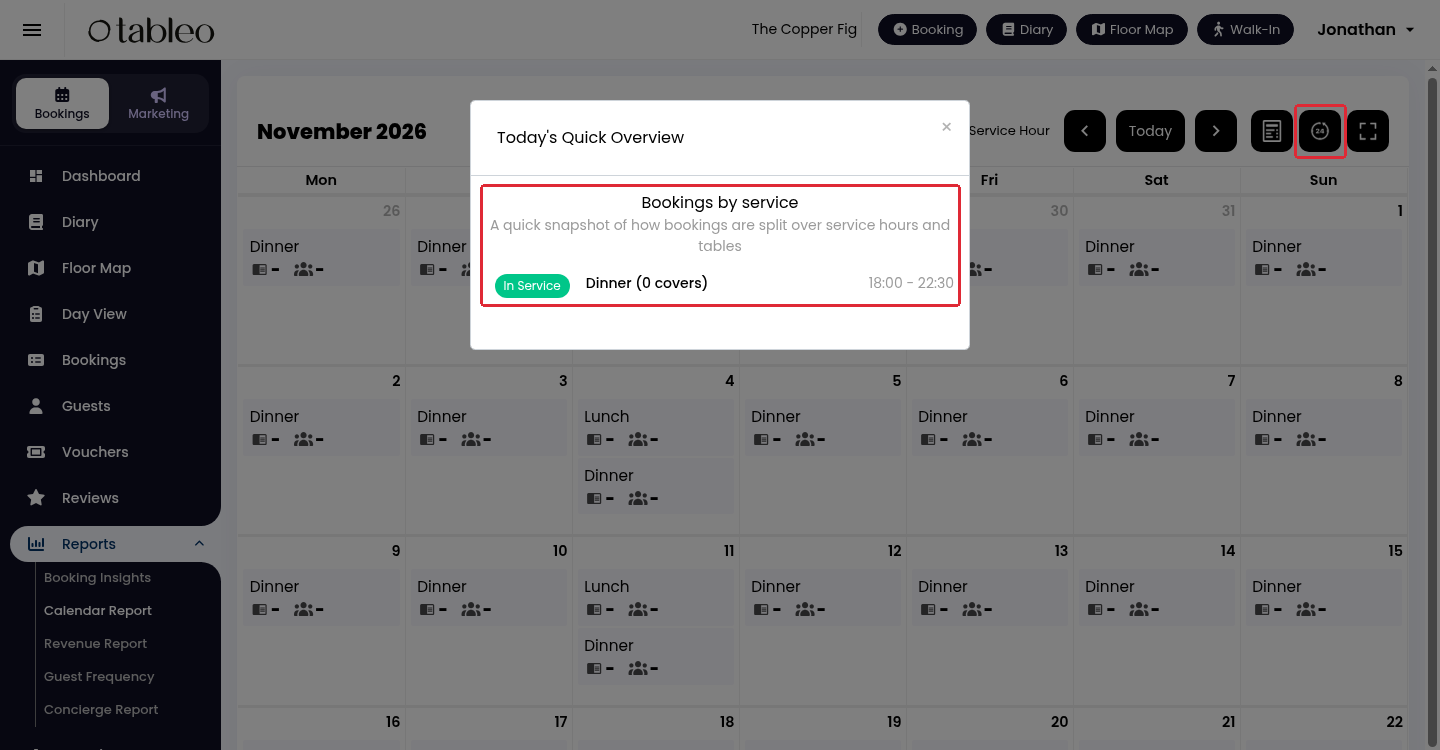
4. Click on the Stats icon to open Today's Quick Overview. Review Bookings by service for today's services, their times and cover counts.
5. Click on the Fullscreen icon to switch to the expanded calendar layout. Use Minimize to return to the normal layout.
While we strive to ensure the accuracy and currency of the information in our knowledge base, some articles may contain minor discrepancies due to the constant evolution of our services and products.
Was this article helpful?
That’s Great!
Thank you for your feedback
Sorry! We couldn't be helpful
Thank you for your feedback
Feedback sent
We appreciate your effort and will try to fix the article