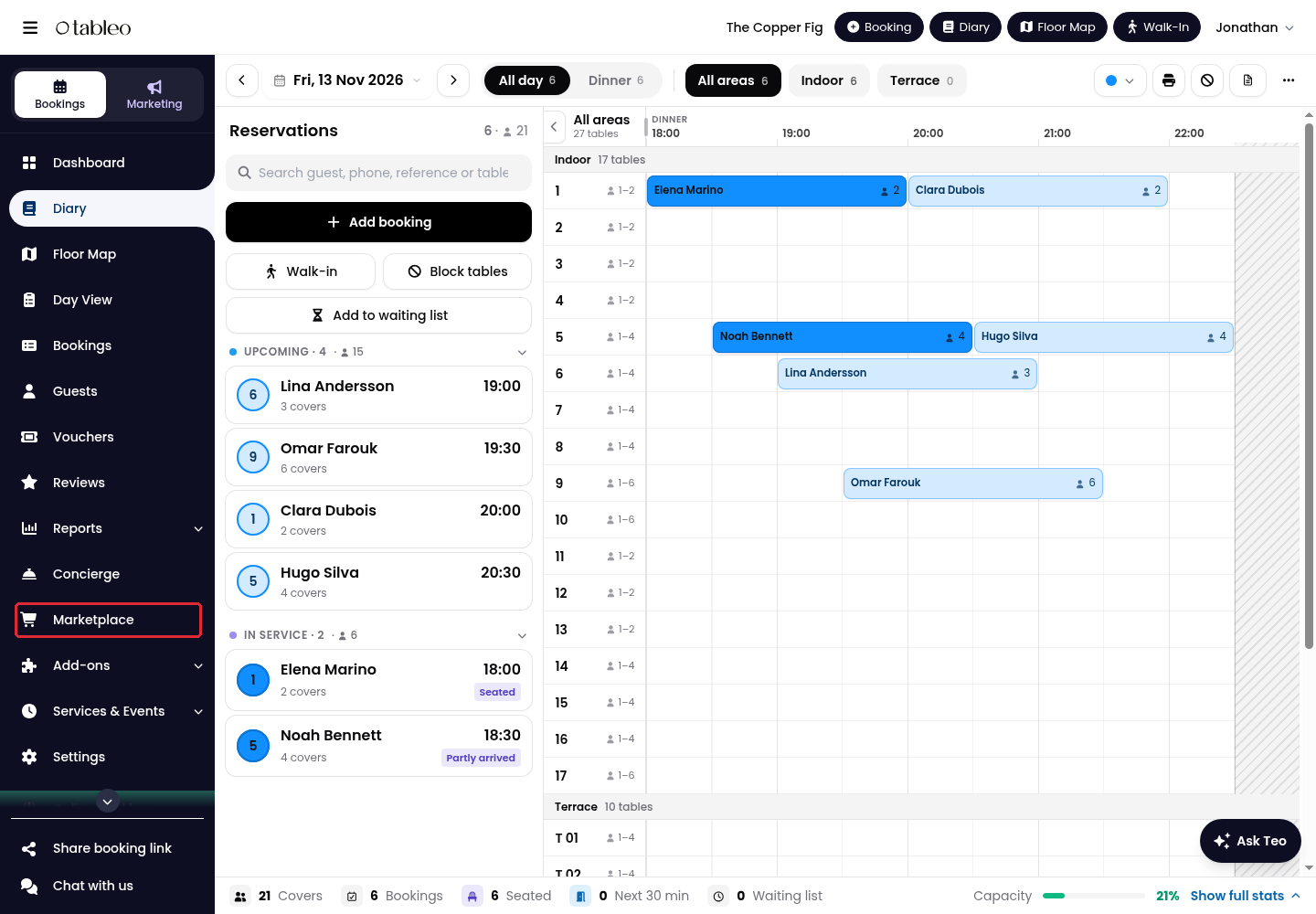
1. Click on Marketplace in the side menu.
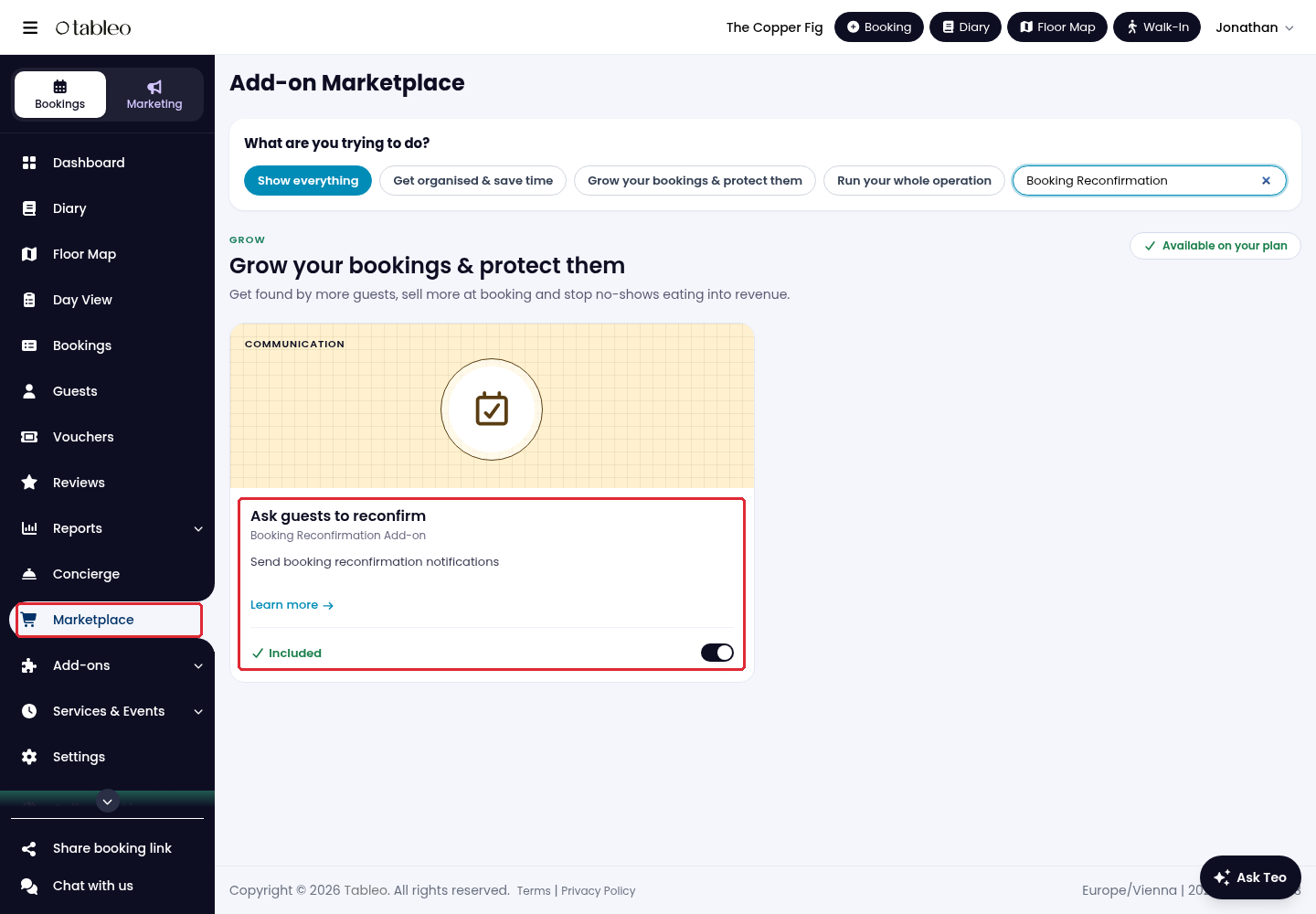
2. Find the Booking Reconfirmation Add-on and enable it before configuring reconfirmations. If it is already enabled, continue below.
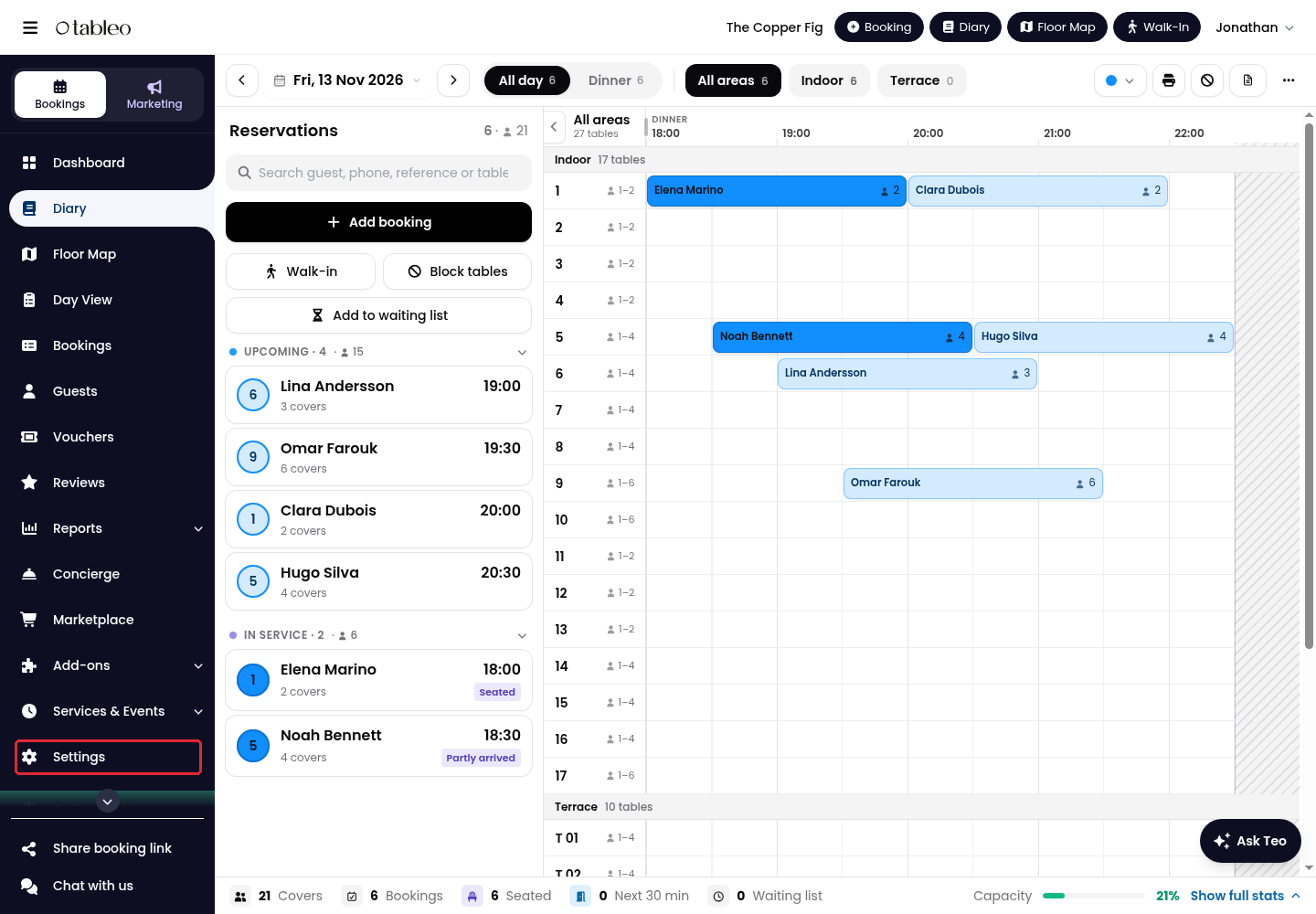
3. Click on Settings in the side menu.
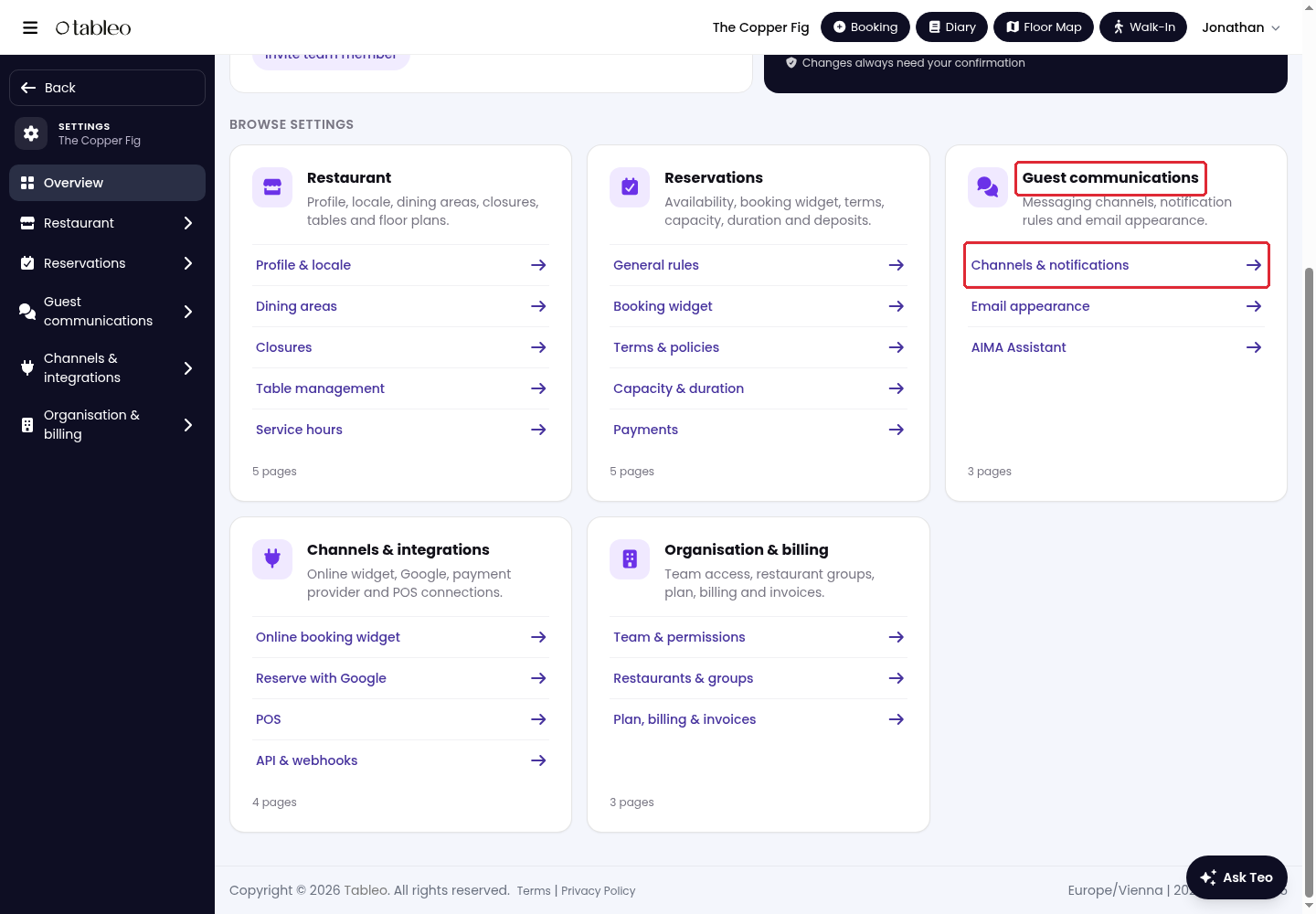
4. Under Guest communications, open Channels & notifications.
5. Open Guest notifications and enable Reminders & reconfirmation. For SMS/WhatsApp reminders, also configure the required messaging channel. Scroll down and click on Save changes.
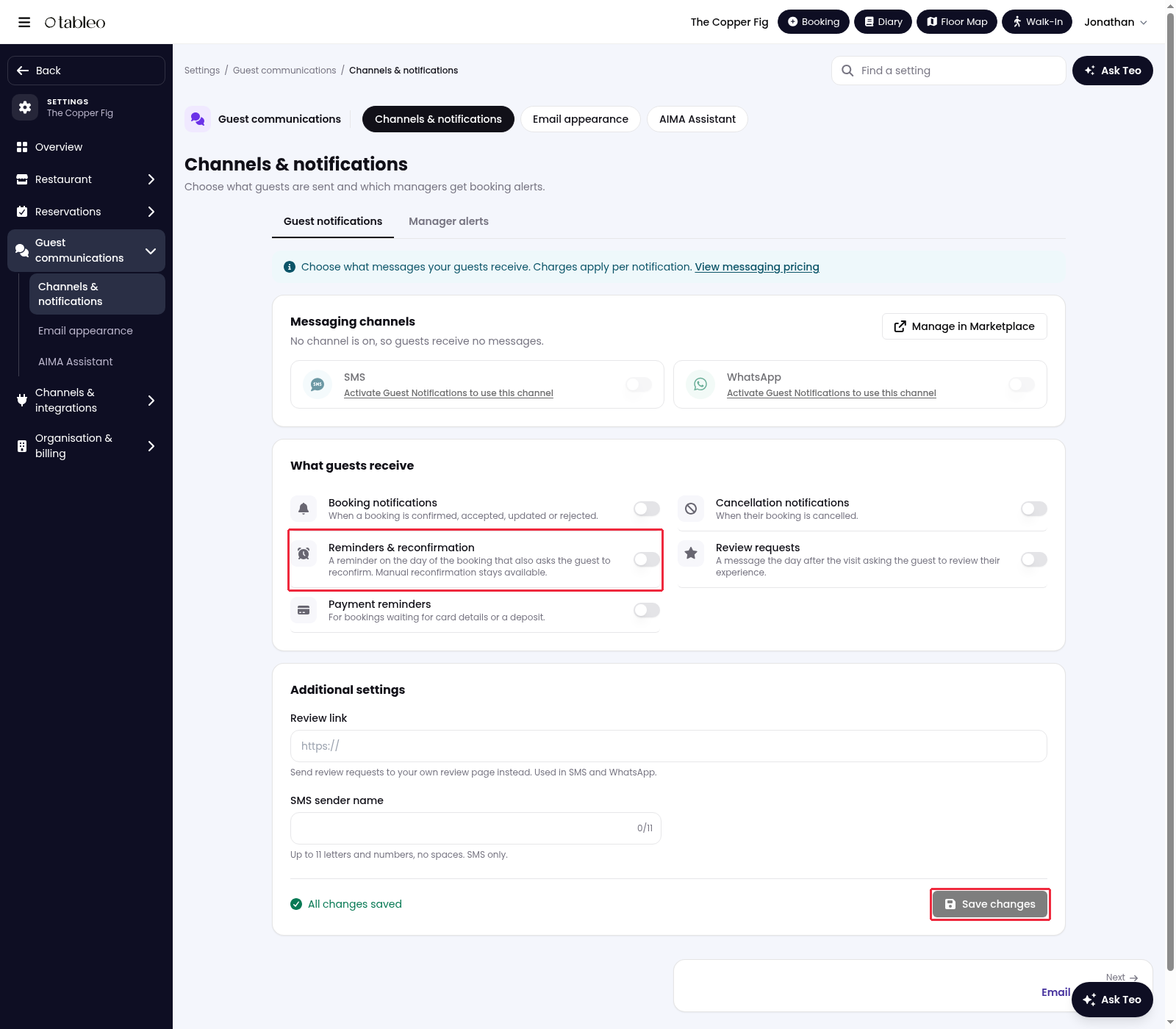
This rule sends a reminder on the day of the booking that also asks the guest to reconfirm. Manual reconfirmation remains available. SMS/WhatsApp message charges may apply.
Manual reconfirmation
1. In Diary, click on an existing booking to open its details.
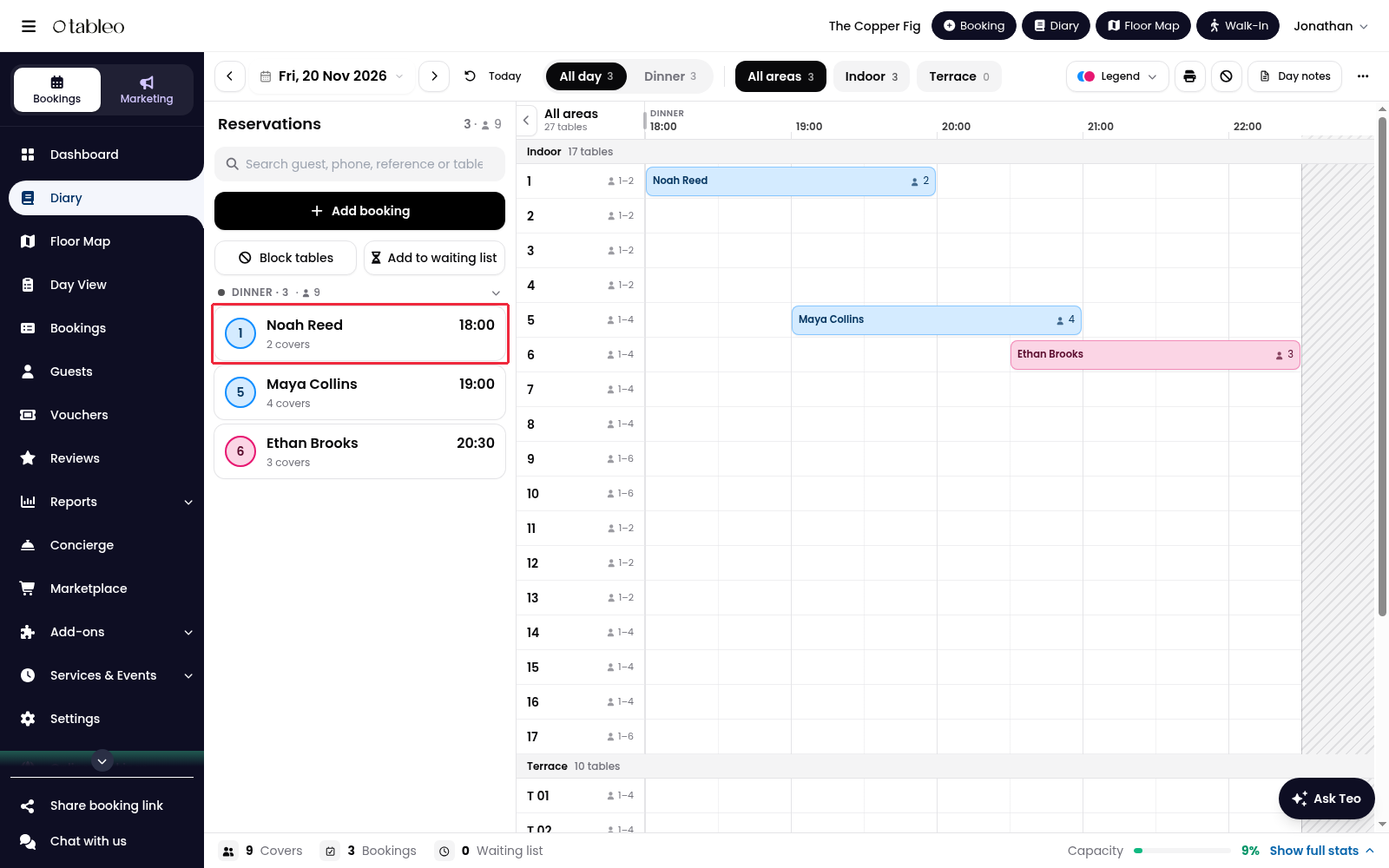
2. In the booking details, find Reconfirmation and click on Send Email. For SMS/WhatsApp, use the full Booking Details route below.
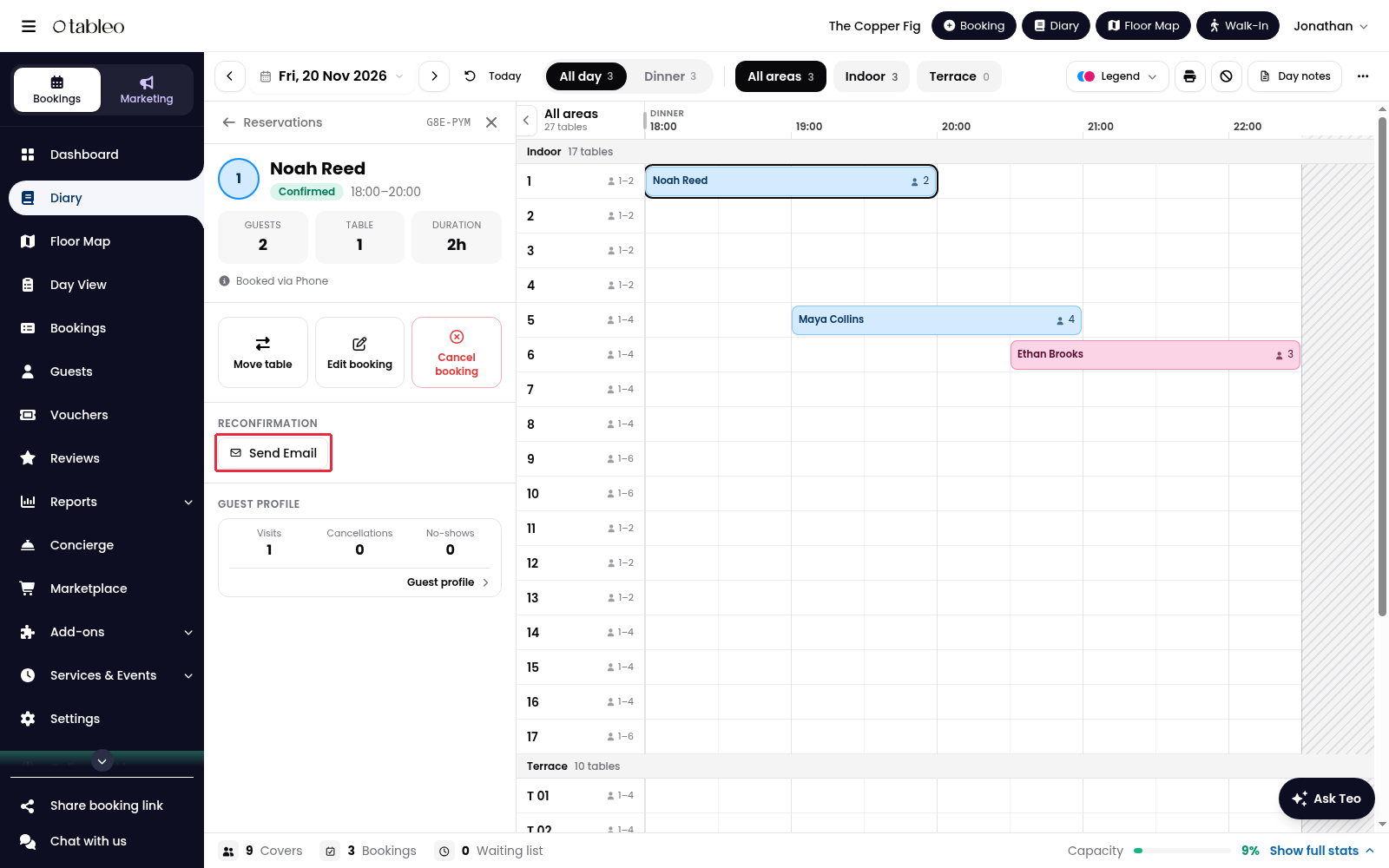
Manual SMS/WhatsApp reconfirmation from Booking Details
1. Click on Bookings in the side menu. Find the existing booking, using the search field if needed, then click on its booking reference to open the full Booking Details page.
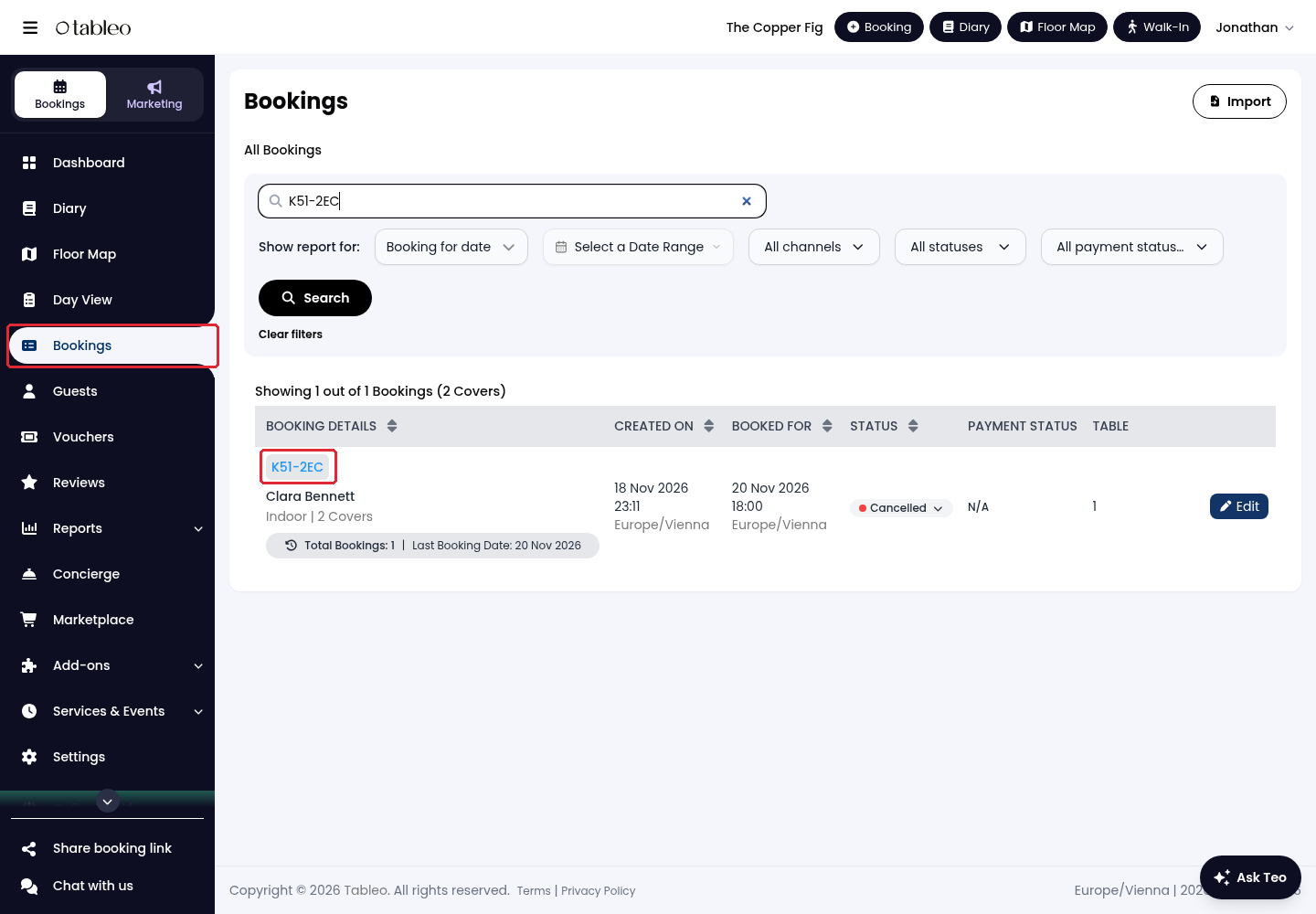
2. On the right-hand side of the full Booking Details page, find Reconfirmation and click on Send SMS/WhatsApp. You can also send an email from this card using Send email.
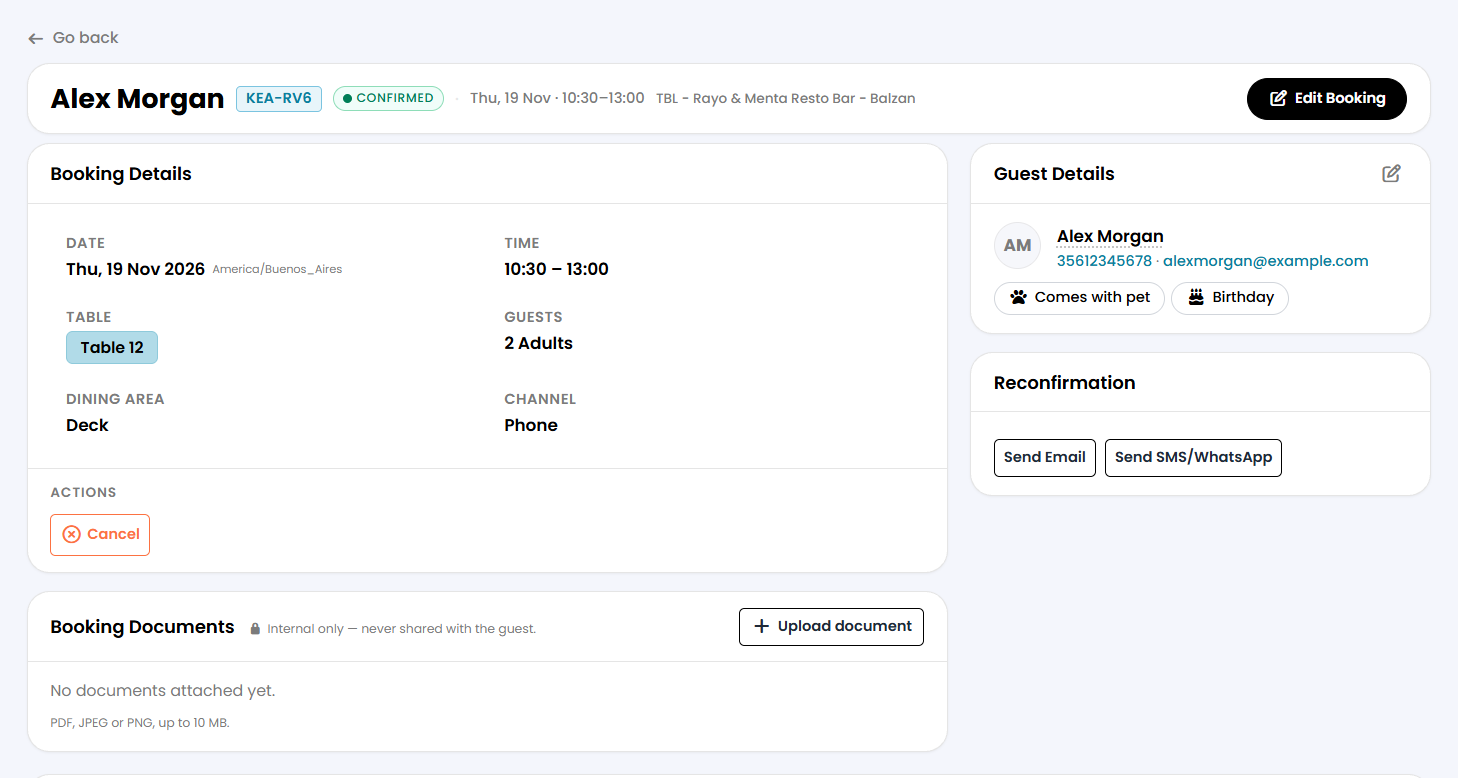
If you send the reconfirmation manually, the system will not send the automatic reconfirmation on the day of the booking.
While we strive to ensure the accuracy and currency of the information in our knowledge base, some articles may contain minor discrepancies due to the constant evolution of our services and products.
Was this article helpful?
That’s Great!
Thank you for your feedback
Sorry! We couldn't be helpful
Thank you for your feedback
Feedback sent
We appreciate your effort and will try to fix the article